
Keychron M3
Keychron M3 зымсыз оюн оптикалык чычканынын колдонуучу колдонмосу
Модел: M3
Introduction
Thank you for choosing the Keychron M3 Wireless Gaming Optical Mouse. This manual provides detailed instructions for setting up, operating, and maintaining your new mouse. The Keychron M3 is designed for versatility, offering tri-mode connectivity (2.4 GHz wireless, Bluetooth 5.1, and wired USB-C) and a high-precision sensor for optimal performance in both gaming and productivity tasks. Its lightweight and ergonomic design ensures comfort during extended use.

Figure 1: Keychron M3 Wireless Gaming Optical Mouse (White) with included USB-C and USB-A dongles.
Кутуда эмне бар
Орнотууну улантуудан мурун бардык элементтердин бар экенин текшериңиз:
- Keychron M3 Wireless Gaming Optical Mouse
- Detachable Type-C to Type-C Cable
- Type-Aдан Type-C адаптерине
- USB-C 2.4 GHz Receiver
- USB-A 2.4 GHz Receiver

Figure 2: The Keychron M3 mouse alongside its USB-C and USB-A wireless receivers.
Жайгашуу
The Keychron M3 offers three connection modes: 2.4 GHz Wireless, Bluetooth 5.1, and Wired USB-C.
2.4 ГГц зымсыз туташуу
- Locate the 2.4 GHz receiver (either Type-C or Type-A) from the packaging.
- Plug the receiver into an available USB port on your computer (Windows or Mac).
- Turn on the mouse using the switch on the bottom. Ensure it is set to the 2.4G mode.
- Чычкан автоматтык түрдө ресиверге туташып турушу керек.
Bluetooth 5.1 туташуу
- Turn on the mouse and set the switch on the bottom to the Bluetooth mode.
- On your computer (Windows or Mac), open Bluetooth settings.
- Издөө new devices. The mouse should appear as "Keychron M3".
- Select "Keychron M3" to pair.
Зымдуу USB-C туташуу
- Connect one end of the provided Type-C to Type-C cable to the mouse.
- Connect the other end to a USB-C port on your computer. If your computer only has USB-A ports, use the included Type-A to Type-C adapter.
- Чычкан зымдуу чычкан катары иштейт жана бир эле учурда заряддалат.
Иштөө нускамалары
The Keychron M3 is designed for intuitive use with advanced customization options.
DPI тууралоо
The mouse features a PixArt PAW 3395 sensor with up to 26,000 DPI. You can adjust the DPI sensitivity on-the-fly using the dedicated DPI button, typically located near the scroll wheel. Pressing this button cycles through preset DPI levels.

Figure 3: The top of the Keychron M3 mouse, highlighting the scroll wheel and the DPI adjustment button.
Programmable Buttons and RGB Lighting
The Keychron M3 includes programmable macro buttons and customizable RGB lighting effects. To personalize these features, download and install the Keychron Engine software from the official Keychron webсайт.
- Keychron Engine Software: This software allows you to:
- Modify key assignments and set shortcuts.
- RGB жарык эффекттерин жана түстөрүн өзгөчөлөштүрүү.
- Create and assign dedicated macros.
- Adjust professional settings such as Lift-Off Distance (LOD), polling rate (up to 1000 Hz), and DPI.
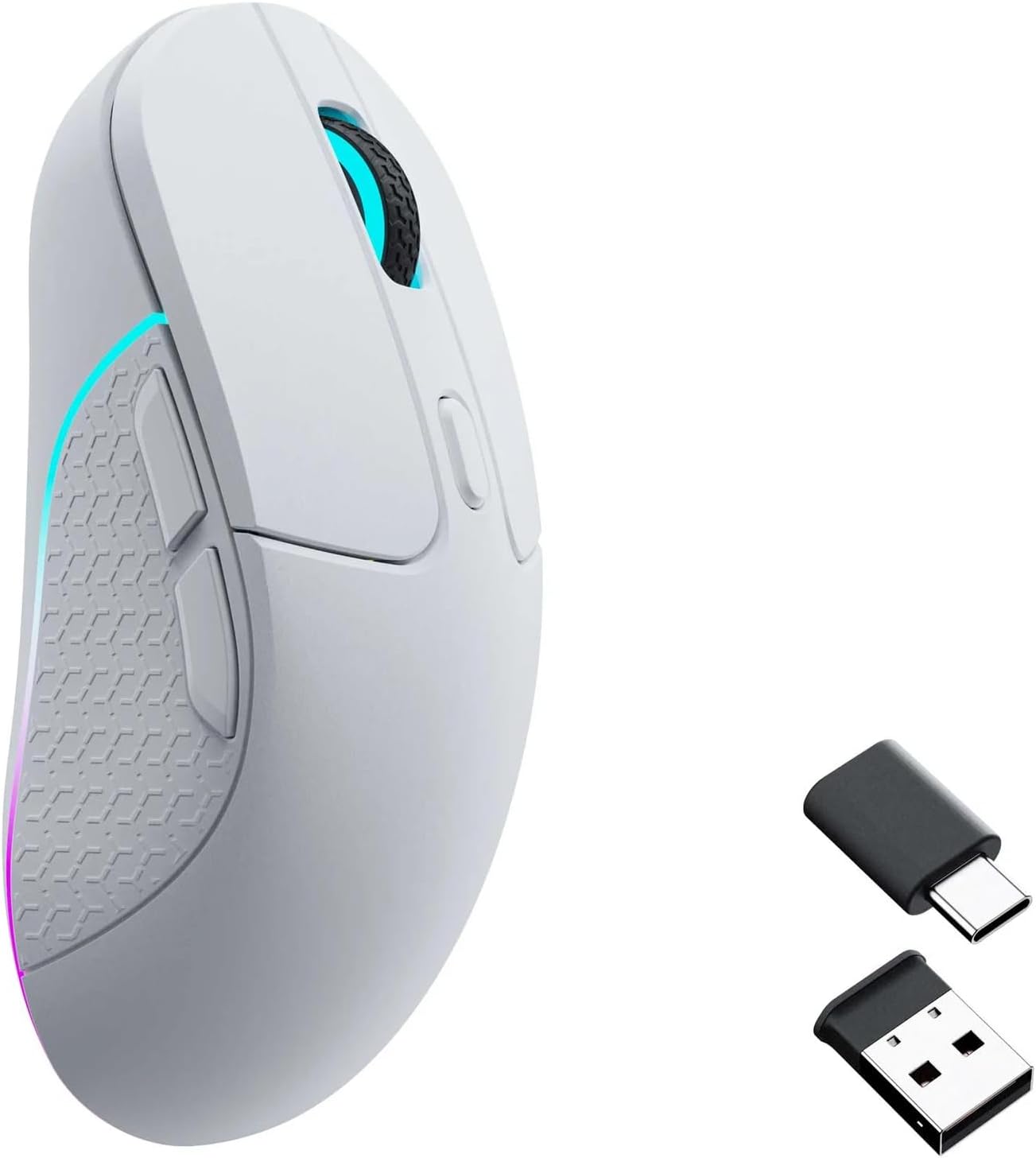
Figure 4: Screenshot of the Keychron Engine software, demonstrating the interface for customizing mouse settings and RGB lighting.

Figure 5: The Keychron M3 mouse displaying its customizable RGB lighting effects.
Техникалык тейлөө
To ensure the longevity and optimal performance of your Keychron M3 mouse, follow these maintenance guidelines:
- Тазалоо: Чычкандын бетин сүртүү үчүн жумшак, кургак чүпүрөктү колдонуңуз. өжөр кир үчүн, бир аз гampчүпүрөктү суу же жумшак, абразивдүү тазалагыч менен жууп салыңыз. Ашыкча нымдуулуктан сактаныңыз.
- Сенсорго кам көрүү: Keep the optical sensor on the bottom of the mouse clean and free of dust or debris. Use a cotton swab or compressed air if necessary.
- Сактагыч: Узак мөөнөткө колдонулбаганда, чычканды күн нурунан жана экстремалдык температурадан алыс салкын, кургак жерде сактаңыз.
- Батареянын иштөө мөөнөтү: The mouse is powered by a nonstandard battery. Charge the mouse using the provided USB-C cable when the battery indicator shows low power.
Проблемаларды чечүү
| Көйгөй | Мүмкүн себеп | Чечим |
|---|---|---|
| Mouse not responding (2.4 GHz Wireless) | Receiver not properly connected; mouse not in 2.4G mode; low battery. | Ensure receiver is fully inserted. Check mouse switch is set to 2.4G. Charge the mouse. |
| Чычкан туташпай жатат (Bluetooth) | Mouse not in Bluetooth pairing mode; Bluetooth disabled on computer; interference. | Ensure mouse switch is set to Bluetooth. Enable Bluetooth on your computer. Try re-pairing. Move closer to the computer. |
| Так эмес көз салуу же курсордун артта калуусу | Dirty optical sensor; unsuitable surface; low battery; wireless interference. | Clean the optical sensor. Use a mouse pad or a clean, non-reflective surface. Charge the mouse. Reduce wireless interference by moving other devices. |
| Баскычтар же сыдырма дөңгөлөк иштебей жатат | Программалык камсыздоонун иштебей калышы; физикалык тоскоолдук. | Restart your computer. Check for debris around buttons/scroll wheel. Reinstall Keychron Engine software if applicable. |
Техникалык шарттар
- Модел: M3
- Сенсор: PixArt PAW 3395
- DPI: 26,000 XNUMX DPI чейин
- IPS: 650 IPS чейин
- Добуш берүү көрсөткүчү: 1000 Гц чейин
- Байланыш: Tri-Mode (2.4 GHz Wireless, Bluetooth 5.1, Wired USB-C)
- Салмагы: Болжол менен 79г (2.79 унция)
- Өлчөмдөрү: 125.2 мм (узундугу) x 66.4 мм (туурасы) x 40.6 мм (бийиктиги)
- Батарея: 1 Стандарттуу эмес батарея (кайра заряддалуучу)
- Шайкеш түзмөктөр: Windows PC, Mac
- Камтылган компоненттер: Detachable Type-C to Type-C Cable, Type-A to Type-C Adapter, USB-C 2.4 GHz Receiver, USB-A 2.4 GHz Receiver

Figure 6: Detailed dimensions of the Keychron M3 mouse.
Кепилдик жана колдоо
Кепилдик жөнүндө маалымат жана техникалык колдоо алуу үчүн, расмий Keychron сайтына кайрылыңыз website or contact Keychron customer service directly. Keep your purchase receipt as proof of purchase for warranty claims.
Өндүрүүчү: Keychron
Официалдуу Webсайт: www.keychron.com
Ask a question about this manual
Ask about setup, troubleshooting, compatibility, parts, safety, or missing instructions. Manuals+ will review the question and use this page’s manual context to help answer it.