
1. Киришүү
This manual provides detailed instructions for the ShanWan Mobile Game Controller Q17SP. This versatile wireless controller is designed for use with Nintendo Switch, Switch OLED, iOS (iPhone), and Android devices, enhancing your gaming experience across multiple platforms. Please read this manual carefully before use to ensure proper operation and to maximize your enjoyment of the product.
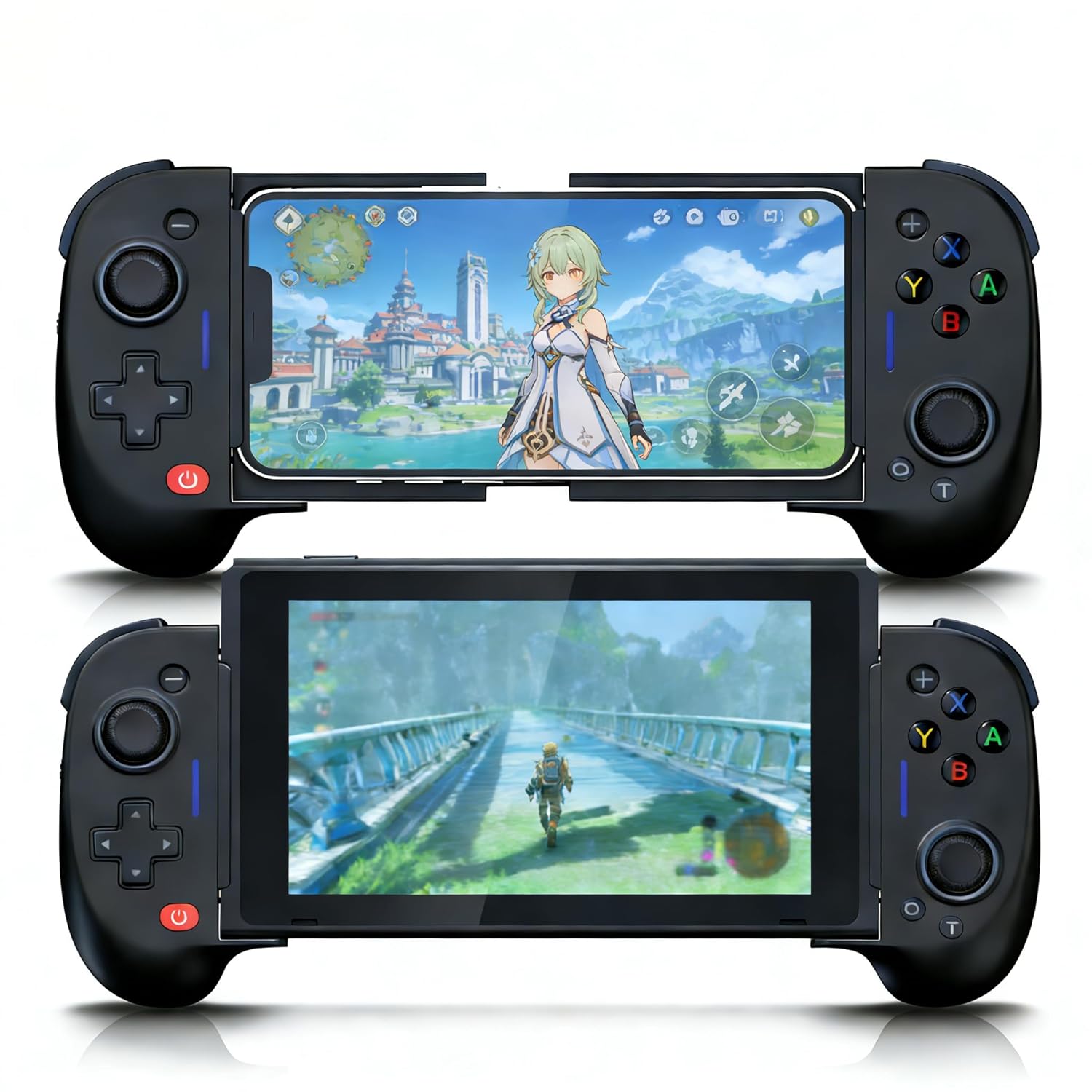
Image: The ShanWan Mobile Game Controller Q17SP, a black wireless gamepad with a retractable center for holding mobile devices or a Nintendo Switch console.
2. Продукциянын өзгөчөлүктөрү
- Кеңири шайкештик: Fully compatible with Nintendo Switch/Switch OLED, Android, and iOS devices. Supports cloud gaming, mobile gaming, and emulators for various titles including Genshin Impact, Call of Duty Mobile, and Fortnite.
- Vibration Function & Motion Control: Features dual vibration motors with adjustable intensity (weak, moderate, strong) for enhanced game immersion. Includes a 6-axis gyro sensor for precise motion control in compatible Switch games.
- Bluetooth 5.0 & Long Battery Life: Utilizes Bluetooth 5.0 for stable wireless connection. Equipped with a built-in 600mAh rechargeable battery, providing approximately 25 hours of playtime on a single charge. Recharges in under 2 hours via the included Type-C cable. Automatic power-off after 15 minutes of inactivity conserves battery.
- Жөнгө салынуучу турбо функциясы: Supports auto/manual turbo settings with three speed levels (6.25/12.25/25 Hz per second). Customizable TURBO button for A/B/X/Y/LT/LB/RT/RB buttons, simplifying rapid inputs in action games.
- Customizable Joystick & Linear Trigger Buttons: Compatible with the GamePad Space application for customizing all physical buttons. Linear shoulder buttons offer multi-stage performance, allowing precise speed control in games.

Image: The controller displaying compatibility with Apple iOS, Android, and Nintendo Switch platforms, along with various gaming services like PS Remote Play, Xbox Game Pass, Steam Link, Rainway, and NVIDIA.
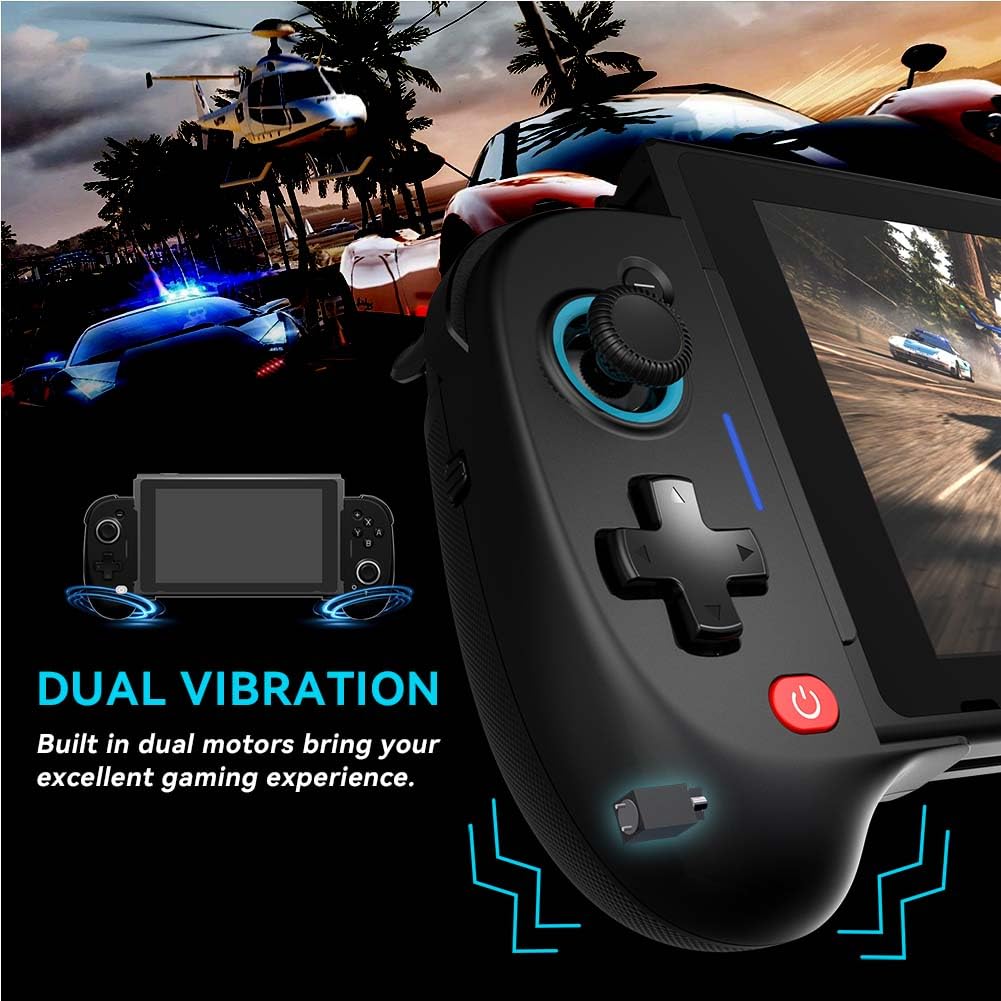
Image: A close-up of the controller highlighting the dual vibration motors, indicating an immersive gaming experience.

Image: The controller with a visual representation of its 6-axis gyro sensor, demonstrating its capability for precise somatosensory control in games.
3. Орнотуу жана туташуу
3.1 Системалык талаптар
- iOS: 13.0 версиясы же андан кийинкиси
- Android: Version 9.0 же андан кийинки
- Nintendo Switch / Switch OLED

Image: A close-up of the controller's side, showing the 'S' and 'P' mode switch. 'S' mode is for Switch/Switch OLED, and 'P' mode is for mobile phones (iOS/Android).
3.2 Connecting to Nintendo Switch / Switch OLED
- Ensure the controller's mode switch (located on the side) is set to 'S' for Switch mode.
- Nintendo Switch'иңизде HOME менюсуна өтүңүз.
- Тандоо Контроллер > Катуу/Тартипти өзгөртүү.
- For the first connection, press and hold the power button on the controller for 3 seconds until the indicator lights blink rapidly.
- Once successfully paired, the LED indicator on the controller will remain on, and the controller will be displayed on the Switch host screen.
- For subsequent connections, simply press the power button to reconnect.
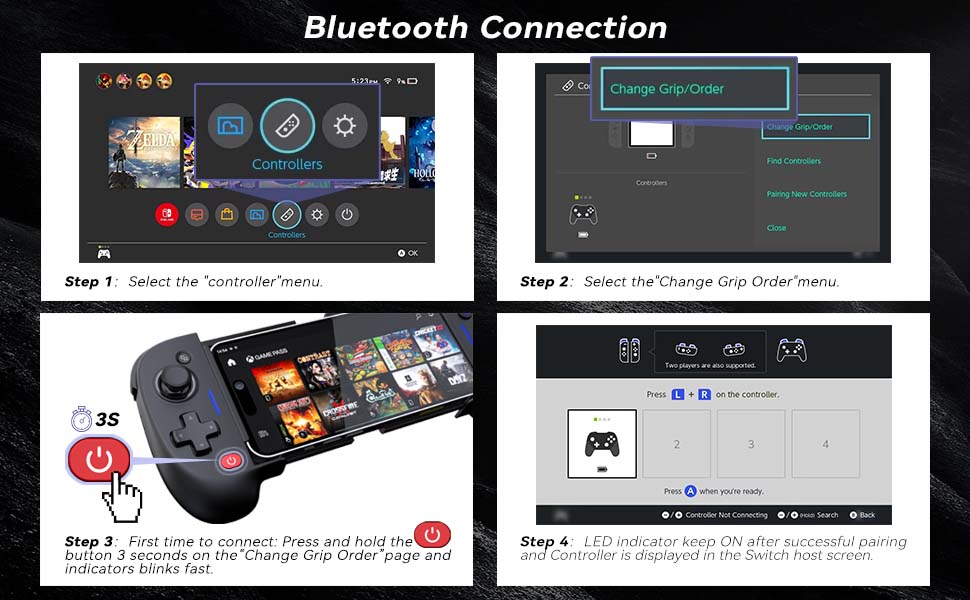
Image: A four-panel graphic illustrating the steps to connect the ShanWan controller to a Nintendo Switch via Bluetooth, showing the Switch menu navigation and the controller's power button.
Video: A demonstration on how to connect the ShanWan Q17S/SP controller to a Nintendo Switch console.
3.3 Connecting to iPhone / Android Devices
- Ensure the controller's mode switch (located on the side) is set to 'P' for Phone mode.
- On your mobile device, enable Bluetooth in the settings.
- For the first connection, press and hold the power button on the controller for 3 seconds until the indicator lights blink rapidly.
- Издөө "Wireless Controller" in your device's Bluetooth settings and select it to pair.
- After successful connection, the indicator light on the controller will remain on.
- For subsequent connections, simply press the power button to reconnect.
Video: A guide demonstrating the connection process of the game controller to an iPhone or Android device, and its general usage.
Video: A short demonstration of the SHANWAN Q17SP controller being used for gaming on an iPhone.
Video: A tutorial specifically for connecting the controller to play Call of Duty Mobile.
4. Операция
4.1 Күйгүзүү/өчүрүү
- To power on: Press the power button (usually marked with a power icon).
- To power off: Press and hold the power button for a few seconds until the indicator lights turn off. The controller will also automatically power off after 15 minutes of inactivity.

Image: A close-up of the controller's left grip, highlighting the power button with a glowing blue ring, indicating its function.
4.2 Контроллерди заряддоо
- Connect the included Type-C charging cable to the controller's charging port and to a USB power source.
- Индикатор жарыктары заряддоо абалын көрсөтүп, толук заряддалганда өчөт же түсүн өзгөртөт.
- Толук кубаттоо адатта 2 сааттан аз убакытты алат.
4.3 Турбо функциясы
- The controller supports both manual and auto turbo functions.
- To activate Turbo: Press the Турбо button and then the desired action button (A/B/X/Y/LT/LB/RT/RB). The button will now rapidly repeat its input when held down.
- To set Auto Turbo: Press the Турбо button and the action button once, then press Турбо and the action button a second time. The button will now automatically repeat its input without being held.
- To adjust Turbo speed: Specific button combinations (refer to quick start guide if provided, or experiment with Turbo + joystick/D-pad directions). The available speeds are 6.25 Hz, 12.25 Hz, and 25 Hz.
- To clear Turbo: Press the Турбо button and the action button a third time, or press and hold the Турбо баскычын 5 секунда басыңыз.
4.4 GamePad Space Application
The GamePad Space app allows for advanced customization of your controller, including button remapping and vibration intensity adjustment.
- Download the "GamePad Space" application from your device's app store (iOS App Store or Google Play Store).
- Connect your controller to your mobile device via Bluetooth as described in Section 3.3.
- Open the GamePad Space app. The app should detect your connected controller.
- Within the app, you can customize button assignments, adjust joystick dead zones, and fine-tune vibration strength for both left and right motors.

Image: The icon for the Gamepad Space application, used for customizing controller settings.
Video: A tutorial demonstrating how to use the Gamepad Space application to customize the controller's functions.
5. Техникалык тейлөө
- Тазалоо: Контроллерди тазалоо үчүн жумшак, кургак чүпүрөктү колдонуңуз. Катуу химиялык заттарды же абразивдүү материалдарды колдонуудан алыс болуңуз.
- Сактагыч: Контроллерди түз күн нурунан жана экстремалдык температурадан алыс салкын, кургак жерде сактаңыз.
- Батареяга кам көрүү: Батареянын иштөө мөөнөтүн узартуу үчүн, контроллерди тез-тез толук зарядсыздандырбаңыз. Аны көпкө чейин колдонбосоңуз да, үзгүлтүксүз кубаттап туруңуз.
- Колдонуу: Башкаргычты түшүрүп алуудан же ага катуу сокку уруудан алыс болуңуз, анткени бул ички компоненттерге зыян келтириши мүмкүн.
6. Кыйынчылыктарды
| Маселе | Мүмкүн себеп | Чечим |
|---|---|---|
| Controller does not connect | Incorrect mode selected (S/P switch), low battery, Bluetooth not enabled, pairing issue. | Ensure correct mode is selected. Charge the controller. Enable Bluetooth on your device. Try re-pairing by holding the power button for 3 seconds. |
| Киргизүүнүн кечигиши же жооп бербөө | Interference, low battery, distance from device, outdated firmware (if applicable). | Ensure no other Bluetooth devices are causing interference. Charge the controller. Move closer to your device. Check for firmware updates via the GamePad Space app. |
| Buttons or joysticks not working correctly | Physical damage, calibration issue, software glitch. | Check for physical obstructions. Use the GamePad Space app to calibrate joysticks and test buttons. Try resetting the controller (refer to manufacturer's webзарыл болсо, конкреттүү калыбына келтирүү нускамалары үчүн сайт). |
| Батарея бат эле түгөнөт | Frequent vibration, old battery, continuous use. | Reduce vibration intensity via the GamePad Space app. Ensure the controller powers off when not in use. If the issue persists, the battery may need service. |
7. Техникалык шарттар
| Өзгөчөлүк | Деталь |
|---|---|
| Шайкеш түзмөктөр | Android, iOS, Nintendo Switch, Nintendo Switch - OLED Model |
| Controller Type | Gamepad |
| Байланыш технологиясы | Bluetooth 5.0 |
| Кошумча функциялар | Ergonomic design, Dual Vibration, 6-Axis Gyro Sensor, Adjustable Turbo Function, Customizable Joysticks, Linear Trigger Buttons |
| Button Quantity | 14 |
| Power Source | Батарея менен иштейт (600 мАч кайра заряддалуучу) |
| Түс | Кара |
| Элементтин өлчөмдөрү | 9.13 x 2.28 x 4.92 дюйм |
8. Кепилдик жана колдоо
For warranty information or technical support, please refer to the product packaging or contact ShanWan customer service directly. Keep your purchase receipt for warranty claims.