
1. Киришүү
Thank you for choosing the CHIQ L40G7V 40-inch Google TV. This manual provides essential information for setting up, operating, maintaining, and troubleshooting your new television. Please read it thoroughly before use and retain it for future reference.
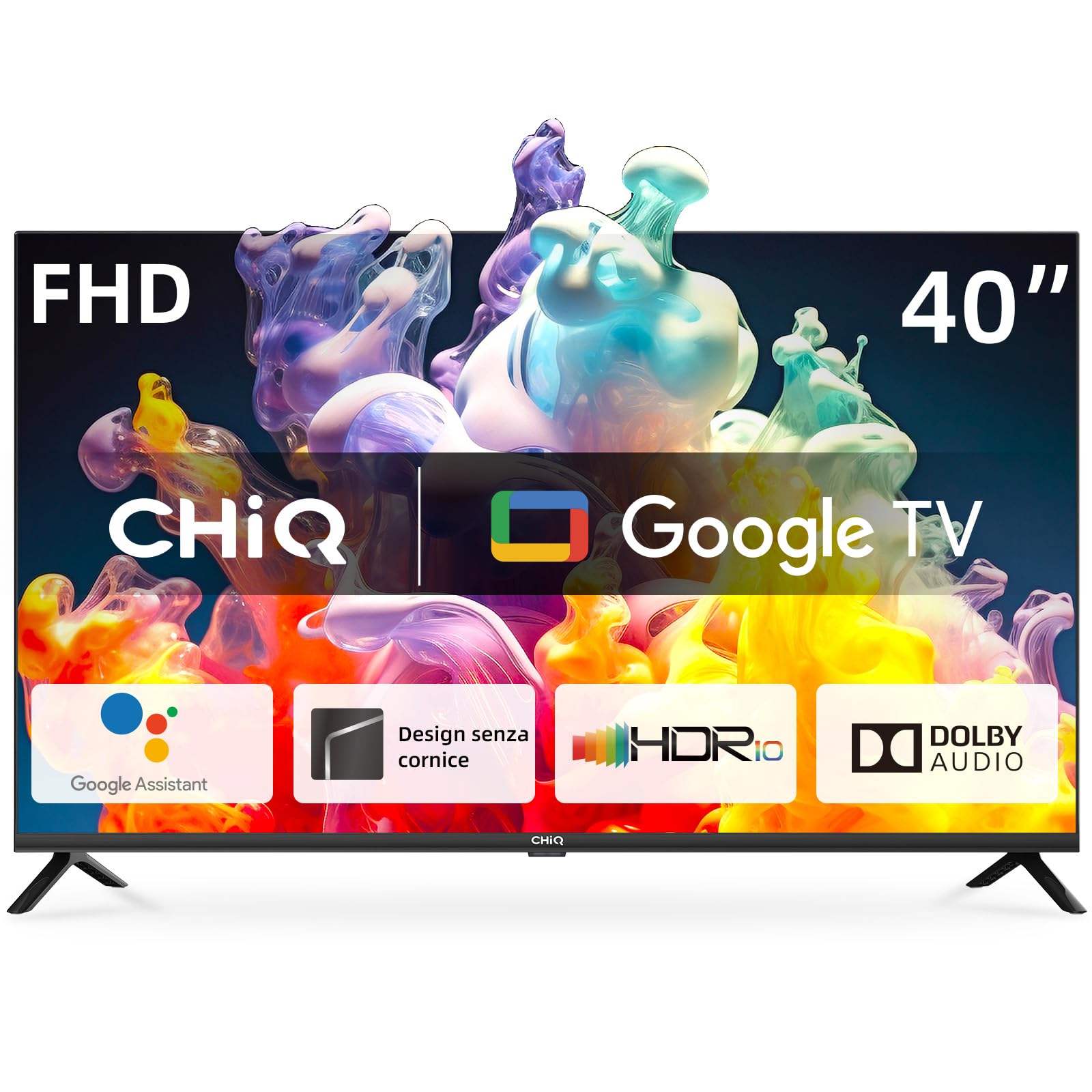
Image 1.1: The CHIQ L40G7V 40-inch Google TV.
2. Коопсуздук маалыматы
Always follow basic safety precautions when using this television to reduce the risk of fire, electric shock, and injury. Keep this manual near the TV for quick reference.
- Телевизорду жамгырга же нымга тийгизбеңиз.
- Телевизорду ачпаңыз casing; бардык тейлөөлөрдү квалификациялуу кызматкерлерге тапшырыңыз.
- Телевизордун айланасын туура желдетүүнү камсыз кылыңыз.
- Телевизор менен кошо берилген кубат шнурын гана колдонуңуз.
- Телевизорду күн нурунан жана жылуулук булактарынан алыс кармаңыз.
- Телевизорду жумшак, кургак чүпүрөк менен гана тазалаңыз.
3. Пакеттин мазмуну
Пакетте бардык буюмдар бар экенин текшериңиз:
- CHIQ L40G7V 40-inch Google TV
- Bluetooth алыстан башкаруу
- AAA батареялары (2x)
- Телевизор (2 даана)
- Стендди чогултуу үчүн бурамалар
- Электр кабели
- Колдонуучунун Колдонмосу (бул документ)
- Кепилдик картасы

Сүрөт 3.1: Бүттүview of the CHIQ L40G7V TV and its remote control, with key specifications.
4. Физикалык орнотуу
4.1 Стендди чогултуу
Carefully place the TV face down on a soft, flat surface to prevent screen damage. Attach the two stand pieces to the bottom of the TV using the provided screws. Ensure they are securely fastened.

Image 4.1: Detail of the TV stand securely attached to the television base.
4.2 Дубалга орнотуу (кошумча)
If you choose to wall mount your TV, ensure you use a VESA compatible mount (200x200 mm) and follow the instructions provided with your wall mount kit. Remove the stand before mounting.
4.3 Тышкы түзмөктөрдү туташтыруу
Сыналгыда тышкы түзмөктөрдү туташтыруу үчүн бир нече порттор бар:
- HDMI порттору (x2): For connecting Blu-ray players, game consoles, set-top boxes, etc. One port supports HDMI ARC.
- USB 2.0 порту (x1): Медиа ойнотуу үчүн USB сактагыч түзмөктөрүн туташтыруу үчүн.
- Antenna Inputs (x2): For connecting terrestrial (DVB-T2) or satellite (DVB-S2) antennas.
- LAN Port (x1): Зымдуу интернет байланышы үчүн.
- CI+ уячасы (x1): Акы төлөнүүчү телекөрсөтүү каналдарынын шифрин ачуу үчүн шарттуу мүмкүндүк алуу модулдары (CAM) үчүн.
- AV киргизүү (x1): Композиттик видео жана стерео аудиону колдонгон эски түзмөктөр үчүн.
- Digital Audio Output (x1): Тышкы аудио системаларына туташуу үчүн.

Сүрөт 4.2: Арткы view of the TV, highlighting the various input and output ports.
4.4 Кубат туташтыруу
Connect the power cable to the TV and then to a suitable wall outlet. The TV operates on 220 VAC 50 Hz.
5. Баштапкы орнотуу
5.1 First Power-On
After connecting the power, press the power button on the remote control or the TV. The TV will guide you through the initial setup process.
5.2 Google TV орнотуу
Follow the on-screen instructions to set up Google TV. This includes:
- Тилди жана аймакты тандоо.
- Connecting to a network (Wi-Fi or LAN). The TV supports 5G WLAN.
- Signing in with your Google account to access Google Play Store, Google Assistant, and personalized recommendations.
- Scanning for available TV channels (DVB-T2/S2/C).
5.3 Алыстан башкарууну жупташтыруу
The included remote control uses Bluetooth. During initial setup, you will be prompted to pair it with the TV. Follow the on-screen instructions, typically involving holding down specific buttons on the remote.
6. Иштөө нускамалары
6.1 Google TV интерфейси
Google TV organizes your entertainment from various apps and subscriptions into a single, personalized interface. You can browse movies, shows, and live TV, or discover new content based on your viewадаттар.
6.2 Тиркемелерге кирүү
Access popular streaming services like YouTube, Netflix, Disney+, and Amazon Prime Video directly from the Google TV home screen. More applications can be downloaded from the Google Play Store.

Image 6.1: The Google TV home screen displaying a selection of available streaming applications.
6.3 Google Жардамчысы менен үн менен башкаруу
Press the Google Assistant button on your remote control and speak into the microphone to search for content, control smart home devices, get answers, and more.
6.4 Chromecast камтылган
Use Chromecast Built-in to cast movies, shows, photos, and more from your phone, tablet, or laptop directly to your TV screen.
6.5 Сүрөт жана үн орнотуулары
Navigate to the settings menu to adjust picture and sound preferences. The TV supports Dolby Audio and offers four sound modes: News, Movie, Night, and Music.
7. Техникалык тейлөө
7.1 Телевизорду тазалоо
Always unplug the TV before cleaning. Use a soft, dry cloth to wipe the screen and exterior surfaces. Do not use liquid cleaners or aerosol sprays directly on the TV.
7.2 Программалык камсыздоо жаңыртуулары
The TV may receive automatic software updates via the internet. Ensure your TV is connected to the internet to receive the latest features and security patches.
8. Кыйынчылыктарды
Телевизоруңузда көйгөйлөргө туш болсоңуз, төмөнкү жалпы көйгөйлөрдү жана аларды чечүү жолдорун караңыз:
| Көйгөй | Мүмкүн чечим |
|---|---|
| Күч жок | Check if the power cable is securely connected to both the TV and the wall outlet. Ensure the outlet has power. Try a different outlet. |
| Сүрөт жок, бирок Үн бар | Киргизүү булагын текшериңиз. Тышкы түзмөктөр күйгүзүлгөнүн жана туура туташканын текшериңиз. Сыналгыны өчүрүп күйгүзүп көрүңүз. |
| Үн жок, бирок Сүрөт бар | Check the volume level and mute status. Ensure external audio systems are connected correctly and powered on. Check audio output settings. |
| Пульт иштебейт | Replace the batteries. Ensure there are no obstructions between the remote and the TV. Re-pair the Bluetooth remote if necessary. |
| Тармакка туташуу маселелери | Check your router and modem. Restart them if needed. Ensure Wi-Fi password is correct. For wired connections, check the LAN cable. |
9. Техникалык шарттар
Detailed technical specifications for the CHIQ L40G7V TV:
| Өзгөчөлүк | Спецификация |
|---|---|
| Модель аты | L40G7V |
| Screen Size | 40 дюйм |
| Дисплей технологиясы | LED |
| Резолюция | 1080p (1920 x 1080 пиксел) |
| Жаңыртуу ылдамдыгы | 60 Гц |
| Операция системасы | Google TV |
| Өзгөчөлүктөр | Google Assistant, Play Store, Netflix, YouTube, Amazon Prime Video, Dolby Audio, Chromecast Built-in, Bluetooth 5.0, Frameless Design, AI Pont, HbbTV2.0, Google Smart Home, LAN, Wi-Fi (5G WLAN) |
| Аудио чыгаруу режими | Dolby Audio (2 x 8W speakers) |
| Байланыш | 2x HDMI 1.4 (1x ARC), 1x USB 2.0, 1x AV, 1x Digital Audio Out, 2x ANT, 1x LAN, CI+ Slot, Bluetooth 5.0, Wi-Fi |
| Өлчөмдөрү (стенд менен) | 89.8 x 18.0 x 56.0 см (W x D x Y) |
| Өлчөмдөрү (стендсиз) | 89.8 x 8.7 x 51.5 см (W x D x Y) |
| Элемент Салмагы | 5.8 кг |
| VESA стандарты | 200x200 мм |
| Энергия эффективдүүлүгү классы | F |
| Энергияны керектөө | 39 kWh/1000h (SDR) |

Image 9.1: EU Energy Label for the CHIQ L40G7V TV. For more details, visit the official EPREL database: https://eprel.ec.europa.eu/qr/1519620

Image 9.2: Detailed dimensions of the CHIQ L40G7V television, including width, height, and depth with the stand.
10. Кепилдик жана колдоо
10.1 Продукциянын кепилдиги
The CHIQ L40G7V television comes with a 2 жылдык чектелген кепилдик. Please refer to the included warranty card for specific terms and conditions.
10.2 Кардарларды колдоо
For technical assistance, troubleshooting beyond this manual, or warranty claims, please contact CHIQ customer support. Contact details can typically be found on the CHIQ official webсайтында же кепилдик картаңызда.