
1. Киришүү
This manual provides essential information for the safe and efficient operation of your NETUM PDA58-02 Portable Receipt Printer. Please read it thoroughly before using the device and keep it for future reference.
The NETUM PDA58-02 is a versatile portable terminal designed for various business applications. It integrates receipt printing, 1D barcode scanning, and supports multiple connectivity options including 3G, Wi-Fi, and Bluetooth 4.0. Running on Android 6.0, it offers a stable and user-friendly experience with its 5.5-inch IPS capacitive touch screen.
2. Коопсуздук маалыматы
- Аппаратты экстремалдык температурага, түз күндүн нуруна же жогорку нымдуулукка дуушар кылбаңыз.
- Аппаратты түшүрүүдөн же катуу таасирлерден сактаныңыз.
- Use only the original charger and accessories provided with the device.
- Аппаратты өз алдынча бөлүүгө же оңдоого аракет кылбаңыз. Квалификациялуу тейлөө кызматкерлерине кайрылыңыз.
- Аппаратты суудан жана башка суюктуктардан алыс кармаңыз.
- Ашыкча ысып кетүүнүн алдын алуу үчүн заряддоо учурунда жакшы желдетүүнү камсыз кылыңыз.
3. Пакеттин мазмуну
Пакетте бардык буюмдар бар экенин текшериңиз:
- NETUM PDA58-02 Portable Receipt Printer
- Charger Adapter (UK Plug)
- User Manual (English and Chinese)
- Thermal Printer Paper Roll (58 x 35mm)

Image: NETUM PDA58-02 printer and its accessories including charger, manual, and paper roll.
4. Продукт бүтүп калдыview
The NETUM PDA58-02 features a compact design with an integrated thermal printer and a large touch screen for easy interaction. It includes a built-in barcode scanner for efficient data capture.

Сүрөт: алдыңкы view of the NETUM PDA58-02 portable printer, showing the screen displaying time and date.

Image: NETUM PDA58-02 portable printer with the paper compartment open, showing a printed receipt.
5. Орнотуу
5.1 Аппаратты заряддоо
Before first use, fully charge the device. Connect the provided charger adapter to the DC charging port (12V 1.5A) on the device and plug it into a power outlet. The battery indicator will show charging status.
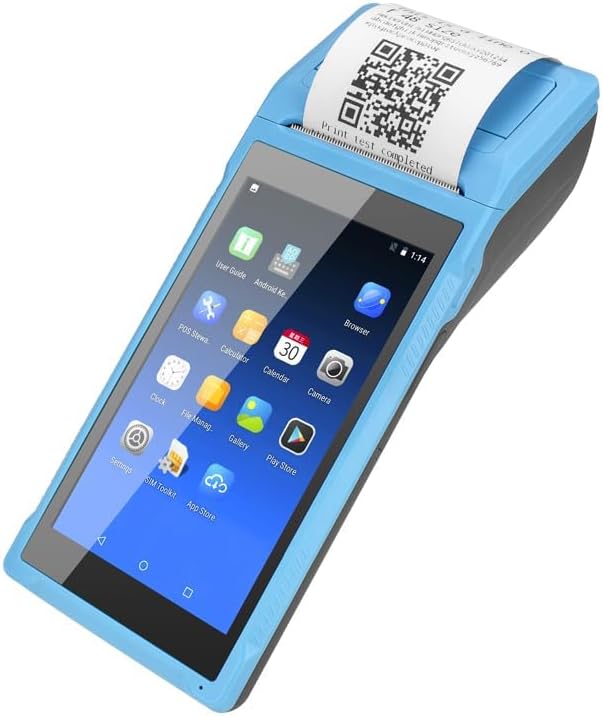
Image: Close-up of the charging port on the NETUM PDA58-02, with a charger cable connected, highlighting the 5000mAh rechargeable battery.
5.2 Термикалык кагазды жүктөө
- Open the printer cover by gently pushing the latch.
- Insert a 58 x 35mm thermal paper roll into the compartment, ensuring the printing side faces the print head.
- Кескичтин жанынан бир аз кагазды тартыңыз.
- Принтердин капкагын ордуна чыкылдаган үн чыкканча бекем жабыңыз.
5.3 Күйгүзүү/өчүрүү
- To power on: Press and hold the power button until the screen lights up.
- To power off: Press and hold the power button, then select 'Power off' from the options on the screen.
6. Иштөө нускамалары
6.1 Негизги навигация
The device runs on Android 6.0. Navigate the interface using the 5.5-inch capacitive touch screen. Swipe, tap, and use gestures similar to a standard Android smartphone.

Image: NETUM PDA58-02 portable printer displaying various Android application icons on its screen, indicating its smart functionality.
6.2 Байланыш
- Wi-Fi: Go to Settings > Wi-Fi to connect to available wireless networks (802.11 b/g/n).
- Bluetooth: Go to Settings > Bluetooth to pair with other Bluetooth 4.0 enabled devices.
- 3G: Insert a compatible SIM card (if applicable) and configure network settings under Settings > More > Mobile networks for 3G connectivity (GSM850/900/1800/1900, WCDMA B1).
- USB: Connect the device to a computer using the Micro USB 2.0 port for data transfer or charging.
6.3 Квитанцияларды басып чыгаруу
The integrated thermal printer allows for fast receipt printing. Use compatible POS applications or built-in printing functions to generate receipts. Ensure paper is loaded correctly.
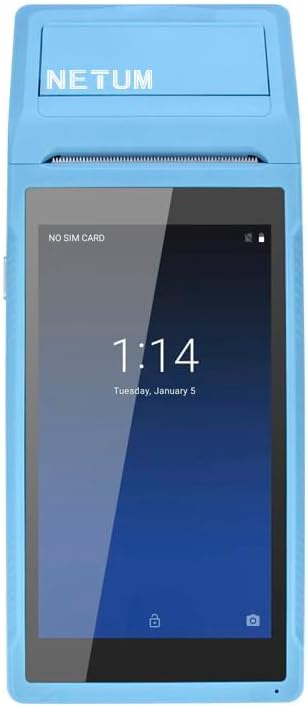
Image: NETUM PDA58-02 portable printer showing a receipt with a QR code being printed, demonstrating its receipt printing capability.
6.4 Штрих-кодду сканерлөө
The device supports 1D barcode scanning. Open the scanning application or a compatible POS application that utilizes the scanner. Point the scanner at the barcode to capture the data.
7. Техникалык тейлөө
7.1 Аппаратты тазалоо
Wipe the exterior of the device with a soft, dry cloth. For stubborn dirt, use a slightly damp cloth and then dry immediately. Do not use harsh chemicals or abrasive cleaners.
7.2 Басып чыгаруу башын тазалоо
If print quality degrades, the thermal print head may need cleaning. Use a cotton swab lightly dampбасып чыгаруу башын акырын сүртүш үчүн изопропил спирти менен иштетилген. Колдонуудан мурун аны толугу менен кургатуу керек.
7.3 Батареяга кам көрүү
To prolong battery life, avoid fully discharging the battery frequently. Charge the device regularly. If storing the device for an extended period, charge it to about 50% and store in a cool, dry place.
8. Кыйынчылыктарды
- Түзмөк күйбөй жатат: Батареянын заряддалганын текшериңиз. Кубаттоочу түзүлүштү туташтырып, кайра аракет кылыңыз. Эгерде көйгөй чечилбесе, колдоо кызматына кайрылыңыз.
- Принтер басып чыгарбай жатат: Check if thermal paper is loaded correctly and if the printer cover is closed. Verify that the application is sending print commands.
- Начар басып чыгаруу сапаты: Clean the thermal print head as described in the Maintenance section. Ensure you are using suitable thermal paper.
- Туташуу көйгөйлөрү (Bluetooth/Wi-Fi): Ensure Bluetooth/Wi-Fi is enabled in settings. Check if the device is within range of the network/paired device. Restart the device and try reconnecting.
- Сенсордук экран жооп бербейт: Түзмөктү өчүрүп-күйгүзүңүз. Эгер көйгөй чечилбесе, колдоо кызматына кайрылыңыз.
9. Техникалык шарттар
| Өзгөчөлүк | Деталь |
|---|---|
| Модел | PDA58-02 |
| Түс | Көк |
| Конфигурация | 3G + Camera |
| CPU | Quad-core 1.3GHz MT6580V/WA |
| RAM | 1 ГБ |
| NAND Flash | 8 ГБ |
| Операция системасы | Android 6.0 |
| Негизги экран | 5.5 inch IPS Capacitive Touch Screen 1280*720 |
| Байланыш ыкмасы | 3G (supports all network types) |
| Арткы камера | 8MP |
| Батарея | 7.4 В, 5000 мАч |
| Заряддоо интерфейси | DC Charging, 12V 1.5A |
| Наушник интерфейси | Standard 3.5mm Headphone |
| OTG колдоо | Ооба |
| USB интерфейси | Micro USB 2.0 x 1 |
| Аудио системасы | Built-in Speaker, Buzzer, Microphone |
| Wi-Fi | 802.11 б/г/н |
| GSM | 850/900/1800/1900 |
| WCDMA | B1 |
| Bluetooth | Bluetooth 4.0 |
| Басма технологиясы | Термикалык принтер |
| Paper Roll Size | 58 x 35мм (кошулган) |
| Printer Dimensions (L x W x H) | 21.5 x 8.6 x 5.3 см / 8.46 x 3.39 x 2.1 дюйм |
| Принтердин салмагы | 462 г / 16.3 унция |
| Output Type | Монохромдуу |
| Max Mono Print Speed | 1 (unit not specified, likely pages/minute or lines/second) |
| Башкаруу түрү | Android, Touch |
| Медиа түрү | Энбелгилер |
| Сканер түрү | Portable |
| Дисплей түрү | LCD |
| Шайкеш түзмөктөр | Смартфондор |
| Принтердин кошумча функциялары | Скандоо |
| Процессорлордун саны | 4 |
| Максималдуу медиа өлчөмү | 5.5 x 8.5 дюйм |
| Дуплекстүү басып чыгаруу | Жок |
| Аппараттык интерфейс | USB, USB 2.0 |
| Жалпы USB порттору | 1 |
10. Кепилдик маалыматы
NETUM products are covered by a manufacturer's warranty. Please refer to the warranty card included in your package or visit the official NETUM webдеталдуу кепилдик шарттары жана шарттары үчүн сайт. Сатып алуу квитанциясын кепилдик дооматтары үчүн сатып алуунун далили катары сактаңыз.
11. Колдоо
For technical assistance, troubleshooting, or product inquiries, please contact NETUM customer support. Contact information can typically be found on the official NETUM webсайтында же кепилдик документтеринде.
Онлайн ресурстар: Visit the NETUM official webКөп берилүүчү суроолор, программалык камсыздоону жаңыртуу жана кошумча колдоо материалдары үчүн сайт.