
1. Киришүү
This manual provides detailed instructions for the installation, operation, and maintenance of your H-TECH HT-9823CA 9-inch 1-DIN Android 12 Multimedia System. Please read this manual thoroughly before using the product to ensure proper functionality and safety. Keep this manual for future reference.
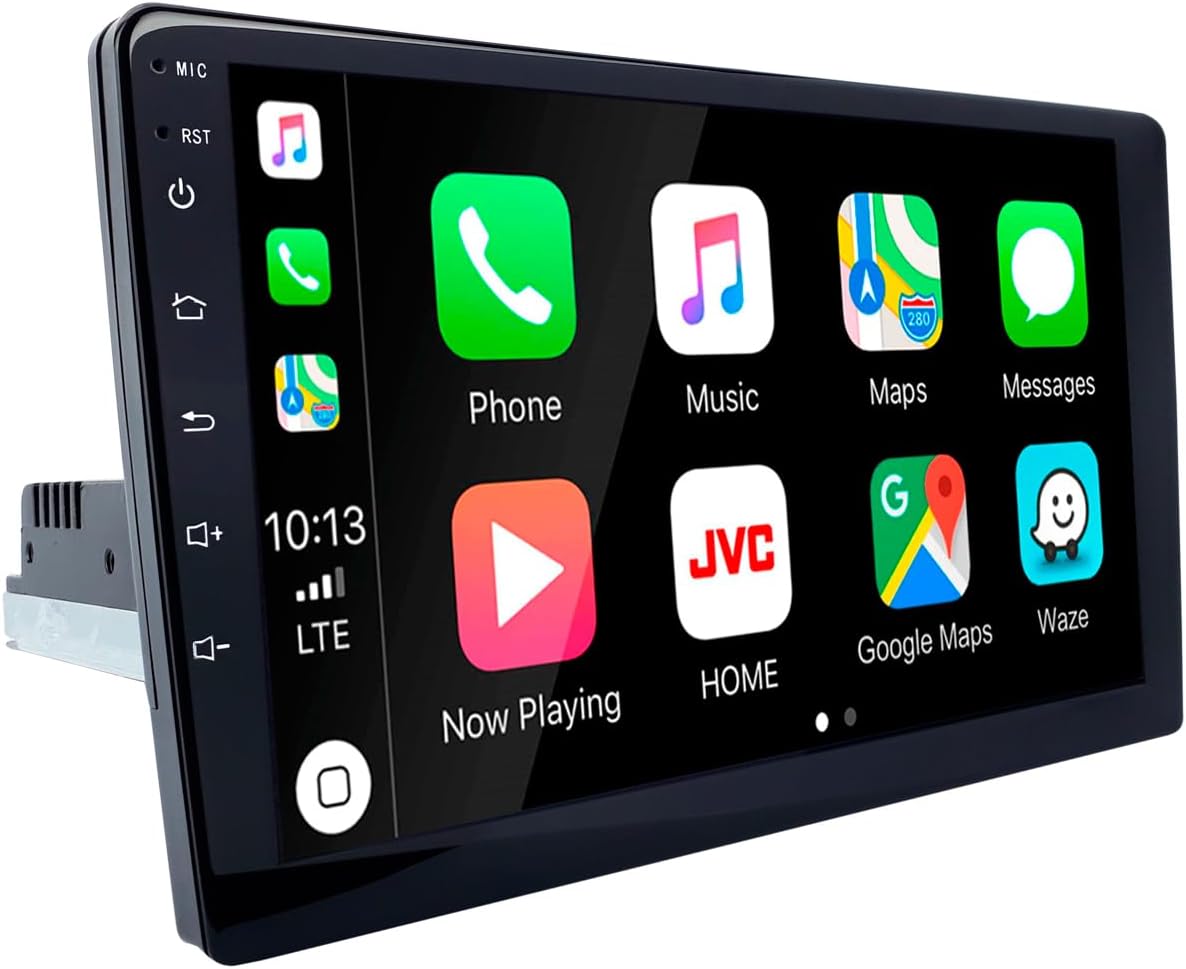
1.1-сүрөт: H-TECH HT-9823CA Multimedia System displaying the main interface with application icons like Phone, Music, Maps, and Messages.
2. Продукциянын өзгөчөлүктөрү
- Операция системасы: Android 12
- Дисплей: 9-inch IPS glass screen with 1024x600 resolution
- Процессор: Quad-Core
- Эстутум: 2 ГБ оперативдүү эс тутум, 32 ГБ ички сактагыч
- Байланыш: Wireless and Wired CarPlay, Wireless and Wired Android Auto, Bluetooth 4.1, Wi-Fi
- Смартфонду чагылдыруу: Compatible with Android and iOS devices (via EasyConnect application)
- Навигация: Integrated GPS (maps sold separately)
- Аудио чыгаруу: 4x60W RMS, 1 Subwoofer output
- Киргизүүлөр: 2 USB ports, 1 Rear Camera input, 1 Front Camera input, 1 Audio/Video input
- Чыгуулары: 1 Audio/Video output
- Ыңгайлаштыруу: 7 button illumination colors, 33 layout options, 6 menu options
- Руль башкаруусу: 2 SWC wires for up to 10 programmable functions (may require an interface for some vehicles)
3. Пакеттин мазмуну
Пакетте бардык буюмдар бар экенин текшериңиз:
- 1x H-TECH HT-9823CA 9-inch Android 12 Multimedia System
- 1x Instruction Manual (бул документ)
- 1x Complete Wiring Harness Set
- 1x GPS антеннасы

3.1-сүрөт: Included wiring harnesses, USB extension cables, and GPS antenna for the multimedia system.
4. Орнотуу жана орнотуу
Кесиптик орнотуу сунушталат. Орнотууну баштоодон мурун унаанын кубаты өчүрүлгөнүн текшериңиз.
4.1 Монтаждоо
The HT-9823CA is designed for a 1-DIN slot and includes an enclosure for 2-DIN compatibility. Ensure adequate space for the 9-inch screen and proper ventilation.

4.1-сүрөт: Dimensions of the 9-inch display screen, indicating a diagonal measurement of 9 inches, a width of 23 cm, and a height of 13 cm.
4.2 Зымдарды туташтыруу
Refer to the provided wiring harness for specific connections. Key connections include:
- Күч: Негизги кубат булагын унаанын кубат булагына туташтырыңыз (туруктуу 12V, кошумча 12V, жерге туташтыруу).
- Баяндамачылар: Connect speaker wires to the corresponding vehicle speakers.
- USB: Connect the USB extension cables to the unit and route them to an accessible location.
- GPS антеннасы: GPS антеннасын туташтырып, аны тунук жерге орнотуңуз view асмандын.
- Камералар: Connect rear and front cameras to their dedicated inputs.
- Руль башкаруусу (SWC): Connect the SWC wires to your vehicle's steering wheel control wires. Configuration may be required in the system settings.
- Audio/Video (RCA): Use RCA cables for external audio/video input and output, and subwoofer output.
5. Иштөө нускамалары
5.1 Күйгүзүү/өчүрүү
Press the power button (usually located on the front panel or a soft button on the screen) to turn the unit on or off. A short press may mute/unmute, while a long press typically powers off.
5.2 Сенсордук экран интерфейси
The 9-inch IPS glass screen is a full-touch interface. Navigate by tapping, swiping, and pinching as you would on a smartphone or tablet.
5.3 Android 12 ОС
The system runs on Android 12. Access applications, settings, and features through the main menu. You can download additional apps from the Google Play Store.
5.4 CarPlay жана Android Auto
The system supports both wireless and wired CarPlay and Android Auto. Connect your compatible smartphone via USB or Bluetooth/Wi-Fi to access navigation, music, calls, and messages directly on the multimedia screen.
5.5 Bluetooth жупташтыруу
- Мультимедиа системасындагы Bluetooth жөндөөлөрүнө өтүңүз.
- Смартфонуңузда Bluetooth'ду иштетип, жеткиликтүү түзмөктөрдү издеңиз.
- Select the multimedia system (e.g., "H-TECH Car") from your phone's list.
- Жупташтыруу кодун эки түзмөктө тең ырастаңыз.
- Жупташтырылгандан кийин, сиз чалууларды жасап/кабыл алып, аудиону агылта аласыз.
5.6 Радио менен иштөө
Access the radio application from the main menu. You can scan for stations, save presets, and switch between FM bands.

5.1-сүрөт: The multimedia system's FM radio interface, showing frequency display, station presets, and control buttons.
5.7 GPS навигациясы
The integrated GPS module allows for navigation. Install your preferred navigation application (e.g., Google Maps, Waze) from the Google Play Store. Ensure the GPS antenna is properly connected for optimal signal reception.
5.8 Ыңгайлаштыруу
The system offers various customization options:
- Button Colors: Adjust the illumination color of the physical buttons (if applicable) through the settings menu.
- Layouts and Menus: Choose from 33 layout options and 6 menu styles to personalize your user interface.
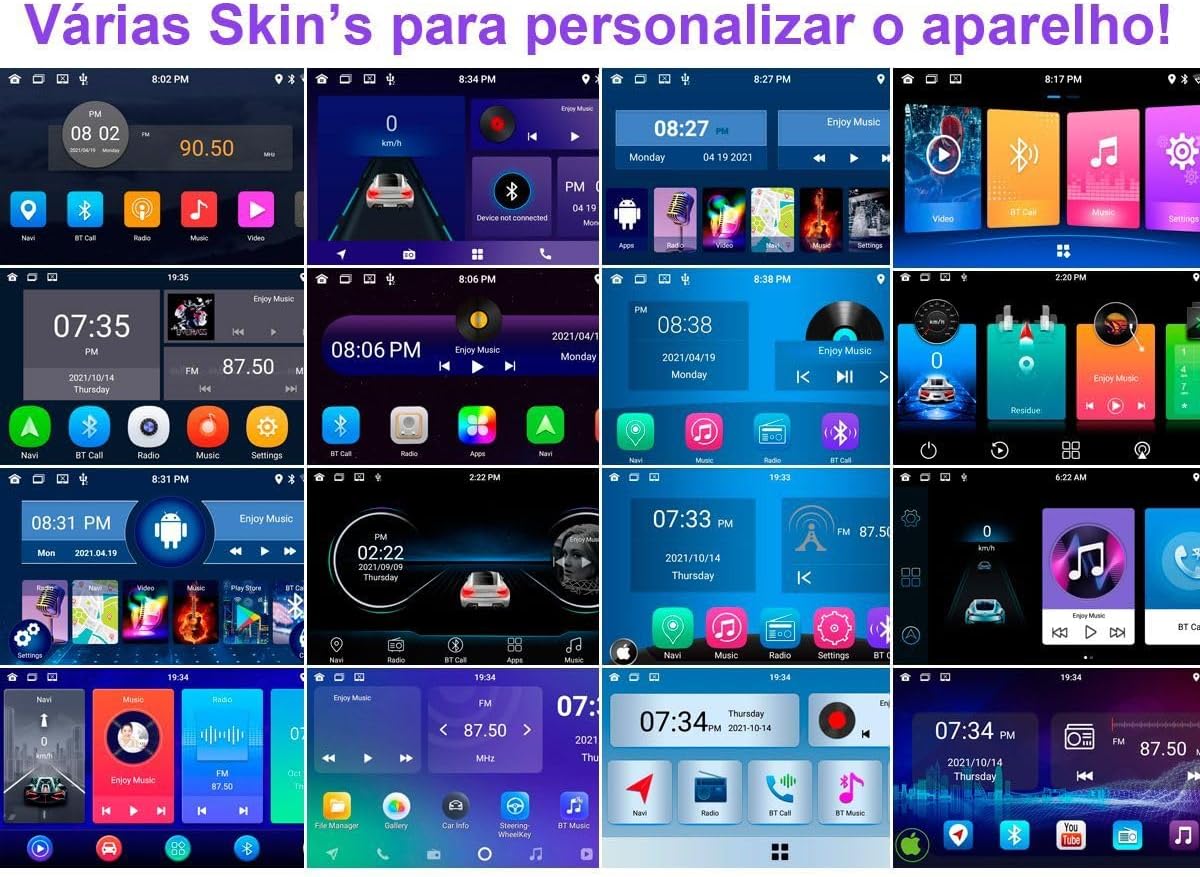
5.2-сүрөт: Examples of various user interface themes and layouts available for personalizing the multimedia system.
6. Техникалык тейлөө
- Тазалоо: Экранды жана аппаратты тазалоо үчүн жумшак, кургак чүпүрөктү колдонуңуз. Абразивдүү тазалагычтардан же эриткичтерден качыңыз.
- Программалык камсыздоо жаңыртуулары: Periodically check for system software updates via the settings menu to ensure optimal performance and access to new features.
- Кайтаруу: If the system becomes unresponsive, locate the small 'RST' (Reset) button (often a pinhole) and press it gently with a non-metallic pointed object.
7. Кыйынчылыктарды
| Көйгөй | Мүмкүн себеп | Чечим |
|---|---|---|
| Түзмөк күйбөйт. | Туура эмес зымдар, күйгүзүлгөн сактагыч, унаанын электр энергиясы маселеси. | Check power connections, inspect vehicle fuses, ensure proper grounding. |
| Үн жок. | Volume too low, speaker wires disconnected, mute activated. | Үндү катуулатыңыз, динамиктердин туташууларын текшериңиз, үнсүз кылуу функциясын өчүрүңүз. |
| Bluetooth туташпай жатат. | Bluetooth өчүрүлгөн, туура эмес жупташтыруу, тоскоолдук. | Ensure Bluetooth is enabled on both devices, re-pair, move closer to the unit. |
| GPS сигналы начар же жоголду. | Antenna obstruction, faulty antenna, poor satellite visibility. | Relocate GPS antenna to a clear area, check antenna connection. |
| CarPlay/Android Auto not starting. | Incompatible phone, incorrect USB cable, software issue. | Ensure phone compatibility, use a high-quality USB cable, restart phone and unit. |
8. Техникалык шарттар
| Өзгөчөлүк | Деталь |
|---|---|
| Модел | HT-9823CA |
| Операция системасы | Android 12 |
| Screen Size | 9 дюйм |
| Экран түрү | IPS Glass Panel |
| Резолюция | 1024x600 |
| RAM | 2 ГБ |
| Ички сактагыч | 32 ГБ |
| Процессор | Quad-Core |
| Bluetooth версиясы | 4.1 |
| Power Output | 4x60W RMS |
| Өлчөмдөр (Продукт) | 21 x 20 x 29 см |
| Салмагы | 1.75 кг |
| Байланыш | Wi-Fi, Bluetooth, USB |
| Өзгөчөлүктөр | CarPlay (Wireless/Wired), Android Auto (Wireless/Wired), Smartphone Mirroring (Android/iOS), Integrated GPS |
9. Кепилдик жана колдоо
This product comes with a standard manufacturer's warranty. Please refer to your purchase documentation for specific warranty terms and duration. For technical support or service inquiries, please contact your retailer or the H-TECH customer service department.