
1. Киришүү
The Cleyver HC95 is a wired headset designed for professional communication, offering clear audio and a noise-cancelling microphone. It features an integrated Busylight to indicate user availability and is optimized for various communication platforms, ensuring efficient and focused conversations.
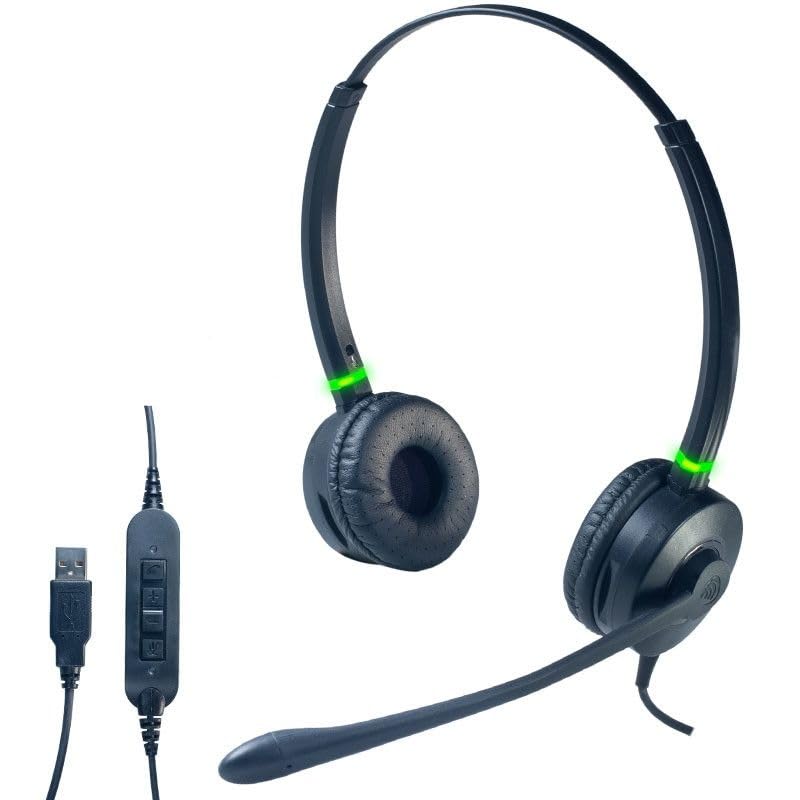
А фронт view of the Cleyver HC95 wired headset, highlighting its over-ear design and microphone boom.
2. Пакеттин мазмуну
Сураныч, төмөнкү нерселер үчүн кутучаны белгилеңиз:
- Cleyver HC95 Wired Headset (with integrated USB-A cable)
- Колдонуучунун Колдонмосу (бул документ)
3. Орнотуу
- Гарнитураны туташтыруу: Plug the USB-A connector of the Cleyver HC95 headset into an available USB port on your computer.
- Автоматтык орнотуу: Your operating system (Windows, macOS, Linux) should automatically detect and install the necessary drivers. This may take a few moments.
- Select as Default Device: Once installed, navigate to your computer's sound settings and select the Cleyver HC95 as your default audio input (microphone) and output (speaker) device for calls and media.
- Программанын конфигурациясы: For optimal performance with communication software (e.g., Microsoft Teams, Skype for Business, Zoom), ensure the Cleyver HC95 is selected as the audio device within the application's settings.

The inline control unit for the Cleyver HC95 headset, featuring buttons for call management, volume adjustment, and microphone mute, along with the USB-A connector.
4. Иштөө нускамалары
4.1 Гарнитураны тагынуу
- Adjust the headband for a comfortable fit over your head.
- Position the earcups over your ears. The HC95 features an over-ear design for comfort during extended use.
- Rotate the microphone boom arm to position the microphone approximately 2-3 cm (1 inch) from the corner of your mouth for optimal voice pickup.
4.2 Inline Control Functions
The inline control unit provides easy access to essential call management features:
- Чалуу баскычы: Чалууга жооп берүү же аяктоо үчүн басыңыз.
- Үнүн жогорулатуу (+): Угуу үнүн жогорулатуу үчүн басыңыз.
- Үнүн төмөндөтүү (-): Угуу үнүн азайтуу үчүн басыңыз.
- Үнсүз баскычы: Press to mute or unmute the microphone. An LED indicator on the control unit may show the mute status.
4.3 Busylight функциясы
The integrated Busylight on the earcups provides a visual indication of your call status to those around you.
- Жашыл жарык: Indicates you are available or on a call.
- Кызыл жарык: Indicates you are busy or in a meeting.

Headset with green Busylight, indicating availability.

Headset with red Busylight, indicating busy status.
5. Өзгөчөлүктөрү
- Extreme Comfort: The lightweight design ensures a comfortable, pressure-free wearing experience, even during extended periods of use.
- Үндүн өзгөчө сапаты: Enjoy clear and crisp conversations thanks to wideband audio technology.
- Өркүндөтүлгөн ызы-чууну жокко чыгаруучу микрофон: The long boom microphone effectively reduces up to 80% of ambient background noise, making it ideal for use in noisy office environments.
- Acoustic Protection and Busylight Indicators: Built-in acoustic protection safeguards your hearing. Integrated luminous indicators on the earcups signal your availability to colleagues, minimizing interruptions.
- Optimized for Communication Software: The headset is pre-configured for efficient communication with platforms like Microsoft Skype for Business and Microsoft Teams. It also offers extended compatibility with various other softphones and operating systems.
6. Техникалык тейлөө жана кам көрүү
- Тазалоо: Use a soft, dry cloth to clean the headset. For ear cushions, gently wipe with a slightly damp колдонуудан мурун чүпүрөк менен сүртүп, толугу менен кургатыңыз. Катуу химиялык заттарды же абразивдүү тазалоочу каражаттарды колдонбоңуз.
- Сактагыч: Гарнитураны салкын, кургак жерде, күндүн түз нурунан жана өтө жогорку температурадан алыс сактаңыз. Кабелди чаташтырып албаңыз.
- Кабельге кам көрүү: Do not pull on the cable to disconnect the headset. Always grasp the USB connector. Avoid bending or twisting the cable excessively.
- Суу каршылык: This headset is not water-resistant. Avoid exposure to liquids.
7. Кыйынчылыктарды
7.1 Гарнитурадан үн чыкпайт
- Гарнитура USB портуна бекем сайылганын текшериңиз.
- Check your computer's sound settings to confirm the Cleyver HC95 is selected as the default output device.
- Компьютериңиздин үнсүз режимде эместигин же өтө төмөн коюлганын текшериңиз.
- Test the headset on a different USB port or another computer to rule out port issues.
7.2 Микрофон иштебейт
- Ensure the microphone is not muted via the inline control unit or within your communication software.
- Check your computer's sound settings to confirm the Cleyver HC95 is selected as the default input device.
- Adjust the microphone gain/level in your computer's sound settings.
- Ensure the microphone boom arm is correctly positioned near your mouth.
7.3 Busylight Not Functioning
- Ensure the headset is properly connected and recognized by your computer.
- The Busylight functionality is often integrated with specific communication software (e.g., Microsoft Teams). Ensure the software is running and the headset is selected as the active device.
- Restart your communication software or computer.
8. Техникалык шарттар
| Модель номери | ODHC95USB |
| Бренд | Cleyver |
| Байланыш технологиясы | Зымдуу (USB-A) |
| Микрофон | Ызы-чууну жокко чыгаруучу бум микрофону |
| Аудио сапаты | Кең тилкелүү аудио |
| Башкаруу ыкмасы | Inline Remote Control, Voice Control |
| Кулак жайгаштыруу | Ашыкча кулак (айналма) |
| Noise Control | Акустикалык изоляция |
| Материал | Дат баспас болоттон жасалган, алюминий |
| Түс | Кара |
| Шайкеш түзмөктөр | Softphone software including Skype for Business, Microsoft Teams, Cisco, Avaya, and 3CX |
| Сууга туруктуулук деңгээли | Сууга чыдамдуу эмес |
9. Кепилдик жана колдоо
For warranty information, technical support, or service inquiries, please refer to the documentation provided with your purchase or contact Cleyver customer support directly. Keep your proof of purchase for warranty claims.