
Introduction
Thank you for choosing the MoKo Bluetooth AZERTY Keyboard. This manual provides detailed instructions to help you set up, operate, and maintain your keyboard, ensuring optimal performance with your Microsoft Surface Pro device. Please read this manual thoroughly before use.
Шайкештик
This keyboard is specifically designed for the following Microsoft Surface Pro models:
- Surface Pro 7 Plus (2021)
- Surface Pro 7 (2019)
- Surface Pro 6
- Surface Pro 5 (Pro 2017)
- Surface Pro 4
- Surface Pro 3
The keyboard dimensions are approximately 29.5 cm (11.6 inches) in length, 21.7 cm (8.54 inches) in width, and 0.6 cm (0.23 inches) in height, providing a similar typing experience to official Surface Pro keyboards.
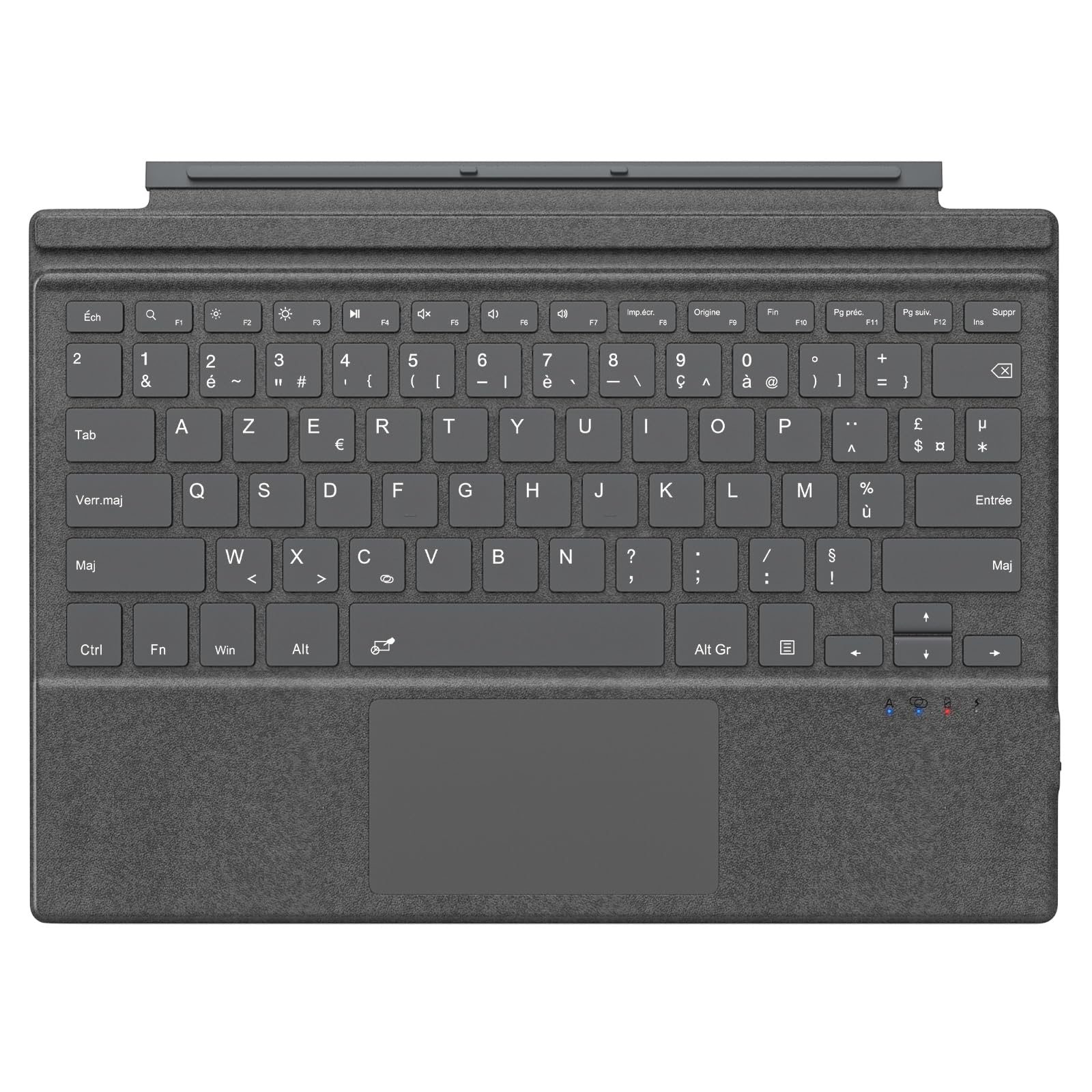
Image: The MoKo Bluetooth AZERTY Keyboard shown with several Microsoft Surface Pro models, illustrating compatibility.
Кутуда эмне бар
Таңгактан чыгаргандан кийин, бардык буюмдар бар экенин текшериңиз:
- MoKo Bluetooth AZERTY Keyboard
- USB заряддоо кабели
Жайгашуу
1. Баскычтопту заряддоо
The keyboard is equipped with a built-in 520mAh lithium battery. Before initial use, or when the battery is low, charge the keyboard using the provided USB cable.
- USB кубаттоочу кабелдин кичинекей учун клавиатурадагы кубаттоочу портко туташтырыңыз.
- Connect the larger end of the USB cable to a USB power source (e.g., computer, wall adapter).
- Заряддоо индикаторунун жарыгы күйөт. Толук заряддалгандан кийин жарыктын түсү өзгөрүшү же өчүшү мүмкүн.
A full charge provides approximately 25 hours of continuous use.

Сүрөт: жакын план view of the keyboard's charging port with a USB cable connected, indicating the charging process.
2. Bluetooth Жупташтыруу
To connect your keyboard to your Surface Pro:
- Баскычтоп кубатталып, күйгүзүлгөнүн текшериңиз.
- Surface Pro түзмөгүңүзгө өтүңүз Орнотуулар > Түзмөктөр > Bluetooth жана башка түзмөктөр.
- Bluetooth күйгүзүү.
- басыңыз Fn ачкыч жана C key simultaneously on the keyboard to enter pairing mode. The Bluetooth indicator light on the keyboard will flash.
- On your Surface Pro, click Bluetooth же башка аспапты кошуңуз > Bluetooth.
- Select "MoKo Keyboard" (or similar name) from the list of available devices.
- Follow any on-screen prompts to complete the pairing process. The Bluetooth indicator light on the keyboard will stop flashing once connected.
The keyboard can be used attached to your Surface Pro or detached for flexible positioning. The effective Bluetooth connection range is approximately 10 meters (33 feet).

Image: A Surface Pro tablet with the MoKo keyboard detached, illustrating the wireless Bluetooth connection capability.
Иштөө нускамалары
Баскычтоптун жайгашуусу жана баскычтар
This keyboard features an AZERTY layout with 105 keys, providing a full-size typing experience. The keys utilize a scissor-switch mechanism for comfortable and responsive typing.

Сүрөт: деталдуу view of the keyboard's AZERTY layout, highlighting the scissor-switch keys and integrated trackpad.
Сенсордук панелдин функциялары
The integrated trackpad allows for precise navigation and control of your Surface Pro. To activate or deactivate the trackpad, press the Fn ачкыч жана Боштук бир эле убакта.
Эскертүү: Please remove any protective film from the trackpad surface before use to ensure proper functionality.
Жөнгө салынуучу терүү бурчтары
The keyboard's design allows for two different typing angles, providing an ergonomic and comfortable experience whether you are working on a desk, lap, or other surface.

Image: A Surface Pro with the keyboard attached, demonstrating the two possible ergonomic typing angles.
Power Management
Автоматтык уйку режими
To conserve battery life, the keyboard will automatically enter sleep mode after 10 minutes of inactivity. The Bluetooth connection will automatically disconnect during this period.
Reconnecting After Sleep
To wake the keyboard and re-establish the Bluetooth connection, simply press any key. The keyboard will automatically attempt to reconnect to the last paired device.

Image: An illustration of the keyboard's power management, including automatic sleep mode and USB-C charging.
Техникалык тейлөө
To ensure the longevity and optimal performance of your MoKo keyboard, follow these maintenance guidelines:
- Тазалоо: Клавиатуранын бетин тазалоо үчүн жумшак, кургак, түксүз чүпүрөктү колдонуңуз. Өтө катуу кир үчүн, бир аз сүртүңүз.ampчүпүрөктү суу же жумшак тазалоо эритмеси менен жууп салыңыз. Ашыкча нымдуулуктан сактаныңыз.
- Сактагыч: Колдонулбай турган учурда, клавиатураны салкын, кургак жерде, күндүн түз нурунан жана өтө жогорку температурадан алыс сактаңыз.
- Суюктуктардан алыс болуңуз: Do not expose the keyboard to liquids. It is not waterproof.
- Этияттык менен мамиле кылуу: Баскычтопту түшүрүүдөн же катуу соккулардан сактаныңыз.
Проблемаларды чечүү
Эгер клавиатураңызда көйгөйлөргө туш болсоңуз, төмөнкү жалпы чечимдерди караңыз:
| Көйгөй | Чечим |
|---|---|
| Баскычтоп күйбөйт | Ensure the keyboard is charged. Connect it to a power source using the USB cable. |
| Bluetooth аркылуу жупташтыруу мүмкүн эмес | 1. Ensure the keyboard is in pairing mode (Fn + C). 2. Make sure Bluetooth is enabled on your Surface Pro. 3. Delete any previous keyboard pairings on your Surface Pro and try again. 4. Ensure the keyboard is within the 10-meter range. |
| Баскычтоп бат-баттан ажыратылат | 1. Ensure the keyboard is charged. 2. Avoid placing obstacles between the keyboard and your Surface Pro. 3. Reconnect the Bluetooth connection manually if needed. |
| Trackpad not responding | 1. Ensure the trackpad is activated (Fn + Spacebar). 2. Remove any protective film from the trackpad surface. 3. Restart the keyboard and try again. |
| Ачкычтар жооп бербей жатат | 1. Ensure the keyboard is properly connected via Bluetooth. 2. Check battery level and charge if necessary. 3. Restart your Surface Pro and the keyboard. |
Техникалык шарттар
| Өзгөчөлүк | Деталь |
|---|---|
| Бренд | MoKo |
| Модель аты | Clavier Français |
| Модель номери | B0CPLZXMFK |
| Байланыш технологиясы | Bluetooth |
| Keyboard Description | Интеграцияланган |
| Өзгөчө өзгөчөлүк | Эргономикалык |
| Түс | Боз |
| Баскычтоптун жайгашуусу | AZERTY |
| Ачкычтардын саны | 105 |
| Которуу түрү | Scissor Switch |
| Power Source | Battery Powered (520mAh Lithium) |
| Продукциянын өлчөмдөрү (L x W x Y) | 29.5 см x 21.7 см x 0.6 см (11.6 x 8.54 x 0.23 дюйм) |
| Элемент Салмагы | 10.93 унция |
| Материал | ABS (акрилонитрил бутадиен стирол) |
| Шайкеш OS | Windows (Minimum Windows 10) |

Image: A technical diagram illustrating the precise dimensions of the MoKo Bluetooth AZERTY Keyboard.
Кепилдик жана колдоо
For warranty information or technical support, please refer to the documentation provided with your purchase or contact MoKo customer service directly through their official webпродукт сатылып алынган сайт же сатуучу.