
1. Introduction and Overview
Welcome to the world of aerial photography and exploration with your new Holy Stone HS360S GPS Drone. This special edition drone, celebrating Holy Stone's 10th Anniversary, features a vibrant dark green paint scheme and is designed for both beginners and experienced pilots. Weighing under 249g, it is FAA compliant, meaning no registration is needed, allowing you to focus on the joy of flight.
The HS360S is equipped with a 4K UHD camera, offering high-resolution photos (3840x2160P) and videos, an 85° FOV lens, and a 90° adjustable camera for capturing breathtaking aerial footage. Its superior 5G transmission technology provides a reliable connection up to 10,000 feet. Advanced GPS functions ensure stable flight and safe return, while intelligent flight modes like Follow Me, Tap Fly, Point of Interest, and Hand Gesture Shots enhance your flying experience.
Video: Holy Stone 10th Anniversary Special Edition Drone. This video showcases the drone's design and some of its key features in action.
Video: Holy Stone HS360S Special Edition. A detailed look at the special edition HS360S drone and its capabilities.
2. Орнотуу жана чогултуу
2.1 Кутуда эмне бар
- Holy Stone HS360S Drone
- Remote Controller
- Intelligent Flight Batteries (2 included in this version)
- USB Charging Cables (for drone and controller)
- Запастык пропеллер
- Screwdriver
- Carry Case
- Колдонуучунун Колдонмосу (бул документ)

Image: All components included with the Holy Stone HS360S drone, neatly arranged in its carry case.
2.2 Баштапкы орнотуу
- Батареяларды заряддоо: Fully charge both the drone's flight batteries and the remote controller's internal battery using the provided USB cables.
- Unfold Drone: Gently unfold the drone's arms until they click into place.
- Батарея салыңыз: Insert a fully charged intelligent flight battery into the drone's battery compartment until it is securely latched.
- Алыстан башкаруу пультун даярдоо: Extend the phone holder on the remote controller. Attach your smartphone to the holder and connect it using the appropriate data cable (USB-C, Lightning, or Micro USB).
- Колдонмону жүктөп алуу: Download and install the 'HS Fly' app from your smartphone's app store.
3. Иштөө нускамалары
3.1 Алыстан башкаруучу ашыкview
The remote controller is your primary interface for controlling the HS360S drone. Familiarize yourself with its layout and functions:
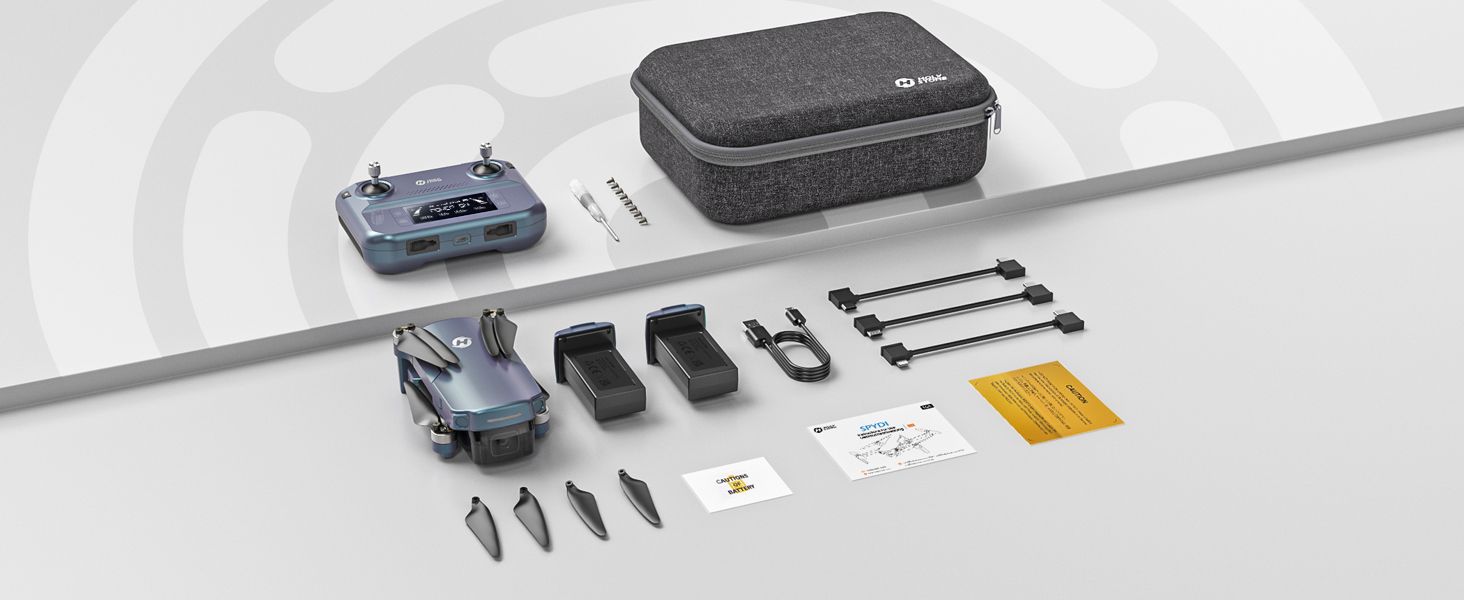
Image: Detailed diagram of the Holy Stone HS360S remote controller, highlighting all buttons and ports.
- Сол джойстик: Controls altitude (up/down) and rotation (yaw left/right).
- Оң Джойстик: Алдыга/артка жана сол/оң кыймылды көзөмөлдөйт.
- Takeoff/Landing Button: Short press for automatic takeoff/landing.
- Шашылыш токтотуу: Long press to immediately stop motors (use only in emergencies).
- Ылдамдык которуштуруу: Short press to cycle through speed modes (Beginner, Normal, Sport).
- GPS которуу: Long press to toggle GPS mode.
- Үйгө кайтуу (RTH): Учуп кетүү чекитине автоматтык түрдө кайтып келүүнү баштайт.
- Сүрөткө тартуу баскычы: Кыймылсыз сүрөткө тартат.
- Record Video Button: Видео жаздырууну баштайт/токтотот.
- Чоңойтуп терүү: Adjusts camera zoom.
- Camera Adjustment Dial: Tilts the camera up or down.
- LCD экран: Displays flight information and battery status.
- Туташуу порту: For connecting your smartphone.
3.2 Негизги учуу иштери
- Күйгүзүү: Turn on the drone first, then the remote controller. Wait for them to connect (indicated by solid lights and a beep).
- GPS сигналы: Ensure the drone has acquired sufficient GPS satellites before takeoff for stable flight and RTH functionality.
- Учуп чыгуу: Place the drone on a flat, open surface. Short press the Takeoff/Landing button. The drone will automatically ascend and hover.
- Учууну башкаруу: Use the joysticks to control the drone's movement. Start with slow, gentle movements, especially in Beginner Mode.
- Конуу: Short press the Takeoff/Landing button. The drone will automatically descend and land. Alternatively, you can manually land using the left joystick.
3.3 Учуунун интеллектуалдык режимдери
The HS360S offers several intelligent flight modes to enhance your aerial photography and videography:
- Мени ээрчүү режими: The drone will automatically follow the remote controller (and your connected smartphone) at a set distance and altitude.
- Таптап учуу: Tap a point on the map in the HS Fly app, and the drone will fly to that location.
- Кызыктуу жери: Select a central point, and the drone will circle around it, capturing footage.
- Hand Gesture Shots: Use specific hand gestures to trigger photo or video capture.
- Auto Return (RTH): The drone will return to its takeoff point if the battery is low, connection is lost, or the RTH button is pressed.

Image: Visual representation of the drone performing various intelligent flight functions like Follow Me, Point of Interest, Trajectory Flight, and Waypoint Flight.

Image: Diagram illustrating the Smart Return Home feature, showing the drone returning to its home point due to low voltage, smart RTH activation, or failsafe RTH.
3.4 Камеранын иштеши
The integrated 4K UHD camera allows you to capture stunning visuals:
- Сүрөт/Видео тартуу: Use the dedicated buttons on the remote controller or the HS Fly app to take photos or start/stop video recording.
- Камеранын бурчун жөндөө: Use the camera adjustment dial on the remote to tilt the camera for different perspectives.
- Чечим: Photos are captured at 3840x2160P, and videos are recorded in 4K.

Сүрөт: Жакын план view of the Holy Stone HS360S drone's 4K UHD camera, highlighting its 90° remotely adjustable feature and 85° FOV.
Video: Holy Stone HS360S Green GPS 4K Drone with Camera for Adults. This video demonstrates the drone's camera capabilities and flight stability.
4. Техникалык тейлөө
- Пропеллер текшерүү: Regularly check propellers for any damage (cracks, bends). Replace damaged propellers immediately using the provided spare parts and screwdriver.
- Тазалоо: Keep the drone and camera lens clean from dust and debris. Use a soft, dry cloth.
- Батареяга кам көрүү: Батареяларды салкын, кургак жерде сактаңыз. Ашыкча заряддабаңыз же ашыкча разряддабаңыз.
- Сактагыч: When not in use, fold the drone and store it in its carry case to protect it from damage.
5. Кыйынчылыктарды
Эгер кандайдыр бир көйгөйгө туш болсоңуз, төмөнкү жалпы көйгөйлөрдү чечүү боюнча кеңештерге кайрылыңыз:
- Дрон жооп бербей жатат: Ensure both the drone and controller are fully charged and properly paired. Re-calibrate the drone if necessary.
- Туруксуз учуу: Ensure GPS signal is strong. Calibrate the gyroscope and compass as per the app instructions. Avoid flying in strong winds.
- No Camera Feed: Check the smartphone connection cable and ensure the HS Fly app is running correctly.
- Кыска учуу убактысы: Батареялардын толук заряддалганын текшериңиз. Учуу убактысына катуу учуу же катуу шамал таасир этиши мүмкүн.
For more detailed troubleshooting or persistent issues, please contact Holy Stone Customer Support.
6. Техникалык шарттар
| Өзгөчөлүк | Спецификация |
|---|---|
| Модель аты | HS Gradient Color Edition |
| Элемент Салмагы | 8.7 унция (249г) |
| Видео тартуунун резолюциясы | 4K UHD (3840x2160P) |
| Максималдуу диапазон | 10,000 Feet (Transmission) |
| Байланыш технологиясы | 5G WiFi Repeater |
| Өзгөчөлүктөр | 4K UHD Camera, Time-lapse Photography, FPV, GPS Follow Me, Auto Return, Lightweight, No Need FAA/Remote ID |
| Батарея клеткасынын курамы | Литий полимери |
| Башкаруу түрү | Алыстан башкаруу |
| Материал | Пластик |
| Элементтин өлчөмдөрү (L x W x Y) | 11.6"L x 8.4"W x 2.2"H |
7. Кепилдик жана колдоо
Holy Stone is committed to providing excellent customer service. If you have any questions, concerns, or require assistance with your HS360S drone, please do not hesitate to contact our support team.
Our HS Fly App also ensures continuous improvements and updates to the drone's functions, offering an ever-improving flight experience. For further guidance, you can refer to in-app tutorials and official YouTube guidance videos.
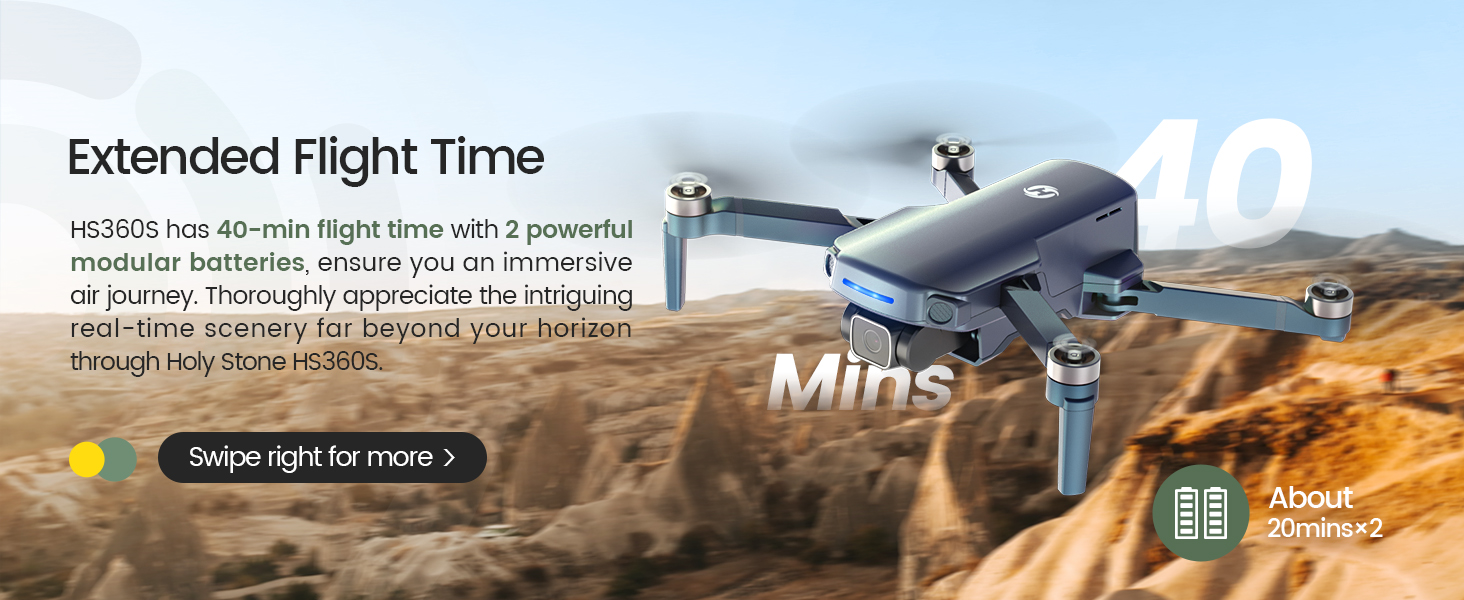
Image: A customer support representative ready to assist, symbolizing Holy Stone's commitment to flight guidance and after-sales support.
Байланыш маалыматы: Please refer to your product packaging or the official Holy Stone webэң акыркы кардарларды колдоо байланыш маалыматтары үчүн сайт.