
1. Киришүү
This manual provides detailed instructions for the installation, operation, and maintenance of your UNITOPSCI Android Car Stereo, Model A7321A2516KTA3. Please read this manual thoroughly before use to ensure proper functionality and safety.

Figure 1.1: UNITOPSCI Android Car Stereo with accessories.
2. Шайкештик жана маанилүү эскертүүлөр
This UNITOPSCI Android Car Stereo is specifically designed for the following vehicle models:
- Subaru Legacy (2010, 2011, 2012, 2013, 2014)
- Subaru Outback (2010, 2011, 2012, 2013, 2014)
Маанилүү шайкештик эскертүүсү:
- Бул бирдик туура келбейт with vehicles equipped with the original Harman Kardon Sound System. If your vehicle has this system, please contact customer support for guidance on suitable wiring harnesses.
- For vehicles without an OEM sound system, the provided wire harness is typically plug-and-play.
- This unit is suitable for vehicles with a small original screen. If your vehicle has a large original screen, a different frame may be required.

Figure 2.1: Vehicle compatibility overview.
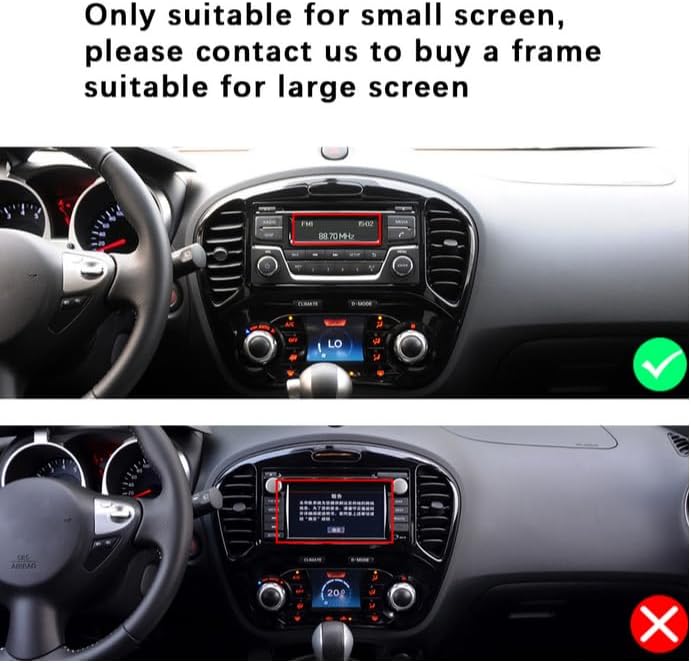
Figure 2.2: Visual guide for screen size compatibility.
3. Пакеттин мазмуну
Төмөндө тизмеленген нерселердин баары пакетиңизге камтылганын текшериңиз:
- Android Car Stereo Unit (9-inch display)
- Арткы View Camera (12 LEDs, night vision, waterproof, 170-degree angle)
- RCA кабели
- Электр кабели
- Орнотуу куралы
- Камеранын киргизүү кабели
- GPS антеннасы
- USB кабелдери (6-пиндүү жана 4-пиндүү)
- Колдонуучунун Колдонмосу (бул документ)

3.1-сүрөт: Таңгактын курамы жана продуктунун өлчөмдөрү.
4. Орнотуу боюнча колдонмо
Кесиптик орнотуу сунушталат. Орнотууну баштоодон мурун унаанын батареясы ажыратылганын текшериңиз.
4.1. Орнотууга чейинки текшерүү
- Verify vehicle compatibility (refer to Section 2).
- Бардык пакеттин мазмуну бар экенин ырастаңыз.
4.2. Removal of Original Unit
- Carefully remove the trim panels surrounding the original car stereo.
- Unscrew and detach the original stereo unit.
- Disconnect all wiring harnesses and antenna cables from the original unit.
4.3. Installing the New Unit
- Connect the provided power cable and other necessary harnesses to the UNITOPSCI Android Car Stereo.
- Connect the GPS antenna and route it to a suitable location (e.g., dashboard, A-pillar) for optimal signal reception.
- If installing the backup camera, route its cable from the rear of the vehicle to the head unit's camera input. Refer to Section 4.4 for wiring details.
- Carefully slide the new stereo unit into the dashboard opening.
- Secure the unit with screws and reattach the trim panels.

Figure 4.1: Visual comparison of dashboard before and after installation.

Figure 4.2: Installation comparison for proper fitment.
4.4. Арткы View Камеранын зымдарынын схемасы
To connect the backup camera:
- Connect the camera's video output to the head unit's 'CAM IN' or 'REVERSE IN' port.
- Connect the camera's power wire (red) to the vehicle's reverse light positive (+12V).
- Connect the camera's ground wire (black) to a suitable chassis ground (GND).
- Connect the trigger wire (labeled 'back' or 'reverse' on the power cable) from the head unit to the reverse light positive. This signals the head unit to switch to the camera view арткы тиштүү тиштүү болгондо.

4.3-сүрөт: Арткы View Camera Wiring Diagram.
5. Баштапкы орнотуу
After installation, turn on your vehicle's ignition to power on the stereo. The unit will boot into the Android operating system.
- Тил жана убакыт жөндөөлөрү: Navigate to 'Settings' to set your preferred language, time zone, and date.
- Wi-Fi туташуусу: Go to 'Settings' > 'Network & Internet' > 'Wi-Fi' to connect to an available Wi-Fi network. This is necessary for online maps, app downloads, and internet browsing.
- GPS Configuration: Ensure the GPS antenna is properly connected. The system should automatically detect GPS signals. You can verify this in the GPS settings.
- Рулду башкарууну үйрөнүү: If your vehicle supports steering wheel controls, go to 'Settings' > 'Steering Learn' to program the buttons. Follow the on-screen instructions to assign functions to each button.
6. Иштөө нускамалары
6.1. Bluetooth функциясы
The built-in Bluetooth 4.2 module allows for hands-free calling and audio streaming.
- Жупташтыруу: On your mobile device, search for Bluetooth devices and select 'UNITOPSCI' (or similar name). Confirm the pairing code if prompted.
- Hands Free Чалуу: Once paired, you can make and receive calls directly from the stereo's touch screen. The unit supports automatic phone book download.
- Аудио агым: Play music from your paired phone through the car stereo speakers.

6.1-сүрөт: Чалуулар жана музыка үчүн Bluetooth интерфейси.

Figure 6.2: Bluetooth handsfree calling in use.
6.2. GPS навигациясы
The unit comes with built-in GPS and preloaded offline maps. Online navigation is also supported via Wi-Fi.
- Оффлайн карталары: The stereo includes free offline maps. You can download additional maps via Wi-Fi using applications like 'Here WeGo'.
- Онлайн навигация: Connect to Wi-Fi to use online navigation apps for real-time traffic updates and more detailed mapping.

6.3-сүрөт: GPS навигациясы иштеп жатат.

Figure 6.4: Built-in WiFi and GPS Navigation features.
6.3. Wi-Fi байланышы
Connect the stereo to a Wi-Fi hotspot (e.g., from your phone) to access online features.
- Browse the internet, watch real-time TV shows, use social media, and download apps from the app store.
6.4. Күзгү шилтеме функциясы
Mirror Link смартфонуңуздун экранын унаанын стереосунда көрсөтүүгө мүмкүндүк берет.
- For iPhone (iOS): One-way operation via Wi-Fi. The phone screen is mirrored to the stereo.
- Android телефондору үчүн: Two-way operation via Wi-Fi or USB. You can control your phone from the stereo's touch screen.

6.5-сүрөт: Mirror Link функциясы.

6.6-сүрөт: iOS жана Android түзмөктөрү үчүн күзгү шилтемеси.
6.5. FM/RDS радиосу
Access local radio stations and enjoy news, music, and weather broadcasts.
- The unit supports FM radio with 18 preset stations.
- RDS (Радио маалымат системасы) мүмкүн болгон жерде станциянын аталышы жана ырдын аталышы сыяктуу кошумча маалыматты берет.

6.7-сүрөт: FM/RDS радио интерфейси.
6.6. Рулду башкаруу (SWC)
Control basic functions of the stereo using your vehicle's existing steering wheel buttons for convenience and safety.
- Refer to Section 5 for initial setup of SWC.
- Functions typically include volume control, track skipping, mode switching, and answering/ending calls.

6.8-сүрөт: Рулду башкарууну орнотуу.
6.7. Камеранын камдык киргизүүсү
The included 12LEDs rear view камера так камсыз кылат view артка кайтканда.
- The stereo automatically switches to display the HD reversing image when the vehicle is put into reverse gear.
- Features include night vision, a 170-degree viewing angle, and waterproof design for enhanced parking safety.

6.9-сүрөт: Арткы камера view on the stereo screen.

Figure 6.10: Parking Assistant features.
6.8. EQ Audio Settings
Орнотулган эквалайзер аркылуу аудио чыгарууну өз каалооңузга жараша тууралаңыз.
- The digital chip allows adjustment of delay time, loudness, equalizer settings (e.g., Jazz, Pop, Rock, Classical), and balance.

Figure 6.11: EQ Sound Settings interface.
6.9. Бөлүнгөн экран функциясы
The unit supports split-screen display, allowing you to run two applications simultaneously.
- Мисалы үчүнample, бир жагында навигацияны, экинчи жагында музыка ойнотууну колдонуңуз.

6.12-сүрөт: Бөлүнгөн экран функциясы.
7. Кыйынчылыктарды
If you encounter issues, please refer to the following common problems and solutions before contacting support.
| Көйгөй | Мүмкүн себеп | Чечим |
|---|---|---|
| Head unit not turning on when car starts | Pink wire or KEY 1 blocking electricity. | Locate the pink wire or KEY 1 wire. Cut it off and ensure it is isolated. This wire may be designed to prevent operation while driving, but can interfere with normal power-on. |
| Аудио чыгышы жок | Incorrect wiring; volume too low; mute function active; incompatible sound system. | Check all speaker wire connections. Ensure volume is up and not muted. Verify compatibility with your vehicle's sound system (especially Harman Kardon). Check EQ settings. |
| Bluetooth байланышы көйгөйлөрү | Phone not paired; interference; unit/phone software glitch. | Ensure Bluetooth is enabled on both devices. Delete previous pairings and re-pair. Restart both the stereo and your phone. |
| GPS сигналы алсыз же так эмес | GPS антеннасынын жайгашуусу; айлана-чөйрөнүн кийлигишүүсү. | Ensure the GPS antenna is mounted in a clear, unobstructed location (e.g., dashboard, not under metal). Check antenna connection. |
| Камдык камера көрсөтүлбөй жатат | Incorrect wiring; camera malfunction. | Verify all camera wiring connections, especially the trigger wire and power supply to the reverse light. Check camera for damage. |
8. Техникалык шарттар

Figure 8.1: Core system specifications.
| Өзгөчөлүк | Деталь |
|---|---|
| Модель номери | A7321A2516KTA3 |
| Операция системасы | Android |
| CPU | Quad Core |
| RAM | 1 ГБ |
| ROM | 32 ГБ |
| Дисплей өлчөмү | 9 дюйм |
| Резолюция | 1024 x 600 |
| Power Output | 4 x 45W |
| Bluetooth версиясы | 4.2 |
| Байланыш технологиясы | Зымсыз (Wi-Fi, Bluetooth) |
| Өзгөчөлүктөр | Backup Camera Input, Bluetooth, FM Radio, Mirror Link, Touchscreen, GPS Navigation, Steering Wheel Control |
| Аудио чыгаруу режими | Стерео |
| Элемент Салмагы | 3.78 фунт |
| Пакеттин өлчөмдөрү | 16.73 x 13.07 x 4.06 дюйм |

Figure 8.2: Display resolution comparison.
9. Кепилдик жана колдоо
UNITOPSCI is committed to providing high-quality products and satisfactory services.
- Кепилдик: Бул продукт 1 жылдык кепилдик менен келет.
- Алмаштыруу саясаты: Жарактуу көйгөйлөр үчүн 24 айдын ичинде алмаштырууга болот.
- Кайтаруу саясаты: 60 күндүк кабатыр болбостон кайтаруу мөөнөтү.
- Техникалык колдоо: Өмүр бою сатуудан кийинки консультация жана техникалык колдоо көрсөтүлөт.
- Колдоо кызматы менен байланышуу: For any inquiries or technical assistance, please contact UNITOPSCI customer support via email at UNITOPSCI@126.com. Expect a quick response within 16 hours.

Figure 9.1: UNITOPSCI Customer Support Information.