
1. Киришүү
This manual provides detailed instructions for the installation, operation, and maintenance of your MekedeTech Android Car Radio Stereo GPS Navigation system. This unit is designed for Ford Fiesta models from 2008 to 2017, offering an upgraded in-car entertainment and navigation experience with advanced features like 4G LTE, Wireless CarPlay, and Android Auto.
Please read this manual thoroughly before installation and use to ensure proper function and to maximize your experience with the device.
2. Негизги өзгөчөлүктөрү
- Шайкештик: Specifically designed for Ford Fiesta 2008-2017 models.
- Операция системасы: Android 12 OS.
- Процессор: 8-Core A53 1.8GHz CPU for fast performance.
- Эстутум: 4GB RAM and 32GB ROM for smooth operation and storage.
- Дисплей: 9-inch IPS touch screen with 1280x720 resolution.
- Байланыш: Built-in 4G LTE module (SIM card slot), Wi-Fi, and Bluetooth 5.0.
- Смартфон интеграциясы: Wireless CarPlay and Wired Android Auto support.
- Навигация: Integrated GPS navigation with pre-installed maps.
- Аудио: Built-in DSP sound system for enhanced audio quality, 4*50W power output.
- Руль башкаруусу: Supports original steering wheel control functions.
- Мультимедиа колдоосу: Wide range of audio (APE/FLAC/WAV/MP3/WMA) and video (MKV/RMVB/AVI/MP4/MDV) formats.
3. Пакеттин мазмуну
The package includes all necessary accessories for installation. Please verify that all items are present before proceeding with installation:
- MekedeTech Android Car Radio Stereo Head Unit
- Dash Kit (specific to Ford Fiesta 2008-2017)
- Электр кабели
- RCA кабели
- Reversing Camera Cable (if included with your specific model)
- USB кабелдери
- GPS антеннасы
- 4G Антенна
- External Microphone (if included)
- Колдонуучунун Колдонмосу (бул документ)
4. Орнотуу боюнча колдонмо
Кесиптик орнотуу сунушталат. Орнотуу процессин баштоодон мурун унаанын батареясы ажыратылганын текшериңиз.
4.1 Орнотууга даярдануу
Before beginning, ensure you have all the necessary tools and components. Familiarize yourself with your vehicle's dashboard layout.

Image 1: Comparison of the Ford Fiesta dashboard before and after the installation of the MekedeTech Android Car Radio Stereo. The left panel shows the original car radio, and the right panel shows the new Android head unit seamlessly integrated.
4.2 Connecting the Cooling Fan (If Applicable)
Some models include an optional cooling fan to manage internal temperatures, especially during prolonged use or in hot climates. Connect the cooling fan as shown in the diagram below.
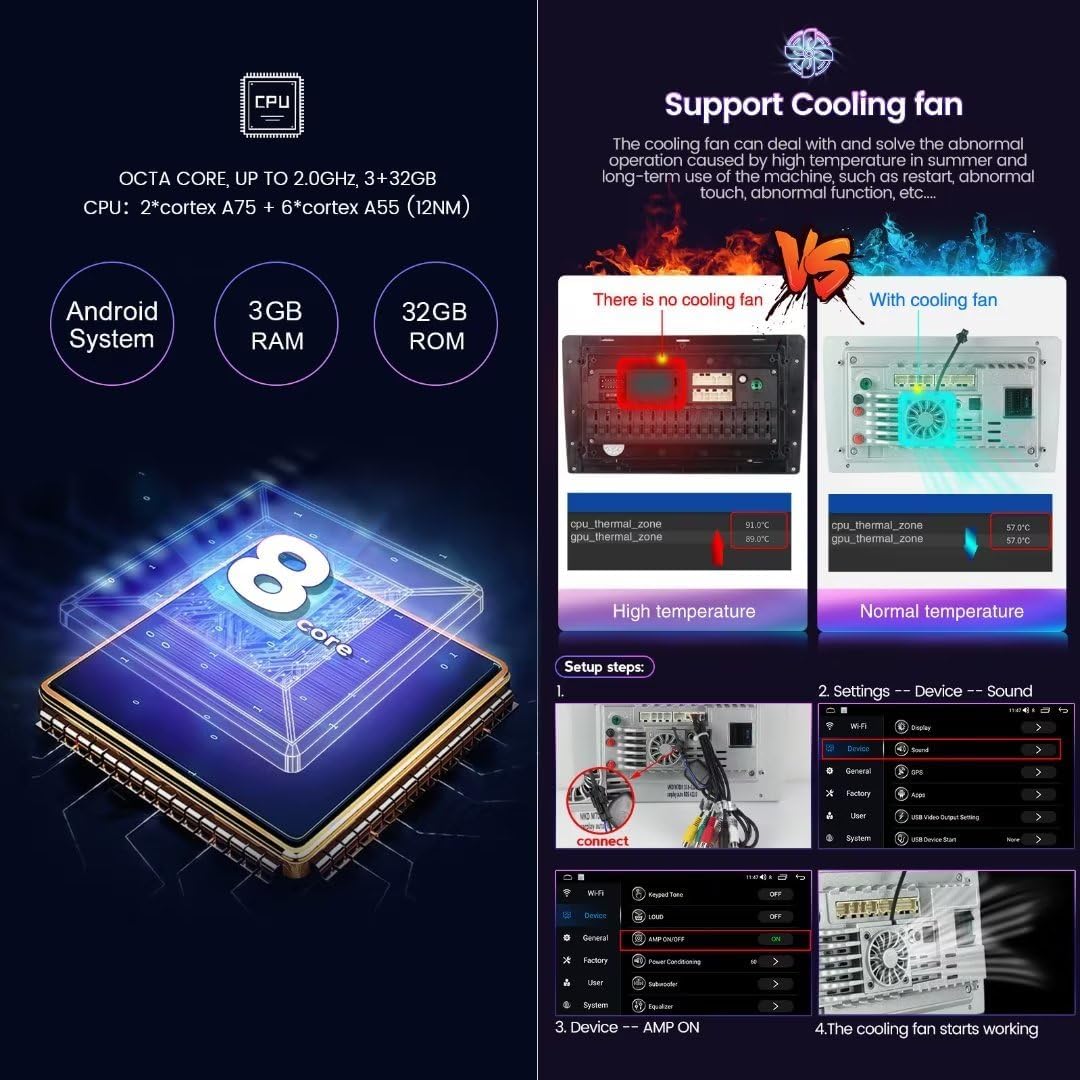
Сүрөт 2: Детальдуу view of the internal components, highlighting the 8-core CPU and the cooling fan. The image also illustrates the setup steps for connecting the cooling fan and accessing device sound settings.
- Connect Cooling Fan: Locate the cooling fan connector on the back of the head unit and securely attach the fan cable.
- Ишти текшерүү: After installation, navigate to the device settings to confirm the cooling fan is recognized and operating correctly. (Settings > Device > Sound)
4.3 Зымдарды туташтыруу
Connect the power cable, RCA cables, USB cables, and other necessary wiring to the corresponding ports on the head unit and your vehicle's harness. Ensure all connections are secure to prevent intermittent issues.
- Кубат кабели: Негизги электр жабдыгын туташтырыңыз.
- RCA кабелдери: Тышкы үчүн amplifiers, subwoofers, or auxiliary video inputs/outputs.
- USB кабелдери: For connecting USB devices or for wired Android Auto.
- GPS антеннасы: GPS антеннасын ачык жерге орнотуңуз view асмандын, адатта, башкаруу панелинде.
- 4G антенна: Mount the 4G antenna for optimal signal reception.
- Артка камера: If installing a reversing camera, connect its video and power cables as per the camera's instructions.
4.4 Finalizing Installation
Once all connections are made, carefully reassemble the dashboard components. Reconnect the vehicle's battery and test the unit's functionality.
5. Баштапкы орнотуу
After successful installation, power on the unit and follow these steps for initial configuration.
5.1 Системанын тили жана убактысы
Upon first boot, you may be prompted to select your preferred language and set the correct time zone. If not, navigate to Settings > System to adjust these options.
5.2 Wi-Fi туташуусу
To access online features, connect the unit to a Wi-Fi network.
- барыңыз Орнотуулар > Тармак жана Интернет > Wi-Fi.
- Wi-Fi күйгүзүңүз жана тизмеден каалаган тармакты тандаңыз.
- Суралган болсо, сырсөздү киргизип, туташыңыз.
5.3 4G LTE Connection
The unit supports 4G LTE connectivity via a SIM card. This allows internet access without a Wi-Fi hotspot.

Image 3: Illustration of the built-in 4G LTE module with a SIM card slot, and a visual representation of the Digital Sound Processor (DSP) for enhanced audio.
- SIM картаны салыңыз: Locate the 4G SIM card slot (one on the back of the main unit, one on the RCA cable) and insert a compatible 4G SIM card.
- Enable Mobile Data: барыңыз Орнотуулар > Тармак жана Интернет > Мобилдик тармак жана мобилдик маалыматтар иштетилгенин камсыз кылуу.
- APN Орнотуулары: If internet access is not automatic, you may need to configure APN settings manually. Refer to your mobile carrier for the correct APN details.
5.4 Bluetooth жупташтыруу
Колсуз чалуулар жана аудио агымы үчүн смартфонуңузду же башка Bluetooth түзмөктөрүңүздү жупташтырыңыз.
- барыңыз Орнотуулар > Туташкан түзмөктөр > Жаңы түзмөктү жупташтыруу.
- Мобилдик түзмөгүңүздө Bluetooth иштетип, жеткиликтүү түзмөктөрдү издеңиз.
- Select the car stereo's Bluetooth name (e.g., "MekedeTech Car Stereo") from your phone's list and confirm the pairing code.
6. Иштөө нускамалары
6.1 Үй экранында навигация
The home screen provides access to all main functions. Swipe left or right to navigate between screens, and tap icons to open applications.
6.2 GPS навигациясы
The unit comes with built-in GPS navigation and pre-installed maps. Tap the "Navigation" or "Maps" icon to launch the application. Ensure the GPS antenna is properly installed for accurate positioning.
6.3 Wireless CarPlay / Android Auto
Connect your iPhone or Android smartphone for seamless integration of apps, navigation, music, and calls.

Image 4: Visual guide demonstrating the user interfaces for Wireless CarPlay (iOS system) and Wireless Android Auto (Android system), along with their respective connection steps.
6.3.1 Зымсыз CarPlay (iOS системасы)
- Bluetooth туташтыруу: Ensure your iPhone is paired with the car stereo via Bluetooth.
- Open Car Link App: On the car stereo, open the "Car Link" or similar application.
- Байланышты күтүңүз: The system will automatically connect to CarPlay. (Wired connection via USB is also supported if wireless fails or is preferred).
6.3.2 Wireless Android Auto (Android System)
- Bluetooth туташтыруу: Ensure your Android phone is paired with the car stereo via Bluetooth.
- Open Car Link App: On the car stereo, open the "Car Link" or similar application.
- Байланышты күтүңүз: The system will automatically connect to Android Auto. (Wired connection via USB is also supported if wireless fails or is preferred).
6.4 Мультимедиа ойнотуу
Access various multimedia functions:
- Радио: Tune into FM/AM stations.
- Музыка: Аудио ойнотуу files from internal storage, USB drives, or streaming apps.
- Видео: Видеону ойнотуу files from internal storage or USB drives.
- Bluetooth Музыкасы: Stream audio from your paired smartphone.
6.5 Рулдун башкаруу элементтери
The unit retains your vehicle's original steering wheel control functions. This allows you to adjust volume, change tracks/channels, and answer calls without taking your hands off the steering wheel.
7. Техникалык тейлөө
To ensure the longevity and optimal performance of your MekedeTech car stereo, follow these maintenance guidelines:
- Экранды тазалоо: Сенсордук экранды акырын сүртүү үчүн жумшак, түксүз чүпүрөктү колдонуңуз. Абразивдүү тазалагычтардан же эриткичтерден качыңыз.
- Программалык камсыздоо жаңыртуулары: Periodically check for and install system software updates to ensure the latest features and security patches.
- Ашыкча температурадан сактаныңыз: Түзмөктү узак убакыт бою өтө ысыкка же суукка дуушар кылбаңыз.
- Коопсуз байланыштар: Бардык зымдардын туташууларынын бекемдигин камсыз кылуу үчүн мезгил-мезгили менен текшерип туруңуз.
8. Кыйынчылыктарды
Унаа стереоңузда көйгөйлөргө туш болсоңуз, төмөнкү жалпы көйгөйлөрдү жана чечимдерди караңыз:
| Көйгөй | Мүмкүн себеп | Чечим |
|---|---|---|
| Түзмөк күйбөйт. | Бошоң электр туташуу, күйгөн сактагыч, унаанын аккумуляторунун көйгөйү. | Электр кабелдеринин туташууларын текшериңиз. Унаанын сактагычтарын текшериңиз. Унаанын аккумулятору заряддалганын текшериңиз. |
| Үн жок. | Үнү өтө төмөн, үнсүз режим иштетилген, динамиктин зымдарында көйгөй бар, аудио чыгаруу жөндөөлөрү туура эмес. | Increase volume. Check if mute is active. Verify speaker wiring. Check audio settings in the system. |
| GPS сигналы жоголду же так эмес. | GPS антеннасы туура эмес орнотулган же тыгылып калган. | GPS антеннасынын таза болушун текшериңиз view асмандын. Антенна байланышын текшериңиз. |
| Bluetooth туташпай жатат. | Bluetooth off on either device, incorrect pairing process, interference. | Ensure Bluetooth is enabled on both devices. Re-attempt pairing. Clear previous pairings. |
| CarPlay/Android Auto иштетилбей жатат. | Incorrect connection steps, phone compatibility issues, app not updated. | Follow connection steps carefully. Ensure phone OS and apps are updated. Try wired connection. |
| Сенсордук экран жооп бербейт. | Системанын катып калышы, программалык камсыздоонун убактылуу катасы. | Restart the unit (if possible, refer to system reset instructions). If persistent, contact support. |
9. Техникалык шарттар
| Өзгөчөлүк | Деталь |
|---|---|
| Бренд | MekedeTech |
| Модел | 8-Core 4+32G |
| Унаанын шайкеш түрү | Ford Fiesta (2008-2017) |
| Операция системасы | Android 12 |
| CPU | 8 ядролуу A53 1.8 ГГц |
| Эстутум (RAM) | 4 ГБ |
| Сактагыч (ROM) | 32 ГБ |
| Screen Size | 9 дюйм |
| Дисплей түрү | IPS LCD |
| Резолюция | 1280 x 720 |
| Сенсордук экран түрү | Capacitive |
| Байланыш технологиясы | Wireless (Wi-Fi, Bluetooth, Cellular) |
| Туташуу протоколдору | Bluetooth 5.0, Cellular (4G LTE), Wi-Fi |
| Өзгөчөлүктөр | 4G LTE, Bluetooth, Touchscreen, Wireless Android Auto, Wireless CarPlay, Built-in GPS, DSP Sound System |
| Аудио чыгаруу режими | Стерео |
| Power Output | 4*50 Вт |
| Колдоого алынган аудио форматтары | APE, FLAC, WAV, MP3, WMA ж.б. |
| Колдоого алынган видео форматтары | MKV, RMVB, AVI, MP4, MDV ж.б. |
| Карта түрү | Бүткүл дүйнөлүк |
| Адам-интерфейс киргизүү | Touchscreen, Steering Wheel Controls |
10. Кепилдик жана колдоо
This MekedeTech Android Car Radio Stereo GPS Navigation system comes with a 1 жылдык кепилдик сатып алынган күндөн тартып.
The warranty covers manufacturing defects and malfunctions under normal use. It does not cover damage caused by improper installation, misuse, accidents, or unauthorized modifications.
For technical support, warranty claims, or further assistance, please contact MekedeTech customer service through the retailer where the product was purchased or visit the official MekedeTech webбайланыш маалыматы үчүн сайт.
Сураныч, кепилдик максаттары үчүн сатып алганыңыздын далилин сактап коюңуз.