
Introduction
This manual provides detailed instructions for the setup, operation, and maintenance of your Prechen 10.1 inch Portable Touchscreen Monitor, Model HD-101. Please read this manual thoroughly before using the device to ensure proper functionality and to prevent damage.
Продукт өзгөчөлүктөрү
- Portable Touchscreen: This 10.1-inch monitor is compact and lightweight, designed for portability. The touchscreen functionality allows for intuitive navigation and interaction, enhancing productivity on the go.
- High-Resolution IPS Display: Features a 1920x1200 resolution with a 16:10 aspect ratio, delivering clear and vibrant visuals. IPS technology provides wide viewing angles and accurate color reproduction, suitable for various applications.
- Ар тараптуу байланыш: Equipped with HDMI and USB-C ports, offering flexible connection options. It can be easily connected to Windows PCs, laptops, and gaming consoles like Xbox. Note: USB-C is for touch functionality and power.
- Интегралдык баяндамачылар: Built-in speakers provide clear and dynamic audio, eliminating the need for external speakers during media consumption, gaming, or virtual meetings.
- VESA монтажына шайкеш келет: The monitor supports VESA mounting standards, allowing for attachment to compatible stands or arms for customized workspace setups and comfortable viewбурчтар.
Жайгашуу
Пакеттин мазмуну
Пакетте бардык буюмдар бар экенин текшериңиз:
- Prechen 10.1 inch Portable Touchscreen Monitor
- HDMI кабели
- USB-C - USB-C кабели
- USB-A to USB-C Cable (for power/touch)
- Кубаттуу адаптер
- Колдонуучунун Колдонмосу (бул документ)
Мониторду туташтыруу
- Кубат туташуу: Connect the provided power adapter to the DC Power Port on the monitor and plug it into a power outlet. Alternatively, if your device supports power delivery, connect a USB-C to USB-C cable to the USB-C (Power & Touch) port for both power and signal.
- Видео туташуу:
- HDMI: Connect one end of the HDMI cable to the HDMI port on the monitor and the other end to the HDMI output of your computer or device.
- USB-C (DisplayPort Alternate Mode): If your device supports DisplayPort Alternate Mode over USB-C, connect a USB-C to USB-C cable to the USB-C (Power & Touch) port on the monitor and your device. This single cable can provide video, power, and touch functionality.
- Тийүү функциясы: For touch functionality, ensure the USB-C (Power & Touch) port is connected to your device. If using HDMI for video, you will also need to connect a USB-A to USB-C cable from your device's USB-A port to the monitor's USB-C (Power & Touch) port.
- Аудио чыгаруу: If you wish to use external headphones or speakers, connect them to the 3.5mm Audio Port on the monitor.
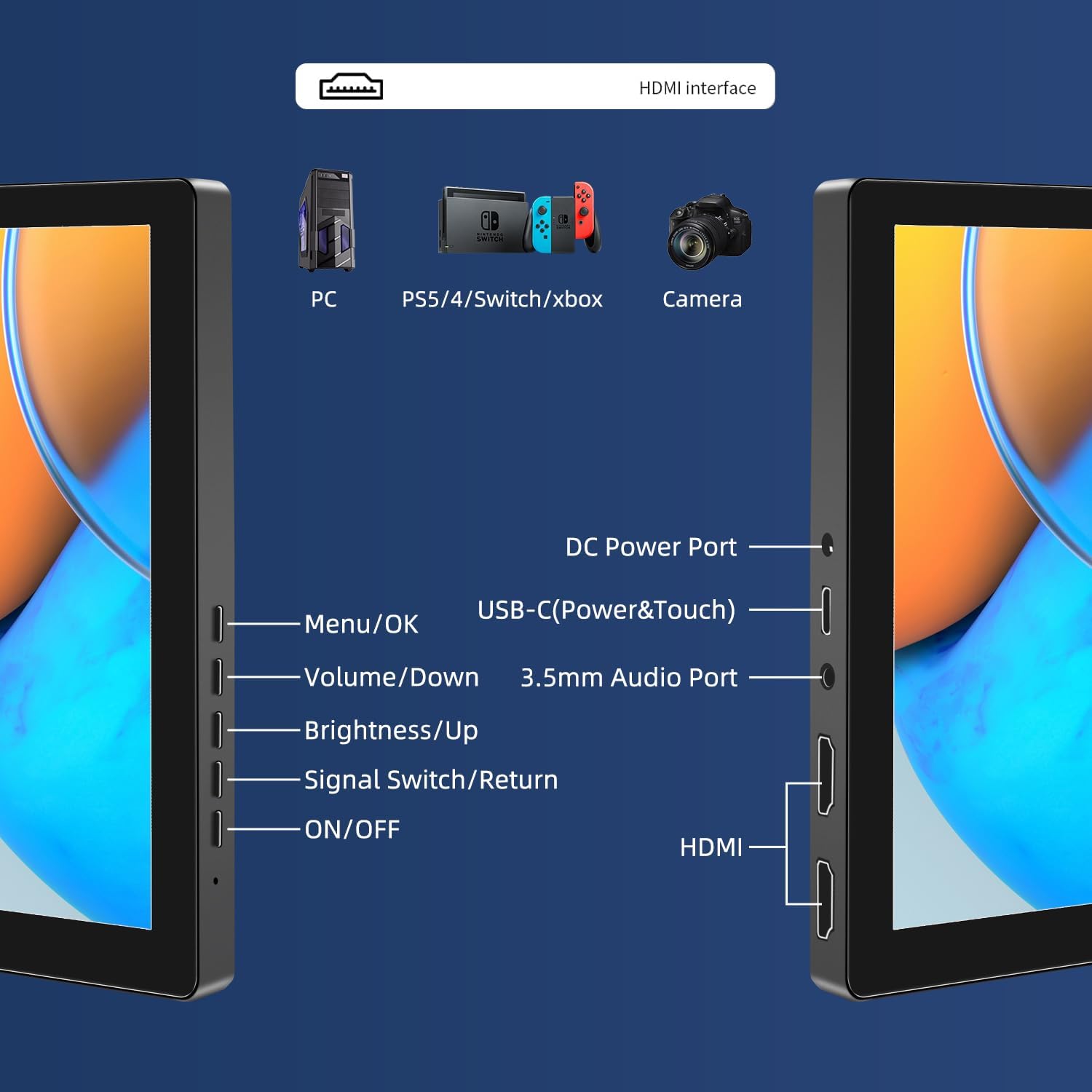
Сүрөт: бүттүview of the monitor's ports including DC Power, USB-C (Power & Touch), 3.5mm Audio, HDMI, and control buttons.
Иштөө нускамалары
Күйгүзүү/өчүрүү
- To power on the monitor, press the КҮЙГҮЗҮҮ/ӨЧҮРҮҮ баскычы.
- Өчүрүү үчүн, басып туруңуз КҮЙГҮЗҮҮ/ӨЧҮРҮҮ button for a few seconds until the screen turns off.
Экрандагы дисплей (OSD) менюсун колдонуу
OSD менюсу ар кандай дисплей жөндөөлөрүн тууралоого мүмкүндүк берет.
- басыңыз Меню / ОК OSD менюсун ачуу үчүн баскычты басыңыз.
- колдонуу Көлөм/Төмөн жана Жарыктык/Өйдө баскычтар меню параметрлери боюнча чабыттоо.
- Басыңыз Меню / ОК параметрди тандоо же орнотууну ырастоо үчүн.
- басыңыз Signal Switch/Return мурунку менюга кайтуу же OSDден чыгуу үчүн баскычты басыңыз.
Дисплей режимдерин жөндөө
The monitor supports multiple display modes when connected to a computer:
- Кайталануу режими: Displays the same content on both your primary screen and the portable monitor.
- Узартуу режими: Иш тактаңызды эки экранга тең кеңейтип, көбүрөөк жумуш мейкиндигин камсыз кылат.
- Экинчи экран режими: Дисплей катары көчмө мониторду гана колдонот.
These modes are typically configured through your operating system's display settings (e.g., Windows Display Settings, macOS System Preferences).
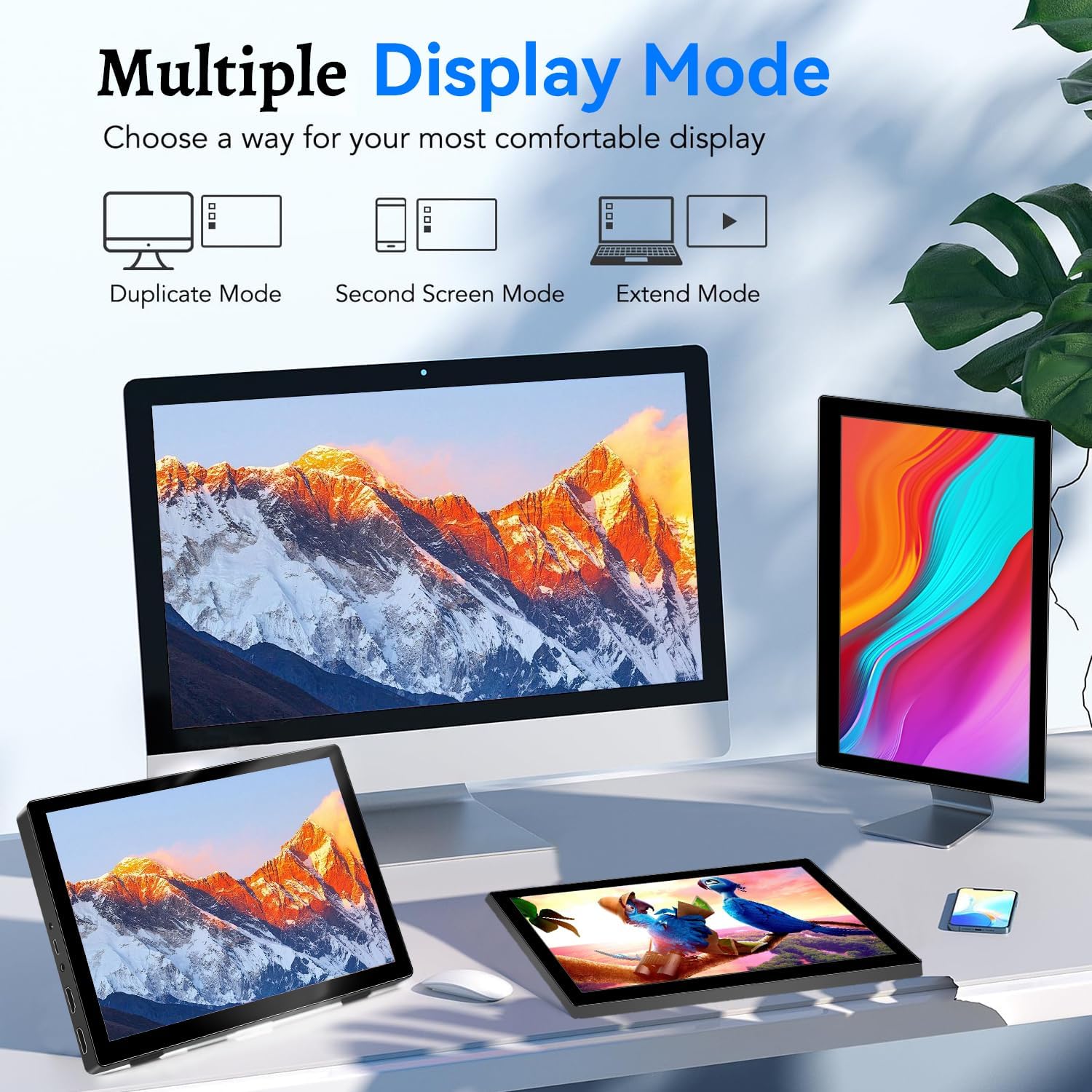
Image: Visual representation of Duplicate, Second Screen, and Extend display modes.
Using Touchscreen Functionality
The monitor supports 10-point touchscreen technology. Ensure the USB-C (Power & Touch) port is correctly connected to your device for touch input to function.

Сүрөт: Мисamples of 10-point touchscreen gestures for interaction.
Техникалык тейлөө
- Экранды тазалоо: Бир аз жумшак, түксүз кездемени колдонуңуз dampсуу же абразивдүү эмес экран тазалагыч менен эритип алыңыз. Тазалоочу каражатты түз эле экранга чачпаңыз.
- Тазалоо Casing: Мониторду сүртүңүз casing жумшак, кургак чүпүрөк менен. Күчтүү жуучу каражаттарды же эриткичтерди колдонуудан алыс болуңуз.
- Сактагыч: Колдонулбай турган учурда, мониторду салкын, кургак жерде, күндүн түз нурунан жана өтө жогорку температурадан алыс сактаңыз.
- Колдонуу: Avoid dropping or subjecting the monitor to strong impacts. Do not place heavy objects on top of the monitor.
Проблемаларды чечүү
| Көйгөй | Мүмкүн себеп | Чечим |
|---|---|---|
| Дисплей жок/Кара экран |
|
|
| Сенсордук экран жооп бербей жатат |
|
|
| Динамиктерден аудио жок |
|
|
| Сүрөттүн сапаты боюнча көйгөйлөр (бүдөмүк, бурмаланган) |
|
|
Техникалык шарттар
| Өзгөчөлүк | Деталь |
|---|---|
| Бренд | Prechen |
| Модель номери | HD-101 |
| Screen Size | 10.1 дюйм |
| Резолюция | 1920 x 1200 (UXGA Wide) |
| Аспект катышы | 16:10 |
| Панел түрү | IPS |
| Жаңыртуу ылдамдыгы | 60 Гц |
| Жооп убактысы | 1 мс |
| Байланыш | 1x HDMI, 1x USB-C (Power & Touch), 1x 3.5mm Audio Jack, 1x DC Power Port |
| Өлчөмдөрү (L x W x Y) | 21.8 x 15.8 x 1.4 см |
| Салмагы | 990 грамм |
| Өндүрүүчү | Shenzhen Kenowa Electronics Co., LTD |
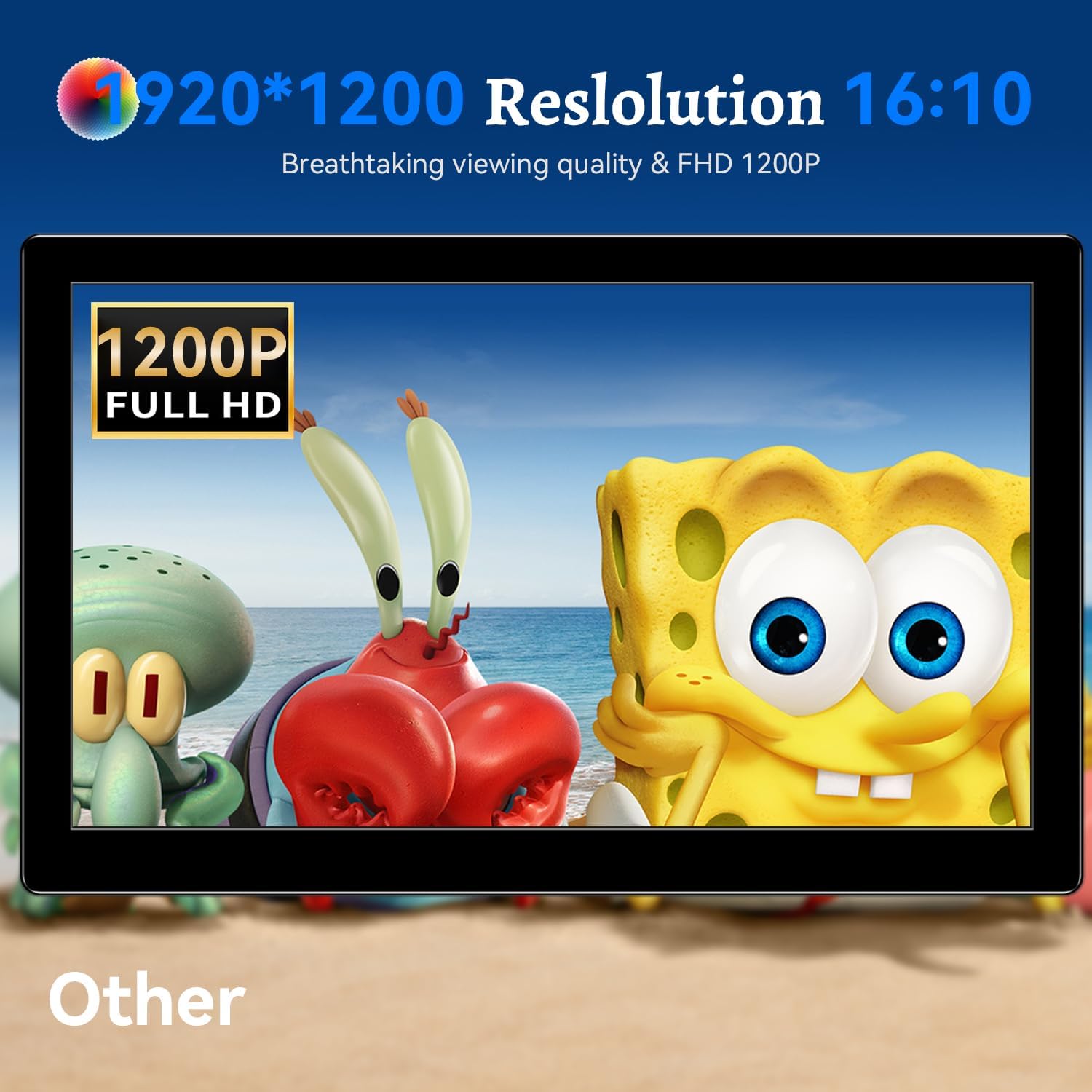
Сүрөт: Монитор showcasing its 1920x1200 Full HD resolution.

Image: The monitor's IPS panel offering wide viewing angles and rich colors.
Кепилдик жана колдоо
For warranty information and technical support, please refer to the warranty card included with your product or contact Prechen customer service through their official website. Please have your model number (HD-101) and purchase details ready when contacting support.