
1. Киришүү
The ATUVOS Air Tracker Tag is a compact Bluetooth device designed to help you locate your personal belongings using the Apple Find My network. This manual provides detailed instructions for setting up, operating, and maintaining your ATUVOS Air Tracker Tags.
2. Коопсуздук маалыматы
- Майда бөлүктөрдү, өзгөчө батарейканы кокустан жутуп албаш үчүн аппаратты кичинекей балдар жана үй жаныбарлары жетпеген жерде сактаңыз.
- Do not attempt to disassemble or modify the device beyond battery replacement.
- Dispose of batteries according to local regulations. Do not expose batteries to excessive heat or fire.
- This device is water-resistant (IP67 rated) but not waterproof. Avoid prolonged submersion in water.
3. Пакеттин мазмуну
- ATUVOS аба трекери Tags (2 таңгак)
- User Manual
- CR2032 Coin Cell Batteries (pre-installed)
4. Продукт бүтүп калдыview
The ATUVOS Air Tracker Tag is a compact, square-shaped device designed for easy attachment to various items. It features a single button for operation and a small hole for attaching to keyrings or straps.

Figure 1: ATUVOS Air Tracker Tags
Негизги өзгөчөлүктөрү:
- Find My App Compatibility: Works exclusively with Apple's Find My network (iOS devices only).
- Loud Ring: Built-in speaker emits an 80-100dB sound to help locate nearby items.
- Wide Bluetooth Range: Up to 200 feet (60 meters) without obstacles.
- Left Behind Alerts: Receive notifications if you leave your tagged item behind.
- Жоголгон режим: Mark your item as lost in the Find My app to receive automatic notifications when detected by the network.
- IP67 Water-resistant: Protected against dust and temporary immersion in water.
- Алмаштылуучу батарея: Powered by a CR2032 coin cell battery with over 1 year of life.
- Купуялыкты коргоо: The Find My network is encrypted and anonymous; location data is not stored on the tag.
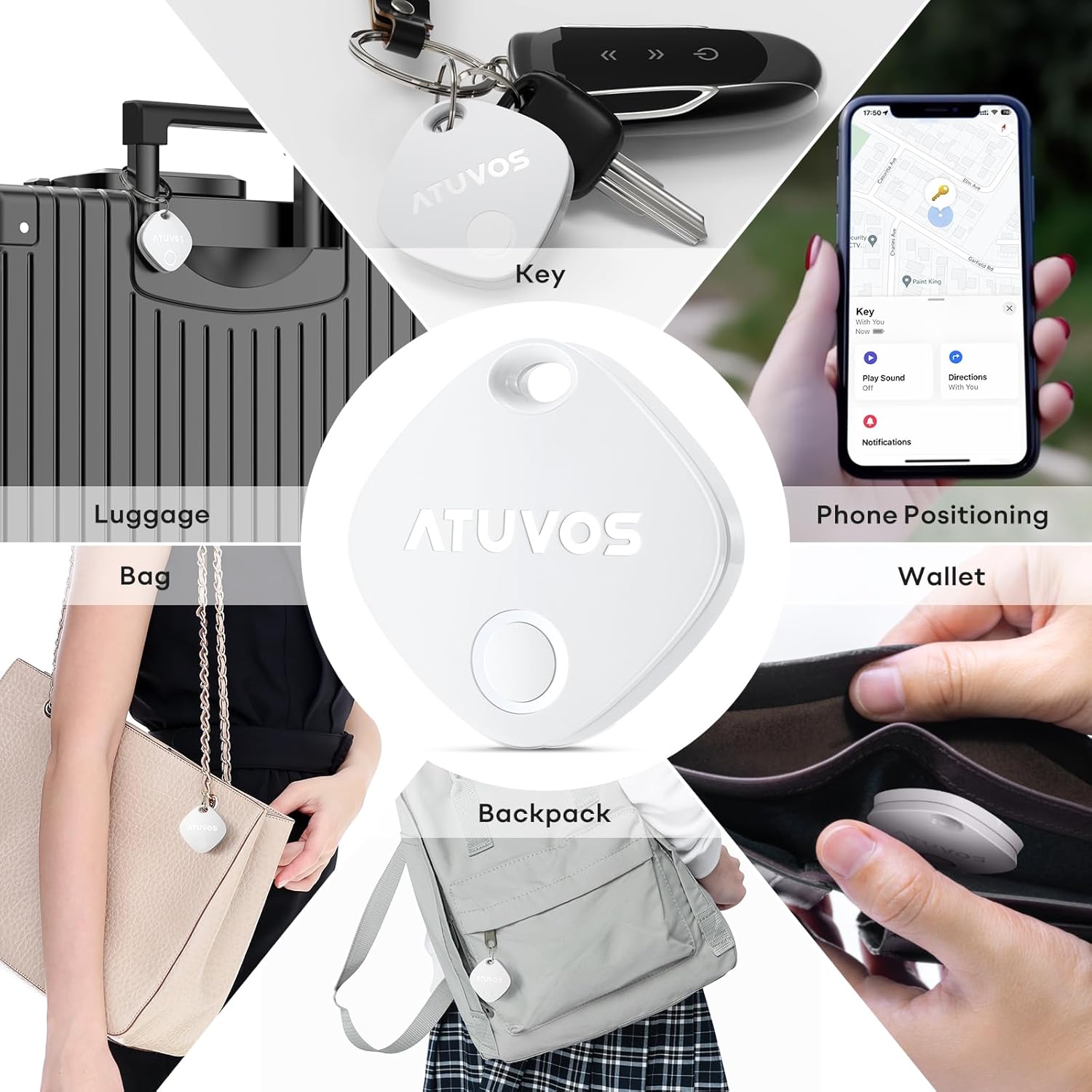
Figure 2: Product Dimensions (1.34 x 1.34 x 0.42 inches)
5. Орнотуу
Follow these steps to connect your ATUVOS Air Tracker Tag to your iOS device:
- Түзмөктү баштапкы абалга келтирүү: камсыз кылуу tag is powered on. Press and hold the button on the ATUVOS Tag for approximately 10 seconds. You will hear a short beep after 3 seconds, and a long beep after 10 seconds. Release the button after the long beep. Two short beeps will confirm a successful reset.
- Менин колдонмомду табуу: On your iOS device, open the 'Find My' application. Ensure Bluetooth is enabled on your device.
- Жаңы нерсе кошуу: Navigate to the 'Items' tab at the bottom of the screen. Tap the '+' icon and select 'Add Other Item'.
- Туташуу: Your iOS device will search for nearby compatible items. Once 'Atuvos Tag' пайда болгондо, 'Байланыш' баскычын таптаңыз.
- Буюмуңузду атаңыз: Follow the on-screen prompts to name your item (e.g., 'Keys', 'Wallet', 'Luggage') and choose an emoji to represent it.
- Шарттарга макул болуңуз: Review and agree to the terms and conditions.
- Орнотууну бүтүрүү: The tag Эми сиздин Apple ID'ңизге туташтырылган жана колдонууга даяр.
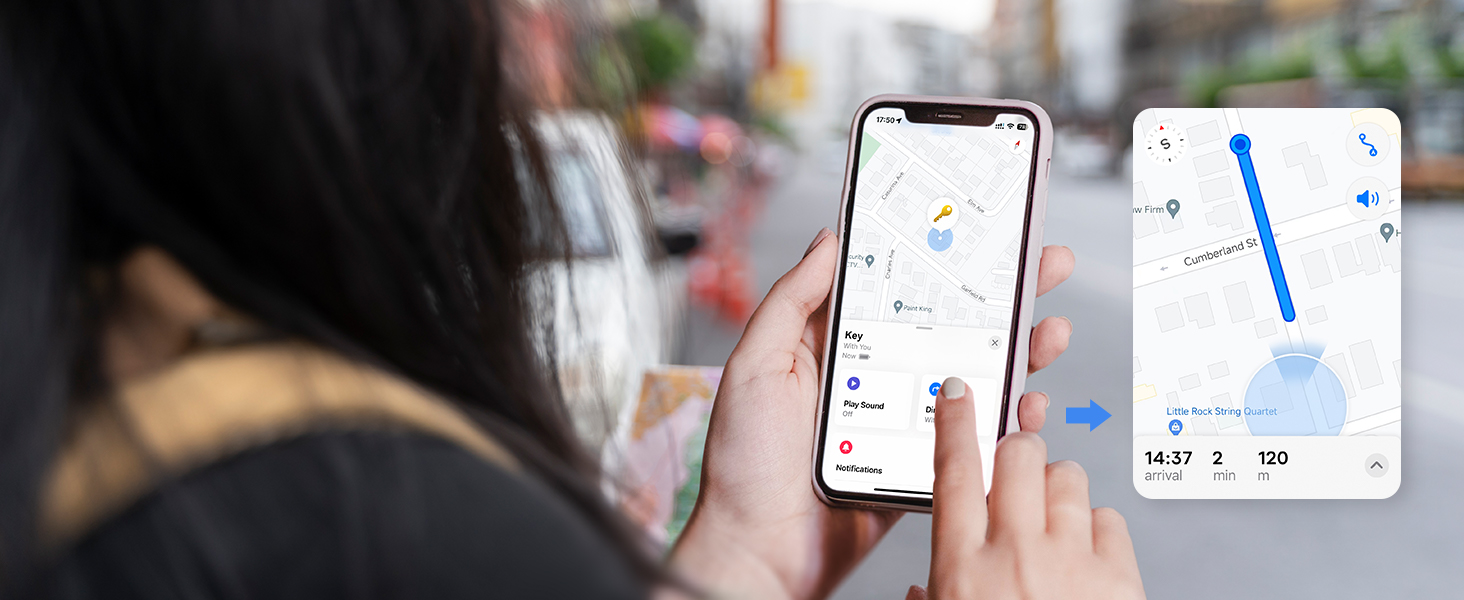
Figure 3: Setup Process in Find My App
Video 1: ATUVOS Tracker Tag Compatible with Apple Find My (iOS Only) - This video demonstrates the process of connecting the ATUVOS Tag to the Apple Find My app on an iOS device.
6. Иштөө нускамалары
6.1. Find Nearby
When your ATUVOS Tag is within Bluetooth range, you can make it play a sound to help you locate it.
- iOS түзмөгүңүздө "Менин тап" колдонмосун ачыңыз.
- Go to the 'Items' tab.
- Select your ATUVOS Tag тизмеден.
- "Үн ойнотуу" баскычын таптаңыз. tag will emit a loud ring (80-100dB) to guide you to its location.
- You can also ask Siri, "Hey Siri, find my [item name]."

Figure 4: Locating a Nearby Item
6.2. Find Far Away
If your ATUVOS Tag is outside of Bluetooth range, you can still locate it using the Find My network.
- iOS түзмөгүңүздө "Менин тап" колдонмосун ачыңыз.
- Go to the 'Items' tab.
- Select your ATUVOS Tag. The app will display its last known location on a map.
- Tap 'Directions' to get navigation to the tag's vicinity.

Figure 5: Locating a Far Away Item
6.3. Left Behind Remind
Receive instant alerts if you accidentally leave your tagged item behind.
- In the 'Find My' app, select your ATUVOS Tag.
- Scroll down and enable 'Notify When Left Behind'.
- You can customize locations where you don't want to be notified (e.g., home).

Figure 6: Left Behind Reminder Notification
6.4. Lost Mode
If your item is lost, activate Lost Mode to increase your chances of recovery.
- In the 'Find My' app, select your ATUVOS Tag.
- Scroll down to 'Lost Mode' and tap 'Enable'.
- Follow the instructions to enter your contact information (phone number or email) and a message for the person who finds your item.
- You will be automatically notified when your lost item is detected by any device in the Find My network.

Figure 7: Anti-Lost Mode Interface
6.5. Share Item (iOS 17 and above)
With iOS 17 or later, you can share your ATUVOS Tag with up to 5 other individuals.
- Ensure your iOS device is updated to iOS 17 or newer.
- In the 'Find My' app, select your ATUVOS Tag.
- Scroll down and tap 'Share This Item'.
- Follow the prompts to add up to 5 borrowers. They will be able to see the item's location on a map.
- Borrowers will not receive tracking notifications when the item moves with them.

Figure 8: Sharing an ATUVOS Tag
7. Батареяны алмаштыруу
The ATUVOS Air Tracker Tag uses a replaceable CR2032 coin cell battery. When the battery is low, you will receive a notification on your iOS device.
- Locate the small gap on the side of the ATUVOS Tag.
- Carefully insert a thin tool (like a guitar pick or a small flat-head screwdriver) into the gap.
- Gently pry open the two halves of the tag.
- Эски CR2032 батареясын алып салыңыз.
- Жаңы CR2032 батареясын оң (+) тарабын өйдө каратып салыңыз.
- Align the two halves of the tag and press them firmly together until they click securely into place. Ensure the top hole on both lids aligns.

Figure 9: Battery Replacement Steps
Video 2: How do I replace the battery? - This video provides a visual guide on replacing the battery of the ATUVOS Tag.
8. Техникалык тейлөө
- Clean the ATUVOS Tag жумшак, кургак чүпүрөк менен. Катуу химиялык заттарды же абразивдүү материалдарды колдонуудан алыс болуңуз.
- Regularly check the battery level in the Find My app to ensure continuous tracking.
- камсыз кылуу tag is securely attached to your items to prevent accidental detachment.
9. Кыйынчылыктарды
9.1. Tag Not Pairing
- iOS түзмөгүңүздө Bluetooth иштетилгенин текшериңиз.
- Make sure the ATUVOS Tag күйгүзүлгөн жана жаңы батареясы бар.
- Perform a device reset as described in Section 5.1.
- алып кел tag closer to your iOS device during the pairing process.
9.2. Sound Not Playing
- камсыз кылуу tag iOS түзмөгүңүздүн Bluetooth диапазонунда.
- Check the battery level of the tag. A low battery might affect sound output.
- iOS түзмөгүңүздөгү үн өчүрүлбөгөнүн же өтө төмөн эместигин текшериңиз.
9.3. Inaccurate Location
- Location accuracy depends on the density of Apple devices in the Find My network. In areas with fewer devices, location updates might be less frequent or precise.
- Ensure your iOS device has a stable internet connection for accurate map data.
- Эгерде tag is indoors or in a dense environment, GPS signals might be obstructed.
10. Техникалык шарттар
| Модель номери | AT2301 |
| Өлчөмдөр | 1.34 x 1.34 x 0.42 дюйм |
| Элемент Салмагы | 1.44 унция |
| Байланыш | Bluetooth 5.2 |
| Суу каршылык | IP67 |
| Батарея түрү | CR2032 Coin Cell (included) |
| Батареянын иштөө мөөнөтү | 1 жылдан ашык |
| Шайкештик | iOS түзмөктөрүндө гана (Apple Find My тармагы) |
11. Кепилдик жана колдоо
ATUVOS provides customer service for its products. For any questions regarding the use of your ATUVOS Air Tracker Tags, please contact customer support. Refer to the product packaging or the official ATUVOS webатайын кепилдик маалымат жана байланыш маалыматы үчүн сайт.
Кардарларды тейлөө: Available 24 hours. Please refer to the contact details provided with your product or on the ATUVOS official webсайт.