
1. Киришүү
This manual provides essential information for the safe and efficient use of your Google TV 7000 Series 4K Ultra HD LED Television. Please read these instructions thoroughly before operating the device and retain them for future reference.
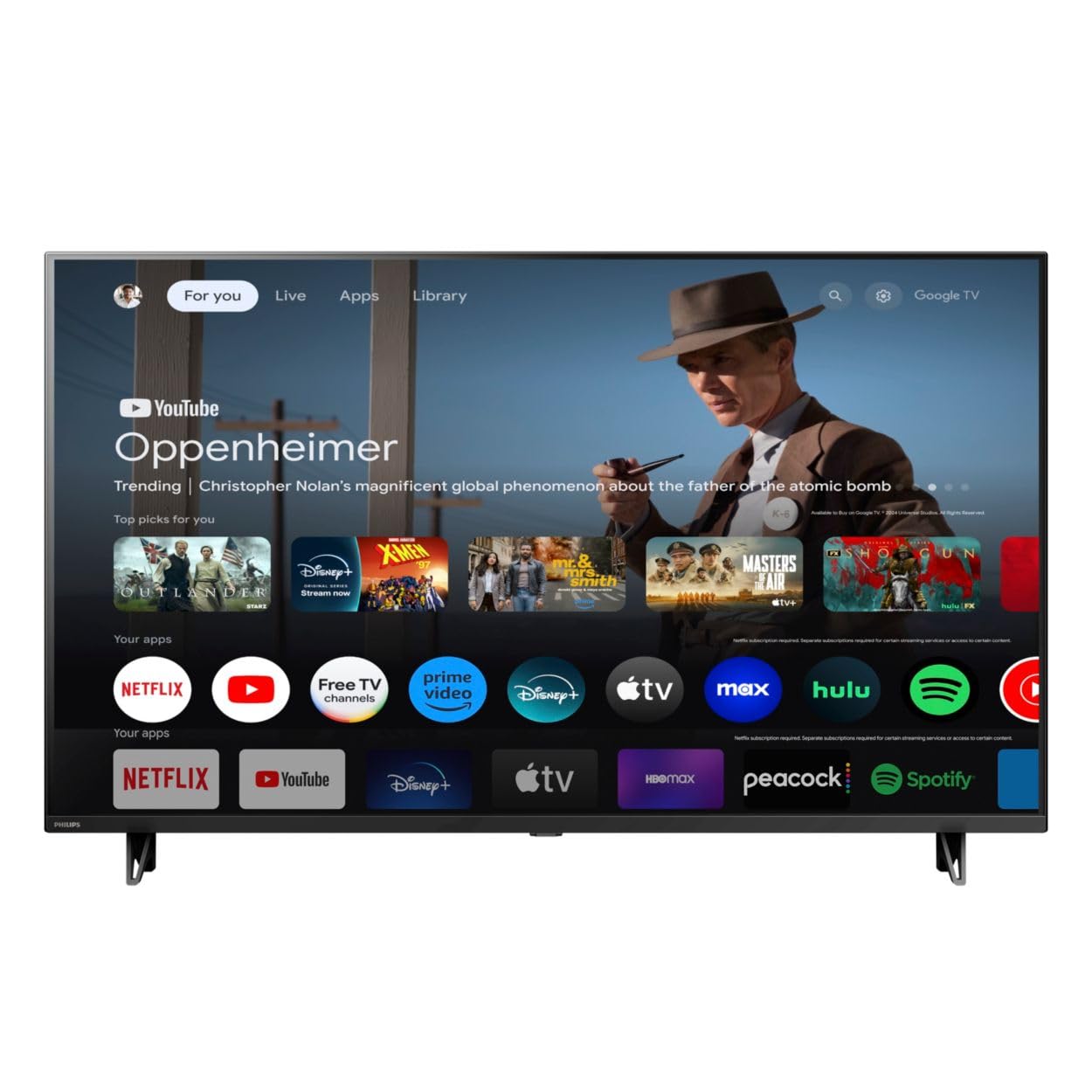
Фронт view of the Google TV 7000 Series 4K Ultra HD LED Television, showcasinАнын ичке алкагы жана дисплейи.
2. Орнотуу
2.1 Кутудан чыгаруу жана Пакеттин мазмуну
Таңгактан кылдаттык менен бардык нерселерди алып салыңыз. Бардык компоненттердин бар экенин текшериңиз:
- Google TV 7000 Series Television
- Алыстан башкаруу
- Алыстан башкаруу үчүн батареялар
- Үстөл үстүндөгү стенд
- Screws for tabletop stand
- Тез баштоо колдонмосу
- Колдонуучунун Колдонмосу (бул документ)
2.2 Кубатты туташтыруу
Connect the power cord to the TV's power input, then plug the other end into a wall outlet. Ensure the power outlet is easily accessible.
2.3 Тышкы түзмөктөрдү туташтыруу
Your television supports various connectivity options:
- HDMI: Connect devices like Blu-ray players, game consoles, or set-top boxes to the HDMI ports. This model features Audio Return Channel (HDMI 2).
- USB: Use the USB port for media playback or connecting compatible accessories.
- Ethernet: Туруктуу зымдуу интернет байланышы үчүн, Ethernet кабелин LAN портуна туташтырыңыз.
- Наушник чыгышы: Жеке угуу үчүн гарнитураны туташтырыңыз.
- Санариптик аудио чыгышы (оптикалык): Тышкы аудио системаларына туташуу үчүн.
- CVBS+Аудио сол/сол киргизүү: Эски аналогдук түзүлүштөрдү туташтыруу үчүн.
2.4 Баштапкы орнотуу
Биринчи жолу күйгүзүлгөндө, сыналгы сизди баштапкы орнотуу процессине жетектейт. Буга төмөнкүлөр кирет:
- Тил тандоо
- Connecting to a Wi-Fi network or using Ethernet
- Signing in with your Google account to access Google TV features and apps
- Scanning for available channels (ATSC, NTSC)
2.5 Монтаждоо параметрлери
You can place your TV on a tabletop using the included stand or mount it on a wall.
- Стол үстүндөгү стенд: Attach the tabletop stand using the provided screws as per the quick start guide.
- Дубалга орнотуу: For wall mounting, use a VESA compatible mount (600 x 400 mm). Consult a professional for wall mounting to ensure safety and proper installation.
3. Иштөө нускамалары
3.1 Алыстан башкарууview
The remote control allows you to navigate the Google TV interface, adjust settings, and control playback. It supports voice control for Google Assistant.
3.2 Негизги функциялар
- Күч: Телевизорду күйгүзүү же өчүрүү үчүн кубат баскычын басыңыз.
- Көлөмү: Үн деңгээлин тууралоо үчүн үн баскычтарын колдонуңуз.
- Каналдар: Use the channel buttons to switch between TV channels.
- Киргизүү: Select the desired input source (HDMI, USB, etc.).
3.3 Google TV интерфейсинин навигациясы
Use the directional pad and 'OK' button on your remote to navigate the Google TV home screen. The home screen provides access to your installed apps, recommended content, and settings.
3.4 Smart өзгөчөлүктөрү
- Chromecast камтылган: Cast content from your compatible mobile devices or computer directly to your TV.
- Камтылган Google Жардамчысы: Press the Google Assistant button on your remote to use voice commands for searching content, controlling smart home devices, getting information, and more.
- Агымдуу колдонмолор: Access popular streaming services like Netflix, YouTube, Discovery+, Tubi TV, and Prime Video directly from the Google TV interface.
3.5 Сүрөт жана үн орнотуулары
Сиздин жекелештирүү viewсыналгынын орнотуулар менюсу аркылуу угуу жана угуу тажрыйбасы:
- Picture Style: Choose from various preset picture modes or customize settings like brightness, contrast, color, and sharpness. Features include Dynamic contrast, Film mode, Blue stretch, and Custom Color management.
- HDR колдоо: The TV supports HDR10 and HLG for enhanced contrast and color with compatible content.
- Оюн режими: Optimize picture settings for gaming to reduce input lag.
- Үн стили: Select sound presets or adjust bass and treble. Features include Dolby Audio and Auto Volume Leveling.
- Аспект катышы: Adjust the screen aspect ratio (e.g., Automatic, 4:3, Movie Expand, Full).
3.6 Байланыш
Your TV offers various ways to connect to networks and devices:
- Wi-Fi: Интернетке кирүү үчүн үй тармагына зымсыз туташыңыз.
- Bluetooth: Connect compatible Bluetooth devices such as headphones or game controllers.
- Ethernet: Provides a stable wired internet connection.
4. Техникалык тейлөө
4.1 Экранды жана телевизордун корпусун тазалоо
- Тазалоодон мурун дайыма сыналгыдан ажыратыңыз.
- Телевизордун экранын жана корпусун акырын сүртүү үчүн жумшак, кургак, мамыксыз чүпүрөктү колдонуңуз.
- өжөр белгилери үчүн, жеңил гampчүпүрөккө суу же атайын экран тазалоочу каражат. Эч качан тазалагычты түздөн-түз экранга чачпаңыз.
- Абразивдүү тазалагычтарды, момдорду же эриткичтерди колдонуудан алыс болуңуз.
4.2 Программалык камсыздоо жаңыртуулары
Your Google TV may receive automatic software updates to improve performance and add new features. Ensure your TV is connected to the internet to receive these updates. You can also manually check for updates in the settings menu.
4.3 Алыстан башкаруучуга кам көрүү
Replace batteries when the remote control's response becomes sluggish. Do not mix old and new batteries or different types of batteries. Keep the remote control away from moisture and direct sunlight.
5. Кыйынчылыктарды
Эгерде сиз телевизоруңузда көйгөйлөргө туш болсоңуз, анда төмөнкү кеңири таралган чечимдерди караңыз:
| Көйгөй | Мүмкүн чечим |
|---|---|
| Күч жок | Электр шнурунун сыналгыга да, розеткага да бекем сайылганын текшериңиз. Розетка иштешин камсыз кылыңыз. |
| Сүрөт жок, бирок үн бар | Туура киргизүү булагынын тандалганын текшериңиз. Тышкы түзмөктүн туташууларын текшериңиз. |
| Үн жок, бирок сүрөт бар | Check the volume level and mute status. Ensure external audio systems are properly connected and powered on. |
| Пульт иштебей жатат | Батареяларды алмаштырыңыз. Пульт менен сыналгынын IR сенсорунун ортосунда эч кандай тоскоолдуктар жок экенин текшериңиз. |
| Тармакка туташуу маселелери | Роутериңизди жана модемиңизди өчүрүп күйгүзүңүз. Wi-Fi тармагына кайра туташыңыз же Ethernet кабелдик байланышын текшериңиз. |
| Picture quality issues (e.g., pixelation) | Check the signal strength for broadcast channels. For streaming content, ensure a stable internet connection. Adjust picture settings. |
5.1 Заводдук абалга кайтаруу
If problems persist, a factory reset may resolve them. This will erase all personal settings and installed apps, returning the TV to its original factory state. Consult the on-screen menu for the factory reset option, usually found under System or Device Preferences in Settings.
6. Техникалык шарттар
Key technical specifications for the Google TV 7000 Series 4K Ultra HD LED Television:
| Өзгөчөлүк | Спецификация |
|---|---|
| Screen Size | 43 дюйм |
| Дисплей технологиясы | LCD UltraHD Display, LED Backlight |
| Резолюция | 4K (2160p) |
| Жаңыртуу ылдамдыгы | 120 PMR (Picture Motion Rate) |
| HDR форматы колдоого алынат | HDR10, HLG |
| Операция системасы | Android 11 (Google TV) |
| Байланыш технологиясы | Bluetooth, Ethernet, USB, Wi-Fi |
| Аудио өзгөчөлүктөрү | Dolby Audio, Auto Volume Leveling |
| Өзгөчөлүктөр | Chromecast Built-in, Google Assistant Built-in, Game Mode, Digital Noise Reduction, MPEG artifact reduction, Dynamic contrast |
| Продукциянын өлчөмдөрү (D x W x Y) | 9.8"D x 37.9"W x 23.9"H |
| Элемент Салмагы | 14.99 фунт |
| VESA тоо стандарты | 600 x 400 мм |
| Өндүрүүчү | Philips |
| Модель номери | 43PUL7652/F7 |
| UPC | 609585254893 |
7. Кепилдик жана колдоо
7.1 Кепилдик маалыматы
This product comes with a Limited Warranty. Please refer to the warranty card included in your package or contact the manufacturer for specific terms and conditions regarding coverage and duration.
7.2 Кардарларды колдоо
For technical assistance, troubleshooting beyond this manual, or warranty claims, please contact the manufacturer, Philips, or your retailer. Have your model number (43PUL7652/F7) and serial number ready when contacting support.