
Introduction
Thank you for choosing the NEWWAY A8BK Wireless Vertical Mouse. This manual provides detailed instructions to help you set up, operate, and maintain your new ergonomic mouse. Designed for comfort and efficiency, the A8BK offers dual connectivity options (2.4 GHz wireless and Bluetooth), adjustable DPI settings, and silent clicks for a seamless user experience across various operating systems.
Продукт бүттүview
Familiarize yourself with the components of your NEWWAY A8BK mouse.
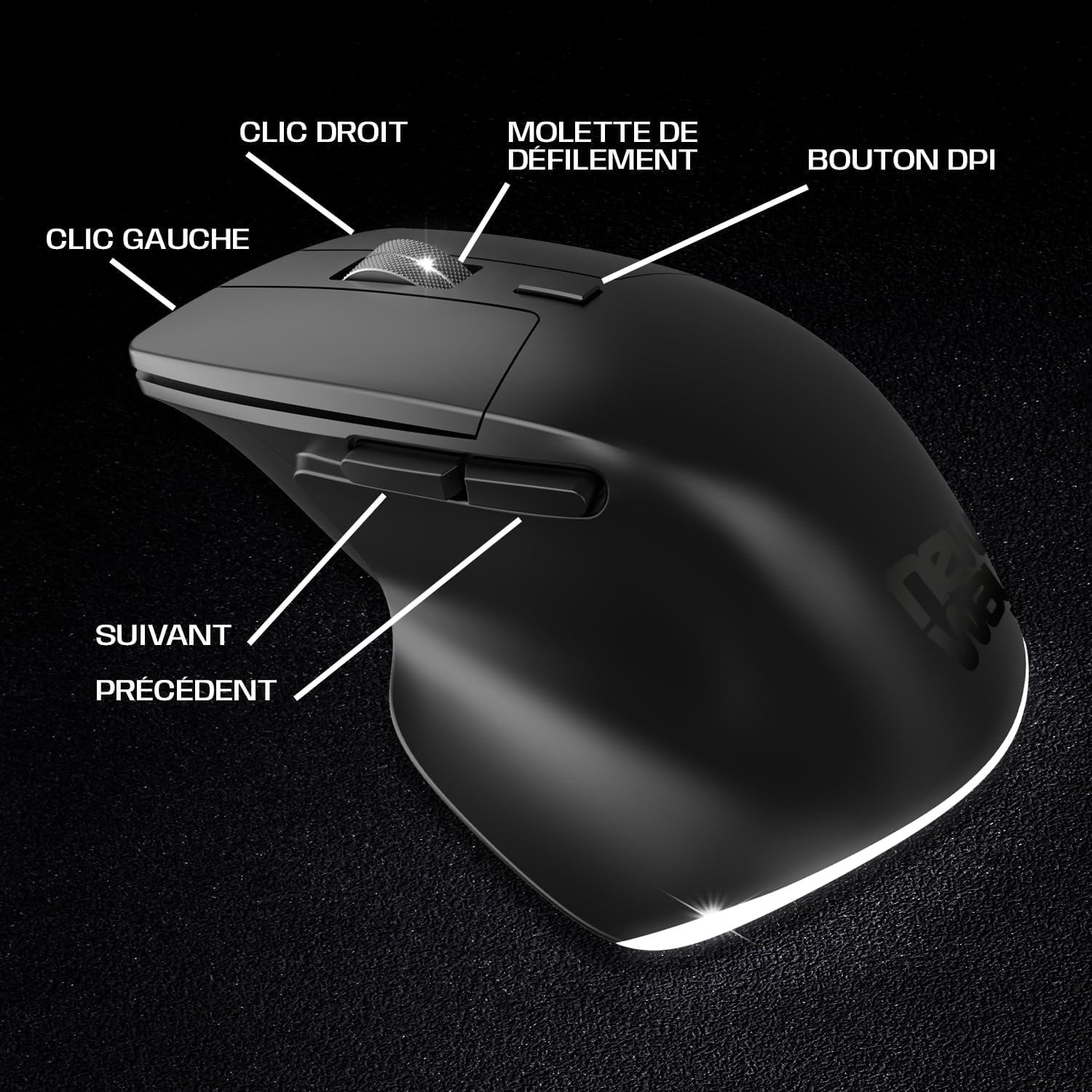
Image 1: Mouse Button Layout. This diagram illustrates the functions of each button on the NEWWAY A8BK vertical mouse, including left and right click, scroll wheel, DPI adjustment button, and side buttons for navigation.
- Сол чыкылдатуу баскычы: Стандарттык негизги чыкылдатуу функциясы.
- Оң баскычты чыкылдатуу: Стандарттык кошумча чыкылдатуу функциясы.
- Жылдыруу дөңгөлөгү: For vertical scrolling. Also functions as a middle click button.
- DPI баскычы: Чычкандын сезгичтигин (DPI) тууралайт.
- Алга баскычы: Алга карай жылдырат web браузерлер же file изилдөөчүлөр.
- Артка баскычы: Артка карай багыт алат web браузерлер же file изилдөөчүлөр.

Image 2: Underside of the Mouse. The bottom of the NEWWAY A8BK vertical mouse, displaying the power switch, connectivity mode switch (Bluetooth/2.4GHz), and the magnetic storage slot for the USB receiver.
- Кубат өчүргүч (КҮЙГҮЗҮҮ/ӨЧҮРҮҮ): Чычканды күйгүзөт же өчүрөт.
- Connectivity Mode Switch (2.4G/BT1/BT2): Selects between 2.4 GHz wireless mode and two Bluetooth channels.
- USB кабылдагычтын сактагычы: A magnetic compartment to store the 2.4 GHz USB receiver when not in use.
- USB-C заряддоо порту: Located at the front of the mouse for charging.
Орнотуу нускамалары
1. Чычканды заряддоо
Before first use, it is recommended to fully charge the mouse. The NEWWAY A8BK mouse features a built-in rechargeable lithium-polymer battery.
- Locate the USB-C charging port at the front of the mouse.
- Connect the included USB-C cable to the mouse and the other end to a USB power source (e.g., computer USB port, USB wall adapter).
- The mouse's indicator light will show charging status (refer to LED indicator section for details).
- Толук заряддалгандан кийин, кабелди ажыратыңыз.

Image 3: USB-C Charging Port. A close-up of the USB-C port on the front of the NEWWAY A8BK vertical mouse, used for charging the internal battery.
2. 2.4 ГГц зымсыз байланыш аркылуу туташуу
- Remove the USB receiver from its magnetic storage slot on the underside of the mouse.
- USB ресиверди компьютериңиздеги жеткиликтүү USB портуна сайыңыз.
- Slide the connectivity mode switch on the underside of the mouse to the "2.4G" position.
- Чычканды өчүргүчтү колдонуп күйгүзүңүз.
- Your computer should automatically detect and install the necessary drivers. The mouse is ready for use.

Image 4: 2.4 GHz Wireless Range. This diagram illustrates the wireless connection between the mouse and a computer via the 2.4 GHz USB receiver, indicating a range of up to 10 meters.
3. Bluetooth аркылуу туташуу
The NEWWAY A8BK supports two Bluetooth channels (BT1 and BT2).
- Чычканды өчүргүчтү колдонуп күйгүзүңүз.
- Slide the connectivity mode switch on the underside of the mouse to either "BT1" or "BT2" position.
- Press and hold the connectivity mode switch button (usually a small button next to the switch) for 3-5 seconds until the indicator light starts flashing rapidly, indicating pairing mode.
- Компьютериңизде же түзмөгүңүздө Bluetooth жөндөөлөрүн ачыңыз.
- Издөө new devices and select "NEWWAY A8BK" (or similar name) from the list.
- Once paired, the indicator light will stop flashing. The mouse is ready for use.
- To connect to a second device, repeat steps 2-6 using the other Bluetooth channel (BT2).
Иштөө нускамалары
1. DPI сезгичтигин тууралоо
The DPI (Dots Per Inch) button allows you to adjust the mouse cursor speed and sensitivity. The NEWWAY A8BK offers three DPI settings: 1200, 2400, and 3200 DPI.
- басыңыз DPI баскычы (located behind the scroll wheel) to cycle through the available DPI settings.
- Each press will change the sensitivity, allowing you to find the optimal speed for your tasks.
2. Ergonomic Design and Silent Clicks
The vertical design of the NEWWAY A8BK mouse promotes a natural handshake position, reducing wrist strain and discomfort during prolonged use. The mouse also features silent click buttons, minimizing noise in quiet environments.

Image 5: Ergonomic Grip. A hand demonstrating the natural, comfortable grip on the NEWWAY A8BK ergonomic vertical mouse, designed to reduce wrist strain.
3. Арткы жарыктандыруу
The mouse features a subtle white LED backlight that enhances its aesthetic appeal. This backlighting is typically active when the mouse is in use and can be turned off via a switch on the underside if desired (refer to Image 2).

Image 6: White LED Backlighting. The NEWWAY A8BK vertical mouse illuminated by its subtle white LED backlighting, adding a stylish touch to the device.
Техникалык тейлөө
1. Чычканыңызды тазалоо
- Тазалоодон мурун чычканды өчүрүңүз.
- Жумшак, түксүз кездемени жеңил колдонуңуз dampсуу же жумшак тазалоо эритмеси менен.
- Катуу химиялык заттарды, абразивдерди же эриткичтерди колдонуудан алыс болуңуз.
- Нымдуулуктун эч кандай тешиктерге киришине жол бербеңиз.
2. Батареяга кам көрүү
- Батареянын иштөө мөөнөтүн узартуу үчүн, чычканды тез-тез толук зарядсыздандырбаңыз.
- Батарея аз индикатор пайда болгондо чычканды заряддаңыз.
- Эгерде чычканды узак убакытка сактап жатсаңыз, аны болжол менен 50% кубаттап, салкын, кургак жерде сактаңыз.
Проблемаларды чечүү
| Көйгөй | Мүмкүн себеп | Чечим |
|---|---|---|
| Чычкан жооп бербей жатат | Low battery; Mouse is off; Incorrect connection mode; USB receiver not connected (2.4G); Bluetooth not paired. | Charge the mouse; Turn on the mouse; Ensure the connectivity switch is in the correct position (2.4G or BT); Re-insert USB receiver; Re-pair Bluetooth. |
| Курсордун кыймылы туура эмес же жай | Low DPI setting; Dirty optical sensor; Uneven surface; Interference. | Press the DPI button to increase sensitivity; Clean the optical sensor; Use on a smooth, opaque surface; Move closer to the receiver/device or reduce interference sources. |
| Bluetooth байланышы тез-тез үзүлөт | Distance from device; Interference; Low battery. | Move the mouse closer to the device; Reduce other wireless interference; Charge the mouse. |
| Чычкан кубатталбай жатат | Faulty cable; Faulty USB port; Mouse not properly connected. | Try a different USB-C cable; Use a different USB port; Ensure the cable is securely connected to both the mouse and the power source. |
Техникалык шарттар
| Өзгөчөлүк | Деталь |
|---|---|
| Бренд | NEWWAY |
| Модель номери | ON-MO-A8BK |
| Байланыш технологиясы | 2.4 ГГц зымсыз, Bluetooth |
| Кыймылды аныктоо | Оптикалык |
| DPI орнотуулары | 1200 / 2400 / 3200 DPI |
| баскычтардын саны | 6 (Сол, Оң, Айлантуу дөңгөлөгү, DPI, Алдыга, Артка) |
| Колдун багыты | Оң колу |
| Өзгөчөлүктөр | Ergonomic Design, Silent Clicks, Rechargeable, White LED Backlighting |
| Шайкеш операциялык системалар | Windows, Mac, Linux |
| Батарея түрү | Кайра заряддалуучу литий-полимер |
| Заряддоо порту | USB-C |
| Түс | Кара |
| UPC / EAN | 3701281111979 |
Кепилдик жана колдоо
Кепилдик маалымат
The NEWWAY A8BK Wireless Vertical Mouse comes with a 2 жылдык өндүрүүчүнүн кепилдигиБул кепилдик кадимки колдонуудагы материалдардагы жана жасалгалоодогу кемчиликтерди камтыйт. Ал туура эмес колдонуудан, кырсыктардан, уруксатсыз өзгөртүүлөрдөн же кадимки эскирүүдөн келип чыккан зыянды камтыбайт.
Кепилдик дооматтары үчүн сатып алганыңыздын далилин сактап коюңуз.
Кардарларды колдоо
For technical assistance, troubleshooting, or warranty inquiries, please contact NEWWAY customer support through the retailer where you purchased the product or visit the official NEWWAY webбайланыш маалыматы үчүн сайт.
Note: Availability of spare parts is currently unavailable. Software updates are not guaranteed.