
Keychron K13M-A3
Keychron K13 Max Low-Profile Зымсыз механикалык клавиатура Колдонуучунун колдонмосу
Model: K13M-A3
Бренд: Keychron
1. Киришүү
This manual provides detailed instructions for the setup, operation, maintenance, and troubleshooting of your Keychron K13 Max Low-Profile Wireless Mechanical Keyboard. Please read this manual thoroughly before using the product to ensure proper functionality and longevity.
The Keychron K13 Max is a versatile low-profile mechanical keyboard featuring an 80% layout with a dedicated numpad. It supports multiple connectivity options including 2.4 GHz wireless, Bluetooth 5.1, and wired USB-C. It is designed for compatibility with macOS, Windows, and Linux operating systems.
2. Пакеттин мазмуну
Пакетте бардык буюмдар бар экенин текшериңиз:
- 1x Fully Assembled Keychron K13 Max Keyboard
- 1x Type-C кабели
- 1x Type-A to Type-C адаптер
- 1x Type-A 2.4GHz кабылдагыч
- 1x Баскыч капкагын тарткыч
- Additional set of customized keycaps (for Windows/macOS system toggle)
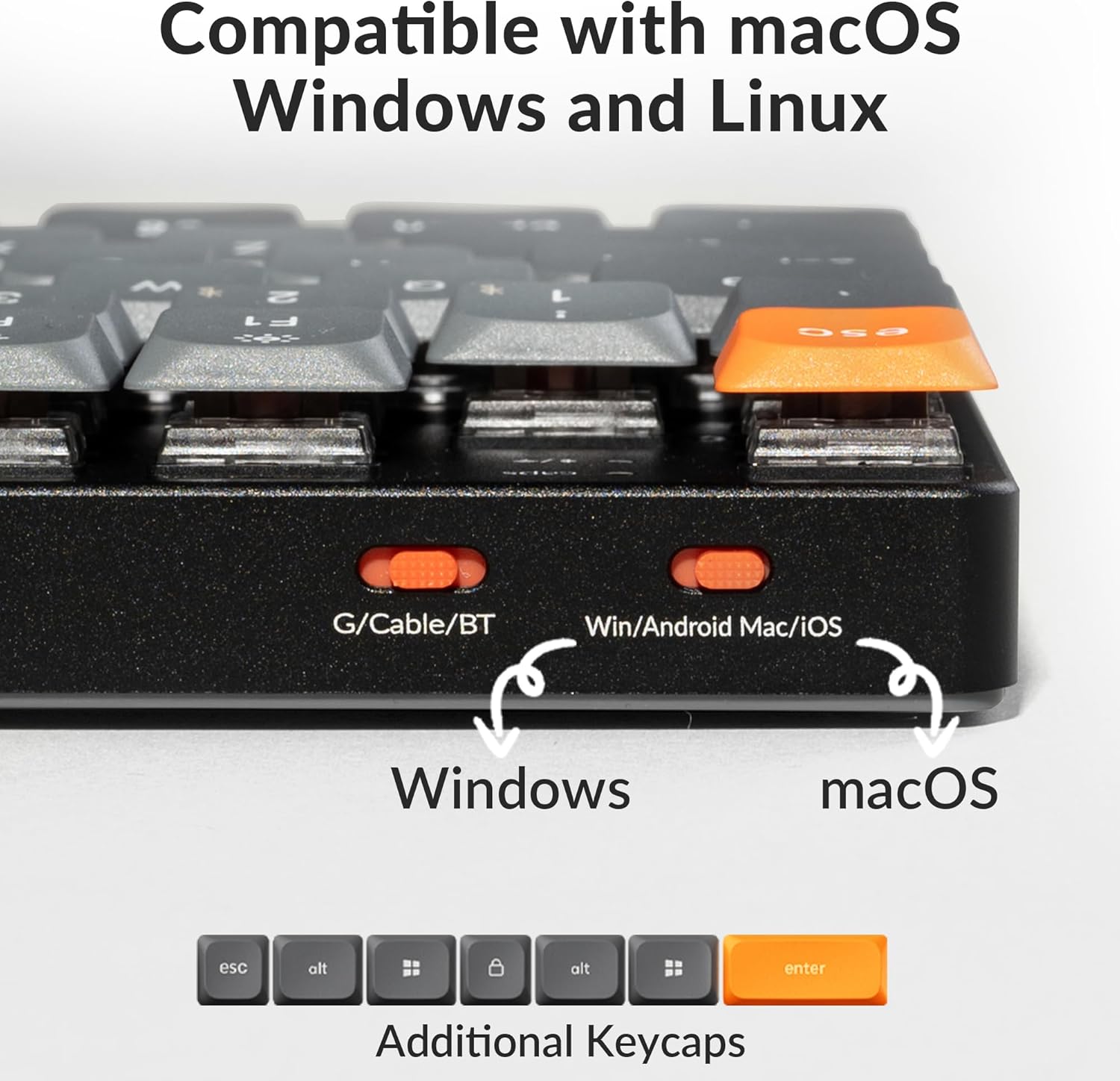
Image: Contents of the Keychron K13 Max package, showing the keyboard, USB-C cable, 2.4 GHz receiver, and keycap puller.
3. Орнотуу жана туташуу
3.1 Баскычтопту заряддоо
Before first use, fully charge the keyboard using the provided USB-C cable. Connect the USB-C end to the keyboard and the USB-A end to a power source (e.g., computer USB port or USB wall adapter). The charging indicator light will show the charging status.
The keyboard is equipped with a Lithium Polymer battery. A full charge can provide up to 80 hours of usage depending on backlight settings and connection mode.

Image: Battery life indicator showing up to 80 hours of usage.
3.2 Системанын шайкештигин которгуч
Locate the system toggle switch on the side of the keyboard. Switch it to the appropriate operating system (macOS or Windows/Android) for optimal key mapping.

Image: Close-up of the Keychron K13 Max showing the G/Cable/BT switch and the Win/Android Mac/iOS system toggle switch. Additional keycaps for different operating systems are also shown.
3.3 Туташуу режимдери
The Keychron K13 Max supports three connection modes: 2.4 GHz wireless, Bluetooth 5.1, and wired USB-C.

Image: Diagram illustrating the tri-mode connection options: Bluetooth 5.1, 2.4 GHz wireless via USB dongle, and wired USB-C.
3.3.1 2.4 ГГц зымсыз байланыш
- Ensure the keyboard's mode switch is set to "G" (2.4 GHz).
- Plug the provided 2.4 GHz USB receiver into an available USB port on your computer.
- The keyboard should automatically connect. The polling rate for this connection is 1000 Hz.
3.3.2 Bluetooth 5.1 туташуу
- Ensure the keyboard's mode switch is set to "BT" (Bluetooth).
- Түзмөгүңүздө (компьютер, планшет, смартфон) Bluetooth'ду иштетиңиз жана жаңы түзмөктөрдү издеңиз.
- Select "Keychron K13 Max" from the list of available devices.
- Эгер суралса, экранда көрсөтүлгөн жупташтыруу кодун киргизиңиз.
- The keyboard can connect to up to 3 devices via Bluetooth. Use Fn + 1/2/3 to switch between paired devices.
3.3.3 Зымдуу USB-C туташуусу
- Ensure the keyboard's mode switch is set to "Cable".
- USB-C кабелин клавиатурадан компьютериңиздин USB портуна туташтырыңыз.
- The keyboard will function as a wired device and will also charge simultaneously.
4. Иштөө нускамалары
4.1 Негизги функциялары жана жайгашуусу
The Keychron K13 Max features a unique 80% layout with a numpad. Familiarize yourself with the key layout and special function keys.

Сүрөт: бүттүview of the Keychron K13 Max keyboard layout, highlighting the low-profile design and the Gateron Brown switch.
4.2 Жарыкты башкаруу
The keyboard features a white backlight. Use the dedicated backlight control keys to adjust brightness and effects.
- Fn + F5: Арткы жарыктын жарыктыгын азайтыңыз.
- Fn + F6: Арткы жарыктын жарыктыгын жогорулатуу.
- Fn + F1: Cycle through backlight effects.

Сүрөт: Жакын план view of the keyboard demonstrating the white backlight feature.
4.3 QMK/VIA ыңгайлаштыруу
The Keychron K13 Max supports QMK/VIA for advanced key remapping and macro programming. This allows for extensive customization of the keyboard's layout and functions across different layers.
- Download the Keychron Launcher software from the official Keychron webсайт.
- Connect the keyboard to your device via USB-C cable.
- Open Keychron Launcher and select your K13 Max keyboard.
- Use the graphical interface to drag and drop keys or macro commands to remap any key.
- Changes are saved directly to the keyboard's firmware.

Image: Screenshot of the QMK/VIA software interface, demonstrating the ability to remap keys and create macro commands.
5. Техникалык тейлөө жана кам көрүү
Proper maintenance ensures the longevity and performance of your Keychron K13 Max keyboard.
- Клавиатураны тазалоо: жумшак колдонуу, damp cloth to wipe the keycaps. For deeper cleaning, use the provided keycap puller to remove keycaps and clean them with mild soap and water. Ensure they are completely dry before reattaching.
- Баскычтоптун корпусун тазалоо: Use a dry, lint-free cloth to wipe the aluminum body. Avoid abrasive cleaners or solvents.
- Коммутатор тейлөө: Төмөн профессионалfile Gateron switches are designed for durability. Avoid spilling liquids on the keyboard. If a switch feels inconsistent, it may be due to dust or debris. Use compressed air to clean around the switch stem.
- Сактагыч: Узак мөөнөткө колдонулбаганда, клавиатураны салкын, кургак жерде, тике күндүн нурунан жана өтө температурадан алыс сактаңыз.
Image: The included keycap puller is essential for cleaning and maintaining your keycaps.
6. Кыйынчылыктарды
If you encounter issues with your Keychron K13 Max, refer to the following common troubleshooting steps:
| Көйгөй | Мүмкүн себеп | Чечим |
|---|---|---|
| Баскычтоп жооп бербей жатат (зымдуу) | Loose cable connection, incorrect mode switch setting. | Ensure USB-C cable is securely connected. Verify the mode switch is set to "Cable". Try a different USB port or cable. |
| Баскычтоп жооп бербей жатат (2.4 ГГц) | Кабыл алгыч сайылган эмес, туура эмес режим, тоскоолдук. | Ensure 2.4 GHz receiver is plugged in. Verify the mode switch is set to "G". Move closer to the receiver or try a different USB port. |
| Клавиатура жооп бербей жатат (Bluetooth) | Not paired, out of range, incorrect mode, device limit reached. | Ensure Bluetooth is enabled on your device. Verify the mode switch is set to "BT". Re-pair the keyboard. Ensure you are within Bluetooth range. Check if you have exceeded the 3-device limit. |
| Баскычтар эки жолу терилип жатат же катталбай жатат | Dust/debris in switch, faulty switch, software issue. | Clean around the affected switch with compressed air. Update keyboard firmware via Keychron Launcher. If issue persists, contact Keychron support. |
| Арткы жарык иштебейт | Backlight turned off, brightness set to minimum, low battery. | Press Fn + F6 to increase brightness. Ensure keyboard is charged. |
| QMK/VIA software not recognizing keyboard | Keyboard not in wired mode, software not updated. | Ensure keyboard is connected via USB-C cable and the mode switch is set to "Cable". Update Keychron Launcher to the latest version. |
7. Техникалык шарттар
| Модель номери | K13M-A3 |
| Байланыш | Bluetooth 5.1, 2.4 ГГц зымсыз, USB-C зымдуу |
| Polling Rate (2.4 GHz/Wired) | 1000 Гц |
| Негизги которгучтар | Low-Profile Gateron Brown Switch (as per product variant) |
| Баскыч капкактары | Low-Profile Эки жолу басылган PBT баскычтоптору |
| Арткы жарык | White Backlight |
| Ачкычтардын саны | 90 |
| Батарея | 1 Литий Полимердик батарейка (кошулган) |
| Батареянын иштөө мөөнөтү | 80 саатка чейин (колдонууга жараша) |
| Материал | ABS + Aluminum frame |
| Өлчөмдөр | 14.53 x 6.26 x 1.54 дюйм (Пакеттин өлчөмдөрү) |
| Элемент Салмагы | 2.01 фунт |
| Операциялык системанын шайкештиги | macOS, Windows, Linux |
8. Кепилдик жана колдоо
Keychron products typically come with a limited warranty. For specific warranty terms and conditions, please refer to the official Keychron webсайтка же продуктуңузга кошулган кепилдик картасы.
For technical support, firmware updates, or further assistance, please visit the official Keychron support page:
You can also refer to the official user guide PDF provided by Keychron for more detailed information:
Ask a question about this manual
Ask about setup, troubleshooting, compatibility, parts, safety, or missing instructions. Manuals+ will review the question and use this page’s manual context to help answer it.