
Twotrees SK1
Twotrees SK1 3D Printer User Manual
Модели: SK1
Introduction
This manual provides comprehensive instructions for the setup, operation, and maintenance of your Twotrees SK1 3D Printer. The SK1 is a high-speed FDM 3D printer featuring Klipper firmware, a CoreXY motion system, automatic leveling, and a touch color screen, designed for efficient and precise 3D printing.

Сүрөт 1: Алдыңкы view of the Twotrees SK1 3D Printer.
Key features of the Twotrees SK1 include:
- Жогорку ылдамдыктагы басып чыгаруу: Capable of printing at speeds up to 700mm/s in legendary mode and 350mm/s in normal mode, significantly reducing print times.
- Klipper микропрограммасы: Utilizes Klipper firmware for advanced control and performance.
- CoreXY Structure: Ensures stable and precise movement during printing.
- Автоматтык тегиздөө: Features Z-Tilt inclined leveling and mesh bed compensation for hassle-free bed calibration.
- High-Temperature Nozzle: Heats to 300°C in approximately 30 seconds, supporting a wide range of filament types.
- Filament Sensor: Automatically detects filament run-out or breakage, allowing for print resumption.
- Print Resume Function: Recovers from power interruptions, continuing prints from the last position.
- Колдонуучуга ыңгайлуу интерфейс: Equipped with a 4.3-inch color touch screen supporting multiple languages for intuitive operation.
- Double Linear Guide: Enhances printing precision and stability.
Жайгашуу
Before operating your Twotrees SK1 3D Printer, ensure proper assembly and initial calibration. Refer to the included quick start guide for detailed assembly steps.
1. Таңгактан чыгаруу жана текшерүү
- Бардык компоненттерди таңгактан кылдаттык менен алып салыңыз.
- Таңгактоо тизмесинде көрсөтүлгөн бардык тетиктердин бар экенин жана бузулбаганын текшериңиз.
- Remove any protective films or shipping restraints from the printer.
2. Ассамблея
Follow the step-by-step assembly instructions provided in the separate assembly manual. Ensure all screws are tightened securely and connections are properly seated.
3. Power Connection
- Электр кабелин принтердин кубат киресине туташтырыңыз.
- Электр кабелин жерге туташтырылган электр розеткасына сайыңыз.
- Электр тармагына туташтыруудан мурун, кубат которгучу ӨЧҮРҮҮ абалында экенин текшериңиз.
4. Initial Calibration and Leveling
The SK1 features automatic leveling. Upon first power-on or after moving the printer, it is recommended to perform an automatic calibration.
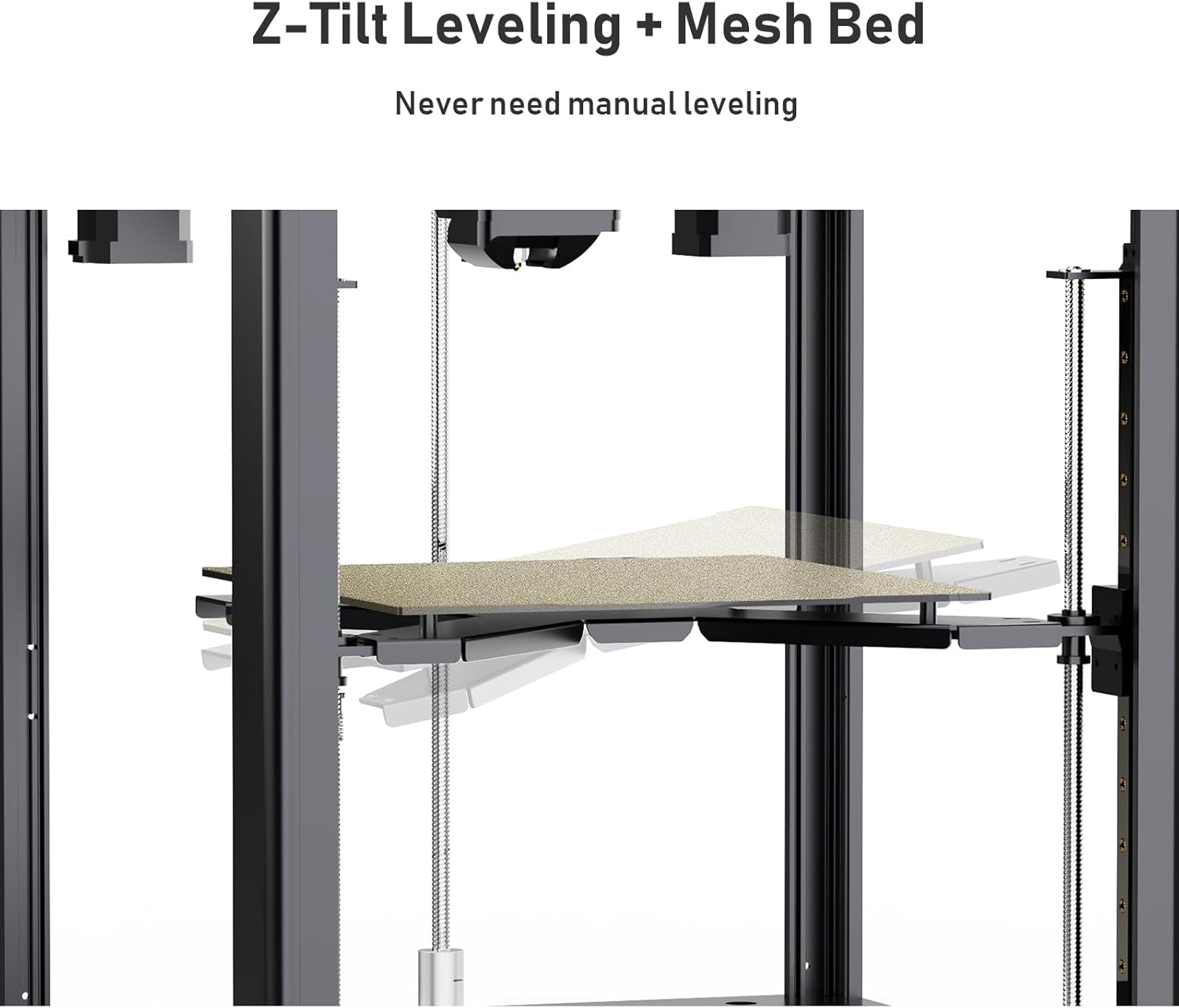
Figure 2: Illustration of Z-Tilt Leveling and Mesh Bed compensation, eliminating the need for manual leveling.
- Navigate to the "Leveling" or "Calibration" menu on the touch screen.
- Select the automatic leveling option. The printer will perform a series of movements to measure and compensate for bed irregularities.
- The Z-Tilt leveling system automatically adjusts the bed's inclination for optimal first layer adhesion.
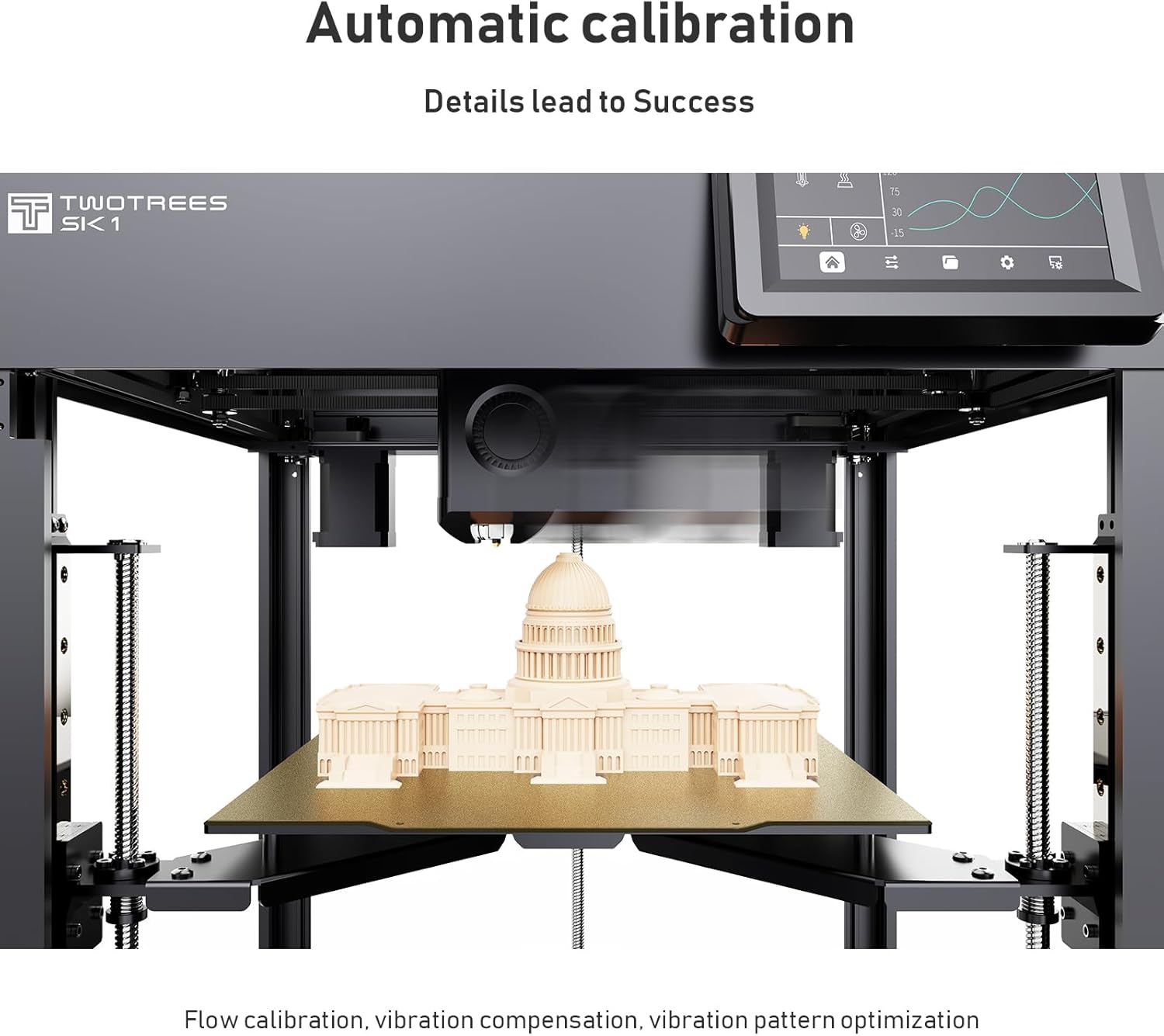
Figure 3: The printer performing automatic calibration, including flow calibration, vibration compensation, and vibration pattern optimization.
5. Filament Loading
- Place the filament spool on the designated holder.
- Feed the filament through the filament sensor and into the extruder.
- On the touch screen, select the "Load Filament" option. The extruder will heat up and pull the filament through until it exits the nozzle.
- Ensure the filament is loaded smoothly without kinks.
Иштеп жатат
Operating the Twotrees SK1 involves preparing your 3D model, transferring it to the printer, and initiating the print process.
1. Моделиңизди кесүү
- Use a compatible slicing software (e.g., Cura, PrusaSlicer) to convert your 3D model (STL, OBJ) into G-code.
- Configure print settings such as layer height, infill density, print speed, and support structures according to your model and filament type.
- Түзүлгөн G-кодду сактоо file to a USB drive or transfer it via Wi-Fi if configured.
2. Басып чыгарууну баштоо
- Insert the USB drive into the printer's USB port or ensure the G-code file is accessible via network.
- On the 4.3-inch color touch screen, navigate to the "Print" menu.
- Каалаган G-кодуңузду тандаңыз file тизмеден.
- Confirm print settings and initiate the print. The printer will begin heating the bed and nozzle to the specified temperatures before starting the print.

Figure 4: The Twotrees SK1 demonstrating its ultra-high speed printing capability, reaching up to 700mm/s in legendary mode and 350mm/s in normal mode.
3. Monitoring and Adjusting Prints
- Monitor the print progress via the touch screen.
- Adjust print speed, temperature, or fan speed during printing if necessary, using the on-screen controls.
- The filament sensor will pause the print if filament runs out or breaks, allowing you to load new filament and resume.
- Куч болгон учурда уtage, the print resume function will allow the printer to continue from where it left off once power is restored.
4. Басылган текстти алып салуу
- Once the print is complete and the bed has cooled, carefully remove the printed object from the PEI build plate.
- Flexing the PEI plate slightly can help in detaching the print.
- Use a spatula or scraper if needed, being careful not to damage the build surface.
Техникалык тейлөө
Regular maintenance ensures the longevity and optimal performance of your Twotrees SK1 3D Printer.
1. Курулуш плитасын тазалоо
- After each print, clean the PEI build plate with isopropyl alcohol to remove any residue and ensure good adhesion for future prints.
- Бетти чийип алуучу абразивдүү материалдарды колдонуудан алыс болуңуз.
2. Соплолорду тейлөө
- Periodically inspect the nozzle for clogs or wear.
- If a clog occurs, perform a cold pull or use a nozzle cleaning needle to clear it.
- Replace the nozzle if it shows signs of significant wear or damage. The high-temperature nozzle can reach 300°C.

Сүрөт 5: Жакын пландан view of the high-temperature nozzle, capable of reaching 300°C for printing with various filament types.
3. Lubricating Linear Rails and Screws
- The printer features double linear guides and ball screw guide rails. Periodically apply a small amount of lithium-based grease to the linear rails and Z-axis lead screws to ensure smooth movement.
- Ашыкча майлоочу майларды сүртүңүз.
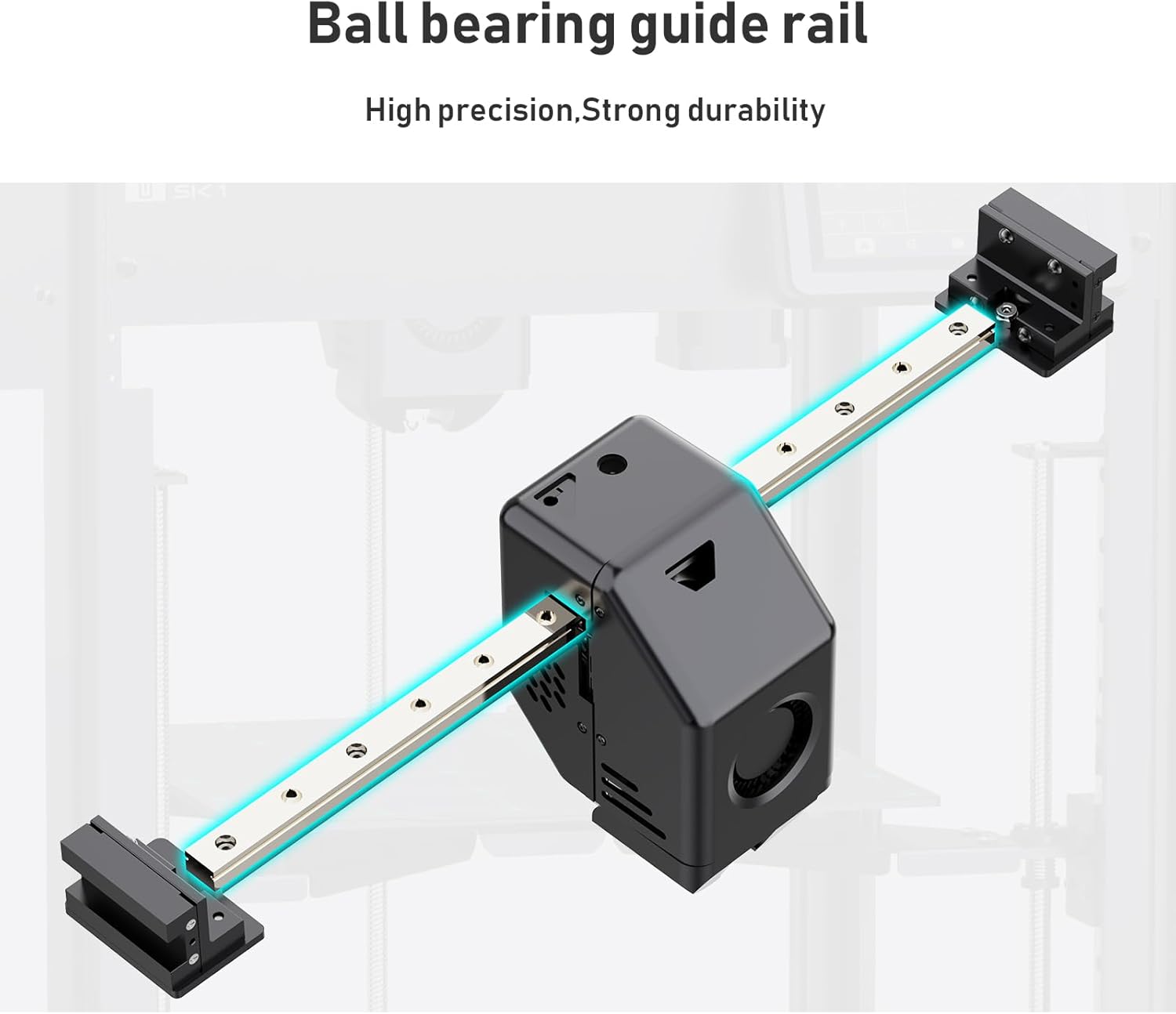
Figure 6: Illustration of the ball bearing guide rail system, designed for high precision and strong durability.
4. Микропрограмманы жаңыртуу
- Check the official Twotrees webакыркы микропрограмма жаңыртуулары үчүн сайт.
- Follow the provided instructions carefully when updating firmware to ensure compatibility and avoid issues.
Проблемаларды чечүү
This section addresses common issues you might encounter with your Twotrees SK1 3D Printer.
| Көйгөй | Мүмкүн себеп | Чечим |
|---|---|---|
| Басма төшөккө жабышпайт | Bed not level, bed temperature too low, dirty build plate, incorrect Z-offset. | Perform automatic bed leveling. Increase bed temperature. Clean the PEI build plate with isopropyl alcohol. Adjust Z-offset slightly closer to the bed. |
| Жипче экструзияланбайт | Бүтөлүп калган форсунка, чаташып калган жипче, туура эмес температура, экструдердин тиштүү дөңгөлөгү тайгаланып кеткен. | Clear nozzle clog (cold pull or needle). Untangle filament. Ensure nozzle temperature is appropriate for filament. Check extruder gear for debris. |
| Катмардын жылышы | Loose belts, motor issues, print speed too high, object not adhering to bed. | Check and tighten X/Y axis belts. Reduce print speed. Ensure proper bed adhesion. Inspect linear rails for obstructions. |
| Poor print quality (stringing, blobs) | Incorrect retraction settings, excessive temperature, wet filament. | Adjust retraction distance and speed in slicer. Lower print temperature. Dry filament if it has absorbed moisture. |
| Принтер күйбөй жатат | Power cable disconnected, faulty power supply, power switch off. | Check power cable connections. Ensure power switch is ON. Test power outlet. Contact support if power supply is suspected. |
Техникалык шарттар
Detailed technical specifications for the Twotrees SK1 3D Printer.

Figure 7: The Twotrees SK1 offers a generous printing volume of 256x256x256mm (approximately 10x10x10 inches).
| Параметр | Нарк |
|---|---|
| Модел | SK1 |
| Басып чыгаруу өлчөмү | 256 x 256 x 256 мм |
| Тышкы өлчөмдөр | 400 x 400 x 510 мм |
| Макс басып чыгаруу ылдамдыгы | 700 mm/s (Legendary Mode), 350 mm/s (Normal Mode) |
| Макс ылдамдатуу | 20000 мм/кв |
| Nozzle Max Temperature | 300°C |
| Жол көрсөткүч темир жол материалы | Ball Screw Guide Rail |
| Экран | 4.3-inch Touch Color Screen |
| Тегиздөө | Z-Tilt Inclined Leveling |
| Hot Bed Panel | Single Side PEI |
| AI камерасы | Кошумча |
| EMMC Capacity | 8 ГБ |
| Wifi туташуу | жеткиликтүү |
| Материал | Металл |
| Элемент Салмагы | 13.8 кг |
| Шайкеш түзмөктөр | Ноутбук, персоналдык компьютер |
Кепилдик жана колдоо
Twotrees provides customer support and warranty services for the SK1 3D Printer. For specific warranty terms and conditions, please refer to the warranty card included with your product or visit the official Twotrees webсайт.
Кардарларды колдоо
If you encounter any issues not covered in this manual or require further assistance, please contact Twotrees customer support through their official channels. Be prepared to provide your product model (SK1) and purchase details.
- Официалдуу Webсайт: www.twotrees3d.com
- Электрондук почта колдоо: караңыз website or product packaging for contact email.
Firmware and Software Resources
For the latest firmware, slicing profiles, and software tools, visit the Twotrees support page. Regularly checking for updates can improve printer performance and add new features.
Ask a question about this manual
Ask about setup, troubleshooting, compatibility, parts, safety, or missing instructions. Manuals+ will review the question and use this page’s manual context to help answer it.