
vLinker vLinker FS USB
vLinker FS USB OBD2 адаптеринин колдонуу боюнча колдонмосу
Model: vLinker FS USB | Brand: vLinker
1. Introduction and Overview
The vLinker FS USB OBD2 Adapter is a professional-grade diagnostic tool designed for automotive enthusiasts and professionals. It specializes in working with FORScan software and provides advanced diagnostic and programming capabilities for various vehicle makes, particularly Ford, Lincoln, Mazda, and Mercury vehicles.
This manual provides detailed instructions for setting up, operating, maintaining, and troubleshooting your vLinker FS USB adapter to ensure optimal performance and safe usage.
2. Продукциянын өзгөчөлүктөрү
- FORScan Optimization: Specifically designed and recommended by the FORScan Team for reliable connection and high-speed data transfer.
- Тез жана туруктуу туташуу: Achieves 3Mpbs transmission rate and 3Mhz baud rate via USB 2.0/3.0, ensuring smooth data flow without dropped packets or corruption.
- Automatic Electronic Switching: Seamlessly switches between HS-CAN, MS-CAN, and Ford Car networks, allowing simultaneous access to all CAN buses.
- FEPS 18V Programming Voltage Чыгуу: Supports advanced programming functions within FORScan.
- Battery Saver and Protection: Features auto sleep/wake-up mode, over-voltage, over-current, over-temperature, and battery drain protection, allowing the device to remain plugged in safely.
- Унаанын кеңири шайкештиги: Supports all 12V/24V OBD2 standard compliant cars (99% of models after 2000, 92% after 1996 in USA; 12V gasoline after 2000, 12V diesel after 2004 in EU).
- Толук OBD2 функциялары: Capable of reading/clearing fault codes, accessing live data, I/M readiness, on-board monitor tests, O2 sensor tests, vehicle information, component tests, and freeze frame data.
- Support for Third-Party Apps: Compatible with FORScan, ELMconfig, ELM FF2, FoCCCus, and other OBD2 applications (apps not included).

Figure 2.1: The vLinker FS USB OBD2 Adapter with its integrated USB cable.

Figure 2.2: Diagram illustrating the automatic electronic switching capability between HS-CAN and MS-CAN, along with hacker-proof, battery saver, and overvoltage коргоо өзгөчөлүктөрү.
3. Техникалык шарттар
| Атрибут | Нарк |
|---|---|
| Бренд | vLinker |
| Модел | vLinker FS USB |
| Power Source | Электр зымдары |
| Продукциянын өлчөмдөрү | 3.61"L x 1.76"W x 0.85"H |
| Операциялык системанын шайкештиги | Windows |
| Элемент Салмагы | 3.88 унция |
| Өтүү ылдамдыгы | 3 Мп/сек чейин |
| Bod Rate | 3 МГц чейин |
| Сериялык буфер | 8192 байт |
| OBD Request Byte | 4128 XNUMX байтка чейин |
4. Орнотуу жана орнотуу
4.1 Пакеттин мазмуну
Улантуудан мурун, пакетте бардык элементтер бар экенин текшериңиз:
- 1 x vLinker FS USB Adapter
- 1 х Колдонуучунун колдонмосу (бул документ)
- 1 x Packing Box
4.2 Драйверди жана программалык камсыздоону орнотуу
- Download FTDI USB Driver: Navigate to the official FTDI webсайт (www.ftdichip.com). Go to the "DRIVERS" section and select "VCP Drivers". Download the appropriate USB driver for your Windows operating system.
- USB драйверин орнотуу: Follow the on-screen instructions to install the downloaded FTDI USB driver.
- Download Diagnostic Application: Download your preferred OBD2 diagnostic application (e.g., FORScan, ELMconfig, ELM FF2, FoCCCus) compatible with Windows. These applications are not included with the vLinker FS USB adapter and may require separate purchase or download.

Figure 4.1: Steps for downloading the FTDI driver and a compatible diagnostic application.
4.3 Connecting the Adapter to Your Vehicle and Computer
- OBD2 портун табыңыз: Identify the OBD2 diagnostic port in your vehicle. This port is typically located under the dashboard on the driver's side.
- Адаптерди унаага туташтыруу: Firmly plug the vLinker FS USB adapter into your vehicle's OBD2 port.
- Адаптерди компьютерге туташтыруу: Plug the USB end of the vLinker FS USB adapter into an available USB port on your Windows PC.
- От күйгүзүү: Turn your vehicle's ignition to the "ON" position (engine does not need to be running for most diagnostic functions).
Figure 4.2: Illustration of connecting the vLinker FS USB adapter to the vehicle's OBD2 port and a computer, followed by turning the ignition on.
5. Иштөө нускамалары
5.1 Негизги диагностикалык функциялар
Once the vLinker FS USB adapter is connected and recognized by your computer and diagnostic software, you can perform various functions:
- Окуу коддору: Retrieve Diagnostic Trouble Codes (DTCs) from the vehicle's Engine Control Unit (ECU).
- Коддорду тазалоо: Clear DTCs from the ECU. Note that clearing codes does not fix the underlying issue.
- Маалымат агымы: View real-time sensor data and parameters from the vehicle.
- I/M даярдыгы: Унаанын эмиссияны текшерүүгө даяр экендигин аныктоо үчүн эмиссияга байланыштуу мониторлордун абалын текшериңиз.
- Борттогу монитор тести: Белгилүү бир компоненттер/системалар үчүн борттогу диагностикалык мониторинг тесттеринин жыйынтыктарына жетүү.
- O2 сенсор тести: O2 сенсорун көзөмөлдөө тестинин жыйынтыктарын алыңыз.
- Унаа жөнүндө маалымат: Display vehicle information such as VIN (Vehicle Identification Number), CID (Calibration ID), and CVN (Calibration Verification Number).
- Компоненттик тест: Perform specific tests on vehicle components as supported by your diagnostic software.
- Фреймди тоңдуруу: View a snapshot of vehicle operating conditions at the moment a fault code was set.

Figure 5.1: ашыкview of the full OBD2 functions supported by the vLinker FS USB adapter.
5.2 Advanced Functions (FORScan Specific)
For users utilizing FORScan, the vLinker FS USB adapter unlocks advanced capabilities:
- Module Configuration and Programming: Modify vehicle settings and program new modules.
- Жашыруун функцияны активдештирүү: Enable or disable various vehicle features (e.g., global window open/close, secure idle, turn signal flash count, disabled door ajar chime, reverse tilt mirrors, Bambi mod, tire size correction, heated steering wheel, disabled double horn honk, perpendicular park assist).
- Access to All CAN Buses: Simultaneously access HS-CAN, MS-CAN, and Ford Car networks without manual switching.
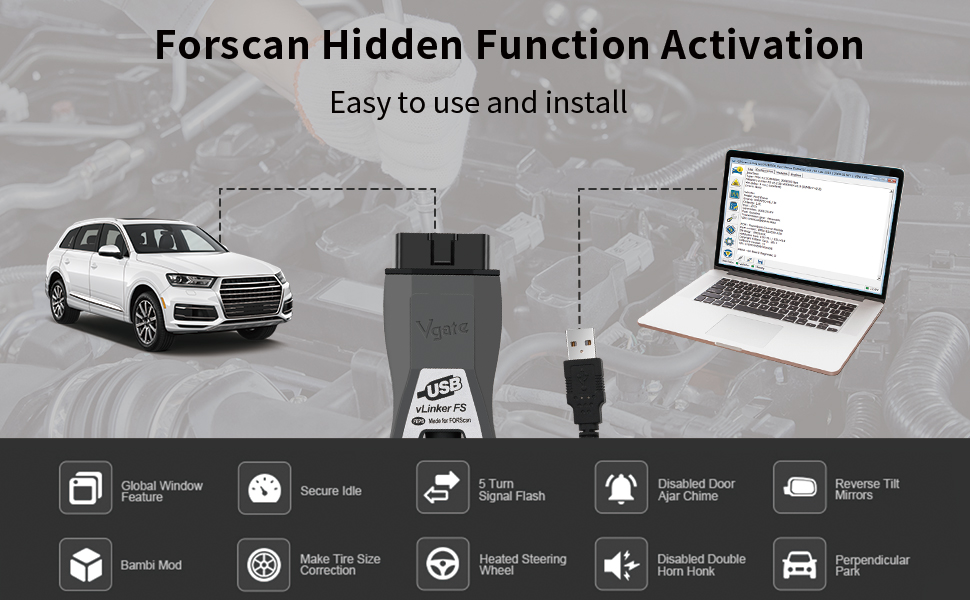
5.2-сүрөт: Мисample of FORScan hidden function activation using the vLinker FS USB adapter.
6. Техникалык тейлөө
6.1 Микропрограмма жаңыртуулары
To ensure optimal performance and access to the latest features, it is recommended to keep the vLinker FS USB firmware updated. Firmware updates are free for the lifetime of the product.
- Адаптерди туташтыруу: Connect the vLinker FS USB adapter to your computer via USB.
- Identify COM Port: Open your computer's Device Manager and identify the COM port assigned to the vLinker FS USB.
- Launch Update Tool: Use the official vLinker firmware update tool (downloadable from the official webсайт).
- Select COM Port and Baud Rate: In the update tool, select the identified COM port and set the default baud rate (e.g., 115200).
- Browse and Select Firmware File: Акыркы микропрограмманы жүктөп алыңыз file from the official vLinker website. In the update tool, browse and select this firmware file.
- Жаңыртууну баштоо: Click the "Update" button to begin the firmware update process. During the update, the Blue (BT) light and Orange (Host) light on the adapter will remain on.
- Аяктоо: Once the update is complete, the Red (OBD) light and Orange (Host) light will turn off. Power cycle the device (unplug and replug) for changes to take effect.
Маанилүү: If the update is interrupted or fails, unplug and replug the device, then re-attempt the update with the latest firmware from the official website. Pirated products cannot be updated.
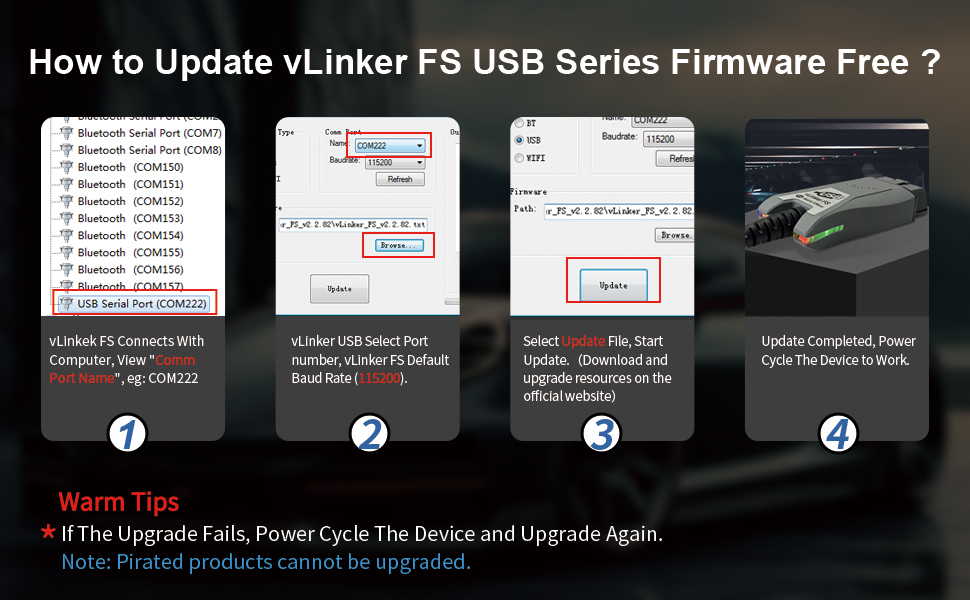
Figure 6.1: Step-by-step guide for updating the vLinker FS USB firmware.
6.2 Тазалоо жана сактоо
- Адаптерди таза жана чаңдан жана таштандылардан таза кармаңыз. Тазалоо үчүн жумшак, кургак чүпүрөктү колдонуңуз.
- Адаптерди салкын, кургак жерде күндүн тике тийген нурунан жана экстремалдык температурадан алыс сактаңыз.
- Avoid exposing the device to moisture or corrosive substances.
7. Кыйынчылыктарды
7.1 Жалпы маселелер жана чечимдер
- Issue: Product does not light up after firmware update.
- Себеби: The update process was interrupted or failed.
- Дарылоо: Unplug and replug the device. Download the latest firmware from the official website and re-attempt the update.
- Issue: "USB not recognized" error message on computer.
- Себеби: Some laptop models with USB 3.0 controllers may not be fully compatible, or the driver is not correctly installed.
- Дарылоо:
- Connect the vLinker FS USB to a different USB port on your computer.
- Connect the vLinker FS USB via a USB 2.0 hub.
- Manually install the FTDI USB driver: Go to the official FTDI webсайт (www.ftdichip.com), select "DRIVERS", click "VCP Drivers", and download the appropriate USB driver.
- Issue: Adapter not connecting to vehicle or software.
- Себеби: Incorrect connection, ignition not on, or software configuration issues.
- Дарылоо:
- Ensure the adapter is firmly plugged into the vehicle's OBD2 port and the computer's USB port.
- Унаанын от алдыруу системасы "ON" абалында экенин текшериңиз.
- Check your diagnostic software settings to ensure the correct COM port is selected for the vLinker FS USB.
- Confirm that the necessary drivers are installed correctly (refer to Section 4.2).
8. Кепилдик жана колдоо
The vLinker FS USB car diagnostic scanner comes with a 1 жылдык кепилдик сатып алынган күндөн тартып.
vLinker provides lifetime Firmware FREE updates to ensure your device remains up-to-date with the latest features and improvements.
For any technical assistance, troubleshooting, or inquiries, vLinker offers round-the-clock tech support. Should you encounter any issues, including failure to connect the device or other operational problems, please contact the vLinker support team. They are available to provide fast responses and technical assistance.
You can typically find contact information for support on the official vLinker webсайт же продукт сатылып алынган сатуучу аркылуу.
Тектеш документтер - vLinker FS USB
 |
vLinker MC+ Ыкчам баштоо колдонмосу iOS жана Android үчүн vLinker MC+ түзмөгү үчүн тез баштоо колдонмосу, аны унааңызга кантип туташтыруу жана диагностика жана ыңгайлаштыруу үчүн iOS жана Android тиркемелери менен кантип колдонуу керек. |
 |
vLinker MC WiFi Quick Start Guide: Connect Your Car's OBD-II Port to iOS & Android Get started quickly with the vLinker MC WiFi OBD-II adapter. This guide provides step-by-step instructions for installation, app connection, and troubleshooting for iOS and Android devices. |
 |
vLinker MC+ Bluetooth OBD-II Adapter Quick Start Guide Comprehensive quick start guide for the vLinker MC+ professional-grade Bluetooth OBD-II adapter. Learn setup, features, compatibility, and troubleshooting for iPhone, Android, and Windows devices. |
 |
Vgate vLinker FS OBD2 Diagnostic Scanner for Ford and Mazda Бүттүview and features of the Vgate vLinker FS OBD2 diagnostic scanner, a high-speed USB interface compatible with FORScan for Ford, Mazda, Lincoln, and Mercury vehicles. |
 |
Vgate vLinker FD OBD сканери Bluetooth үчүн тез баштоо боюнча колдонмо Android жана Windows түзмөктөрү үчүн Bluetooth туташуусу бар Vgate vLinker FD OBD сканер куралын орнотуу жана колдонуу боюнча кыскача көрсөтмө. Колдонмону кантип жүктөп алууну, туташтырууну жана түзмөктү кантип жупташтырууну билип алыңыз. |
 |
Vgate vLinker MC+ OBD-II Adapter: Features, Protocols, and Connectivity Guide Discover the Vgate vLinker MC+ OBD-II adapter, a versatile car diagnostic tool compatible with a wide range of vehicles and applications. This guide details its features, supported protocols, connection methods (Bluetooth and WiFi), and typical uses for automotive diagnostics. |
Ask a question about this manual
Ask about setup, troubleshooting, compatibility, parts, safety, or missing instructions. Manuals+ will review the question and use this page’s manual context to help answer it.