
1. Киришүү
This manual provides comprehensive instructions for the safe and efficient use of your NEC VKT16XZG5 laptop. Please read this manual thoroughly before using the product and retain it for future reference. This laptop is equipped with Windows 11, an Intel Core i5-8th Generation processor, and solid-state drive (SSD) storage, designed for general computing tasks.
2. Коопсуздук маалыматы
Observe the following safety precautions to prevent damage to the laptop or injury to yourself.
- Ноутбукту экстремалдык температурага, түз күндүн нуруна же жогорку нымдуулукка дуушар кылбаңыз.
- Ноутбукка оор нерселерди коюудан алыс болуңуз.
- Электр тогуна урунуп же бузулуп калбаш үчүн ноутбуктан суюктуктарды алыс кармаңыз.
- Берилген AC адаптерин же ага туура келген алмаштыруучуну гана колдонуңуз.
- Ноутбукту өз алдынча бөлүүгө же оңдоого аракет кылбаңыз. Квалификациялуу тейлөө кызматкерлерине кайрылыңыз.
- Ашыкча ысып кетүүнүн алдын алуу үчүн туура желдетүүнү камсыз кылыңыз. Аба желдеткичтерин жаап албаңыз.
3. Пакеттин мазмуну
Пакетте бардык буюмдар бар экенин текшериңиз:
- NEC VKT16XZG5 Laptop
- AC адаптер
- Security Zero License Card
- 64GB USB Recovery Storage
- Digital Recovery Manual (pre-saved on the laptop)

Image: 64GB USB Recovery Storage device. This USB drive contains essential recovery files for your laptop.

Image: ZERO Security software box. A license card for this security software is included.
4. Продукт бүтүп калдыview
Familiarize yourself with the components of your NEC VKT16XZG5 laptop.
4.1 Жогору View (Баскычтоп жана сенсордук панель)

Сүрөт: Жогорку view of the NEC VKT16XZG5 laptop. This image highlights the Japanese keyboard layout and the integrated touchpad for navigation.
- Баскычтоп: Standard Japanese layout for text input.
- Сенсордук такта: Курсорду башкаруу жана жаңсоолорду киргизүү үчүн.
- Кубат баскычы: Located above the keyboard, typically on the right side.
4.2 Exterior Design and Durability
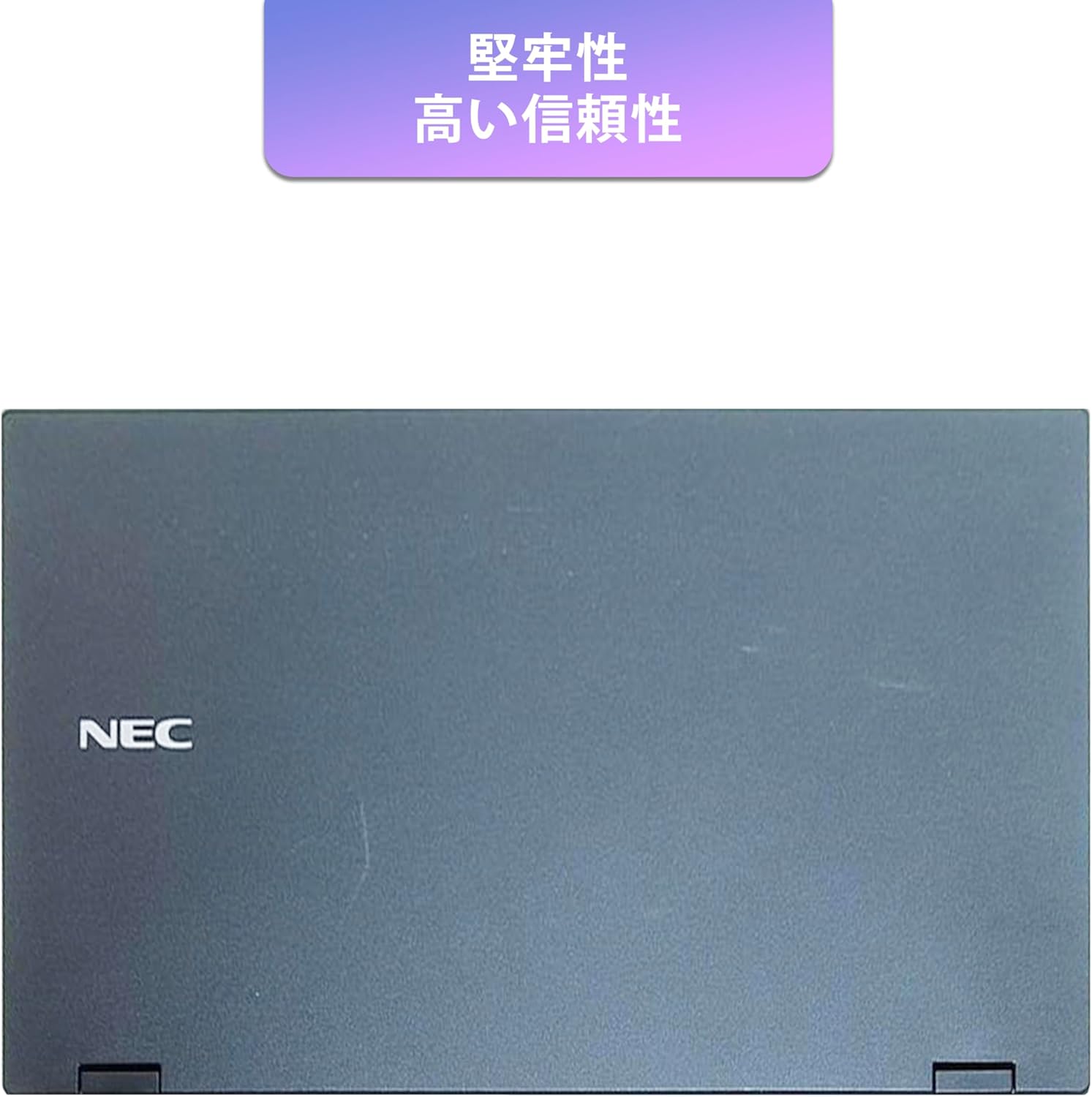
Image: Closed NEC VKT16XZG5 laptop, top casing. The design emphasizes durability and high reliability.
The laptop features a robust casing designed for durability and reliable performance.
4.3 Integrated Camera and Battery Life

Сүрөт: каптал view of the open NEC VKT16XZG5 laptop. This view indicates the presence of an integrated camera and highlights the laptop's long battery life capability.
- Интегралдык камера: Located at the top center of the display for video conferencing and other applications.
- Батарея: Designed for extended usage on a single charge.
4.4 Аткаруу өзгөчөлүктөрү

Сүрөт: каптал view of the open NEC VKT16XZG5 laptop. This image emphasizes the Intel Core i5-8th Generation processor and the high-speed SSD for enhanced performance.
- CPU: Intel Core i5-8th Generation processor for efficient multitasking.
- SSD: High-speed Solid State Drive for faster boot times and application loading.
5. Орнотуу
Follow these steps for initial setup of your laptop:
- Таңылганын ачуу: Ноутбукту жана бардык аксессуарларды таңгактан этияттык менен алып салыңыз.
- Туташуу кубаты: AC адаптерин ноутбуктун кубат портуна, андан кийин розеткага сайыңыз.
- Баштапкы күйгүзүү: Open the laptop lid and press the power button. The laptop will begin the Windows 11 setup process.
- Windows орнотуулары: Follow the on-screen prompts to configure Windows 11, including language, region, network connection, and user account creation.
- WPS Office Activation: Your laptop comes with WPS Office pre-installed. Use the provided license card to activate the software upon first use.
- Security Software Installation: Install the included ZERO Security software using the license card for protection against malware.

Image: Laptop screen displaying information about the WPS Office 2 license card. This indicates that WPS Office is ready for use immediately after activation.
6. Иштөө нускамалары
This section covers basic operation of your NEC VKT16XZG5 laptop.
6.1 Күйгүзүү/өчүрүү
- Күйгүзүү: Кубат баскычын басыңыз.
- Өчүрүү: Windows'тун Start баскычын чыкылдатып, андан кийин Кубат > Өчүрүү дегенди тандаңыз.
- Кайра баштоо: Баштоо баскычын чыкылдатып, андан кийин Кубат > Кайра иштетүүнү тандаңыз.
- Уйку: Капкагын жабыңыз же "Баштоо" баскычын чыкылдатыңыз, андан кийин Кубат > Уйку режимин тандаңыз.
6.2 Баскычтопту жана сенсордук тактаны колдонуу
- Баскычтоп: Type text and use function keys (Fn) for special commands (e.g., volume, brightness).
- Сенсордук такта: Move your finger across the surface to control the cursor. Tap to click, use two fingers to scroll.
6.3 Wi-Fiга туташуу
- Тапшырмалар тилкесиндеги Wi-Fi сөлөкөтүн чыкылдатыңыз.
- Тизмеден каалаган тармакты тандаңыз.
- Суралган болсо, тармактын коопсуздук ачкычын (сырсөз) киргизиңиз.
- "Байланыш" баскычын басыңыз.
6.4 Using the DVD-ROM Drive
- Лотокту ачуу үчүн дисктеги чыгаруу баскычын басыңыз.
- Place a DVD or CD onto the tray, ensuring it is seated correctly.
- Gently push the tray back into the laptop.
- The disc content should appear in File Explorer.
7. Техникалык тейлөө
Туура тейлөө сиздин ноутбуктун узак иштөөсүн жана иштешин камсыз кылат.
- Тазалоо: Экранды жана сыртты тазалоо үчүн жумшак, түксүз чүпүрөктү колдонуңуз. Кежир белгилер үчүн, гampчүпүрөккө бир аз суу же экран тазалагыч менен. Катуу химиялык заттардан алыс болуңуз.
- Батареяга кам көрүү: To maximize battery life, avoid fully discharging the battery frequently. Store the laptop in a cool, dry place if not used for extended periods.
- Программалык камсыздоо жаңыртуулары: Системанын туруктуулугун жана коопсуздугун камсыз кылуу үчүн Windows жаңыртууларын жана драйвер жаңыртууларын дайыма текшерип, орнотуп алыңыз.
- Калыбына келтирүү функциясы: Your laptop includes a recovery area and a 64GB USB recovery storage. In case of system issues, refer to the digital recovery manual saved on your laptop for instructions on how to restore the system.

Image: Laptop screen displaying information about the recovery area, large capacity USB storage for recovery, and the performance benefits of the high-speed SSD.
8. Кыйынчылыктарды
Бул бөлүм сиз кабылышы мүмкүн болгон жалпы көйгөйлөрдү карайт.
| Көйгөй | Мүмкүн чечим |
|---|---|
| Ноутбук күйбөйт. | Ensure the AC adapter is securely connected to both the laptop and a working power outlet. Check if the power outlet is functional. Try charging the battery for a while before attempting to power on again. |
| Wi-Fi байланышы жок. | Check if Wi-Fi is enabled in Windows settings. Ensure your router is working correctly. Try restarting the laptop and the router. Verify the Wi-Fi password. |
| Ноутбук жай иштеп жатат. | Close unnecessary applications. Check for background processes consuming high resources (Task Manager). Ensure Windows and drivers are up to date. Run a virus scan using the ZERO Security software. |
| Баскычтоп же сенсордук панел жооп бербей жатат. | Restart the laptop. Check for any physical obstructions. Ensure drivers are updated. |
9. Техникалык шарттар
Detailed technical specifications for the NEC VKT16XZG5 laptop.
| Өзгөчөлүк | Спецификация |
|---|---|
| Бренд | NEC |
| Модель аты | VKT16XZG5 |
| Screen Size | 15.6 дюйм |
| Дисплей түрү | LED |
| Max Display Resolution | 1366x768 пиксел |
| Катуу дисктин кубаттуулугу | 256 ГБ (SSD) |
| CPU модели | Intel Core i5-8th Generation |
| CPU ылдамдыгы | 1.6 GHz (Max 3.9 GHz) |
| Процессордун саны | 4 |
| Орнотулган RAM эстутум көлөмү | 8 ГБ / 16 ГБ |
| RAM эс технологиясы | DDR4 |
| Операция системасы | Windows 11 |
| Графикалык сопроцессор | Intel UHD Graphics 620 |
| Optical Storage Device | DVD ROM |
| Зымсыз түрү | Bluetooth, Wireless LAN |
| Байланыш интерфейси | USB |
| Элементтин өлчөмдөрү (LxWxH) | 37.6 x 25.4 x 2.5 см |
| Keyboard Description | JP (Japanese) |
| Камтылган компоненттер | AC Adapter, Security Zero License Card, 64GB USB Recovery Storage |
| Батарея түрү | Литий ион |
| Батарея Ватт Саат | 45 Ватт саат |
| Release Year/Model Year | 2019 |
10. Кепилдик жана колдоо
Your NEC VKT16XZG5 laptop comes with a warranty to ensure your peace of mind.
- Кепилдик мөөнөтү: 6 months of free repair service from the date of purchase.
- Алмаштыруу саясаты: If a repair is not possible, the product will be replaced with an equivalent item.
- For technical support or warranty claims, please refer to the contact information provided at the point of purchase or on the official NEC support webсайт.