
EZVIZ H9c
EZVIZ H9c 3K Dual-Lens Camera User Manual
Model: H9c
1. Киришүү
Thank you for choosing the EZVIZ H9c 3K Dual-Lens Camera. This advanced outdoor security camera features unique dual-lens technology, combining a wide-angle lens with a pan-tilt-zoom lens for comprehensive surveillance. Designed for robust outdoor use, the H9c provides intelligent tracking, 3K resolution, and enhanced night vision capabilities to ensure your property is protected.
This manual provides detailed instructions for the installation, operation, and maintenance of your H9c camera. Please read it carefully before use and retain it for future reference.
2. Пакеттин мазмуну
Please check that all components are present and in good condition upon opening the package. If any items are missing or damaged, contact your retailer or EZVIZ customer support.
- EZVIZ H9c 3K Dual-Lens Camera
- Кубаттуу адаптер
- Монтаж шаблону
- Screw Kit (screws and wall plugs)
- Суу өткөрбөйт комплект
- Quick Start Guide
3. Продукт бүтүп калдыview
Familiarize yourself with the various parts of your EZVIZ H9c camera.
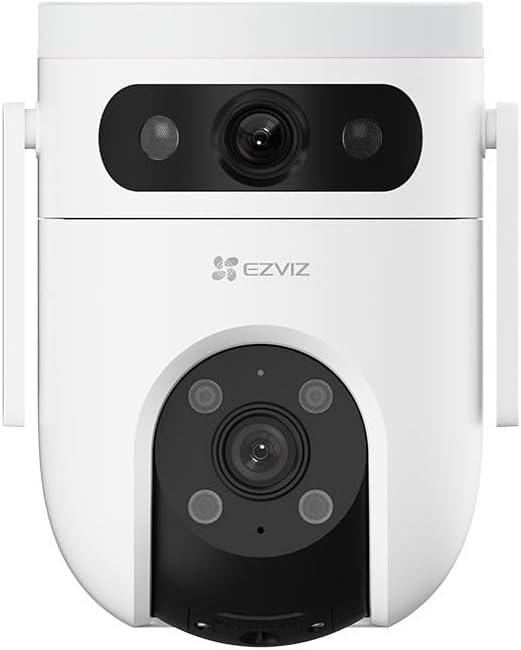
Сүрөт 3.1: Алдыңкы View - Shows the upper wide-angle lens, lower pan-tilt-zoom lens, and EZVIZ logo. The upper lens includes IR lights for night vision, and the lower lens has additional IR/spotlights.

3.2-сүрөт: Каптал View - Illustrates the mounting bracket and the sleek profile of the camera, highlighting its outdoor-ready design.
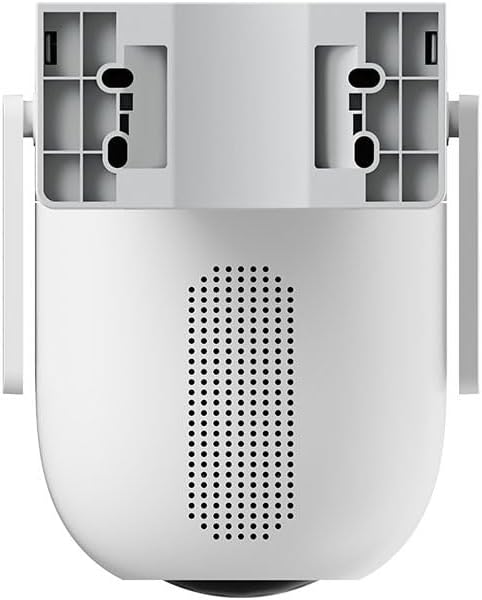
3.3-сүрөт: Артка View - Displays the speaker grille for two-way audio and ventilation openings.

3.4-сүрөт: Төмөнкү View - Reveals the MicroSD card slot, protected by a cover, for local storage of recordings.
Негизги компоненттер:
- Upper Wide-Angle Lens: Provides a broad overview көзөмөлдөнгөн аймактын.
- Lower Pan-Tilt-Zoom (PTZ) Lens: Offers detailed views and can track subjects with 5x optical zoom and 360-degree field of view.
- Инфракызыл (ИК) чырактар: For clear night vision.
- Микрофон: Аудио киргизүү үчүн.
- Баяндамачы: Эки тараптуу аудио байланыш жана сирена үчүн.
- MicroSD картасынын уячасы: Жергиликтүү видео сактоо үчүн (карта кошулган эмес).
- Калыбына келтирүү баскычы: Used for factory reset (typically located near the SD card slot).
- Электр порту: Кубат адаптерин туташтыруу үчүн.
4. Орнотуу жана орнотуу
4.1 Баштапкы орнотуу
- EZVIZ колдонмосун жүктөп алыңыз: Издөө "EZVIZ" in the App Store (iOS) or Google Play Store (Android) and download the official app.
- Create an EZVIZ Account: Колдонмону ачып, жаңы аккаунт каттоо же эгер сизде мурунтан эле бар болсо, кирүү үчүн экрандагы көрсөтмөлөрдү аткарыңыз.
- Камераны күйгүзүү: Connect the power adapter to the camera's power port and plug it into a power outlet. Wait for the indicator light to flash blue, indicating it's ready for setup.
- Колдонмого камера кошуу: In the EZVIZ app, tap the "+" icon on the home screen to add a new device. Scan the QR code located on the camera or its packaging. Follow the in-app prompts to connect the camera to your Wi-Fi network. Ensure your Wi-Fi network is 2.4 GHz.
- MicroSD картасын салыңыз (милдеттүү эмес): If you wish to store recordings locally, gently insert a MicroSD card (Class 10 or higher, up to 512GB) into the designated slot on the camera (refer to Figure 3.4). Ensure the camera is powered off before inserting or removing the card.
4.2 Камераны орнотуу
The H9c camera is designed for outdoor installation. Choose a location that provides the desired viewing angle, has a stable Wi-Fi signal, and is within reach of a power outlet.
- Жайгашкан жерди тандаңыз: Select a sturdy surface (wall or ceiling) that can support the camera's weight. Ensure there are no obstructions to the camera's field of view.
- Орнотуу шаблонун колдонуңуз: Place the mounting template (included in the package) on the desired installation surface and mark the screw holes.
- Бургулоо тешиктери: Drill pilot holes at the marked positions. Insert wall plugs if mounting on masonry or concrete.
- Камераны коргоо: Align the camera's mounting base with the drilled holes and secure it using the provided screws.
- Байланыштарды суу өткөрбөйт: Use the waterproof kit to protect the power cable connection from moisture, especially for outdoor installations.
- Бурчту тууралоо: Once mounted, adjust the camera's angle in the EZVIZ app to ensure optimal coverage.
5. Камераны иштетүү
The EZVIZ H9c camera offers a range of features accessible through the EZVIZ mobile application.
5.1 Dual-Lens Functionality
The H9c utilizes two lenses for enhanced surveillance:
- Кең бурчтуу объектив: Provides a static, broad view of the area, ideal for general monitoring.
- Pan-Tilt-Zoom (PTZ) Lens: This lens can be remotely controlled via the app to pan horizontally (360 degrees), tilt vertically, and zoom in (5x optical zoom) for detailed inspection.
- Акылдуу көз салуу: If the wide-angle lens detects a person, the PTZ lens can automatically rotate to track the person's movement, ensuring continuous coverage of the activity. This allows for simultaneous monitoring of a wide area and detailed tracking of specific events.
5.2 Кыймылды аныктоо жана эскертүүлөр
- Ыңгайлаштырылган аныктоо зоналары: Камералардын ичиндеги белгилүү бир аймактарды коюңуз view кыймылды аныктоонун активдүү болушун каалаган жериңиз.
- Адамдын формасын аныктоо: The camera can intelligently distinguish human shapes from other moving objects, reducing false alarms.
- Ыкчам эскертмелер: Receive real-time alerts on your smartphone when motion is detected.
- Активдүү коргонуу: Upon detection, the camera can activate a siren and strobe lights to deter intruders.
5.3 Түнкү көрүнүш
The H9c provides clear surveillance even in low-light conditions:
- Инфракызыл түнкү көрүнүш: Automatically switches to black and white infrared mode in the dark.
- Түнкү көрүнүш: With built-in spotlights, the camera can provide full-color night vision when sufficient ambient light is available or when spotlights are activated.
5.4 Эки тараптуу аудио
Communicate with visitors or deter intruders using the built-in microphone and speaker. Access this feature through the live view in the EZVIZ app.
5.5 Видеону жазуу жана сактоо
- Жергиликтүү сактагыч: Supports MicroSD card storage (up to 512GB) for continuous or event-based recording.
- Булуттагы сактагыч: Optional EZVIZ CloudPlay subscription service for secure cloud storage.
- Ойнотуу: View foo жазылганtage directly from the EZVIZ app.
6. Техникалык тейлөө
Үзгүлтүксүз тейлөө камераңыздын оптималдуу иштешин жана узак иштөөсүн камсыздайт.
- Тазалоо: Камера линзасын жана корпусун жумшак, d менен акырын сүртүңүзamp cloth. Do not use harsh chemicals or abrasive cleaners. Ensure the camera is powered off before cleaning.
- Программалык камсыздоонун жаңыртуулары: Regularly check for and install firmware updates via the EZVIZ app. Updates often include performance improvements, new features, and security enhancements.
- MicroSD картасын башкаруу: If using a MicroSD card, periodically check its status in the app. Format the card regularly (e.g., monthly) to maintain optimal recording performance. Back up important footage форматтоодон мурун.
- Электр камсыздоо: Ensure the power adapter and cable are free from damage. Replace if any wear or tear is observed.
- Экологиялык шарттар: While designed for outdoor use, avoid exposing the camera to extreme temperatures outside its operating range or direct, prolonged water submersion.
7. Кыйынчылыктарды
If you encounter issues with your EZVIZ H9c camera, refer to the following common problems and solutions.
7.1 Camera Offline / Cannot Connect
- Күчтү текшерүү: Ensure the camera is properly connected to a power source and the adapter is working.
- Wi-Fi сигналы: Verify that your Wi-Fi router is working and the camera is within range. Try moving the camera closer to the router or using a Wi-Fi extender.
- Маршрутизатор орнотуулары: Confirm your Wi-Fi network is 2.4 GHz. Ensure there are no MAC address filters or other network restrictions preventing the camera from connecting.
- Түзмөктөрдү кайра иштетүү: Power cycle both the camera and your Wi-Fi router.
- Камераны баштапкы абалга келтирүү: If the issue persists, press and hold the reset button on the camera for 5-10 seconds until the indicator light flashes, then re-add the camera through the EZVIZ app.
7.2 Сүрөттүн сапаты начар
- Таза линза: Камера линзасынын таза жана чаңдан, кирден же тактардан таза экенин текшериңиз.
- Тармак өткөрүү жөндөмдүүлүгү: A weak Wi-Fi signal can affect video quality. Check your network speed and camera's signal strength in the app.
- Жарыктандыруу шарттары: Ensure adequate lighting for optimal color vision. In very low light, the camera will switch to black and white night vision.
7.3 Motion Detection Not Working / Too Many False Alarms
- Орнотууларды текшерүү: Verify that motion detection is enabled in the EZVIZ app and detection sensitivity is appropriately set.
- аныктоо зоналары: Adjust detection zones to focus on critical areas and exclude irrelevant ones (e.g., moving trees, busy roads).
- Адамдын формасын аныктоо: Ensure human shape detection is enabled to filter out non-human movements.
8. Техникалык шарттар
| Модель аты | H9c |
| Бренд | ЭЗВИЗ |
| Резолюция | 3K (50 MP Photosensor Resolution) |
| Байланыш технологиясы | Зымсыз (Wi-Fi) |
| Өзгөчөлүктөр | Night Vision, Dual-Lens, Pan-Tilt-Zoom, Intelligent Tracking, Two-Way Audio |
| Колдонуу чөйрөсү | Сыртта |
| Оптикалык масштаб | 5x |
| талаасы View | 360 Degrees (PTZ lens) |
| Сууга туруктуулук деңгээли | Сууга чыдамдуу |
| Материал | Пластик |
| Салмагы | 200 грамм |
| Камтылган компоненттер | Camera and two 3K-lenses |
| Upper Temperature Range | 100 градус |
| Видео жазуунун форматы | AVI |
9. Кепилдик жана колдоо
Кепилдик боюнча толук маалымат алуу үчүн, өнүмүңүз менен кошо берилген кепилдик картасын караңыз же расмий EZVIZ веб-сайтына кириңиз. website. EZVIZ provides technical support and customer service to assist with any questions or issues you may encounter.
Расмий EZVIZ Webсайт: www.ezviz.com
You can find FAQs, troubleshooting guides, and contact information for customer support on their webсайт.
Ask a question about this manual
Ask about setup, troubleshooting, compatibility, parts, safety, or missing instructions. Manuals+ will review the question and use this page’s manual context to help answer it.