
1. Киришүү
This manual provides essential information for setting up, operating, and maintaining your Tibuta A70W 10.1-inch Kids Tablet. Designed specifically for children, this tablet features a durable design, parental controls, and a user-friendly Android 13 operating system. Please read this manual thoroughly to ensure proper use and to maximize your child's learning and entertainment experience.

Image: The Tibuta 10.1-inch Kids Tablet, highlighting its 1280x800 display, Android 13 OS, Quad-core 1.8GHz processor, 4GB+32GB memory, 2MP+5MP cameras, and 5000mAh battery.
2. Продукт бүтүп калдыview
2.1 Негизги өзгөчөлүктөрү
- Дисплей: 10.1-inch 1280x800 IPS Full HD touchscreen.
- Операция системасы: Android 13 with GMS certification.
- Процессор: 1.8 GHz Quad-core.
- Эстутум: 4GB RAM (2+2GB), 32GB ROM, expandable up to 128GB via Micro SD.
- Камералар: Dual cameras (Front 2MP, Rear 5MP).
- Батарея: 5000 mAh for extended use.
- Байланыш: Wi-Fi (802.11b/g/n) and Bluetooth.
- Узактыгы: Food-grade silicone shockproof case with an integrated stand.
- Ата-энелик көзөмөл: Built-in features for screen time limits and content filtering.
- Алдын ала орнотулган колдонмолор: Includes YouTube, Kids Space, and more.
2.2 Планшеттин компоненттери
Планшетиңиздин физикалык компоненттери менен таанышып алыңыз:

Image: A diagram illustrating the tablet's functional details, including the front camera, speakers, power ON/OFF button, volume buttons, reset button, rear camera, 3.5mm headphone port, TF Card slot, and USB 2.0 OTG port.
- Алдыңкы камера: Видео чалуулар жана селфи үчүн.
- Баяндамачылар: Аудио чыгаруу үчүн.
- Power ON/OFF баскычы: To turn the tablet on or off, or to put it to sleep.
- Үн баскычтары: Үн деңгээлин тууралоо үчүн.
- Калыбына келтирүү баскычы: For system reset in case of unresponsiveness (use a pin).
- Арткы камера: Сүрөт жана видео тартуу үчүн.
- 3.5 мм гарнитура порту: Наушниктерди туташтыруу үчүн.
- TF карта уячасы: Сактоо көлөмүн кеңейтүү үчүн Micro SD картаны салуу үчүн.
- USB 2.0 OTG Port: Заряддоо жана маалыматтарды өткөрүү үчүн.
3. Орнотуу
3.1 Алгачкы заряддоо
Before first use, fully charge the tablet. Connect the provided USB-C cable to the tablet's USB port and the other end to a power adapter. The battery indicator on the screen will show charging status.
3.2 Күйгүзүү/өчүрүү
- Күйгүзүү үчүн: Press and hold the Power ON/OFF button until the screen lights up.
- Өчүрүү үчүн: Press and hold the Power ON/OFF button, then select "Power off" from the options.
- Уйку/ойгонуу үчүн: Briefly press the Power ON/OFF button.
3.3 Баштапкы конфигурация
Upon first startup, follow the on-screen prompts to configure basic settings:
- Каалаган тилиңизди тандаңыз.
- Wi-Fi тармагына туташыңыз.
- Google аккаунтуңуз менен кириңиз же жаңысын түзүңүз. Бул Google Play Дүкөнүнөн колдонмолорду жүктөп алуу үчүн керек.
- Set up parental controls as desired (refer to Section 5 for details).
3.4 Микро SD картаны салуу
To expand storage, insert a Micro SD card (up to 128GB) into the TF Card slot. Ensure the tablet is powered off before inserting or removing the card.
4. Иштөө нускамалары
4.1 Негизги навигация
- таптаңыз: Бир нерсени тандоо же колдонмону ачуу.
- Серпүү: Экрандарды же тизмелерди сыдыруу үчүн.
- Чымчуу: Сүрөттөрдү чоңойтуу же кичирейтүү үчүн жана web барактар.
- Узак басуу: Контексттик менюларга же сүрөтчөлөрдү жылдыруу үчүн.
4.2 Wi-Fi туташуусу
- барыңыз Орнотуулар > Тармак жана интернет > Wi-Fi.
- Wi-Fi күйгүзүңүз.
- Тизмеден каалаган тармакты тандап, суралса сырсөздү киргизиңиз.
4.3 Downloading Applications
The tablet runs on Android 13 and supports the Google Play Store. You can download a wide range of educational and entertainment apps.

Image: The tablet screen displaying the Google Android 13 interface with various app icons, indicating access to a wide range of applications from the Google Play Store.
- ачыңыз Google Play дүкөнү колдонмо.
- Издөө каалаган колдонмо.
- Tap "Install" to download and install the app.
4.4 Камераларды колдонуу
The tablet features a front (2MP) and rear (5MP) camera.
- ачыңыз Камера колдонмо.
- Алдыңкы жана арткы камералардын ортосунда которулуу үчүн камераны которуштуруу сүрөтчөсүн таптаңыз.
- Сүрөткө тартуу же видео жазууну баштоо/токтоо үчүн жапкычты таптаңыз.
4.5 Батареяны башкаруу
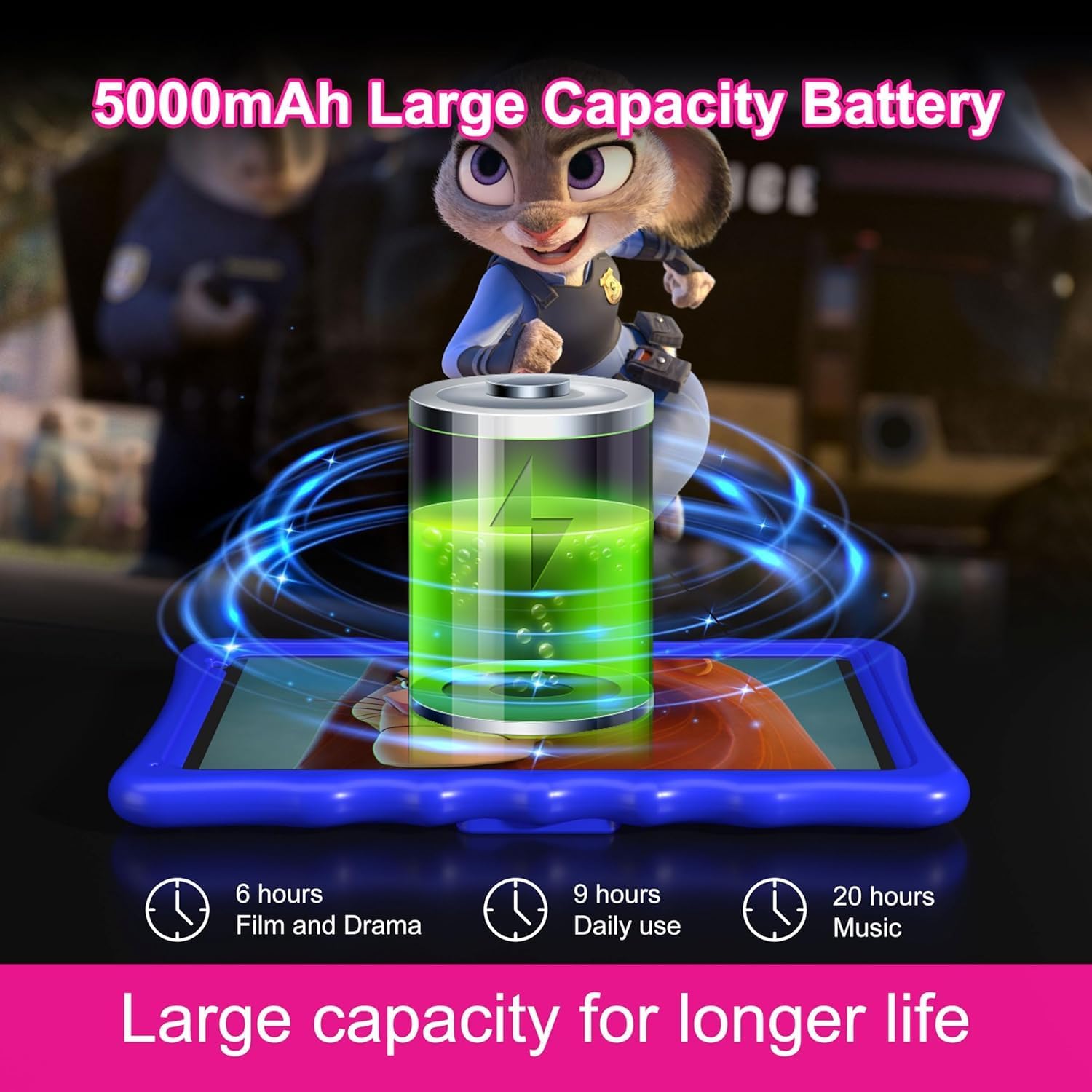
Image: An illustration of the tablet's 5000mAh battery capacity, showing estimated usage times: 6 hours for film/drama, 9 hours for daily use, and 20 hours for music.
5000 мАч батарея узак убакытка чейин иштөөнү камсыз кылат. Батареянын иштөө мөөнөтүн оптималдаштыруу үчүн:
- Экран жарыктыгын азайтыңыз.
- Колдонулбай турган учурда Wi-Fi жана Bluetooth'ду өчүрүп коюңуз.
- Фондо иштеп жаткан колдонулбаган колдонмолорду жабуу.
- Планшетти үзгүлтүксүз кубаттап туруңуз, бул анын толук зарядданышына жол бербейт.
5. Ата-энелик көзөмөл
The Tibuta A70W tablet includes robust parental control features to ensure a safe and educational environment for children. You can switch between normal and child modes.
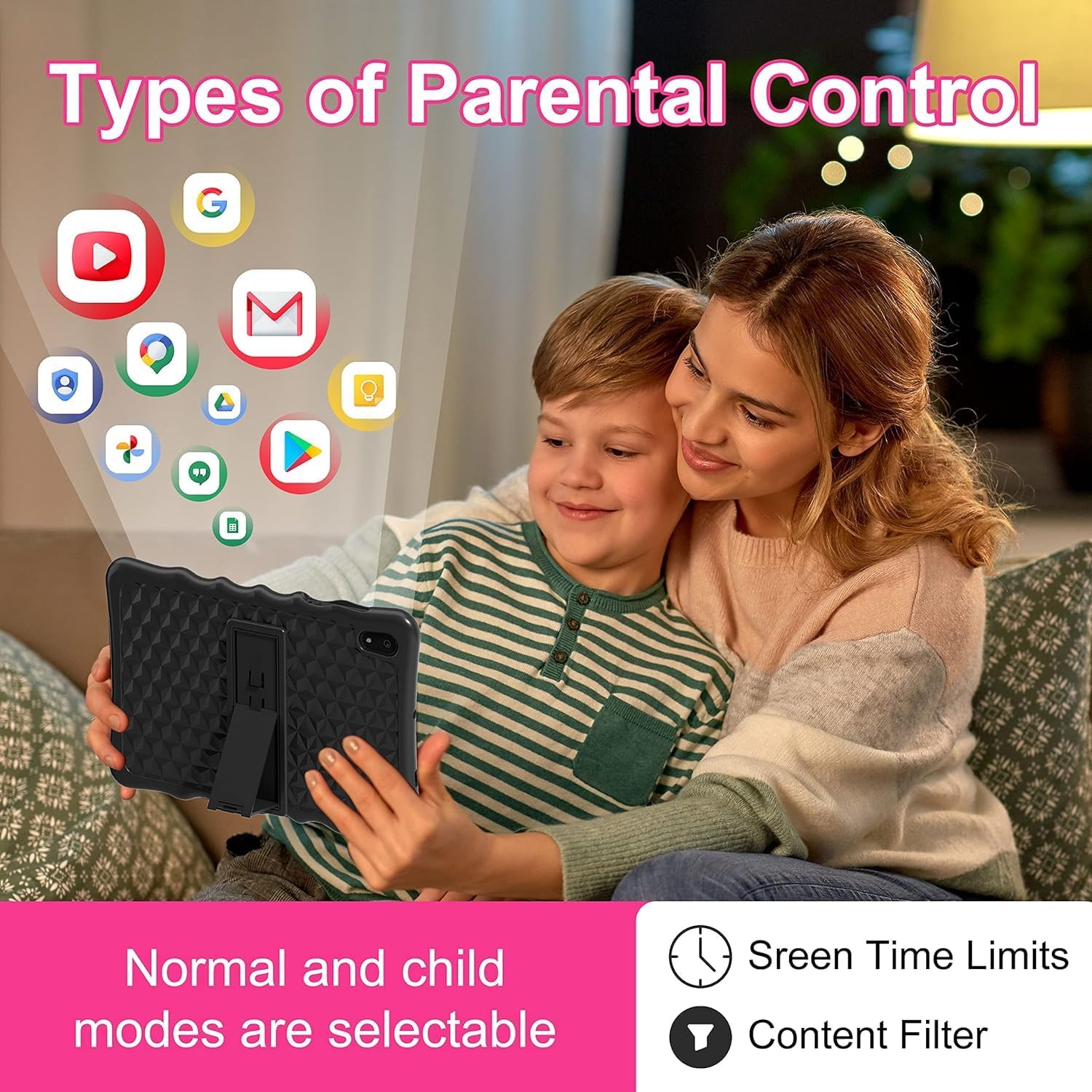
Image: A visual representation of parental control features, including options for setting screen time limits and applying content filters, with various app icons floating above the tablet.
5.1 Setting Up Parental Controls
Access parental control settings through the dedicated "Kids Space" app or via the tablet's main settings menu. Here you can:
- Set Screen Time Limits: Define daily usage limits for the tablet.
- Мазмунду башкаруу: Filter inappropriate content and approve specific apps, webсайттар, жана видеолор.
- Control App Access: Select which applications your child can use.
- Monitor Activity: Review your child's tablet usage.

Image: The tablet displaying the interface for pre-installed Kids Apps like YouTube and Kids Space, showing various educational and entertainment content categories within Google Kids Space.
The tablet comes with pre-installed educational apps and access to Google Kids Space, offering a curated selection of age-appropriate content.
6. Техникалык тейлөө
6.1 Планшетти тазалоо
- Экранды жана денени тазалоо үчүн жумшак, түксүз чүпүрөктү колдонуңуз.
- Катуу химиялык заттарды же абразивдүү материалдарды колдонуудан алыс болуңуз.
- Планшетті тазалоодон мурун, анын өчүрүлгөнүн текшериңиз.
6.2 Программалык камсыздоо жаңыртуулары
Оптималдуу иштөөнү жана коопсуздукту камсыз кылуу үчүн программалык камсыздоонун жаңыртууларын мезгил-мезгили менен текшерип туруңуз. Орнотуулар > Система > Системаны жаңыртуу.
6.3 Shockproof Case Care
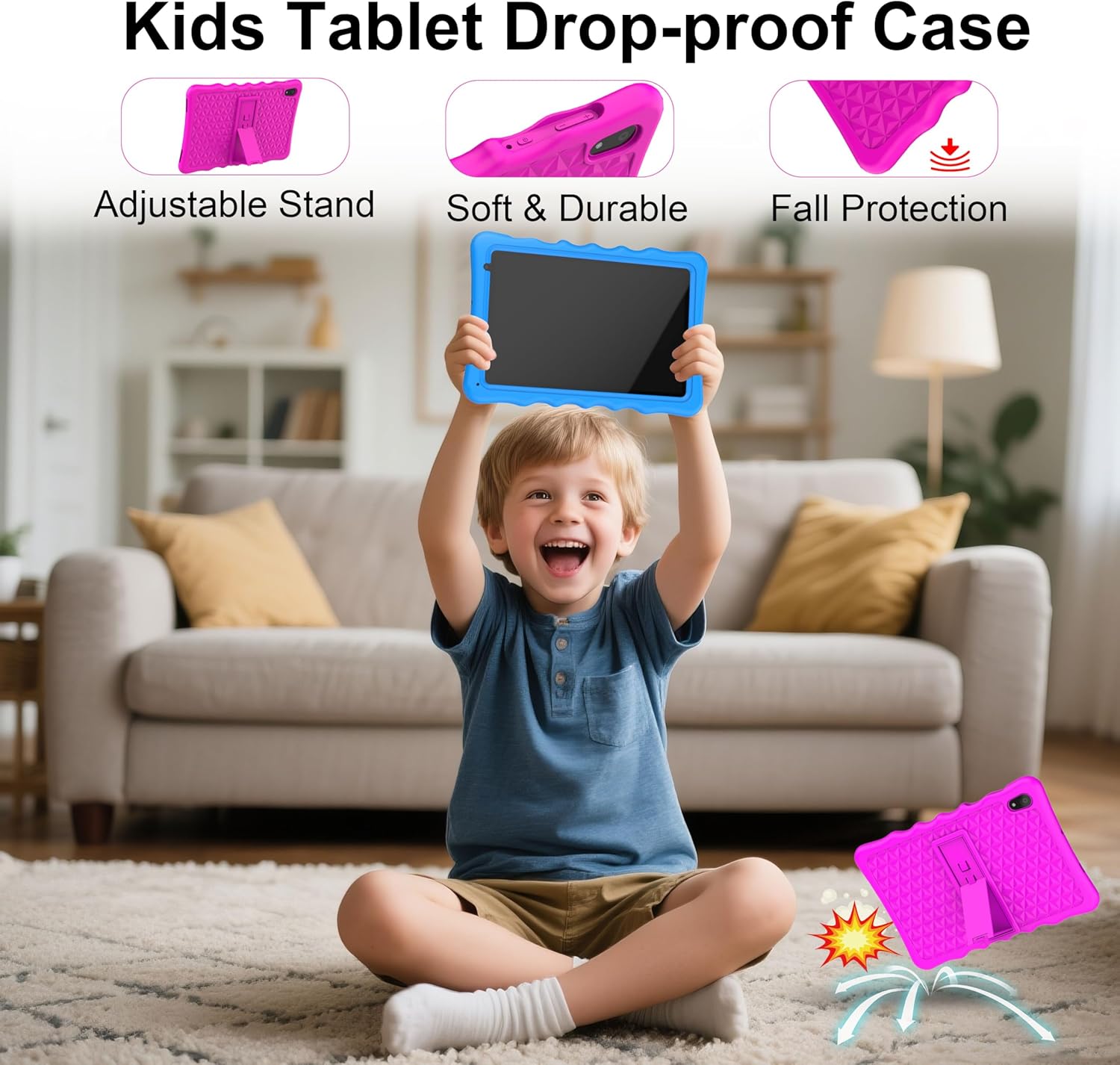
Image: A child happily holding the tablet in its blue shockproof case, with insets illustrating the case's adjustable stand, soft and durable material, and fall protection features.
The food-grade silicone case provides protection. Clean it with mild soap and water if necessary. Ensure it is completely dry before reattaching it to the tablet.
7. Кыйынчылыктарды
| Көйгөй | Мүмкүн себеп | Чечим |
|---|---|---|
| Планшет күйбөйт. | Аз батарея; системанын бузулушу. | Charge the tablet for at least 30 minutes. If unresponsive, press the reset button with a pin. |
| Wi-Fi туташуу маселелери. | Туура эмес сырсөз; диапазондон тышкары; роутер маселеси. | Verify password. Move closer to the router. Restart the router and tablet. |
| Тиркемелер жай иштеп жатат же бузулуп жатат. | Өтө көп колдонмолор иштеп жатат; сактагыч аз; эскирген колдонмо. | Close background apps. Clear app cache. Update apps. Free up storage. |
| Экран жооп бербей жатат. | Убактылуу программалык ката. | Perform a soft reset by holding the power button for 10-15 seconds, or use the reset pinhole. |
| Parental controls not working as expected. | Incorrect settings; app not configured. | Review parental control settings in the Kids Space app or tablet settings. Ensure all apps are managed. |
8. Техникалык шарттар
| Өзгөчөлүк | Деталь |
|---|---|
| Бренд | Тибута |
| Модель номери | A70W |
| Операция системасы | Android 13 |
| Процессор бренди | Allwinner |
| Процессордун ылдамдыгы | 1.5 GHz (Note: Feature bullets state 1.8 GHz, using 1.5 GHz from specifications for consistency) |
| Screen Size | 10.1 дюйм |
| Screen Resolution | 1280 x 800 пиксел |
| Орнотулган RAM өлчөмү | 4 ГБ |
| Эстутум сактоо сыйымдуулугу | 32 GB (Expandable up to 128GB via Micro SD) |
| Графикалык чипсет бренди | PowerVR GE8300 |
| Байланыш түрү | Bluetooth, Wi-Fi (802.11b/g/n) |
| Батарея | 1 Lithium-polymer (included) - 5000 mAh |
| Элементтин өлчөмдөрү (L x W x Y) | 24.2 x 16.1 x 0.84 см |
| Элемент Салмагы | 1.04 килограмм |
| Өзгөчөлүктөр | Shockproof case, pre-installed educational apps, parental control |
9. Кепилдик
The Tibuta A70W Kids Tablet comes with a 1 жылдык өндүрүүчүнүн кепилдиги. Бул кепилдик нормалдуу колдонуудагы материалдардагы жана жасалгадагы кемчиликтерди камтыйт. Кепилдик дооматтары үчүн сатып алганыңыздын далилин сактап коюңуз.
Кепилдиктин толук шарттары жана эрежелери үчүн, өнүмүңүз менен кошо берилген документтерди караңыз же кардарларды колдоо кызматына кайрылыңыз.
10. Кардарларды колдоо кызматы
If you encounter any problems with your Tibuta A70W Kids Tablet or require technical assistance, please do not hesitate to contact us. Our support team is ready to help.
- Байланыш ыкмасы: You can reach us via our official store email or through Amazon's messaging system.
- Жооп убактысы: We aim to respond quickly and provide comprehensive technical support.
Please provide your product model (A70W) and a detailed description of the issue when contacting support to facilitate a faster resolution.