
Ninkear N16 PRO
Ninkear N16 Pro Gaming ноутбугунун колдонуучу колдонмосу
Model: N16 PRO
Introduction
The Ninkear N16 Pro is a high-performance gaming laptop designed for demanding tasks, including professional work, gaming, and graphic design. It features a 13th Gen Intel Core i7-13620H processor, a 16-inch 2.5K IPS display with a 165Hz refresh rate, 32GB DDR4 RAM, and a 1TB PCIe SSD. This manual provides essential information for setting up, operating, maintaining, and troubleshooting your N16 Pro laptop.
Пакеттин мазмуну
Баштоодон мурун, пакетте бардык элементтер бар экенин текшериңиз:
- 1 x N16 PRO Laptop
- 1 х заряддагыч
- 1 х чычкан
- 1 x Mousepad
Жайгашуу
Баштапкы күйгүзүү жана кубаттоо
Connect the provided charger to the laptop's charging port (4.8mm/1.7mm) and a power outlet. Allow the laptop to charge for at least 30 minutes before the first use, or until the battery indicator shows sufficient charge.
Перифериялык түзүлүштөрдү туташтыруу
The N16 Pro offers various ports for connecting external devices:
- USB 2.0: 1 port for standard USB devices.
- USB 3.0: 2 ports for high-speed data transfer.
- HDMI: 1 port for connecting to external displays.
- C түрү: 1 port (data only).
- 3.5 мм аудио уячасы: 1 port for headphones or external speakers.

Сүрөт: бүттүview of the Ninkear N16 Pro's function interfaces, including USB, HDMI, Type-C, and audio ports.
Операциялык системаны орнотуу
The laptop comes pre-installed with Windows 11 Home. Follow the on-screen prompts to complete the initial Windows setup, including language selection, network connection, and user account creation.
Ноутбукту иштетүү
Күйгүзүү/өчүрүү
Press the power button located on the laptop to turn it on. To turn off, click the Start button in Windows, then select Power > Shut down.
Баскычтоп жана сенсордук такта
The N16 Pro features a full-size backlit keyboard and a touchpad. A small numeric keypad is attached to the right side of the keyboard.

Сүрөт: Жакын план view of the Ninkear N16 Pro's full-size backlit keyboard and integrated numeric keypad.
Функционалдык баскычтар (Fn айкалыштары)
Utilize the Fn key in combination with the F-keys for quick access to various functions:
- Fn+F1: WLAN On/Off
- Fn+F2: Үнсүз күйгүзүү/өчүрүү
- Fn+F3: Touchpad On/Off
- Fn+F5: Bluetooth күйгүзүү/өчүрүү
- Fn+F7: Multi-display mode
- Fn+F8: Дисплей өчүрүү режими
Дисплей өзгөчөлүктөрү
The 16-inch 2.5K (2560x1600) IPS display offers a 165Hz refresh rate for smooth visuals. It supports 400 Nits brightness, 100% sRGB, and 400 HDR.

Image: The Ninkear N16 Pro's high-resolution display, highlighting its 2.5K resolution and 120Hz refresh rate capabilities.
Байланыш
The laptop supports WiFi 6 (IEEE 802.11ax) for fast and stable wireless connections, with speeds up to 866 Mbps. Bluetooth 5.0 is also integrated for connecting wireless peripherals.

Image: Visual representation of the Ninkear N16 Pro's WiFi 6 capabilities, indicating fast and efficient wireless connectivity.
Манжа изинин кулпусун ачуу
The N16 Pro features fingerprint unlock for secure and fast login. Set up your fingerprint in Windows Settings > Accounts > Sign-in options.

Image: The Ninkear N16 Pro demonstrating fast login capabilities, likely referring to its fingerprint reader or facial recognition feature.
Техникалык тейлөө
Ноутбукту тазалоо
- Экранды жана сыртты тазалоо үчүн жумшак, түксүз чүпүрөктү колдонуңуз.
- Өжөр белгилер үчүн, dampen the cloth slightly with water or a screen cleaner.
- Ноутбукка түз суюктук чачуудан алыс болуңуз.
- Regularly clean the keyboard and touchpad to prevent dust buildup.
Муздатуу системасы
The N16 Pro features powerful dual cooling fans. Ensure the vents are not obstructed to maintain optimal performance and extend the laptop's lifespan. Avoid placing the laptop on soft surfaces that can block airflow.

Сүрөт: Ички view of the Ninkear N16 Pro's 2-in-1 cooling module, illustrating its dual fan design for efficient heat dissipation.
Батареяга кам көрүү
- Батареянын иштөө мөөнөтүн көбөйтүү үчүн, бат-баттан батареяны толук кубаттап турбаңыз.
- Ноутбукту узак убакыт бою колдонбосо, салкын, кургак жерде сактаңыз.
- The average battery life is approximately 8 hours.
Сактагычты кеңейтүү
The N16 Pro supports dual-channel memory and storage expansion. The maximum memory can be expanded to 64GB RAM, and the SSD can be extended up to 4TB via an M.2 SSD slot.
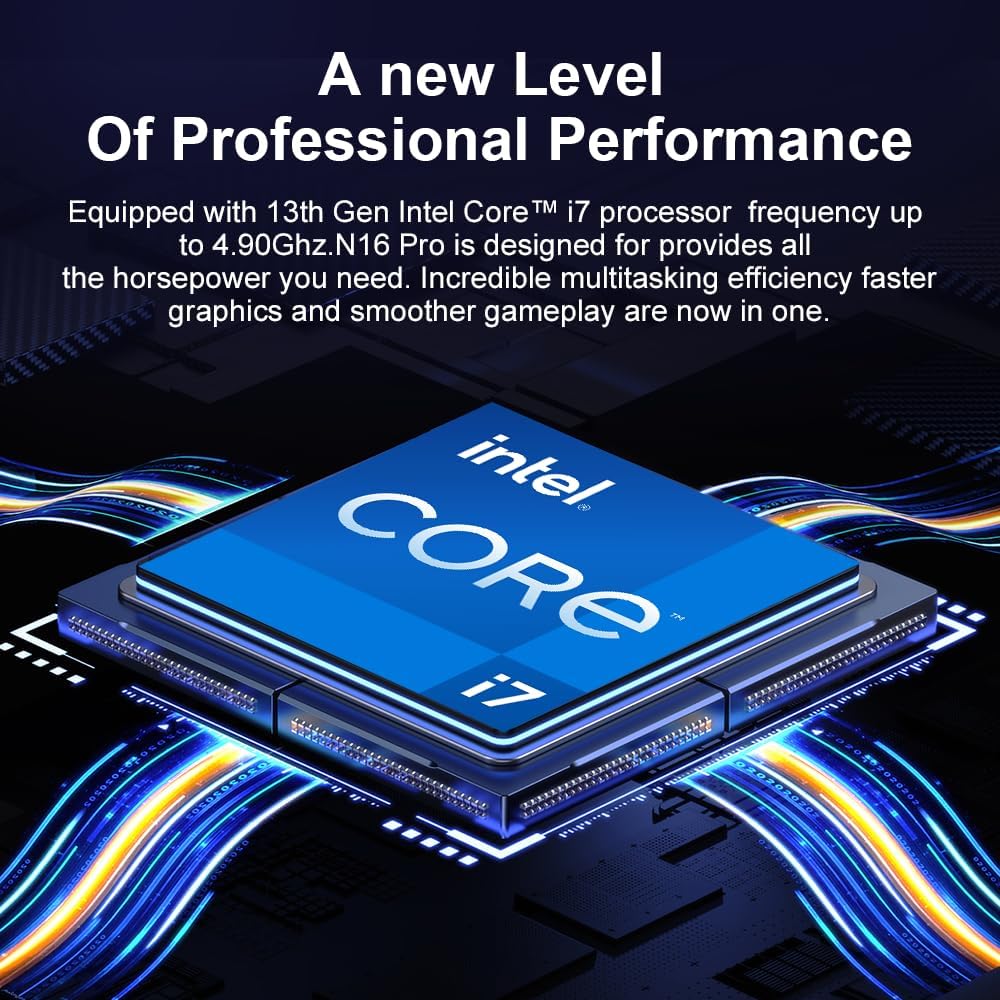
Image: Diagram illustrating the Ninkear N16 Pro's dual-channel DDR4 memory support (up to 64GB) and an extendable M.2 SSD slot (up to 4TB).
Проблемаларды чечүү
Жалпы маселелер жана чечимдер
- Ноутбук күйбөй жатат:
Ensure the charger is securely connected and the power outlet is functional. Check if the battery has sufficient charge.
- Wi-Fi байланышы жок:
Check if Wi-Fi is enabled (Fn+F1). Restart your router and the laptop. Verify Wi-Fi drivers are up to date in Device Manager.
- Сенсордук панел жооп бербей жатат:
Ensure the touchpad is not disabled (Fn+F3). Check Windows settings for touchpad functionality.
- Жай аткаруу:
Close unnecessary applications. Check for background processes in Task Manager. Ensure cooling vents are clear. Consider updating drivers or performing a system scan for malware.
- Дисплей көйгөйлөрү (сүрөт жок, бүлбүлдөп):
Ensure the display is not turned off (Fn+F8). Try connecting an external monitor via HDMI to check if the issue is with the laptop's display or graphics output.
Техникалык шарттар
| Өзгөчөлүк | Деталь |
|---|---|
| Модель аты | N16 PRO |
| Процессор | 13th Gen Intel Core i7-13620H (10 Cores, 16 Threads, up to 4.9 GHz) |
| Дисплей | 16-inch IPS, 2560 x 1600 (2.5K), 165Hz Refresh Rate, 400 Nits, 100% sRGB, 400 HDR |
| RAM | 32 ГБ DDR4 (Кош канал, 64 ГБ чейин кеңейтилүүчү) |
| Сактагыч | 1TB PCIe SSD (expandable up to 4TB via M.2 slot) |
| Графика | Intel UHD графикасы (интегралдык) |
| Операция системасы | Windows 11 Home |
| Зымсыз байланыш | WiFi 6 (IEEE 802.11ax), Bluetooth 5.0 |
| Порттар | 1x USB 2.0, 2x USB 3.0, 1x HDMI, 1x Type-C (data only), 1x 3.5mm Audio Jack |
| Батарея | 5000 mAh, approx. 8 hours average battery life |
| Өлчөмдөр | 3.3 x 3.05 x 0.76 см |
| Салмагы | 3.18 килограмм |
| Өзгөчөлүктөр | Backlit Keyboard, Fingerprint Reader, Numeric Keypad, Dual Cooling Fans |
Кепилдик жана колдоо
The Ninkear N16 Pro laptop includes a 1 жылдык кепилдик кызматы. For any quality issues or technical assistance, please contact Ninkear customer service. When contacting support, please have your product model (N16 PRO) and purchase details ready.
You can visit the official Ninkear store on Amazon for more information and support resources: Ninkear Amazon Store
Ask a question about this manual
Ask about setup, troubleshooting, compatibility, parts, safety, or missing instructions. Manuals+ will review the question and use this page’s manual context to help answer it.