
neculogy G9
neculogy G9 Gaming Audio Mixer User Manual
Модел: G9
1. Киришүү
The neculogy G9 Gaming Audio Mixer is a versatile audio interface designed for content creators, gamers, podcasters, and streamers. It offers comprehensive control over audio inputs and outputs, featuring various sound effects, voice modulation, and customizable sound pads to enhance your live broadcasts and recordings. This manual provides essential information for setting up, operating, maintaining, and troubleshooting your G9 mixer.
2. Коопсуздук маалыматы
- Аппаратты сууга же ашыкча нымдуулукка дуушар кылбаңыз.
- Аппаратты жылуулук булактарынын жанына же тике күн нуруна коюудан алыс болуңуз.
- Use only the provided cables and power adapter.
- Аппаратты өз алдынча бөлүүгө же оңдоого аракет кылбаңыз. Квалификациялуу тейлөө кызматкерлерине кайрылыңыз.
- Балдар жетпеген жерде сактаңыз.
3. Пакеттин мазмуну
Сураныч, төмөнкү нерселер үчүн кутучаны белгилеңиз:
- neculogy G9 Gaming Audio Mixer
- 2 x 3.5 мм аудио кабелдер
- USB-C Cable
- Split USB-C / Lightning Cable
- Колдонуучунун Колдонмосу (бул документ)
4. Продукт бүтүп калдыview
The G9 mixer features an intuitive layout with dedicated controls for microphone input, music, monitoring, and output. It includes a display screen for visual feedback on levels and settings, along with various buttons for sound effects and voice modulation.

Сүрөт 4.1: Алдыңкы view of the G9 Gaming Audio Mixer.
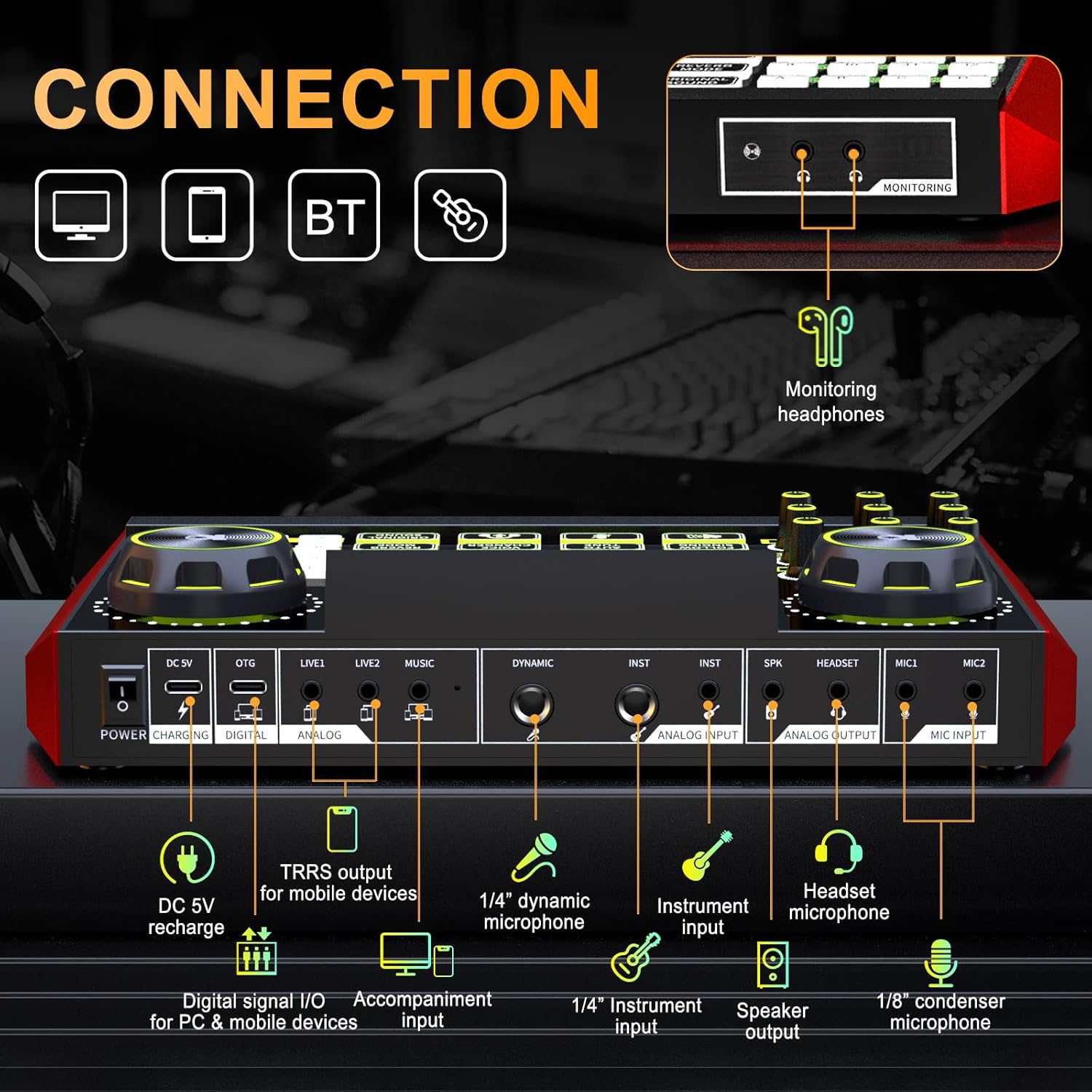
Figure 4.2: Rear connection panel of the G9 Gaming Audio Mixer.
4.1. Башкаруу каражаттары жана көрсөткүчтөр
- MIC Knobs: Adjust microphone gain (High, Mid, Low).
- Reverb Knobs (REV-D, REV-L): Control reverb depth and length.
- Катуу баскычы: Adjust vocal pitch.
- MON Knob: Adjust monitor headphone volume.
- OUT Knob: Adjust main output volume.
- MUSIC+ баскычы: Фондук музыканын үнүн тууралаңыз.
- Ducking Button: Automatically lowers background music when speaking.
- Denoise Button: Reduces background noise from microphone input.
- B/T Button: Activates Bluetooth pairing.
- Үн өзгөртүү баскычы: Cycles through different voice modes (e.g., female, uncle, baby, magic).
- Reverb Mode Button: Selects from preset reverb modes (e.g., KTV, Professional, Popular, Streamer, MC).
- Артка кайра баскычы: Enables or disables audio loopback for recording all sounds.
- Follow Singing Button: Removes vocals from music for sing-along (Bluetooth and MUSIC jack only).
- Автоматтык түрдө жөндөө баскычы: Applies automatic pitch correction.
- Original Sound Button: Restores original vocal sound, bypassing effects.
- Customizable Sound Pads (1-12, A-D): Trigger pre-recorded or custom sound effects.
5. Орнотуу
5.1. Баштапкы заряддоо
Before first use, ensure the G9 mixer is fully charged. Connect the USB-C cable to the DC 5V port on the mixer and the other end to a USB power adapter (not included) or a computer USB port. The charging indicator will show the charging status.
5.2. Түзмөктөрдү туташтыруу
The G9 mixer supports various connection methods for different devices and scenarios.
- To PC/Computer: Connect the USB-C cable from the mixer's OTG (Digital) port to your computer's USB port. This enables digital audio input/output.
- To Smartphone/Tablet (Digital): Use the split USB-C / Lightning cable to connect the OTG (Digital) port to your mobile device.
- To Smartphone/Tablet (Analog): Use a 3.5mm audio cable to connect the LIVE1 or LIVE2 (Analog) port to your mobile device's headphone jack.
- Микрофондор:
- Connect 1/8" condenser microphones to MIC1 or MIC2 ports.
- Connect 1/4" dynamic microphones to the DYNAMIC port.
- Connect headset microphones to the HEADSET port.
- Наушник: Connect your monitoring headphones to the MONITOR port.
- Инструменттер: Connect instruments to the INST ports using 1/4" cables.
- Баяндамачылар: Connect external speakers to the SPK (Speaker Output) port.
- Background Music Input: Connect an external audio source (e.g., phone, MP3 player) to the MUSIC port using a 3.5mm audio cable.
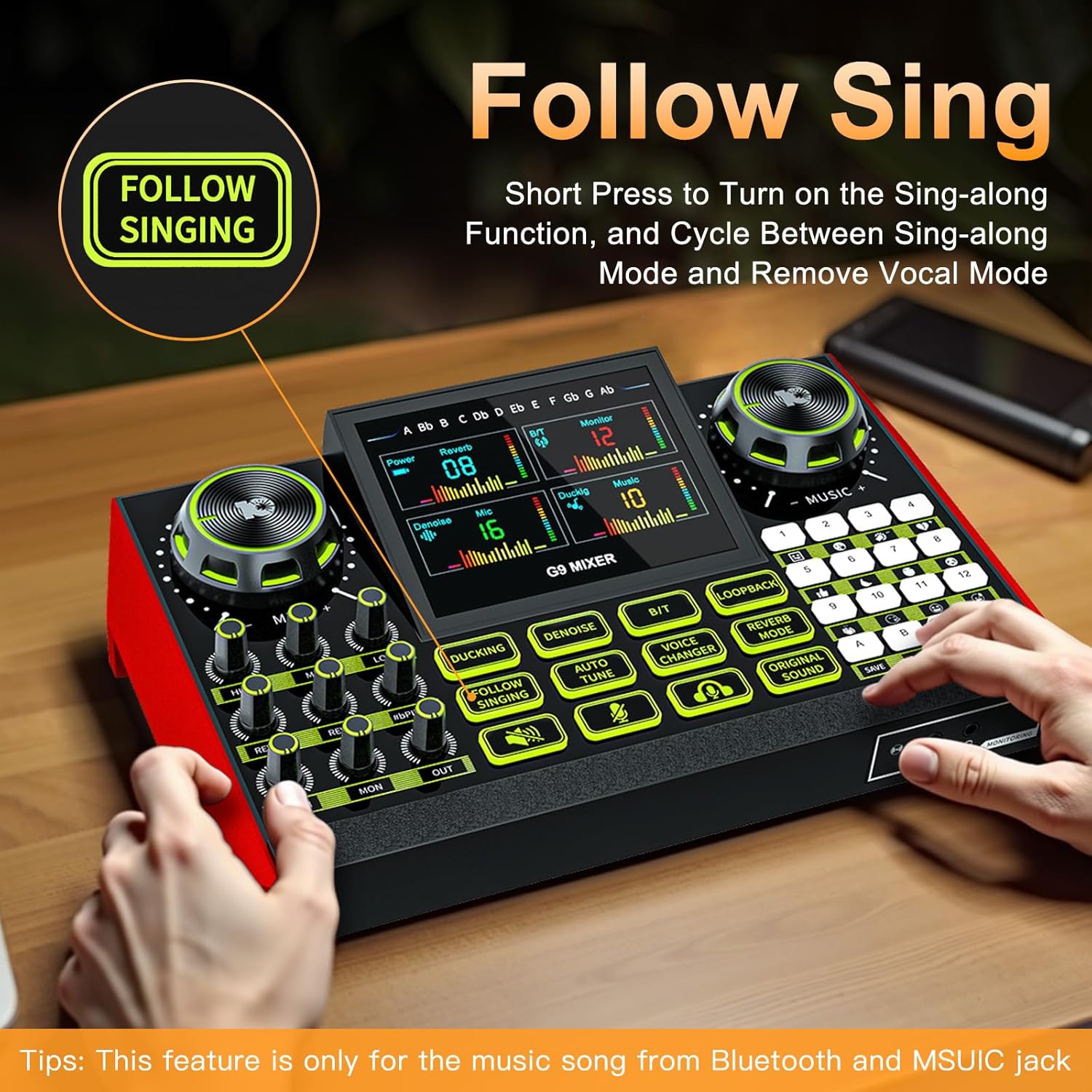
Figure 5.1: Connecting the G9 mixer to a computer and microphone.
6. Иштөө нускамалары
6.1. Күйгүзүү / Өчүрүү
Press and hold the Power button on the mixer to turn it on or off.
6.2. Үн деңгээлин жөндөө
Use the dedicated knobs to control various audio levels:
- MIC Knobs (High, Mid, Low): Rotate to adjust the equalization of your microphone input.
- MUSIC+ баскычы: Rotate to adjust the volume of background music from connected devices or Bluetooth.
- MON Knob: Мониторинг гарнитураңыздын үнүн тууралаңыз.
- OUT Knob: Adjust the overall output volume to your streaming device or speakers.
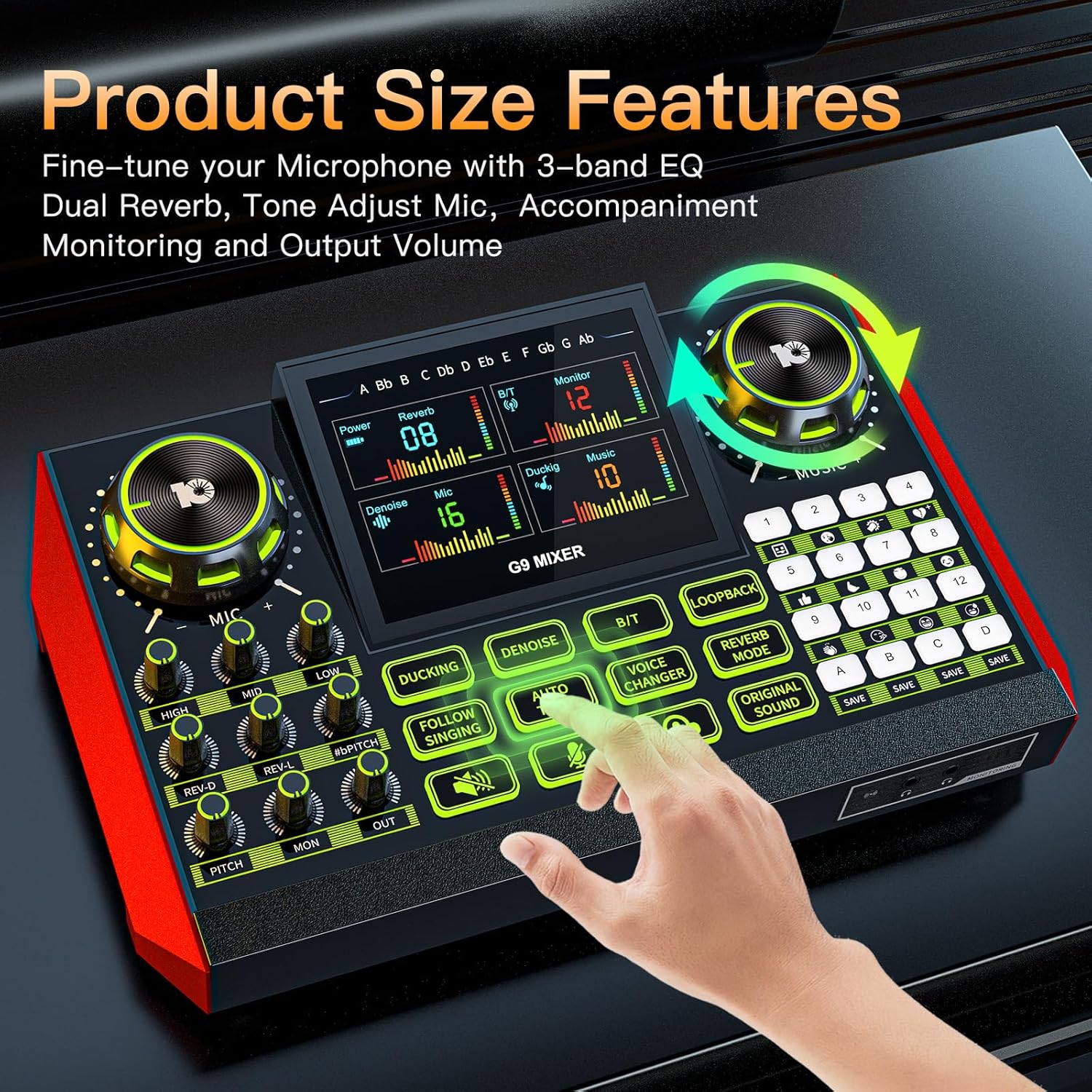
Figure 6.1: Fine-tuning audio with EQ and reverb controls.
6.3. Using Vocal Effects
The G9 mixer offers a range of vocal effects to enhance your voice:
- Реверб: Use the REV-D (Depth) and REV-L (Length) knobs to control the reverb effect. Press the Reverb режими button to cycle through preset reverb types.
- Үн: айлантыңыз Пич knob to adjust your vocal pitch.
- Унаам тууралоо: басыңыз Унаам тууралоо button to activate automatic pitch correction.
- Үн алмаштыргыч: басыңыз Үн алмаштыргыч button to cycle through different voice effects (e.g., male, female, baby, robot).

Figure 6.2: Activating voice changing modes.
6.4. Үн такталары
The mixer features 12 preset sound pads (1-12) and 4 customizable sound pads (A-D). Press a pad to trigger its assigned sound effect. For customizable pads, press and hold to record your own sound, then press again to play.

Figure 6.3: Customizable sound pads for personalized effects.
6.5. Атайын функциялар
- өрдөк: басыңыз Ducking button to enable automatic music ducking. When you speak into the microphone, the background music volume will automatically decrease.
- Дениз: басыңыз Denoise button to activate noise reduction for your microphone input.
- Кайталоо: басыңыз Loopback button to enable or disable the loopback function. When enabled, all audio played on your computer/device (e.g., game audio, music) will be mixed with your microphone input and sent to your stream/recording.
- Follow Singing: баскычын кыска басыңыз Follow Singing button to turn on the sing-along function, which attempts to remove vocals from the music. This feature is primarily for music played via Bluetooth or the MUSIC jack.

Figure 6.4: Using the Follow Singing feature.
6.6. Bluetooth байланышы
To connect a device via Bluetooth:
- басыңыз Б/Т button on the mixer. The Bluetooth indicator will start blinking.
- On your mobile device, search for Bluetooth devices and select "G9 Mixer".
- Once connected, the indicator will stop blinking. You can now play audio from your device through the mixer.
7. Техникалык тейлөө
Proper maintenance ensures the longevity and optimal performance of your G9 mixer.
- Тазалоо: Use a soft, dry cloth to wipe the surface of the mixer. Do not use liquid cleaners or abrasive materials.
- Сактагыч: Миксерди күн нурунан жана экстремалдык температурадан алыс салкын, кургак жерде сактаңыз.
- Батареяга кам көрүү: Узак мөөнөткө сактасаңыз, анын ден соолугун сактоо үчүн батареяны мезгил-мезгили менен заряддаңыз.
8. Кыйынчылыктарды
If you encounter issues with your G9 Gaming Audio Mixer, refer to the following common problems and solutions:
| Көйгөй | Мүмкүн себеп | Чечим |
|---|---|---|
| Үн чыгышы жок | Volume knobs are too low; incorrect cable connection; device not selected as audio output. | Increase OUT and MON knobs. Check all cable connections. Ensure G9 mixer is selected as the default audio output device on your computer/streaming software. |
| Микрофон иштебей жатат | MIC knob too low; microphone not properly connected; microphone type mismatch. | Increase MIC knobs. Ensure microphone is securely plugged into the correct port (e.g., condenser mic to MIC1/MIC2, dynamic mic to DYNAMIC). |
| Бузулган аудио | Input levels too high; faulty cable. | Lower input levels (e.g., MIC knobs, MUSIC+ knob). Try a different audio cable. |
| Bluetooth туташпай жатат | Миксер жупташтыруу режиминде эмес; түзмөк өтө алыс; тоскоолдук. | Press the B/T button to enter pairing mode. Ensure your device is within range. Avoid strong electromagnetic interference. |
| Үн эффекттери иштебейт | Effect not activated; volume too low. | Ensure the specific effect button (e.g., Voice Changer, Auto Tune) is pressed. Check overall output volume. |
9. Техникалык шарттар
| Өзгөчөлүк | Деталь |
|---|---|
| Бренд | neculogy |
| Модель номери | G9 |
| Элемент Салмагы | 1.84 фунт |
| Продукциянын өлчөмдөрү (LxWxH) | 12.4 x 3.54 x 2.36 дюйм |
| Power Source | Батарея менен иштейт |
| Батареялар | 1 Батарея талап кылынат (кошулган) |
| Каналдардын саны | 2 |
| Байланыш технологиясы | XLR, TRS, USB, Bluetooth |
| Output Connector Type | TRS |
10. Кепилдик жана колдоо
The neculogy G9 Gaming Audio Mixer comes with a standard manufacturer's warranty. For specific warranty terms and conditions, please refer to the warranty card included in your product packaging or contact neculogy customer support.
For technical support, troubleshooting assistance, or any inquiries regarding your product, please visit the official neculogy website or contact their customer service team. Contact details are typically available on the product packaging or the brand's official online store.
11. Расмий продукт Videos
Бул колдонмого киргизүү үчүн берилген маалыматтарда сатуучунун расмий продукт видеолору табылган жок.
Ask a question about this manual
Ask about setup, troubleshooting, compatibility, parts, safety, or missing instructions. Manuals+ will review the question and use this page’s manual context to help answer it.