
KTC H24V13
KTC 24 Inch FHD 1080P Computer Gaming Monitor User Manual
Model: H24V13
1. Киришүү
Thank you for choosing the KTC 24 Inch FHD 1080P Computer Gaming Monitor. This manual provides essential information for setting up, operating, maintaining, and troubleshooting your new monitor. Designed for both professional gamers and everyday users, this monitor offers a superior visual experience with its advanced features and ergonomic design.
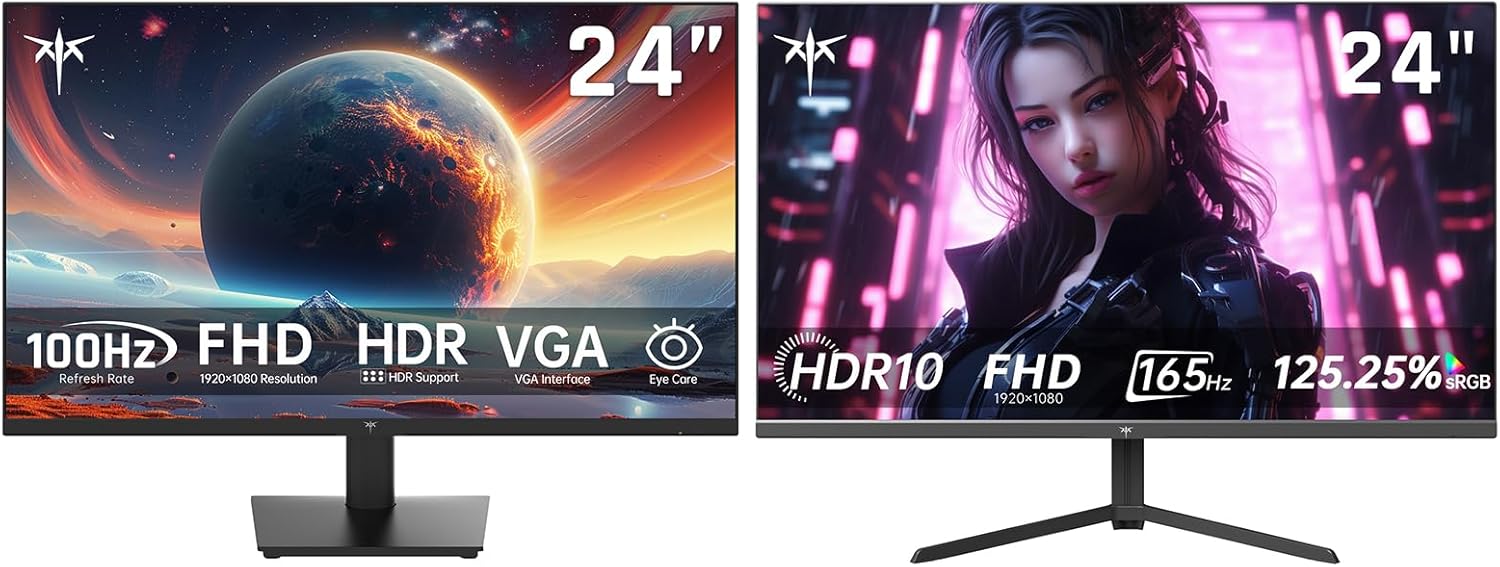
1.1-сүрөт: The KTC 24 Inch FHD 1080P Computer Gaming Monitor, showcasing its sleek design and 24-inch display. This image highlights the monitor's overall appearance and size.
Сураныч, продуктуну колдонуудан мурун бул колдонмону кылдат окуп чыгыңыз жана аны келечекте маалымат үчүн сактап коюңуз.
2. Коопсуздук маалыматы
To ensure safe and optimal performance, please observe the following safety precautions:
- Мониторду жамгырдын, нымдуулуктун же экстремалдык температуранын таасирине тийгизбеңиз.
- Мониторду күн тийген жерге же жылуулук булактарынын жанына коюудан алыс болуңуз.
- Ашыкча ысып кетүүнүн алдын алуу үчүн монитордун айланасында туура желдетүүнү камсыз кылыңыз.
- Монитор менен кошо берилген кубат адаптерин гана колдонуңуз.
- Мониторду ачпаңыз casinг. Бардык тейлөөлөрдү квалификациялуу кызматкерлерге тапшырыңыз.
- Clean the monitor with a soft, dry cloth. Avoid using abrasive cleaners or solvents.
- Position the monitor on a stable, level surface to prevent it from falling.
3. Пакеттин мазмуну
Сураныч, пакеттин мазмунун текшерип, бардык буюмдар бар экенин текшериңиз:
- KTC 24 Inch FHD 1080P Computer Gaming Monitor (H24V13)
- Монитор стенд (негизги жана моюн)
- Кубат адаптери жана кубат кабели
- HDMI кабели
- Колдонуучунун Колдонмосу (бул документ)
- Кепилдик картасы (эгер бар болсо)
4. Орнотуу
4.1 Стендди чогултуу
- Экранды коргоп, мониторду таңгагынан кылдаттык менен чыгарып алыңыз.
- Attach the stand neck to the monitor panel by aligning the grooves and securing with screws (if provided).
- Тирөөчтүн негизин тирөөчтүн моюнуна туташтырып, негиздин астыңкы жагындагы бекитүүчү бураманы бекемдеңиз.
- Чогулган мониторду туруктуу, жалпак бетке коюңуз.

4.1-сүрөт: Illustration of monitor stand assembly and flexible tilt adjustment from -5° to 15°. The image also highlights HDMI 1.4, VGA, and Earphone ports, along with VESA 100mm x 100mm wall hanging support.
4.2 Туташтыруучу кабельдер
Connect the necessary cables to the corresponding ports on the back of the monitor and your computer/device.
- Кубат кабели: Кубат адаптерин монитордун туруктуу ток киргизүү портуна туташтырыңыз, андан кийин кубат кабелин розеткага сайыңыз.
- Video Input:
- For optimal performance, use the provided HDMI cable to connect your computer's HDMI output to one of the monitor's HDMI ports.
- Alternatively, use a DisplayPort cable to connect to the monitor's DisplayPort.
- A VGA port is also available for older connections.
- Аудио чыгаруу: Connect headphones or external speakers to the 3.5mm earphone jack for audio output.

4.2-сүрөт: Бүттүview of the monitor's diverse connectors, including HDMI, DisplayPort, earphone jack, and DC power ports, facilitating enhanced gaming connectivity with various devices like PCs, PlayStation, laptops, and Xbox.
4.3 Баштапкы күйгүзүү жана конфигурация
- Аны күйгүзүү үчүн монитордогу кубат баскычын басыңыз.
- The monitor will automatically detect the active input source. If not, use the OSD joystick to manually select the input.
- Adjust display settings as needed using the On-Screen Display (OSD) menu.
5. Мониторду иштетүү
5.1 Экрандык менюнун навигациясы
The monitor features a 5-way joystick control located on the back or bottom for easy navigation of the On-Screen Display (OSD) menu.
- Press the joystick in to open the OSD menu.
- Меню параметрлери боюнча чабыттоо үчүн джойстикти Өйдө/Төмөн/Солго/Оңго жылдырыңыз.
- Press the joystick in again to confirm a selection or enter a sub-menu.
- Move the joystick Left to go back to the previous menu or exit the OSD.
5.2 Сүрөт орнотуулары
Adjust various display parameters to optimize your viewтажрыйбасы:
- Жарыктык: Экрандын жалпы жарыктыгын тууралаңыз.
- Контраст: Эң жарык жана эң караңгы жерлердин ортосундагы айырманы көзөмөлдөңүз.
- Түс температурасы: Select from preset modes (e.g., Warm, Cool, User) or adjust RGB values manually.
- Сүрөт режими: Choose from various presets like Standard, Game, Movie, Text, etc., for different content types.
- HDR: Enable or disable High Dynamic Range for enhanced contrast and color.

5.1-сүрөт: The monitor's ability to display content in stunning color with a wide range of colors, neat limitless hues, and HDR support, featuring 104% sRGB Color Gamut, 4000:1 Contrast Ratio, and 300 cd/m² Typical Brightness.
5.3 Оюн функциялары
The KTC monitor is equipped with features to enhance your gaming experience:
- FreeSync Premium & G-Sync Compatible: Synchronizes the monitor's refresh rate with your graphics card to eliminate screen tearing and stuttering, providing smoother gameplay. Ensure this feature is enabled in your graphics card settings.
- Өтө төмөн кыймылдуу бүдөмүктөтүү (ELMB): Reduces motion blur for sharp gaming visuals, especially in fast-paced scenes, by achieving a 1ms response time.
- GAMEPLUS: Access in-game enhancements directly from the OSD:
- Кроссхерлер: FPS оюндарында мээлөөнүн тактыгын жакшыртуу үчүн экрандагы кроссхерди камсыз кылат.
- Кара эквалайзер: Enhances visibility in dark areas of the game without overexposing bright areas, allowing you to spot hidden details.
- Таймер: Оюндагы окуяларды көзөмөлдөө үчүн экрандагы таймер.

5.2-сүрөт: Visual representation of the monitor's gaming capabilities, including FHD 1920x1080 resolution, 165Hz Refresh Rate, 1ms MPRT Response Time, AMD FreeSync support, and HDR10 compatibility, designed to fuel your gaming experience.
5.4 Көзгө кам көрүүнүн өзгөчөлүктөрү
The monitor incorporates features to reduce eye strain during prolonged use:
- Anti-Glare Screen: Айланадагы жарыктан чагылышууларды жана жаркыроолорду азайтат.
- Көк жарык чыпкасы: Minimizes harmful blue light emissions, which can contribute to eye fatigue. Adjust the level of blue light reduction through the OSD menu.
- Flicker-Free технологиясы: Eliminates screen flickering, further reducing eye strain.

5.3-сүрөт: The monitor's eye care features, including Low Blue Mode and Flicker-Free technology, designed to reduce glare and eye fatigue during extended use, as depicted with a user working on a spreadsheet.
5.5 Comprehensive Vision
The monitor's three-sided bezel-less design allows for a seamless multi-screen setup, providing an expansive and immersive viewing experience. The 178° viewing angle ensures consistent picture quality from various perspectives.

5.4-сүрөт: Мурункуample of a multi-monitor setup utilizing the KTC monitor's three-sided bezel-less design, demonstrating how it enables a comprehensive and immersive visual experience with a wide 178° viewбурч.
6. Техникалык тейлөө
Туура тейлөө мониторуңуздун узак мөөнөттүү жана оптималдуу иштешин камсыз кылат.
- Экранды тазалоо: Экранды жумшак, түксүз чүпүрөк менен акырын сүртүңүз. өжөр белгилери үчүн, жеңил гampчүпүрөктү суу же экранга арналган тазалоо эритмеси менен сүртүңүз. Эч качан суюктукту түздөн-түз экранга чачпаңыз.
- Тазалоо Casing: Мониторду сүртүү үчүн жумшак, кургак чүпүрөктү колдонуңуз casing. Катуу химиялык заттарды же абразивдүү материалдарды колдонуудан алыс болуңуз.
- Вентиляция: Ensure the ventilation openings on the monitor are not blocked. Dust accumulation can be removed with a soft brush or compressed air.
- Өчүрүү: Мониторду тазалоодон мурун же узак убакыт бою колдонулбай турган болсо, аны дайыма өчүрүп, розеткадан сууруп алыңыз.
7. Кыйынчылыктарды
Мониторуңузда көйгөйлөргө туш болсоңуз, төмөнкү жалпы көйгөйлөрдү жана чечимдерди караңыз:
| Көйгөй | Мүмкүн себеп | Чечим |
|---|---|---|
| Күч жок | Электр кабели туташкан эмес; Розетка бузук; Монитор өчүк. | Ensure power cable is securely connected. Test the power outlet. Press the monitor's power button. |
| Сигнал жок | Video cable not connected; Incorrect input source selected; Computer not on/sleeping. | Check video cable connections (HDMI/DP/VGA). Select the correct input source via OSD. Wake up or turn on your computer. |
| Жаркылдаган экран | Loose video cable; Graphics card issue; Refresh rate mismatch. | Reseat video cable. Update graphics drivers. Adjust refresh rate in display settings. |
| Сүрөт өтө караңгы/жарык | Жарыктык/Контраст жөндөөлөрү туура эмес. | OSD менюсунан Жарыктык жана Контраст жөндөөлөрүн тууралаңыз. |
| Түстөр туура эмес | Color temperature or picture mode settings incorrect. | Adjust Color Temperature or select a different Picture Mode in the OSD menu. |
If the problem persists after trying these solutions, please contact KTC customer support.
8. Техникалык шарттар
Detailed technical specifications for the KTC H24V13 monitor:
| Өзгөчөлүк | Description |
|---|---|
| Модель номери | H24V13 |
| Screen Size | 24 дюйм |
| Панел түрү | Ыкчам IPS |
| Резолюция | 1920 x 1080 (FHD 1080p) |
| Аспект катышы | 16:9 |
| Жаңыртуу ылдамдыгы | 165Hz (supports 144Hz) |
| Жооп убактысы | 1ms (ELMB) |
| Жарыктык | 300 кд/м² |
| Түс гаммасы | 125% sRGB |
| HDR колдоо | HDR 10 |
| Adaptive Sync | FreeSync Premium жана G-Sync менен шайкеш келет |
| Viewбурч | 178° |
| Байланыш | HDMI 2.0 (x2), DisplayPort 1.4 (x2), VGA, Earphone Jack |
| VESA шайкештиги | 100 x 100 мм |
| Тилтти тууралоо | -5°тан 15°ка чейин |
| Көзгө кам көрүү өзгөчөлүктөрү | Anti-Glare, Blue Light Filter, Flicker-Free |
9. Кепилдик жана колдоо
KTC provides a limited warranty for this product. Please refer to the warranty card included in your package for specific terms and conditions. For technical support, troubleshooting assistance, or warranty claims, please contact KTC customer service through the official webсайт же сатып алуу менен камсыз болгон байланыш маалыматы.
Сиз да зыярат кылсаңыз болот KTC Store on Amazon көбүрөөк продукт маалымат жана колдоо ресурстар үчүн.
Ask a question about this manual
Ask about setup, troubleshooting, compatibility, parts, safety, or missing instructions. Manuals+ will review the question and use this page’s manual context to help answer it.