
1. Киришүү
This manual provides essential instructions for setting up, operating, and maintaining your Brother DCP-L2622DW multifunction laser printer. The Brother DCP-L2622DW is a versatile device offering print, scan, and copy functionalities, designed for efficient use in home or small office environments. It features high-resolution monochrome printing, automatic duplex printing, and flexible connectivity options including Wi-Fi and USB.
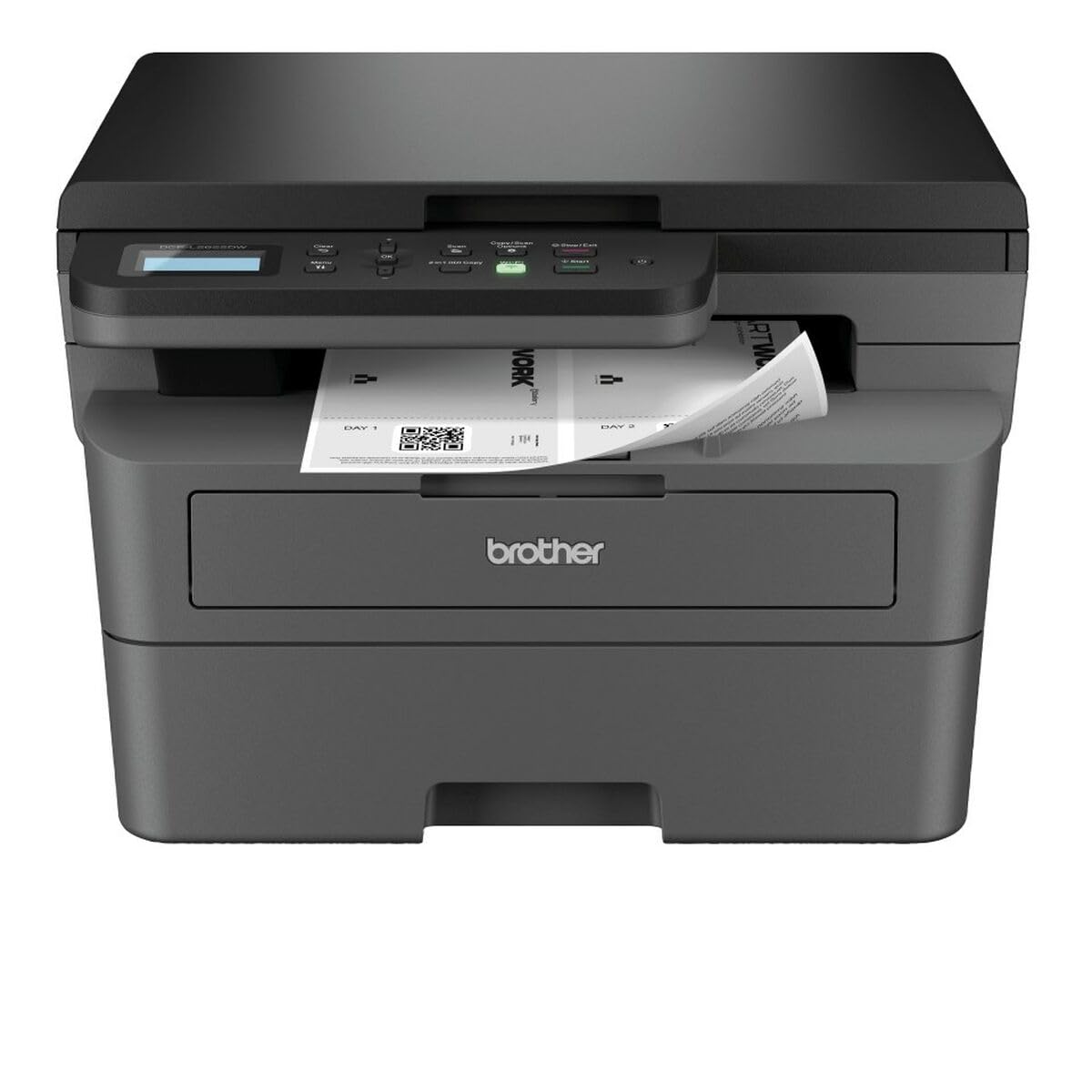
1-сүрөт: Brother DCP-L2622DW Multifunction Laser Printer. This image displays the front view of the printer, highlighting its compact design and integrated control panel.
2. Орнотуу
2.1 Пакеттен чыгаруу жана жайгаштыруу
- Принтерди таңгагынан этияттык менен чыгарыңыз.
- Принтердин сыртынан жана ичиндеги бардык коргоочу ленталарды жана таңгактоочу материалдарды алып салыңыз.
- Place the printer on a flat, stable surface with adequate ventilation.
2.2 Кубат туташтыруу
- Электр шнурун принтердин кубат киресине туташтырыңыз.
- Электр шнурунун экинчи учун жерге туташтырылган электр розеткасына сайыңыз.
- Do not power on the printer until all other setup steps are complete.
2.3 Toner Cartridge and Drum Unit Installation
- Принтердин алдыңкы капкагын ачыңыз.
- Тонер картриджин жана барабан блогунун топтомун коргоочу баштыгынан чыгарыңыз.
- Тонер картриджин барабан блогуна ал ордуна бекитилгенге чейин бекем салыңыз.
- Slide the combined toner and drum unit assembly into the printer until it clicks.
- алдыңкы капкакты жабыңыз.
2.4 Кагазды жүктөө
- Кагаз табакчасын толугу менен тартып чыгарыңыз.
- Кагаз багыттоочуларды кагаздын өлчөмүнө тууралаңыз (мисалы, A4).
- Кагазды лотокко салып, анын тегиз жана максималдуу толтуруу сызыгынан ашпаганын текшериңиз.
- Кагаз салгычты кайра принтерге акырын түртүңүз.
2.5 Connecting to a Computer (USB/Wi-Fi)
- USB туташуу: Принтерден компьютериңизге USB кабелин (кошулмада жок) туташтырыңыз.
- Wi-Fi туташуусу:
- Принтерди күйгүзүңүз.
- Use the printer's control panel to navigate to the Network settings.
- Тандоо WLAN анан Орнотуу устасы.
- Choose your Wi-Fi network from the list and enter the password.
- Байланышты ырастаңыз.
2.6 Драйверди орнотуу
- Insert the installation CD (if provided) into your computer, or download the latest drivers from the official Brother support webсайт.
- Драйверди орнотууну аяктоо үчүн экрандагы нускамаларды аткарыңыз.
3. Принтерди иштетүү
3.1 Негизги басып чыгаруу
- Компьютериңизде басып чыгаргыңыз келген документти ачыңыз.
- Тандоо Басып чыгаруу колдонмонун менюсунан (мисалы, File > Басып чыгаруу).
- Ensure the Brother DCP-L2622DW is selected as the printer.
- Нусхалардын саны, кагаз өлчөмү жана дуплекстүү басып чыгаруу (кааласаңыз) сыяктуу басып чыгаруу жөндөөлөрүн тууралаңыз.
- Click Басып чыгаруу.
3.2 Автоматтык дуплекстүү басып чыгаруу
- Компьютериңизден басып чыгарууда принтердин касиеттерине же артыкчылыктарына кириңиз.
- Байланыштуу вариантты издеңиз 2 тараптуу басып чыгаруу or Дуплекс.
- Select the desired duplex setting (e.g., Long-edge binding, Short-edge binding).
- Proceed with printing. The printer will automatically print on both sides of the paper.
3.3 Документтерди сканерлөө
- Place the document face down on the scanner glass, aligning it with the guide marks.
- From your computer, open the Brother iPrint&Scan application or other scanning software.
- Тандоо Скандоо and choose your desired settings (e.g., resolution, color mode, destination).
- Click Скандоо жараянын баштоо үчүн.
- Alternatively, you can initiate a scan from the printer's control panel and send it to your computer.
3.4 Документтерди көчүрүү
- Документти сканер айнегине ылдый каратып кой.
- Принтердин башкаруу панелиндеги баскычты басыңыз Көчүрүү баскычы.
- Use the arrow keys to adjust the number of copies or other settings (e.g., reduce/enlarge).
- Басыңыз Баштоо көчүрүүнү баштоо.
4. Техникалык тейлөө
4.1 Принтерди тазалоо
- Сырткы: Принтердин сыртын жумшак, мамыксыз чүпүрөк менен сүртүңүз. Абразивдүү тазалоочу каражаттарды же эриткичтерди колдонбоңуз.
- Сканер айнек: Gently clean the scanner glass with a soft, lint-free cloth moistened with a non-abrasive glass cleaner.
- Corona Wire: Periodically clean the corona wire inside the drum unit by sliding the green tab from left to right several times.
4.2 Replacing Toner Cartridge and Drum Unit
- When the printer indicates a low toner or drum life, order a replacement.
- Open the front cover and remove the old toner/drum assembly.
- Separate the toner cartridge from the drum unit.
- Unpack the new toner cartridge and insert it into the old or new drum unit until it clicks.
- Insert the new assembly into the printer and close the front cover.
- Reset the drum counter if prompted by the printer.
4.3 Кагаз тыгындарын тазалоо
- If a paper jam occurs, the printer's display will show an error message.
- Open the appropriate covers (front cover, back cover, or paper tray) as indicated by the error message.
- Тыгылып калган кагазды кагаз жолунун багыты боюнча этияттык менен сууруп алыңыз. Кагазды айрып албаңыз.
- Close all covers and trays. The printer should resume printing.
5. Кыйынчылыктарды
5.1 Жалпы маселелер жана чечимдер
| Маселе | Мүмкүн себеп | Чечим |
|---|---|---|
| Принтер басып чыгарылбай жатат | Not powered on, cable disconnected, driver issue, paper jam, out of toner. | Check power and connections. Reinstall drivers. Clear jams. Replace toner. |
| Басып чыгаруу сапаты начар | Low toner, dirty drum unit, incorrect paper type, fuser issue. | Replace toner. Clean corona wire/drum. Use recommended paper. Contact support if fuser issue suspected. |
| Wi-Fi туташуусу туруксуз | Weak signal, incorrect password, router issue. | Move printer closer to router. Re-enter Wi-Fi password. Restart router and printer. |
| Кагаз тыгылып калуу катасы | Paper stuck in paper path. | Follow instructions in section 4.3 to clear the jam. |
5.2 Ката билдирүүлөрү
Refer to the printer's LCD display for specific error codes or messages. Consult the full online manual or Brother support website for detailed explanations and solutions for each error code.
6. Техникалык шарттар
| Өзгөчөлүк | Деталь |
|---|---|
| Модель аты | DCP-L2622DW |
| Функциялар | Басып чыгаруу, сканерлөө, көчүрүү |
| Басып чыгаруу технологиясы | Лазер |
| Print Output | Монохромдуу |
| Макс басып чыгаруу ылдамдыгы (монохромдуу) | Мүнөтүнө 34 бет |
| Max Print Resolution | 1200 x 1200 dpi |
| Биринчи беттин чыгуу убактысы | 8.5 секунд |
| Дуплекстүү басып чыгаруу | Автоматтык |
| Сканер түрү | Планшет |
| Макс. Сканерлөөнүн максималдуу чечилиши | 1200 x 1200 dpi |
| Байланыш | USB, Wi-Fi |
| Ички эс тутум | 256 MB |
| Кагаз киргизүү сыйымдуулугу | 250 барак |
| Кагаз чыгаруу кубаттуулугу | 120 барак |
| Колдоого алынган медиа өлчөмдөрү | A4, A5, A6, B5, Envelopes, Labels |
| Өлчөмдөр (D x W x H) | 42.5 x 57.5 x 42.5 см |
| Элемент Салмагы | 10100 грамм |
| Энергияны керектөө | 470 Ватт |
7. Кепилдик маалыматы
This Brother DCP-L2622DW multifunction laser printer comes with a Чектелген Кепилдик. For detailed information regarding the terms, conditions, and duration of your warranty, please refer to the warranty card included with your product or visit the official Brother support webсайт. Кепилдик дооматтар үчүн сатып алганыңыздын далилин сактаңыз.
8. Кардарларды колдоо кызматы
For further assistance, technical support, driver downloads, or to access the complete user manual, please visit the official Brother support website. You can typically find support resources by searching for your model number (DCP-L2622DW) on their webсайт.
Brother расмий колдоосу Webсайт: www.brother.com/support