
1. Киришүү
Thank you for choosing the wegear MW2 Wireless Bluetooth Mouse. This compact and portable mouse is designed for comfort and precision, offering seamless connectivity and adjustable sensitivity for various tasks. Please read this manual carefully to ensure proper setup and optimal performance.
2. Коопсуздук маалыматы
- Электр тогуна урунуп же бузулуп калбашы үчүн, түзмөктү суудан жана башка суюктуктардан алыс кармаңыз.
- Avoid exposing the mouse to extreme temperatures or direct sunlight.
- Аппаратты өз алдынча бөлүүгө же оңдоого аракет кылбаңыз. Жардам алуу үчүн квалификациялуу тейлөө кызматкерлерине кайрылыңыз.
- Батареяларды жергиликтүү эрежелерге ылайык жок кылыңыз. өрттөбө.
3. Пакеттин мазмуну
- wegear MW2 Wireless Bluetooth Mouse
- 1 x AA батарейкасы (алдын ала орнотулган же кошулган)
- USB Receiver (stored in battery compartment)
- User Manual
4. Продукт бүтүп калдыview
Familiarize yourself with the components of your wegear MW2 Wireless Bluetooth Mouse:

Сүрөт: Төмөнкү view of the wegear MW2 mouse, highlighting the power on/off switch, Bluetooth pairing button, DPI button, battery compartment, and the storage slot for the USB receiver.
- Сол/оң баскычтары: Standard mouse buttons for interaction.
- Жылдыруу дөңгөлөгү: Вертикалдык жылдыруу үчүн.
- DPI баскычы: Located on the bottom, cycles through 800, 1200, and 1600 DPI settings.
- Күйгүзүү/өчүрүү: Located on the bottom, to conserve battery life.
- Bluetooth жупташтыруу баскычы: Located on the bottom, used to initiate Bluetooth pairing.
- USB Receiver Slot: Located inside the battery compartment for convenient storage.
5. Орнотуу
5.1. Батареяны салыңыз
- Remove the battery compartment cover from the bottom of the mouse.
- Туура полярдуулукту (+/-) камсыз кылуу менен бир AA батареясын салыңыз.
- Батарея бөлүгүнүн капкагын ордуна коюңуз.
For a visual guide on battery insertion and initial setup, please refer to the video below:
Video: Demonstrates the process of inserting the AA battery and initial power-on for the wegear Wireless Mouse.
5.2. Күйгүзүү
Slide the Power On/Off switch on the bottom of the mouse to the 'ON' position. A light indicator will illuminate.
5.3. Bluetooth аркылуу туташыңыз
- Чычкан күйгүзүлгөнүн текшериңиз.
- Long press the Bluetooth Pairing Button on the bottom of the mouse for 3 seconds. The LED indicator will flash green, indicating it's in pairing mode.
- On your computer (PC, Mac, etc.), open your Bluetooth settings.
- Издөө new devices and select "Bluetooth MS" (or similar name) from the list to connect.
- Туташтырылгандан кийин, LED индикатору өчүп-өчүп токтойт.
For a visual guide on Bluetooth pairing, please refer to the image below:
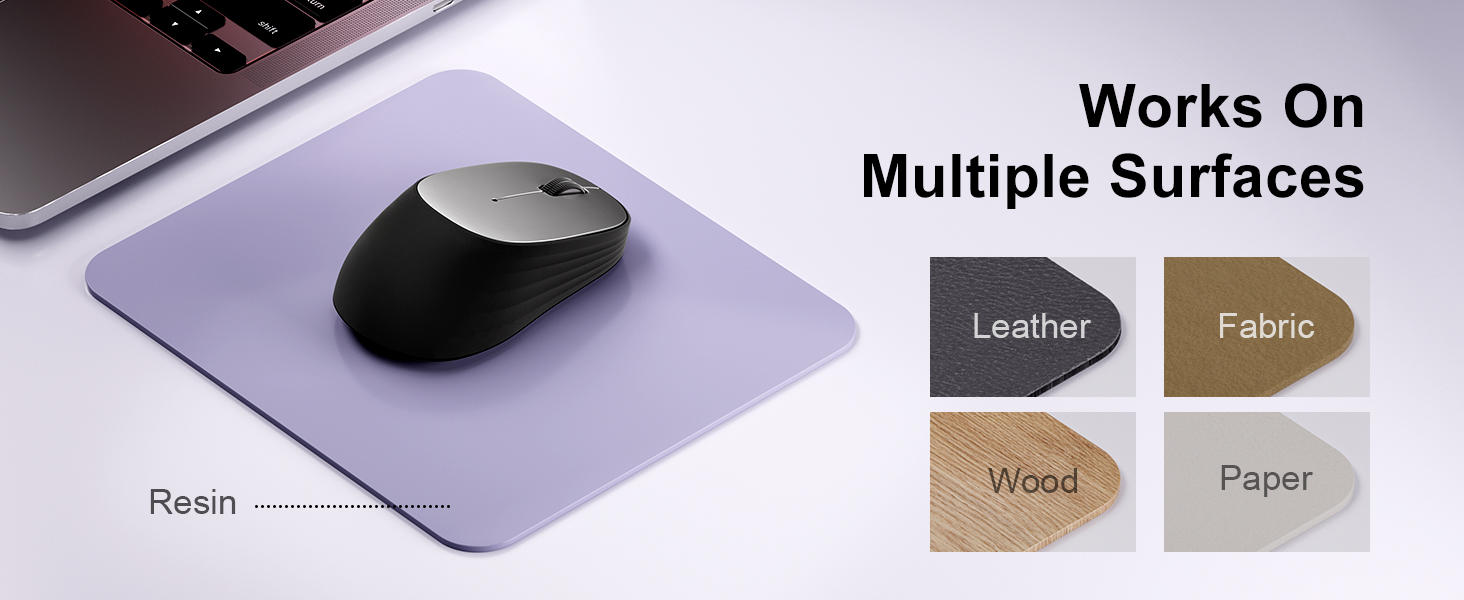
Image: A laptop screen displays a Bluetooth pairing prompt, indicating a new device (Bluetooth mouse) is found. The wegear mouse is shown nearby with a '10M' range indicator, illustrating its Bluetooth 5.0 connectivity.
5.4. Connect via USB Receiver (2.4G Wireless)
If your device does not support Bluetooth or you prefer a 2.4G wireless connection:
- Locate the USB receiver inside the battery compartment of the mouse.
- USB ресиверди компьютериңиздеги жеткиликтүү USB портуна сайыңыз.
- The mouse should automatically connect to your device. No additional pairing is required.
6. Чычканды иштетүү
6.1. DPI тууралоо
The wegear MW2 mouse features 3 adjustable DPI levels (800, 1200, 1600) for customized cursor sensitivity. To change the DPI:
- Press the DPI button on the bottom of the mouse.
- Each press will cycle through the DPI settings. The cursor speed will change accordingly.
For a visual representation of DPI levels, please refer to the image below:
Image: The wegear MW2 mouse is depicted with three distinct visual arcs, each labeled with a DPI setting (800, 1200, 1600), illustrating the adjustable sensitivity levels for smooth navigation.
6.2. Үнсүз чыкылдатуулар
The mouse is designed with silent click buttons, providing a quiet user experience suitable for various environments without disturbing others.
6.3. Энергияны үнөмдөө режими
To conserve battery life, the mouse automatically enters a sleep mode after 10 seconds of inactivity. Simply move the mouse to wake it up and resume operation.
For more details on power saving, please refer to the image below:
Image: A user is shown working on a laptop with the wegear MW2 mouse. An overlay text explains that the mouse enters power-saving mode after 10 seconds of inactivity and can be woken by moving it.
7. Техникалык тейлөө
7.1. Батареянын иштөө мөөнөтү
The wegear MW2 mouse is designed for long-lasting performance, offering up to 12 months of battery life with a single AA battery, especially when utilizing the automatic sleep mode and manually turning off the mouse when not in use.
7.2. Тазалоо
To clean your mouse, gently wipe its surface with a soft, dry cloth. Avoid using harsh chemicals or abrasive materials that could damage the finish.
8. Кыйынчылыктарды
- Чычкан туташпай жатат:
- Ensure the mouse is powered on.
- Check if the battery is inserted correctly and has sufficient charge.
- For Bluetooth connection, ensure your device's Bluetooth is enabled and the mouse is in pairing mode.
- For USB receiver connection, ensure the receiver is securely plugged into a USB port. - Курсор туруксуз же жооп бербей жатат:
- Clean the optical sensor on the bottom of the mouse.
- Ensure you are using the mouse on a suitable surface (non-reflective, non-transparent). - Батарейканын кыска мөөнөтү:
- Make sure to turn off the mouse using the Power On/Off switch when not in use for extended periods.
9. Техникалык шарттар
| Өзгөчөлүк | Деталь |
|---|---|
| Модель номери | MW2 |
| Байланыш технологиясы | Bluetooth 5.0, 2.4G Wireless (via USB receiver) |
| Кыймылды аныктоо технологиясы | Оптикалык |
| Жөнгө салынуучу DPI | 800, 1200, 1600 |
| Батарея түрү | 1 x AA Батарея |
| Болжолдуу батареянын иштөө мөөнөтү | 12 айга чейин |
| Өзгөчө өзгөчөлүк | Portable, Compact Design, Silent Clicks, Automatic Sleep Mode |
| Элемент Салмагы | 4.2 унция |
| Пакеттин өлчөмдөрү | 4.25 x 3.27 x 1.73 дюйм |
10. Кепилдик жана колдоо
The wegear MW2 Wireless Bluetooth Mouse comes with a standard manufacturer's warranty. For detailed warranty information, product support, or technical assistance, please refer to the contact information provided on the product packaging or visit the official wegear webсайт.
We are committed to providing high-quality products and excellent customer service. If you encounter any issues or have questions, please do not hesitate to reach out to our support team.