
1. Киришүү
The Canyon DVR40 is a dash camera designed to record driving footage. It features a Sony Starvis 415 sensor for 4K video recording, a 140° wide field of view, and a 3-inch IPS capacitive touchscreen. The device includes a supercapacitor for reliable operation and supports Wi-Fi connectivity for control via a mobile application.

Сүрөт 1.1: Алдыңкы view of the Canyon DVR40 Dash Camera, showing the lens and branding.
2. Пакеттин мазмуну
Verify that all items listed below are present in the product packaging.

Image 2.1: All items included in the Canyon DVR40 Dash Camera package.
- Canyon DVR40 Dash Camera
- Quick Start Guide
- Кепилдик картасы
- Accessories for Cable Installation
- Card Reader
- Magnetic suction cup holder with a USB Type-C connector
- Car power adapter (2 output connectors USB Type-A)
- Cable USB Type-C (cable length 3.6 m)
- CPL чыпкасы
- Cloth for screen cleaning
- Текстиль корпусу
3. Продукт бүтүп калдыview
Familiarize yourself with the main components of the DVR40 dash camera.

Image 3.1: The Canyon DVR40 Dash Camera, highlighting its compact design.
Негизги өзгөчөлүктөрү:
- 4K UltraHD Recording: Captures video at 30 frames per second for clear footage.
- Sony Starvis 415 Sensor: Enhances low-light performance with night vision mode.
- 140° талаа View: Provides wide coverage of the road.
- 3-inch IPS Capacitive Touchscreen: For direct control and playback.
- Суперконденсатор: Offers improved durability and temperature resistance compared to traditional batteries.
- Магниттик орнотуу: Facilitates easy installation and removal with integrated power supply.
- Wi-Fi туташуусу: Allows control and footage management via the Canyon Eye mobile application.
- G-сенсор: Automatically detects impacts and locks video files to prevent overwriting.
4. Орнотуу
4.1 Видеорегистраторду орнотуу
The DVR40 uses a magnetic mount for secure attachment to your vehicle's windshield.
- Clean the area on your windshield where you intend to mount the camera.
- Attach the magnetic suction cup holder to the windshield. Ensure it is positioned to provide an unobstructed view жолдун.
- Connect the USB Type-C power cable to the magnetic mount.
- Align the dash camera with the magnetic mount. The camera will snap into place, establishing the power connection.

Image 4.1: The magnetic mount with integrated power supply for easy installation.
4.2 Кубат туташтыруу
Use the provided car power adapter and USB Type-C cable to power the dash camera.
- Plug the car power adapter into your vehicle's 12V power outlet (cigarette lighter socket).
- Connect the USB Type-C cable from the car power adapter to the magnetic mount.
- Once the vehicle's ignition is turned on, the dash camera will automatically power on and begin recording.
4.3 Initial Setup and MicroSD Card
Before first use, insert a compatible MicroSD card (not included) and format it.
- Insert a high-speed MicroSD card (Class 10 or higher, up to 128GB recommended) into the designated slot on the dash camera.
- Камераны күйгүзүңүз.
- Access the camera's settings via the touchscreen or the mobile app.
- Locate the "Format SD Card" option and confirm to format the card. This prepares the card for recording and ensures optimal performance.
5. Иштөө нускамалары
5.1 Негизги жаздыруу
The DVR40 automatically begins loop recording when powered on.
- Цикл жаздыруу: The camera records video in segments (e.g., 1, 3, or 5 minutes). When the MicroSD card is full, the oldest unprotected fileлар үстүнөн жазылган.
- Кол менен жаздыруу: Press the record button on the camera (if available) or use the mobile app to manually start/stop recording.
- Видеонун сапаты: The camera records in 4K UltraHD at 30 frames per second.

Image 5.1: Visual representation of the DVR40's high-quality video capabilities.
5.2 G-Sensor for Accident Recording
Орнотулган G-сенсору күтүүсүз соккуларды же тез ылдамданууну/басаңдоону аныктайт.
- When an event is detected, the current video segment is automatically locked and saved to a protected folder on the MicroSD card.
- These protected files цикл жаздыруу менен кайра жазылбайт.
- Adjust the G-Sensor sensitivity in the camera settings if needed.

Image 5.2: Illustration of the G-Sensor's function in accident recording.
5.3 Сенсордук экран
The 3-inch IPS capacitive touchscreen allows for direct interaction with the camera.
- Navigate menus, adjust settings, and review foo жазылганtagд түз түзмөктө.
- The IPS display offers wide viewing angles and clear visibility.

Image 5.3: The touch screen display in use on the DVR40.
5.4 Wi-Fi and Mobile Application Control
Connect the DVR40 to your smartphone via Wi-Fi using the Canyon Eye mobile application.
- Download the "Canyon Eye" application from your smartphone's app store.
- Enable Wi-Fi on the DVR40 through its settings menu.
- On your smartphone, connect to the DVR40's Wi-Fi network (SSID and password will be displayed on the camera screen).
- Open the Canyon Eye app. You can now view жаша фооtage, access recorded videos, change settings, and download fileтүздөн-түз телефонуңузга.
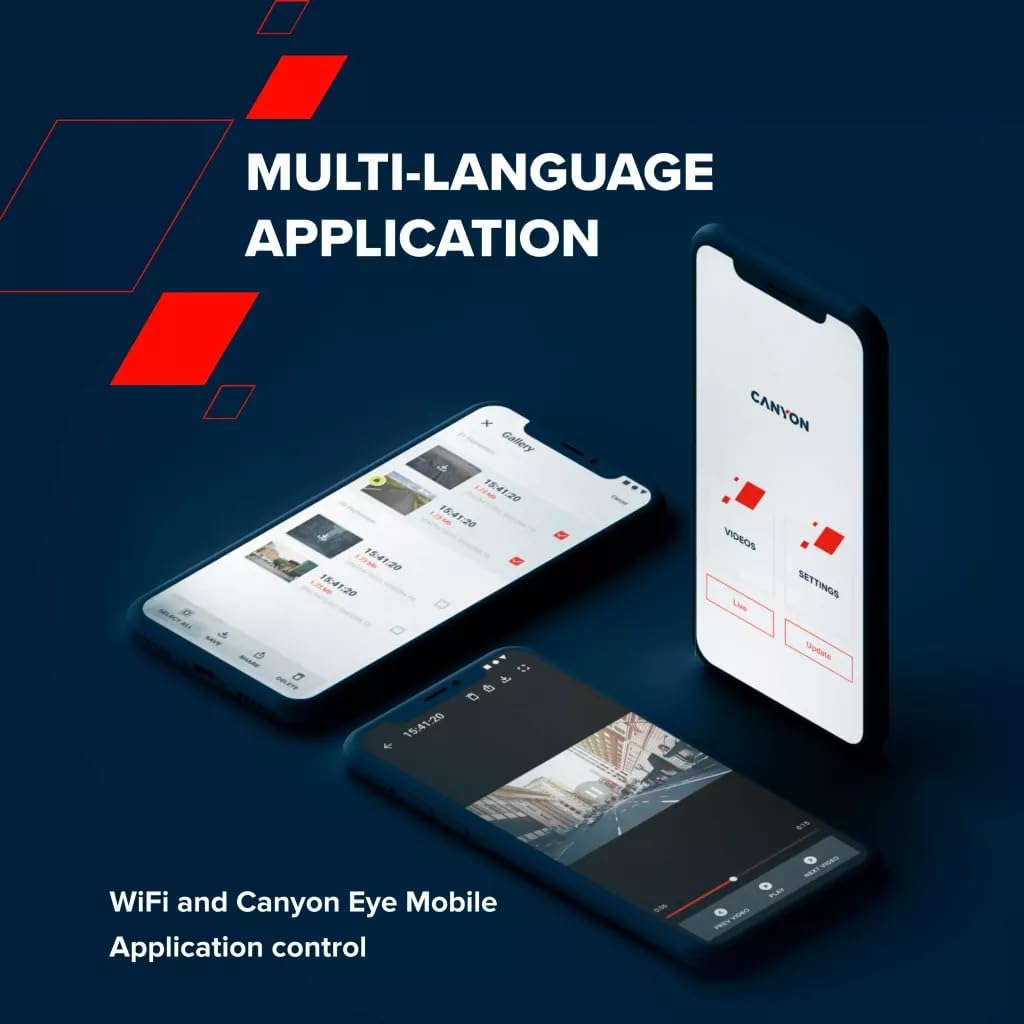
Image 5.4: The Canyon Eye mobile application interface for remote control and file башкаруу.
6. Техникалык тейлөө
6.1 Суперконденсатор
The DVR40 is equipped with a supercapacitor instead of a traditional lithium-ion battery.
- Supercapacitors offer enhanced durability and a wider operating temperature range (-30°C to 80°C).
- They are less prone to overheating and have a longer lifespan, making them suitable for automotive environments.
- The supercapacitor provides enough power to safely save the last recording when external power is disconnected.

Image 6.1: The DVR40's supercapacitor ensures reliable operation across a wide temperature range.
6.2 Тазалоо жана сактоо
- Use the provided cleaning cloth to gently wipe the screen and lens. Avoid abrasive materials or chemical cleaners.
- Ensure the camera is clean and dry before storing it.
- When not in use for extended periods, store the camera in a cool, dry place, away from direct sunlight.
7. Кыйынчылыктарды
Жалпы маселелер жана аларды чечүү үчүн төмөнкү таблицага кайрылыңыз.
| Көйгөй | Мүмкүн себеп | Чечим |
|---|---|---|
| Камера күйбөйт. | Электр менен камсыздоо жок; кабель/адаптер бузук. | Check car power adapter connection. Ensure vehicle ignition is on. Try a different USB port or adapter if available. |
| Жаздыруу күтүлбөгөн жерден токтойт. | MicroSD card full or corrupted; low-speed MicroSD card. | Format the MicroSD card. Replace with a high-speed (Class 10 or U3) MicroSD card. |
| Video footage бүдөмүк же түшүнүксүз. | Protective film on lens; dirty lens; windshield obstruction. | Remove any protective film. Clean the camera lens and windshield. Ensure the camera is securely mounted. |
| Wi-Fi туташуу маселелери. | Incorrect Wi-Fi password; camera Wi-Fi not enabled; app issues. | Ensure Wi-Fi is enabled on the camera. Verify the Wi-Fi password. Restart both the camera and smartphone. Reinstall the Canyon Eye app. |
| G-сенсор өтө сезгич/жетиштүү сезимтал эмес. | G-Sensor sensitivity setting. | Adjust the G-Sensor sensitivity level in the camera settings. |
8. Техникалык шарттар
Detailed technical specifications for the Canyon DVR40 Dash Camera.
| Өзгөчөлүк | Спецификация |
|---|---|
| Бренд | КАНЬОН |
| Модель аты | DVR40 |
| Модель номери | CND-DVR40 |
| Түс | Кара |
| Видео жаздыруу чечими | 2160p (4K UltraHD) |
| Кадрлар секундасына | 30 fps (at 4K) |
| Оптикалык сенсор технологиясы | CMOS (Sony Starvis 415) |
| Фото сенсордун өлчөмү | 1/2.86'' |
| талаасы View | 140° |
| Өзгөчөлүктөр | Integrated Supercapacitor, Touch Screen, Night Vision Mode, Wi-Fi, G-Sensor |
| Дисплей | 3-inch IPS Capacitive Touchscreen |
| Монтаж түрү | Магниттик тоос |
| Power Source | Car power adapter (USB Type-C) |
| Иштөө температурасы диапазону | -30°C to 80°C (due to Supercapacitor) |
| Камтылган компоненттер | Dash Camera, Magnetic Mount, Car Power Adapter, USB-C Cable, Card Reader, CPL Filter, Cleaning Cloth, Textile Case, Quick Start Guide, Warranty Card, Cable Installation Accessories |
| Батареялар камтылган | Жок (суперконденсаторду колдонот) |
9. Коопсуздук маалыматы
- Do not operate the camera or adjust settings while driving. Always pull over to a safe location.
- Ensure the camera is securely mounted and does not obstruct your view жолдун.
- Use only the provided power adapter and cables to prevent damage to the device.
- Do not expose the camera to extreme moisture or liquids.
- Avoid disassembling the device. Refer to qualified service personnel for repairs.
- Камераны жана аксессуарларды балдар жетпеген жерде сактаңыз.
10. Кепилдик жана колдоо
For warranty information and technical support, please refer to the warranty card included in your package or visit the official Canyon webсайт.
Онлайн колдоо: https://canyon.eu/support/