
АКУЛАГА ЧАБУУ X87
ATTACK SHARK X87 зымсыз механикалык клавиатурасы колдонуучунун колдонмосу
Модели: X87
1. Киришүү
This manual provides instructions for the ATTACK SHARK X87 Wireless Mechanical Keyboard. The X87 is an 87-key Tenkeyless (TKL) keyboard featuring a gasket-mount design with five layers of sound-absorbing material for an optimized typing experience. It offers versatile connectivity options including Bluetooth 5.0, 2.4GHz wireless, and USB-C wired modes, supporting up to five devices simultaneously. The keyboard is equipped with hot-swappable sockets compatible with 3-pin and 5-pin switches, and comes with pre-lubed Strawberry linear switches. It includes full RGB backlighting with multiple effects and music rhythm synchronization, durable PBT OEM profile keycaps, and an ergonomic design with two-stage tilt legs. Customization is available through dedicated driver software for key functions, macros, and lighting.
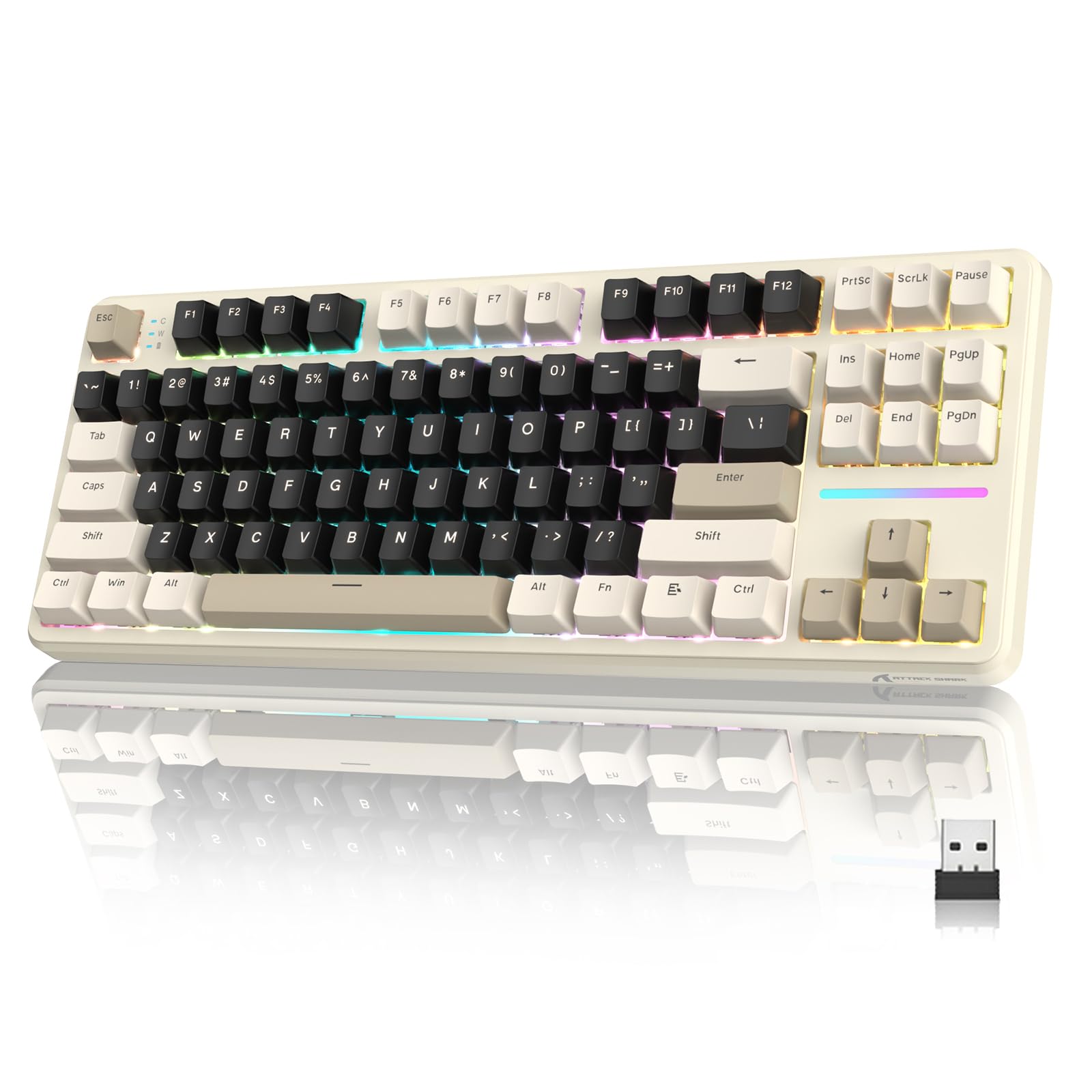
Image 1: ATTACK SHARK X87 Wireless Mechanical Keyboard (Cheese White variant).

Image 2: Gasket Structure with 5-Layer Sound-absorbing Cotton for enhanced typing feel and sound.
2. Орнотуу
2.1 Пакеттин мазмуну
Орнотуудан мурун, таңгактагы бардык буюмдардын бар экенине ынаныңыз:
- ATTACK SHARK X87 зымсыз механикалык клавиатурасы
- USB-C Cable
- Баскыч капкагын тарткыч
- 2x Запастык өчүргүчтөр
- Колдонуучунун Колдонмосу (бул документ)
Video 1: кутудан чыгаруу жана баштапкы бүтүрүүview of the ATTACK SHARK X87 keyboard, demonstrating package contents and basic features.
2.2 Физикалык орнотуу
Place the keyboard on a stable surface. Adjust the keyboard's angle using the two-stage tilt legs located on the underside for ergonomic comfort.

Image 3: The keyboard features adjustable two-stage tilt legs for ergonomic positioning.
2.3 Туташуу режимдери
The ATTACK SHARK X87 supports three connection methods:
- 2.4 ГГц зымсыз режими:
Locate the 2.4GHz USB dongle, typically stored in a compartment on the back of the keyboard. Plug the dongle into an available USB port on your computer or compatible device. Ensure the switch on the back of the keyboard is set to "2.4G". The keyboard should connect automatically.
- Bluetooth 5.0 режими:
Set the switch on the back of the keyboard to "BT". On your device (PC, laptop, smartphone, tablet), enable Bluetooth and search for new devices. Select "ATTACK SHARK X87" from the list to pair. The keyboard can connect to up to five Bluetooth devices, switching between them using FN key combinations (refer to the Operating section).
- USB-C зымдуу режими:
Connect the provided USB-C cable to the keyboard's USB-C port and the other end to an available USB port on your computer. Set the switch on the back of the keyboard to "USB". The keyboard will function as a wired device and charge simultaneously.
The keyboard is compatible with Windows and Mac operating systems, as well as gaming consoles, laptops, PCs, smartphones, and tablets.

Сүрөт 4: Бүттүview of the three available connection modes: 2.4GHz wireless, Bluetooth, and USB-C wired.
3. Иштөө нускамалары
3.1 Негизги ачкыч функциялары
The ATTACK SHARK X87 features a standard 87-key QWERTY layout. All keys function as labeled.
3.2 RGB арткы жарыкты башкаруу
The keyboard offers 15 stunning RGB lighting effects and 10 unique music rhythm lighting effects. Use the following FN key combinations to control the backlight:
- FN + ↑ (Өйдө жебе): Арткы жарыктын жарыктыгын жогорулатуу
- FN + ↓ (Төмөн жебе): Арткы жарыктын жарыктыгын азайтыңыз
- FN + ← (Left Arrow): Арткы жарыктын ылдамдыгын азайтыңыз
- FN + → (Right Arrow): Арткы жарыктын ылдамдыгын жогорулатуу
- FN + Enter: Switch Light Mode (cycle through effects)
- FN + ESC: Restore to Factory Settings (for lighting)
- FN + X: Toggle Light Switch (turn backlight on/off)

Image 5: FN key combinations for controlling RGB backlight brightness, speed, and modes.
3.3 Programmable Keys and Custom Software
The keyboard supports customization through its dedicated driver software. This software allows you to:
- Set shortcut keys and key combinations.
- Record and edit macros.
- Customize backlighting effects and colors.
For driver downloads and detailed instructions on using the software, please refer to the official ATTACK SHARK webсайтка же кардарларды колдоо менен байланышыңыз.
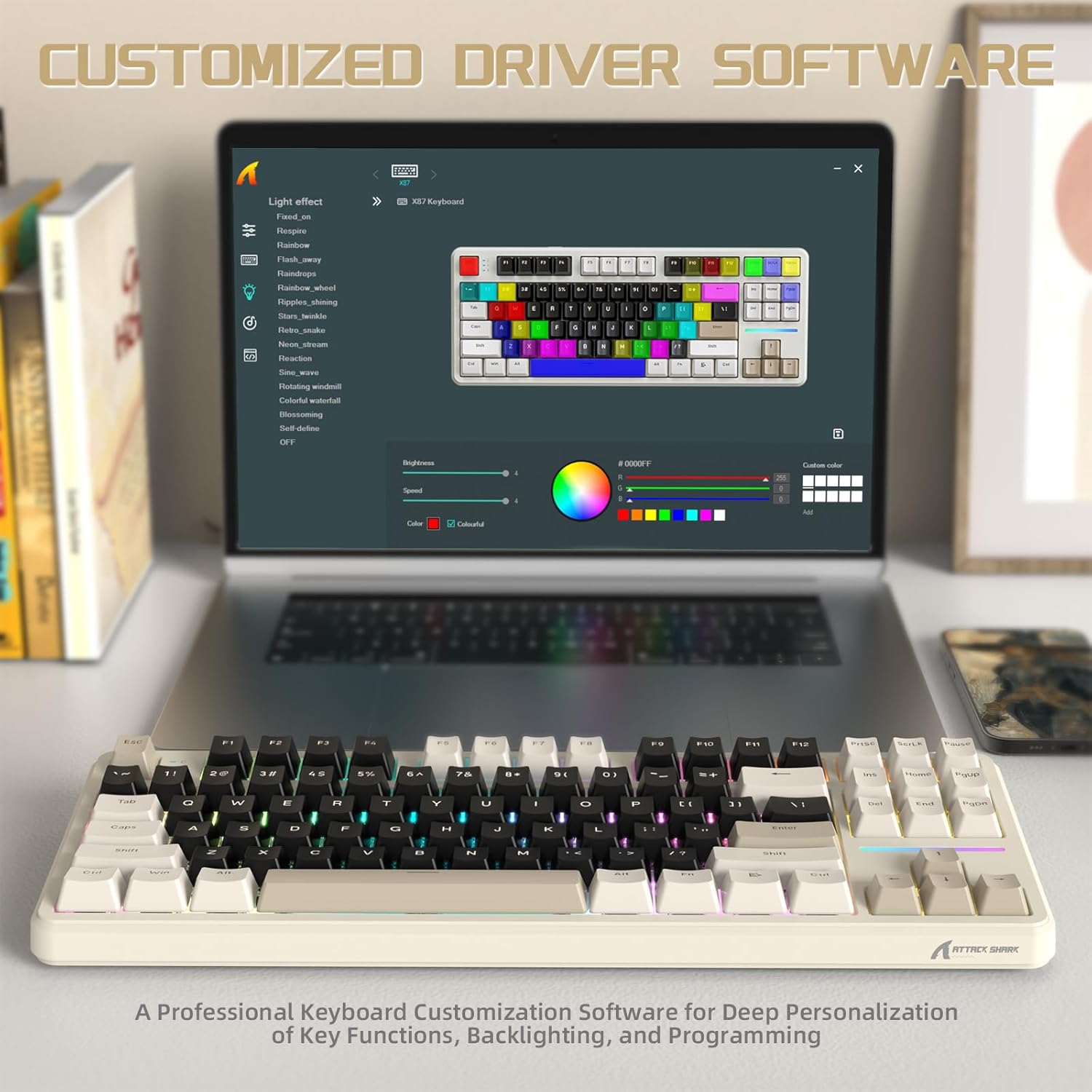
Image 6: The custom driver software allows for deep personalization of key functions, backlighting, and macros.
3.4 Батареянын абалын текшерүү
To check the current battery level of your keyboard, press FN + Backspace. The indicator lights will show the approximate charge level. The keyboard features a 4000mAh battery with smart power-saving functions.

Image 7: Use FN + Backspace to check the 4000mAh battery status, indicated by specific keys.
4. Техникалык тейлөө
4.1 Тазалоо
To clean your keyboard, first disconnect it from all power sources. Use a soft, dry cloth to wipe the surface. For deeper cleaning, you may use the included keycap puller to remove keycaps and clean underneath with compressed air or a small brush. Avoid using harsh chemicals or abrasive materials.
4.2 Баскычтын капкагын жана которгучту алмаштыруу
The ATTACK SHARK X87 features hot-swappable sockets, allowing for easy replacement of switches without soldering.
- Баскыч капкактарын алып салуу: Use the provided keycap puller to gently grip the keycap and pull upwards.
- Которгучтарды алып салуу: Use the switch puller (often integrated with the keycap puller) to carefully unclip the switch from the PCB and pull it out.
- Которгучтарды орнотуу: Align the pins of the new 3-pin or 5-pin switch with the holes on the PCB. Gently press down until the switch clicks into place. Ensure pins are not bent.
- Баскыч капкактарын орнотуу: Place the keycap over the switch stem and press down firmly until it is seated.

Image 8: The keyboard's hot-swappable design supports both 3-pin and 5-pin mechanical switches.
The keyboard comes with durable PBT keycaps with an OEM profile, эскирүүгө жана сүрүлүүгө туруктуу.
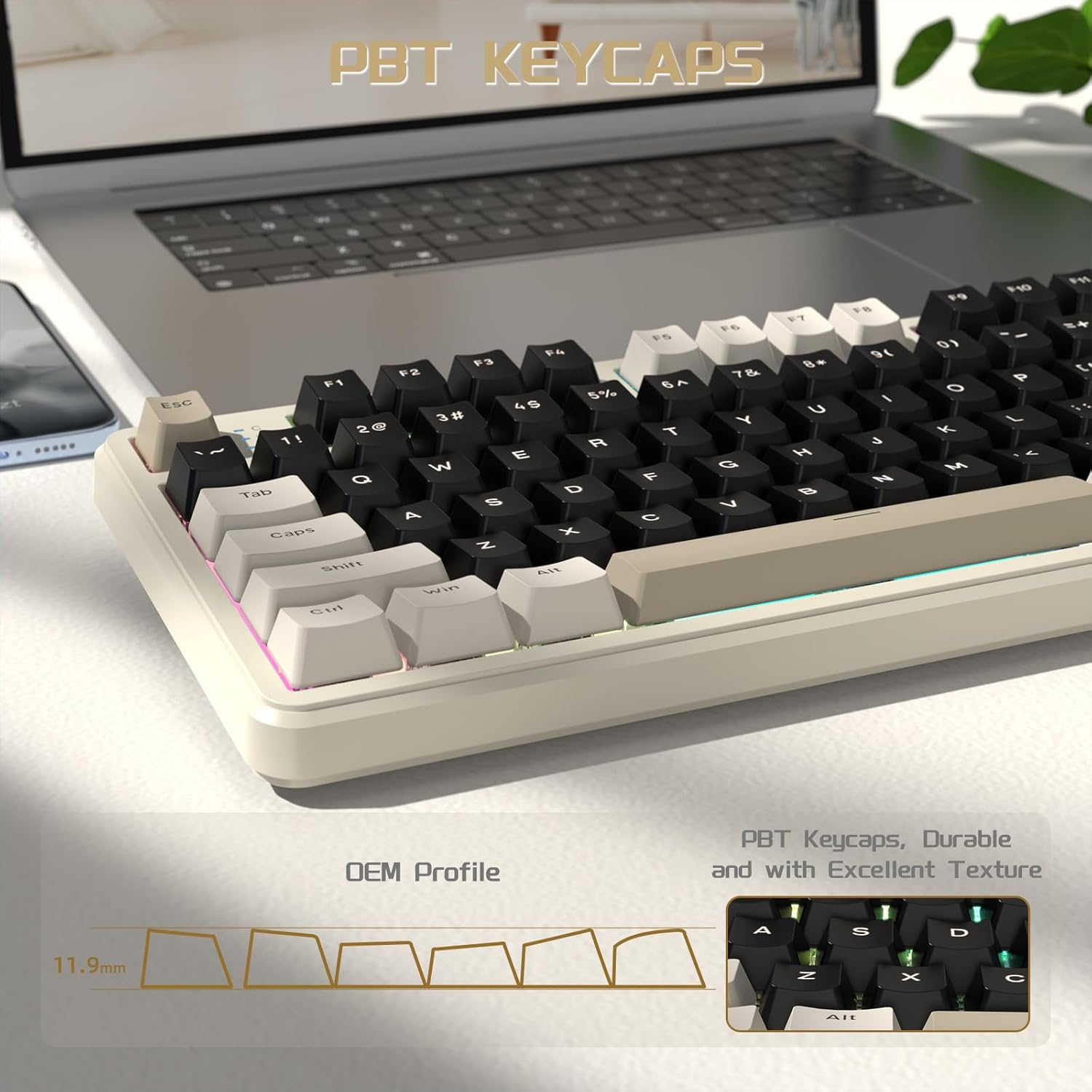
Image 9: PBT keycaps with OEM profile for durability and comfortable typing.
5. Кыйынчылыктарды
- Баскычтоп туташпай жатат:
- Ensure the mode switch (2.4G/BT/USB) on the back of the keyboard is set correctly.
- For 2.4GHz, ensure the dongle is securely plugged in.
- Bluetooth үчүн, түзмөгүңүздө Bluetooth иштетилгенин жана клавиатура жупташтырылганын текшериңиз. Кайра жупташтырып көрүңүз.
- For wired, ensure the USB-C cable is securely connected to both the keyboard and the device.
- Check the keyboard's battery level (FN + Backspace) and charge if necessary.
- RGB арткы чырак иштебей жатат же туура эмес:
- Ensure the backlight is not turned off (FN + X).
- Try resetting the lighting to factory settings (FN + ESC).
- Adjust brightness (FN + Up/Down Arrow).
- If using custom software, ensure settings are applied correctly.
- Keys not responding or responding poorly:
- Check for debris under the keycaps. Clean the keyboard as described in the Maintenance section.
- If a specific key is not working, the switch may be faulty. Replace the switch using the hot-swap feature.
- Ensure the keyboard firmware is up to date (check the official webсайт).
- Программалык камсыздоо маселелери:
- Ensure you have downloaded the correct driver software for your keyboard model from the official ATTACK SHARK webсайт.
- Компьютериңизди жана клавиатураңызды өчүрүп-күйгүзүңүз.
- Драйвер программасын кайра орнотуңуз.
If you encounter persistent issues, please contact ATTACK SHARK customer support for assistance.
6. Техникалык шарттар
| Бренд | ATTACK SHARK |
| Модел | X87 |
| Ачкычтардын саны | 87 (Tenkeyless - TKL) |
| Байланыш | 2.4 ГГц зымсыз, Bluetooth 5.0, USB-C зымдуу |
| Которуу түрү | Linear (Pre-lubed Strawberry Switches) |
| Ыкчам алмаштырылуучу | Ооба (3-пиндүү жана 5-пиндүү которгучтарды колдойт) |
| Арткы жарык | Full RGB (15+ effects, music rhythm lighting) |
| Батарея сыйымдуулугу | 4000mAh |
| Баскыч капкактары | PBT, OEM Profile |
| Эргономика | Эки-сtage tilt legs |
| Шайкеш түзмөктөр | Оюн консолу, ноутбук, компьютер, смартфон, планшет |
| Шайкеш OS | Windows, Mac |
| Материал | Пластик |
7. Кепилдик маалыматы
Specific warranty details for the ATTACK SHARK X87 Wireless Mechanical Keyboard are not provided in this manual. Please refer to the product packaging, the official ATTACK SHARK website, or contact your retailer for comprehensive warranty information.
8. Кардарларды колдоо кызматы
For any questions regarding your ATTACK SHARK X87 keyboard, driver downloads, or technical assistance, please contact ATTACK SHARK customer support. You can typically find contact information on the official ATTACK SHARK webсайт же сатып алуу платформасы аркылуу.
Note: If any questions about the Keyboard and Driver Downloads, please feel free contact us in a timely manner, and we will reply as soon as possible within 24 hours to help you solve the problem.
Ask a question about this manual
Ask about setup, troubleshooting, compatibility, parts, safety, or missing instructions. Manuals+ will review the question and use this page’s manual context to help answer it.