
1. Продукт бүтүп калдыview
The EWEADN G61 is a 60% compact wireless mechanical keyboard designed for versatility and ergonomic comfort. It features a retro typewriter style with round keycaps and offers three connection modes: Bluetooth 5.0, 2.4GHz wireless, and USB-C wired. The keyboard is equipped with red mechanical switches for a responsive typing experience and includes white backlighting with multiple effects.
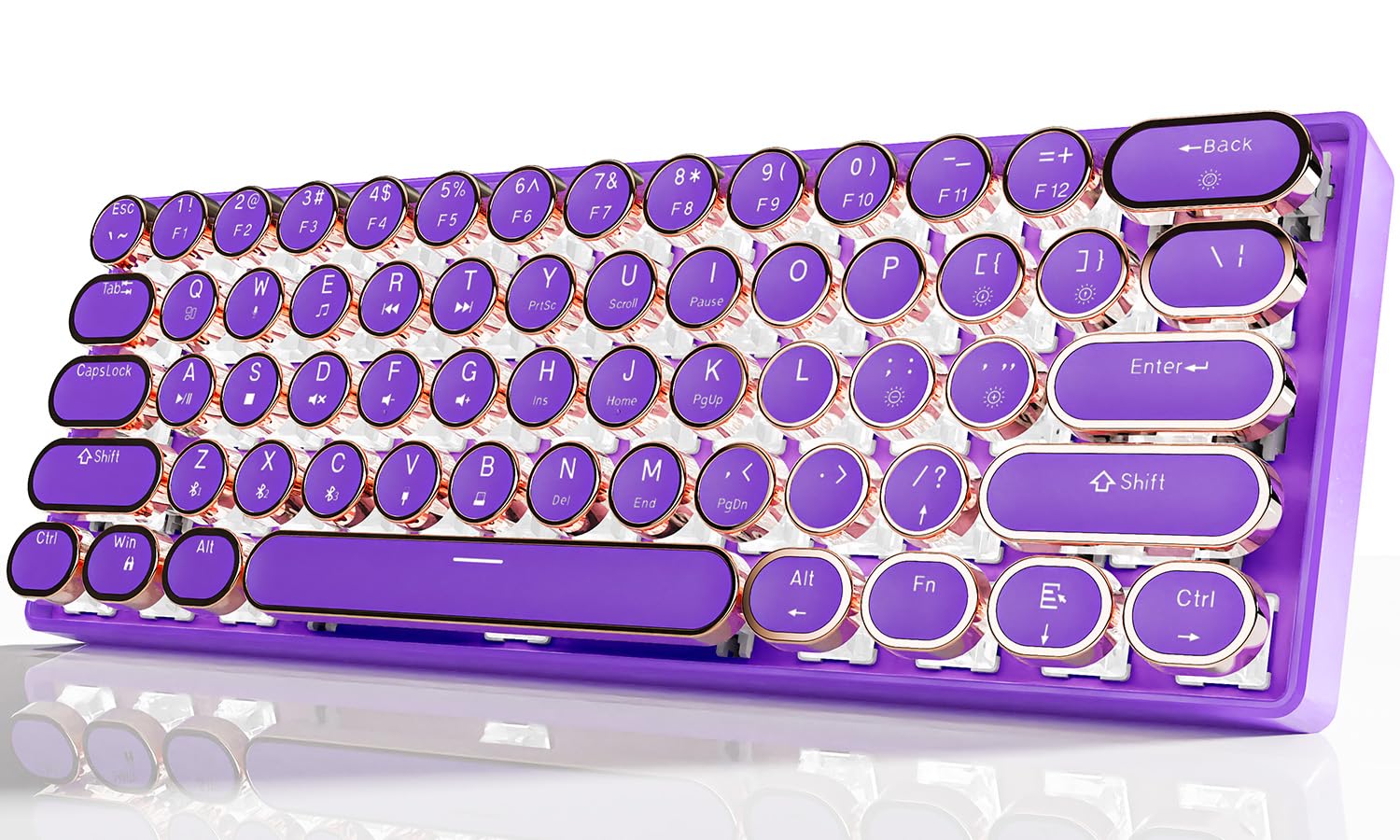
Image 1.1: EWEADN G61 Wireless Mechanical Typewriter Keyboard in purple, showcasing its compact design and round keycaps.
This keyboard supports connection to up to 5 devices simultaneously, allowing seamless switching between various platforms like tablets, laptops, and smartphones. Its metal panel construction ensures durability, while the anti-ghosting technology provides accurate input for both typing and gaming.
2. Кутуда эмне бар
- EWEADN G61 Wireless Mechanical Typewriter Keyboard
- USB кабели (зымдуу туташуу жана кубаттоо үчүн)
- 2.4GHz USB Receiver (typically stored in the keyboard)
- Колдонуучунун Колдонмосу (бул документ)
3. Техникалык шарттар
| Модел | G61 |
| Байланыш технологиясы | Bluetooth 5.0, 2.4 ГГц зымсыз, USB-C зымдуу |
| Ачкычтын которуштуруу түрү | Red Mechanical Switches (Linear, 3-PIN, 45±10gf Operating Force, 2.0±0.6mm Pre-Travel) |
| Баскычтоптун капкак стили | Retro Typewriter Style Round Keycaps |
| Арткы жарыктандыруу | White Backlight with 19 effects, 5 brightness levels, 5 breathing speeds |
| Anti-Ghosting | Full-key Anti-ghosting |
| Батарея | 1 литий-иондук батарея (кошулган), 2000 мАч |
| Шайкеш түзмөктөр | PC, Mac laptops, Tablets, Desktop computers, Gaming Consoles, Smart TVs, Smartphones |
| Операциялык системалар | Windows 7/8/10/XP/Vista, Linux, Mac OS |
| Материал | Aluminum Alloy (panel), Acrylonitrile Butadiene Styrene (ABS) |
| Элемент Салмагы | 1.6 фунт |
| Өлчөмдөр | 13 x 5.8 x 2.3 дюйм |

Сүрөт 3.1: Жакын пландан view of the G61 keyboard's red mechanical switch mechanism.
4. Орнотуу нускамалары
4.1 Баскычтопту заряддоо
Before first use, fully charge the keyboard using the provided USB-C cable. Connect one end to the keyboard's USB-C port and the other end to a USB power source (e.g., computer, wall adapter).

Image 4.1: The USB-C charging port located on the keyboard.
4.2 Туташуу режимдери
The G61 keyboard supports three connection modes: Bluetooth, 2.4GHz wireless, and USB-C wired. You can connect up to 5 devices simultaneously and switch between them.

Image 4.2: Visual representation of the three connection modes: Bluetooth, 2.4G Wireless, and Type-C Wired.
4.2.1 2.4 ГГц зымсыз режим
- Адатта клавиатурадагы бөлүмдө сакталган 2.4 ГГц USB кабыл алгычын табыңыз.
- USB кабыл алгычты компьютериңиздеги же түзмөгүңүздөгү жеткиликтүү USB портуна сайыңыз.
- Басыңыз Fn+B on the keyboard to switch to 2.4GHz wireless mode. The keyboard should connect automatically.

Image 4.3: Illustration of plugging in the 2.4GHz USB receiver.
4.2.2 Bluetooth режими (BT1, BT2, BT3)
- Баскычтоп күйгүзүлгөнүн текшериңиз.
- Басыңыз Fn + Z, Fn + X, же Fn + C to select one of the three Bluetooth channels (BT1, BT2, BT3). The corresponding key's backlight will flash, indicating pairing mode.
- On your device (computer, tablet, phone), go to Bluetooth settings and search for "G61 Keyboard" or a similar name.
- Select the keyboard to pair. Once connected, the key's backlight will stop flashing.
- Жупташтырылган Bluetooth түзмөктөрүнүн ортосунда которулуу үчүн басыңыз Fn + Z/X/C каалаган канал үчүн.
4.2.3 USB-C Wired Mode
- Берилген USB-C кабелин клавиатуранын USB-C портуна туташтырыңыз.
- Кабелдин экинчи учун компьютериңиздеги USB портуна туташтырыңыз.
- The keyboard will automatically switch to wired mode. Press Fn + V to ensure wired mode is active.
- No drivers or software installation is required for wired mode.
5. Иштөө нускамалары
5.1 Жарыкты башкаруу
The G61 keyboard features white backlighting with various effects and adjustable brightness.
- Fn + Жок кылуу: Cycle through 19 different lighting effects.
- Fn + {[/: Decrease backlight brightness (5 levels).
- Fn + }/]: Increase backlight brightness (5 levels).
- Fn + ;/:: Decrease breathing speed (5 levels).
- Fn + '/": Increase breathing speed (5 levels).
- Fn + Spacebar (hold for 3 seconds): Reset lighting effects to default.

Image 5.1: Diagram showing key combinations for backlight control.
5.2 Function Keys (Fn Combinations)
The keyboard utilizes Fn key combinations for various functions due to its compact 60% layout.
| Функция | Ачкыч айкалышы |
| Switch Window | Fn + Q |
| Ойнотуу/Тыныгуу | fn + A |
| Switch Window | Fn + W |
| Ойнотуу/Тыныгуу | Fn + S |
| Мультимедиа | Fn + E |
| Үнсүз | Fn + D |
| Мурунку ыр | Fn + R |
| Көлөмү - | Fn + F |
| Кийинки ыр | Fn + T |
| Көлөм + | Fn + G |
| Жебе баскычтары | Fn + Right Alt, Fn + /, Fn + Menu, Fn + Ctrl (Specific combinations may vary, refer to keyboard legends) |

Image 5.2: A visual guide to common Fn key combinations for multimedia and system control.
6. Техникалык тейлөө
- Тазалоо: Клавиатуранын бетин жумшак, кургак чүпүрөк менен сүртүңүз. Тереңирээк тазалоо үчүн, баскычтоп капкактарынын ортосундагы чаңды жана таштандыларды кетирүү үчүн кысылган абаны колдонуңуз. Катуу химиялык заттарды же абразивдүү материалдарды колдонуудан алыс болуңуз.
- Клавиатураны алып салуу: Keycaps can be carefully removed for cleaning or replacement using a keycap puller (not included). Gently pull straight up to avoid damaging the switch.
- Сактагыч: Клавиатураны күн нурунан жана экстремалдык температурадан алыс, салкын, кургак жерде сактаңыз.
- Батареяга кам көрүү: Батареянын иштөө мөөнөтүн узартуу үчүн, клавиатураны тез-тез толук зарядсыздандырбаңыз. Батареянын индикатору аз болгондо кубаттаңыз.
7. Кыйынчылыктарды
7.1 Байланыш маселелери
- Клавиатура туташпай жатат (зымсыз/Bluetooth):
- Баскычтоп кубатталганын текшериңиз.
- Verify the correct mode is selected (Fn + B for 2.4GHz, Fn + Z/X/C for Bluetooth).
- For 2.4GHz, ensure the USB receiver is securely plugged in. Try a different USB port.
- For Bluetooth, ensure your device's Bluetooth is enabled and the keyboard is in pairing mode. Remove previous pairings and re-pair if necessary.
- Try restarting both the keyboard and the connected device.
- Тез-тез өчүрүүлөр:
- Ensure the keyboard is within the effective range of your device (typically up to 10 meters for Bluetooth/2.4GHz).
- Башка зымсыз түзмөктөрдөн (Wi-Fi роутерлери, башка Bluetooth түзмөктөрү) тоскоолдуктарды азайтыңыз.
- Баскычтоптун батарейканын заряды жетиштүү экенине ынаныңыз.
- If using 2.4GHz, try moving the USB receiver closer to the keyboard or using a USB extension cable.
7.2 Keys Not Responding / Input Lag
- Check if the keyboard is properly connected in your chosen mode.
- Батарея заряддалганын текшериңиз.
- Try switching to wired mode to rule out wireless interference.
- Жабыркаган баскычтоп капкактарынын астындагы ар кандай таштандыларды же чаңдарды тазалаңыз.
7.3 Арткы жарык иштебейт
- Клавиатуранын күйгүзүлгөнүн жана кубатталганын текшериңиз.
- жардамы менен жарыктыгын тууралаңыз Fn + }/].
- Try resetting the lighting effects by holding Fn + Боштук 3 секундга.
Video 7.1: A demonstration of the G61 keyboard's RGB lighting and mechanical switches. This video shows the keyboard's aesthetic features and responsiveness.
8. Кепилдик жана колдоо
The EWEADN G61 keyboard comes with a manufacturer's warranty. For specific warranty details, please refer to the product packaging or contact the seller directly.
8.1 Колдоо кызматы менен байланышуу
If you encounter any issues or have questions not covered in this manual, please contact the seller or manufacturer for assistance. You can typically find contact information on the product's purchase page or through the seller's store on the platform where you purchased the item.

Image 8.1: Guide on how to contact customer support through the online marketplace.