
1. Киришүү
Thank you for choosing the ORGSTA S001 Portable Bluetooth Thermal Label Maker. This compact and efficient device is designed to simplify your labeling needs for home, office, and school organization. Utilizing direct thermal printing technology, it offers high-resolution labels without the need for ink or toner. Its portable design and user-friendly app make it an ideal tool for creating custom labels on the go.
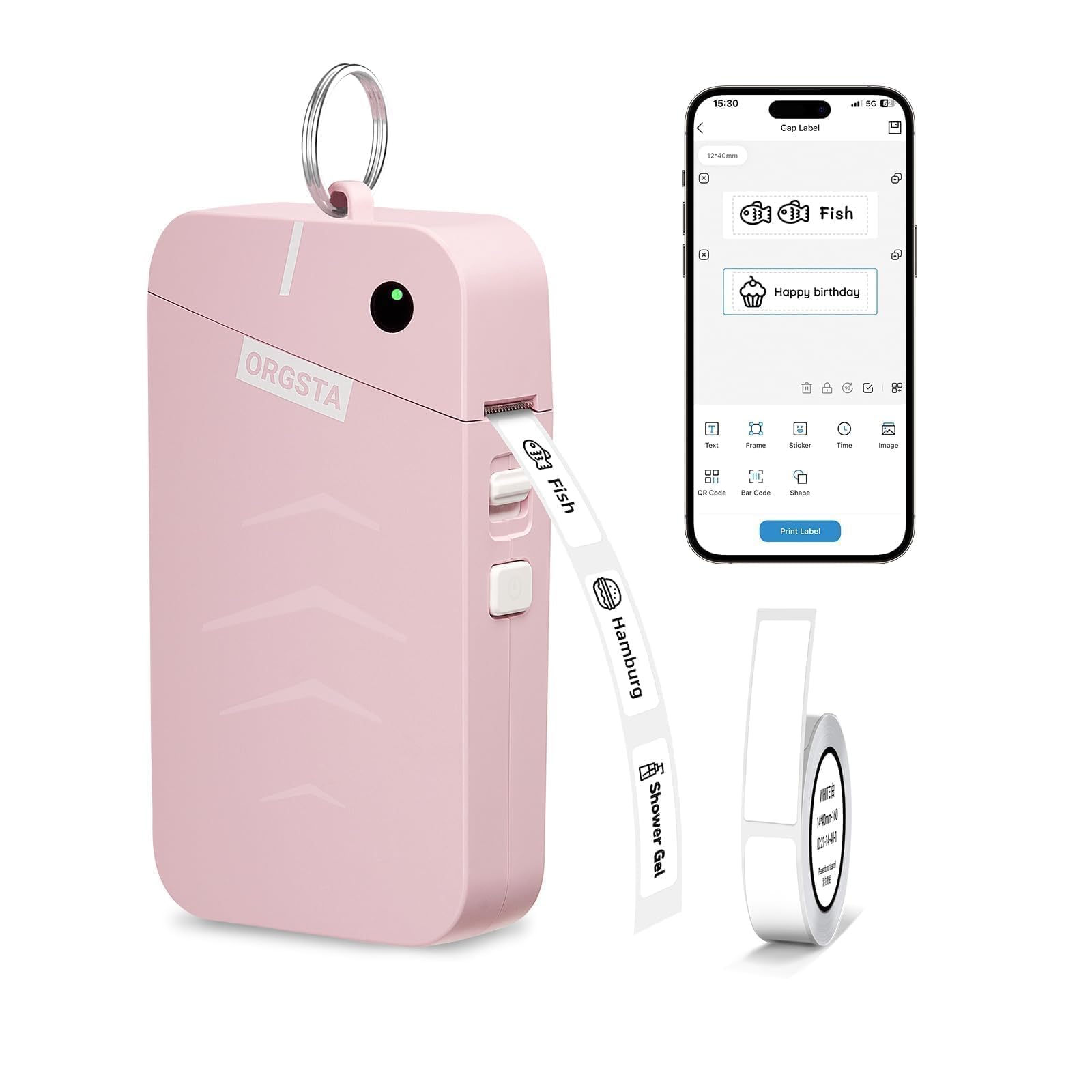
Image: The ORGSTA S001 Portable Bluetooth Thermal Label Maker in pink, showcasing анын компакттуу дизайны.
2. Кутуда эмне бар
Upon unboxing your ORGSTA S001 Label Maker, please ensure all the following items are included:
- S001 Label Maker
- 1 x Roll Label Tape
- 1 х ачкыч
- 1 x Type-C кабели
- 1 x User Manual

Image: A visual representation of all items included in the ORGSTA S001 Label Maker package.
3. Продукт бүтүп калдыview
The ORGSTA S001 features a minimalist design with essential controls for ease of use.
Buttons & Indicator Light
- Кубат баскычы: Press and hold for 1.5 seconds to power on/off. Double-press to print the device's QR code for Bluetooth connection. Triple-press to print the device SN.
- Cover Button: Slide down to open the label compartment.
- LED көрсөткүчү:
- Жашыл (туруктуу): Күтүү режиминде.
- Жашыл (Жыпылдап): Басып чыгаруу жүрүп жатат.
- Кызыл (туруктуу): Кагаз жок.
- Кызыл (Жыпылдап): Low battery (less than 5%).
- Заряддоо порту: Type-C USB port for charging.
- Баштапкы абалга келтирүү: Insert a pin into the reset hole and press firmly for a few seconds to reset the device if it's functioning abnormally.
4. Орнотуу
4.1. Колдонмону жүктөп алуу
To utilize the full functionality of your ORGSTA S001 Label Maker, download the "Snap & Tag" app on your smartphone. You can find the app by:
- Scanning the QR code provided in the user manual or on the device packaging.
- Searching for "Snap & Tag" in your phone's app store (available for Android and iOS).
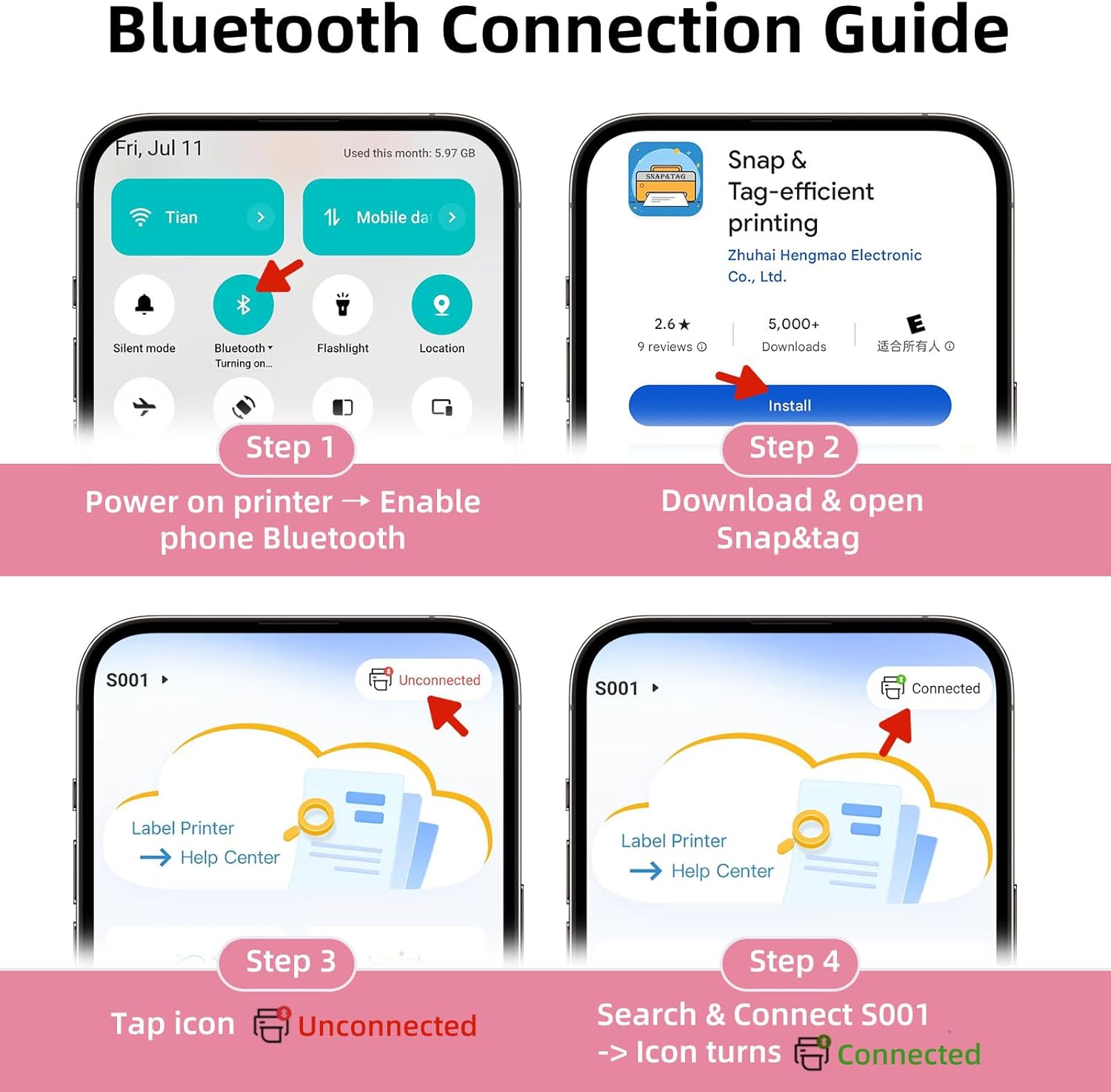
Image: A visual guide to downloading and opening the Snap & Tag колдонмо.
4.2. Колдонмо туташуусу (Bluetooth)
Connect your label maker to your smartphone via Bluetooth:
- Индикатор жарыгы күйгүчө кубат баскычын басып, кармап туруу менен аппаратты күйгүзүңүз.
- Open the "Snap & Tag" app and enable Bluetooth on your phone.
- In the top left corner of the app, tap "Unconnected". Select your device from the list that appears. The app will then pair with your device. Once connected, you're ready to print!

Image: Steps for connecting the label maker to the app via Bluetooth.
4.3. Consumable Installation (Loading Label Tape)
Properly loading the label tape ensures optimal printing quality:
- Slide down the cover button to open the cover of the label maker.
- Load the paper roll with the printed side facing up. Ensure it is inserted correctly.
- Unroll the label paper so that it slightly extends beyond the print slot.
- Close the cover, then press and hold the power button to power on.

Image: Detailed steps for installing the label tape.
5. Иштөө нускамалары
The "Snap & Tag" app offers multiple creative functions to design and print your labels.
5.1. Creating a Label
From the app's home screen, select "Create a New Label" to begin designing. You can add:
- Текст: Customize fonts, sizes, and styles.
- Кадрлар: Choose from over 100 decorative frames.
- Чаптамалар: Select from over 550 stickers to enhance your labels.
- Убакыт/дата: Automatically insert current time or date.
- Сүрөттөр: Upload your own images.
- QR Codes/Barcodes: Generate and print QR codes or barcodes.
- Формалар: Add various shapes to your design.
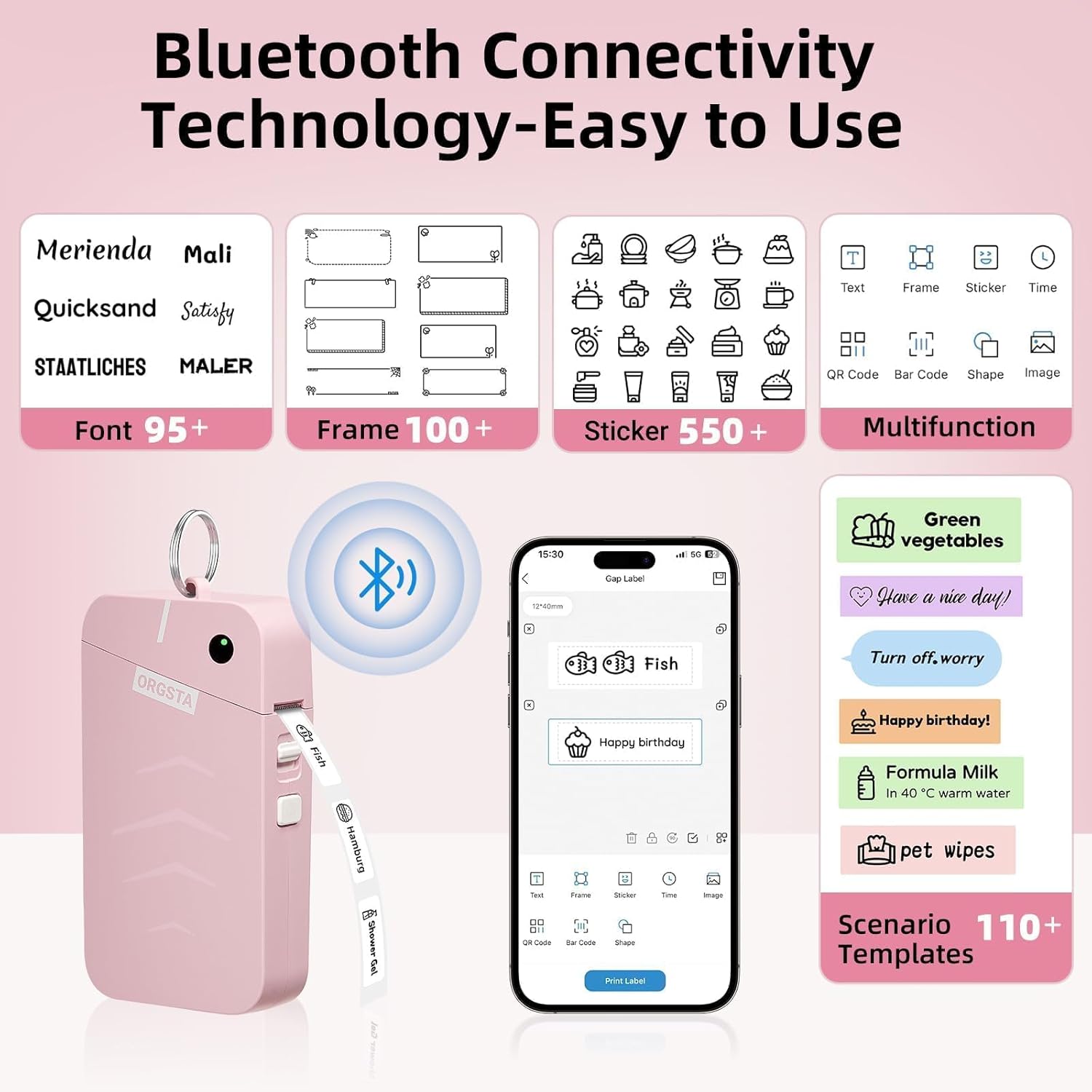
Image: The Snap & Tag app interface highlighting various customization features.
5.2. Этикетканы басып чыгаруу
Этикеткаңыздын дизайны бүткөндөн кийин:
- Tap the "Print Label" button in the app.
- Adjust the quantity if you need multiple copies of the same label.
- You can also adjust the print density for darker or lighter prints.
- Confirm your settings and tap "Print Label" again to send the job to the printer.
5.3. Label Types and Sizes
The ORGSTA S001 supports various label types and sizes, including gap labels and continuous length tape. You can customize label lengths with continuous tape or use fixed-size labels for batch printing.

Сүрөт: Мисamples of different label types and sizes, including gap labels and continuous tape.
5.4. Кеңири колдонулушу
The ORGSTA S001 is versatile for various organizational tasks:
- Үй: Organize clothes, food storage, cosmetics, and mail.
- Офис: Manage notebook tags, price tags, reminder tags, and other supplies.
- Мектеп: Label classroom items, personal belongings, and name tags.

Сүрөт: Мисamples of the label maker's wide application in home and office settings.
6. Техникалык тейлөө
To ensure the longevity and optimal performance of your ORGSTA S001 Label Maker:
- Тазалоо: Regularly clean the print head with a soft, lint-free cloth. Do not use harsh chemicals or abrasive materials.
- Сактагыч: Аппаратты түз күн нурунан жана экстремалдык температурадан алыс салкын, кургак жерде сактаңыз.
- Батареяга кам көрүү: For optimal battery health, we recommend charging your lithium battery every three months, even if it's not fully drained.
- этикеткалар: Use only genuine ORGSTA label rolls to prevent damage to the print head and ensure print quality.
7. Кыйынчылыктарды
If you encounter issues with your ORGSTA S001 Label Maker, please refer to the following common solutions:
- Кубат жок: Түзмөктүн толук заряддалганын текшериңиз. Аны берилген Type-C кабелин колдонуп, кубат булагына туташтырыңыз.
- Printing Issues (Faint/Blank): Check if the label roll is inserted correctly with the printed side facing up. Ensure the label tape is not exhausted. Clean the print head.
- Bluetooth туташуу катасы: Ensure Bluetooth is enabled on your phone and within the "Snap & Tag" app settings. Try restarting both the label maker and your phone. If the device is not listed, double-press the power button on your device; it will print a QR code. Use the scanner button at the bottom of the device list screen to scan the QR code to connect.
- Кагаз тыгылышы: Open the cover, carefully remove any jammed paper, and re-insert the label roll correctly.
- Түзмөктүн бузулушу: If the device is functioning abnormally, insert a pin into the reset hole and press firmly for a few seconds to reset it.
8. Техникалык шарттар
| Өзгөчөлүк | Спецификация |
|---|---|
| Бренд | ORGSTA |
| Модел | S001 |
| Байланыш технологиясы | Bluetooth |
| Басма технологиясы | Термикалык |
| Максималдуу басып чыгаруу чечими | 203 dpi |
| Максималдуу басып чыгаруу ылдамдыгы (монохромдуу) | 15 mm/s (35 inches per minute) |
| Батарея сыйымдуулугу | 2000 мАч литий-ион (кошулган) |
| Заряддоо киргизүү | 5V - 1A |
| Заряддоо порту | Type-C |
| Продукциянын өлчөмдөрү | 1.1"D x 2.9"W x 5.3"H (29 x 72.5 x 135.5 мм) |
| Шайкеш түзмөктөр | Smartphones (Android/iOS) |
| Басма маалымат каражаттары | Labels (Gap / Continuous) |
| Элемент Салмагы | 0.32 унция |
9. Кепилдик жана колдоо
ORGSTA is committed to providing quality products and customer satisfaction. Your ORGSTA S001 Label Maker comes with a limited warranty.
- Кепилдик мөөнөтү: Please refer to the warranty card included in your package for specific details regarding the warranty period and terms.
- Кардарларды колдоо: If you have any quality problems or suggestions, please contact us promptly through the after-sales service email provided in the warranty card or user manual.
- Электрондук почта: orgsta_service@outlook.com
Please note that returns and exchanges require that the goods are intact and do not affect the sale. We will provide you with service as soon as possible after receiving the product.
10. Расмий продукт Videos
Watch these official videos for more information and usage tips:
ORGSTA S001 Label Maker: Your Secret Weapon for a Neat Home
Video: This video demonstrates how the ORGSTA S001 Label Maker can help organize your home efficiently.
The Story of S001 Label Maker
Video: A short video highlighting the features and benefits of the S001 Label Maker.