
1. Киришүү
Thank you for choosing the Cuifati Bluetooth Transparent Mouse. This device offers dual-mode connectivity (Bluetooth 5.0 and 2.4G USB receiver), RGB backlighting, and a rechargeable design for versatile use with PCs, laptops, and tablets. This manual provides detailed instructions for setup, operation, maintenance, and troubleshooting to ensure optimal performance.
2. Пакеттин мазмуну
Пакетиңизде бардык буюмдар бар экенин текшериңиз:
- 1 x Cuifati Bluetooth Transparent Mouse
- 1 x заряддоо кабели (Type-C)
- 1 x USB Receiver (2.4G)
- 1 x User Manual

Image: Contents of the Cuifati mouse package, including the mouse, Type-C charging cable, and 2.4G USB receiver.
3. Техникалык шарттар
| Өзгөчөлүк | Деталь |
|---|---|
| DPI орнотуулары | 800, 1200, 1600 |
| Өтүү режимдери | 2.4G зымсыз, Bluetooth 5.0 |
| Батарея сыйымдуулугу | 400mAh Li-ion батареясы |
| Чычкандын өлчөмдөрү | Approx. 113.5 x 58 x 25mm (±2mm) |
| Заряддоо ыкмасы | C түрүндөгү USB |
| Operating Voltage | 3.3V-4.2V |
| Operating Current (Light mode) | ≤25mA |
| Operating Current (Non-lighting mode) | ≤8mA |
| 2.4G тутумунун талаптары | Windows XP/7/8/10+, Android 4.4+, OS X 10.5+, Linux Kernel 2.6+2, Chrome OS |
| Bluetooth тутумунун талаптары | Windows 8/10, Android 5.0+, OS X 10.10+ (Bluetooth 4.0 and above adapter required) |
| Материал | PC |
4. Орнотуу
4.1. Чычканды заряддоо
Before first use, fully charge the mouse. Connect the provided Type-C charging cable to the mouse's charging port and the other end to a USB power source (e.g., computer USB port, USB wall adapter). A full charge typically takes 2-3 hours.

Image: The Cuifati mouse being charged via its Type-C port, indicating a 2-3 hour charging time.
4.2. 2.4G USB Receiver аркылуу туташуу
- Locate the USB receiver, usually stored within the mouse's magnetic cover or packaging.
- USB кабыл алгычты компьютериңиздеги же түзмөгүңүздөгү жеткиликтүү USB портуна сайыңыз.
- Turn on the mouse and switch it to 2.4G mode (refer to Section 5.1 for mode switching).
- Чычкан түзмөгүңүзгө автоматтык түрдө туташуу керек.

Image: The transparent design of the Cuifati mouse, showing the internal components and the USB receiver slot.
4.3. Bluetooth 5.0 аркылуу туташуу
- Turn on the mouse and switch it to Bluetooth mode (refer to Section 5.1 for mode switching).
- On your device (PC, laptop, tablet), navigate to the Bluetooth settings.
- Bluetooth'ту иштетип, жаңы түзмөктөрдү издеңиз.
- Select "Cuifati Mouse" or a similar name from the list of available devices to pair.
- Жупташтыруу процессин аяктоо үчүн экрандагы көрсөтмөлөрдү аткарыңыз.
Note: You cannot use Bluetooth mode and 2.4G USB mode simultaneously. Ensure only one mode is active at a time.
5. Иштөө нускамалары
5.1. Күйгүзүү/өчүрүү жана режимди которуу
The mouse features a switch on its underside to power it on/off and select the connection mode. Slide the switch to the desired position for 2.4G or Bluetooth connectivity, or to the 'Off' position to conserve battery.
5.2. DPI тууралоо
The mouse supports three DPI (Dots Per Inch) settings: 800, 1200, and 1600. Press the DPI button (usually located near the scroll wheel or on the underside) to cycle through these settings and adjust cursor sensitivity to your preference.
5.3. RGB жарыкты башкаруу
The mouse features various RGB lighting effects. A dedicated lighting switch key, typically on the underside or a side button, allows you to cycle through 11 different lighting modes or turn off the lights completely. This enhances the aesthetic appeal during use.
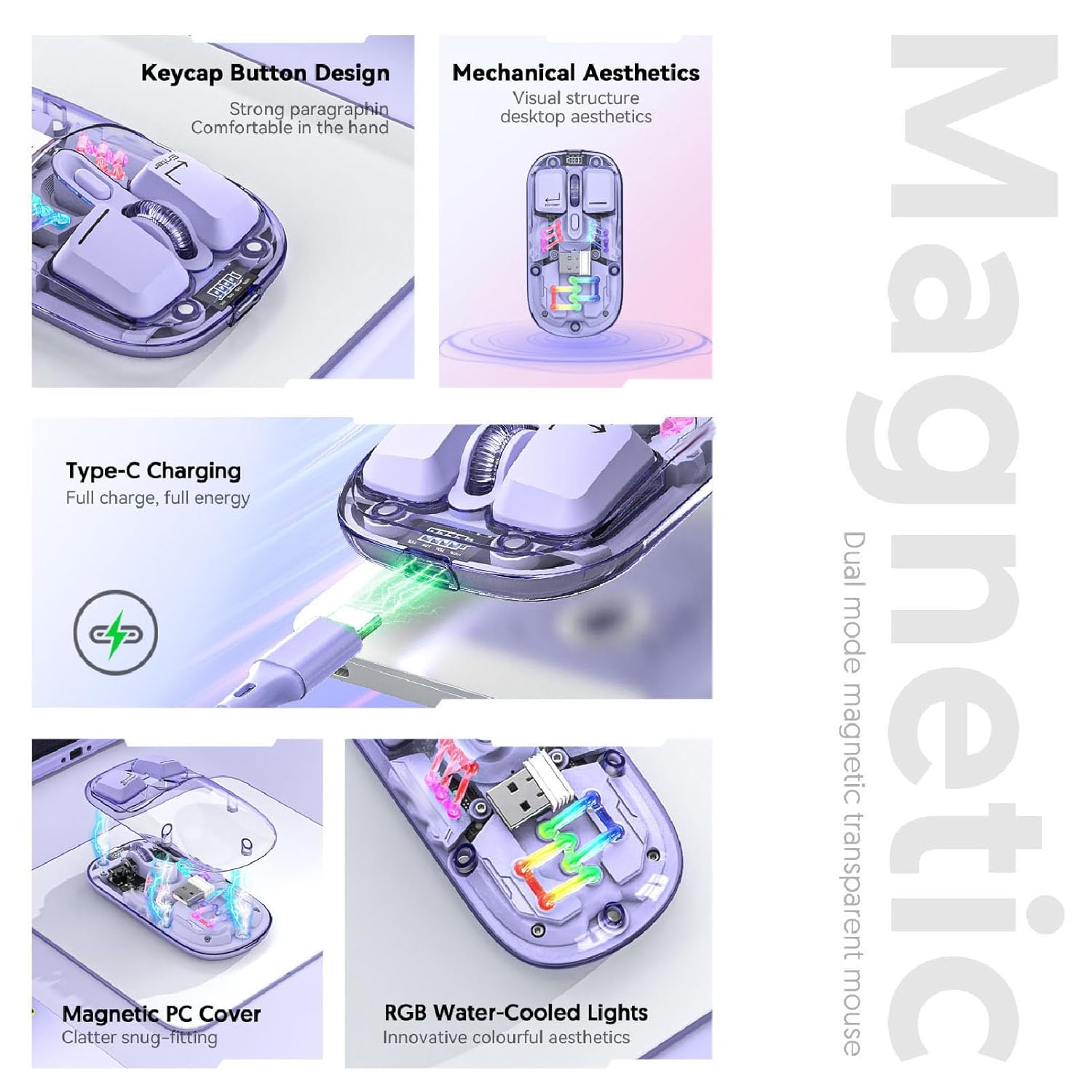
Сүрөт: Композит view highlighting the RGB lighting, Type-C charging, and magnetic cover design of the mouse.
5.4. Батарея деңгээлин көрсөтүү
The mouse is equipped with a power display to check the remaining battery level at any time. This display typically uses indicator lights to show the charge status:
- 4 lights on: 100% батарейка
- 3 lights on: 75% батарейка
- 2 lights on: 50% батарейка
- 1 light on: 25% батарейка

Image: Close-up of the Cuifati mouse's battery level display, illustrating how indicator lights correspond to charge percentage.
5.5. Automatic Energy Saving
To conserve battery life, the mouse features an automatic sleep function:
- Жеңил уйку: After 60 seconds of no operation, the mouse enters a light sleep state.
- Терең уйку: If no operation occurs for 10 minutes, the mouse enters a deep sleep mode.
- Ойгон: To wake the mouse from sleep, simply move it or press any button.
Note: Actual power saving performance may vary based on usage habits.

Image: Visual representation of the mouse's power-saving states: light sleep after 60 seconds, deep sleep after 10 minutes, and how to wake it up.
6. Техникалык тейлөө
6.1. Тазалоо
To maintain the mouse's appearance and functionality, regularly clean its surfaces. Use a soft, dry, lint-free cloth. For stubborn dirt, slightly dampen the cloth with water or a mild, non-abrasive cleaner. Avoid using harsh chemicals or abrasive materials that could damage the transparent shell or internal components.

Image: The Cuifati mouse with its magnetic top cover detached, revealing the internal structure for potential cleaning or maintenance.
6.2. Батареяга кам көрүү
The built-in Li-ion battery is designed for long-term use. To prolong battery life:
- Батареяны бат-баттан толук кубаттап калуудан алыс болуңуз.
- Charge the mouse using the provided Type-C cable.
- Чычканды узак убакытка колдонбогондо салкын, кургак жерде сактаңыз.
7. Кыйынчылыктарды
If you encounter issues with your Cuifati mouse, please refer to the following common solutions:
- Чычкан жооп бербей жатат:
- Чычкан күйгүзүлгөнүн текшериңиз.
- Батареянын деңгээлин текшерип, керек болсо заряддаңыз.
- Туура туташуу режими (2.4G же Bluetooth) тандалганын текшериңиз.
- 2.4G үчүн, USB кабыл алгыч бекем сайылганын текшериңиз. Башка USB портун колдонуп көрүңүз.
- Bluetooth үчүн, түзмөгүңүздө Bluetooth иштетилгенин жана чычкан жупташтырылганын текшериңиз. Кайра жупташтырып көрүңүз.
- Курсордун кыймылы туруксуз же жай:
- Чычкандын астындагы оптикалык сенсорду тазалаңыз.
- Чычканды ылайыктуу бетте колдонуп жатканыңызды текшериңиз (өтө жарык чагылдырбаган же тунук эмес).
- Adjust the DPI setting (refer to Section 5.2).
- RGB жарыктары иштебейт:
- Чычкан күйгүзүлгөнүн текшериңиз.
- Press the lighting switch key to cycle through modes or turn them on (refer to Section 5.3).
- Check battery level; low battery might disable lighting.
- Cannot connect via Bluetooth and 2.4G simultaneously:
- This is expected behavior. The mouse is designed to operate in one mode at a time. Switch to the desired mode using the selector switch.
8. Кепилдик жана колдоо
The Cuifati Bluetooth Transparent Mouse comes with a standard manufacturer's warranty. Please refer to the warranty card included in your package or visit the official Cuifati webдеталдуу кепилдик шарттары жана шарттары үчүн сайт.
For technical support, product inquiries, or warranty claims, please contact Cuifati customer service through their official channels. Contact information can typically be found on the product packaging or the manufacturer's webсайт.