
1. Киришүү
The NUROUM V403-A35 is an all-in-one video conferencing system designed for small to medium conference rooms. It integrates a PTZ (Pan-Tilt-Zoom) webcam (V403) with 5X optical zoom and a Bluetooth conference speakerphone (A35) featuring 4 noise-cancelling microphones. This system provides high-quality video and crystal-clear audio for effective remote collaboration.

Image: The NUROUM V403-A35 system integrated into a modern conference room setting.
2. Продукт бүтүп калдыview
2.1 Пакеттин мазмуну
- 1x V403 PTZ Webcam Set
- 1x A35 Speakerphone Set
2.2 Негизги өзгөчөлүктөрү
- All-in-one System: Combines a PTZ webcam (V403) and a Bluetooth conference speakerphone (A35) for integrated video and audio.
- PTZ Camera with 5X Optical Zoom: 2MP CMOS sensor with 5x optical zoom for high-quality, undistorted images. Features true autofocus and 4 preset positions for easy camera control.
- Өркүндөтүлгөн аудио: A35 speakerphone utilizes deep learning-based algorithms for echo suppression, reverberation reduction, and ambient noise filtering.
- Omnidirectional Microphones: Built-in 4 professional-level microphones capture voices at a 360-degree angle with a 32kHz sampling rate for clear audio.
- Бир нече туташуу параметрлери: Plug-and-play via USB. Speakerphone also supports Bluetooth or dongle connectivity. Camera features RJ45 port with POE and LAN/NDI support for professional streaming.
- Жалпы шайкештик: Works with major conferencing platforms like Zoom, Teams, Google Meet, WebEx, Skype, OBS, YouTube, and operating systems including Windows, macOS, Linux, and ChromeOS.

Сүрөт: деталдуу view of the V403 camera's internal components and the A35 speakerphone's multiple interfaces including Type-C, Power Supply, and LAN/NDI support.
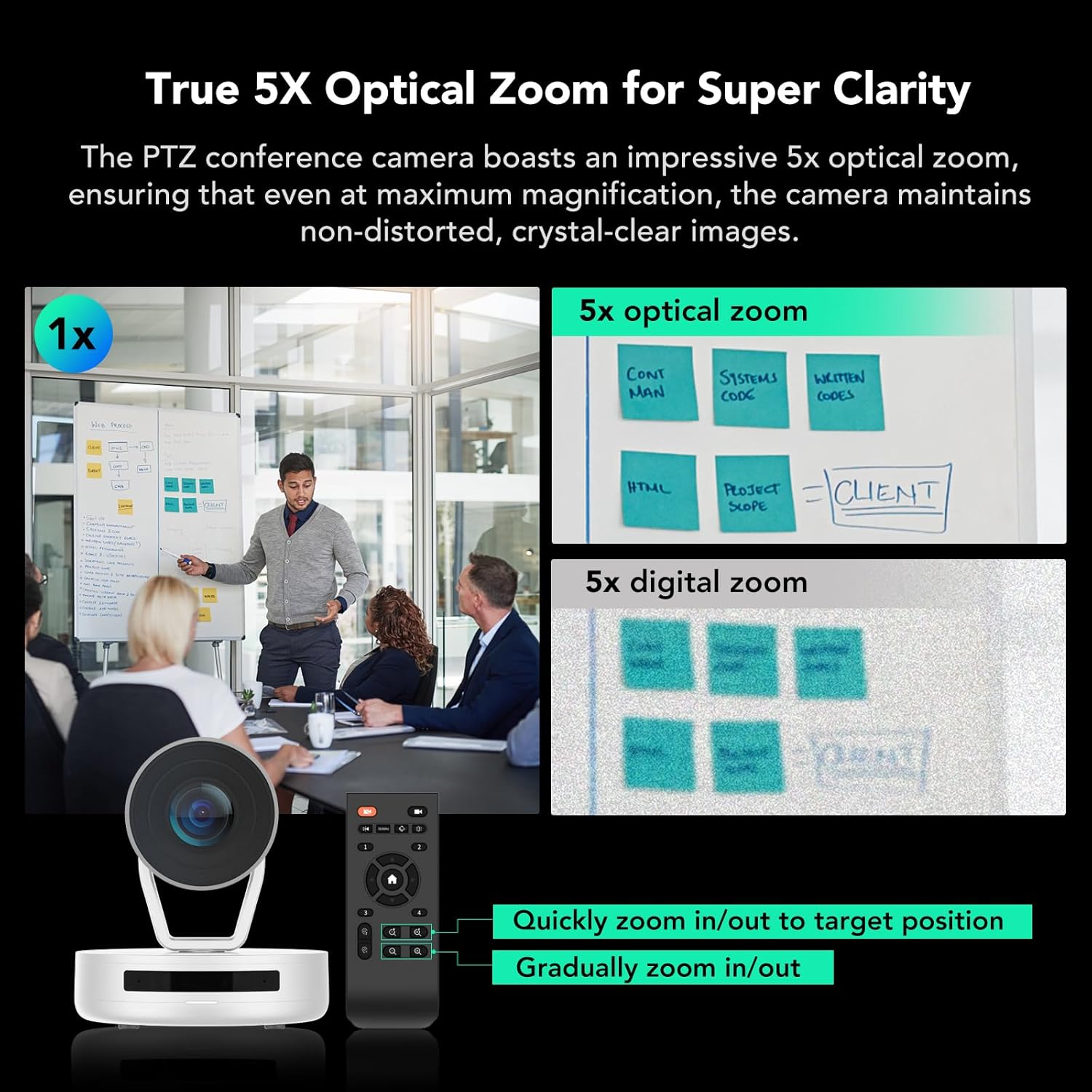
Image: Comparison showing the clarity of 5X optical zoom compared to 5X digital zoom, highlighting the V403's superior image quality at magnification.

Image: Visual representation of the A35 speakerphone's 4-MEMS microphone array and AI noise cancellation technology for enhanced audio pickup.
3. Орнотуу нускамалары
Follow these steps to set up your NUROUM V403-A35 conference system.
3.1 Системаны туташтыруу
- Кубат туташуу: Connect the V403 PTZ webcam to a power source using the provided power cable.
- USB Connection (Recommended): Connect the V403 webcam to your computer (PC/laptop) via a USB cable.
- Speakerphone Connection:
- USB: Connect the A35 speakerphone directly to your computer via USB.
- Bluetooth: Pair the A35 speakerphone with your computer via Bluetooth.
- Dongle: Use the provided dongle to connect the A35 speakerphone wirelessly to your computer.
- Display Connection (Optional): If desired, connect your computer to a smart TV or monitor using an HDMI cable for a larger display.
- Network Connection (V403 Camera, Advanced): For professional live streaming or NDI support, connect the V403 camera to your network via the RJ45 port (supports POE).

Image: A clear diagram illustrating the various ways to connect the V403 camera and A35 speakerphone to a computer and external display.
3.2 Орнотуу
The V403 camera features a standard 1/4" thread base, allowing for flexible placement:
- Столдун үстүндө
- Mounted to a tripod (not included)
- Secured to a wall (mounting accessories not included)

Сүрөт: Visual examples demonstrating versatile placement options for the V403 camera within a conference room.
4. Иштөө нускамалары
4.1 Using the V403 PTZ Webcam
- Панорамалоо, эңкейтүү, чоңойтуу: Use the included remote control to adjust the camera's pan, tilt, and 5X optical zoom.
- Алдын ала коюлган позициялар: The V403 supports 4 preset positions. You can save specific pan, tilt, and zoom settings for quick recall during meetings. Refer to the remote control for setting and recalling presets.
- Автофокус: The camera features true autofocus to maintain sharp images automatically.
4.2 Using the A35 Speakerphone
- Күйгүзүү/өчүрүү: Press and hold the power button to turn the speakerphone on or off.
- Үндү көзөмөлдөө: Үн деңгээлин тууралоо үчүн үндү катуулатуу (+) жана үндү азайтуу (-) баскычтарын колдонуңуз.
- Үнсүз/Ачуу: Press the microphone button to mute or unmute the microphones.
- Чалууларды көзөмөлдөө: Use the call answer/end button to manage calls when connected via Bluetooth or USB.
- Ызы -чууну жокко чыгаруу: The A35 automatically applies AI-based noise cancellation to filter out ambient sounds and echoes.
4.3 Software and Settings
For advanced settings and firmware updates, download the NearSync software from the official NUROUM website. This software allows you to customize image settings such as brightness, contrast, and white balance.

Image: A screenshot of the NearSync software, showing options for video settings like saturation, brightness, contrast, hue, and white balance.
5. Техникалык тейлөө
To ensure optimal performance and longevity of your NUROUM conference system, follow these maintenance guidelines:
- Тазалоо: Камера линзасынын жана динамиктин беттерин тазалоо үчүн жумшак, кургак чүпүрөктү колдонуңуз. Абразивдүү тазалоочу каражаттарды же эриткичтерди колдонбоңуз.
- Сактагыч: Узак мөөнөткө колдонулбаганда, аспапты кургак, салкын жерде, тике күндүн нурунан жана өтө температурадан алыс сактаңыз.
- Программалык камсыздоонун жаңыртуулары: Regularly check the NUROUM official website for firmware updates and install them using the NearSync software to ensure the system has the latest features and bug fixes.
6. Кыйынчылыктарды
If you encounter issues with your NUROUM V403-A35 system, refer to the following common problems and solutions:
| Көйгөй | Мүмкүн чечим |
|---|---|
| Камерадан видео чыгаруу жок | Ensure the camera is powered on and the USB cable is securely connected to both the camera and the computer. Check if the camera is selected as the video source in your conferencing software. |
| No audio from speakerphone | Verify the speakerphone is powered on and connected (USB, Bluetooth, or dongle). Check the volume levels on the speakerphone and your computer. Ensure the A35 is selected as the audio output device in your conferencing software. |
| Microphones not picking up sound | Ensure the speakerphone is not muted. Confirm the A35 is selected as the audio input device in your conferencing software. Check microphone permissions in your operating system settings. |
| Camera zoom/PTZ not responding | Check the remote control batteries. Ensure there are no obstructions between the remote and the camera. Restart the camera and computer. |
| Compatibility issues with software | Ensure your conferencing software is updated to the latest version. Verify your operating system meets the minimum requirements. Download and install the latest drivers or firmware using NearSync. |
For further assistance, please contact NUROUM customer service.
7. Техникалык шарттар
| Өзгөчөлүк | Деталь |
|---|---|
| Бренд | NUROUM |
| Модель номери | AW-VAS403-35 |
| Байланыш технологиясы | USB, Bluetooth |
| Видео тартуунун резолюциясы | 1080p |
| Оптикалык масштаб | 5X |
| Оптикалык сенсор технологиясы | CMOS |
| Viewбурч | 122 градус |
| Микрофондор | 4 Noise Cancellation Microphones (32kHz sampлинг чен) |
| Frame Rate | 30 FPS, 60 FPS, 120 FPS |
| Шайкеш түзмөктөр | Laptops, Personal Computers |
| Операциялык системалар | Windows, macOS, Linux, ChromeOS |
| Сунушталган бөлмө өлчөмү | Up to 30㎡ (323ft²) |
8. Кепилдик жана колдоо
8.1 Өндүрүүчүнүн кепилдиги
The NUROUM V403-A35 Conference Room Camera System comes with a 1 жылдык өндүрүүчүнүн кепилдиги сатып алынган күндөн тартып. Бул кепилдик нормалдуу колдонуудагы материалдардагы жана жасалгадагы кемчиликтерди камтыйт.
8.2 Кардарларды колдоо
NUROUM provides lifetime customer service support for this video conferencing system. If you have any questions, require technical assistance, or need to report an issue, please contact NUROUM customer service through their official webсайты же продуктунун таңгагында берилген байланыш маалыматы.
For firmware updates and advanced image customization, please download the NearSync software from the official NUROUM webсайт.