
1. Киришүү
This manual provides detailed instructions for the installation, operation, and maintenance of your BISOFICE 80mm Receipt Printer. Please read this manual thoroughly before using the printer to ensure proper function and to prevent damage.
The BISOFICE 80mm Receipt Printer is a high-efficiency thermal printer designed for various business environments, including retail, restaurants, and supermarkets. It features fast printing, an auto cutter, and supports both USB and LAN connections.
2. Коопсуздук маалыматы
- Принтерди сууга же нымга тийгизбеңиз.
- Принтердин кубат булагы анын талаптарына дал келерин текшериңиз.
- Avoid touching the thermal print head immediately after printing, as it may be hot.
- Use only specified thermal paper.
- Do not attempt to disassemble or repair the printer yourself. Contact support if issues arise.
3. Пакеттин мазмуну
Пакетте бардык буюмдар бар экенин текшериңиз:
- BISOFICE 80mm Receipt Printer
- Термалдык кагаз түрмөк
- Кубаттуу адаптер
- USB кабели
- Электр кабели
- Колдонуучунун колдонмосу (бул документ)

Figure 3.1: Included items in the BISOFICE 80mm Receipt Printer package.
4. Продукт бүтүп калдыview
The BISOFICE 80mm Receipt Printer is designed for efficient and reliable thermal printing. Key features include a fast print speed of 200mm/s and an integrated auto cutter for clean receipt separation.
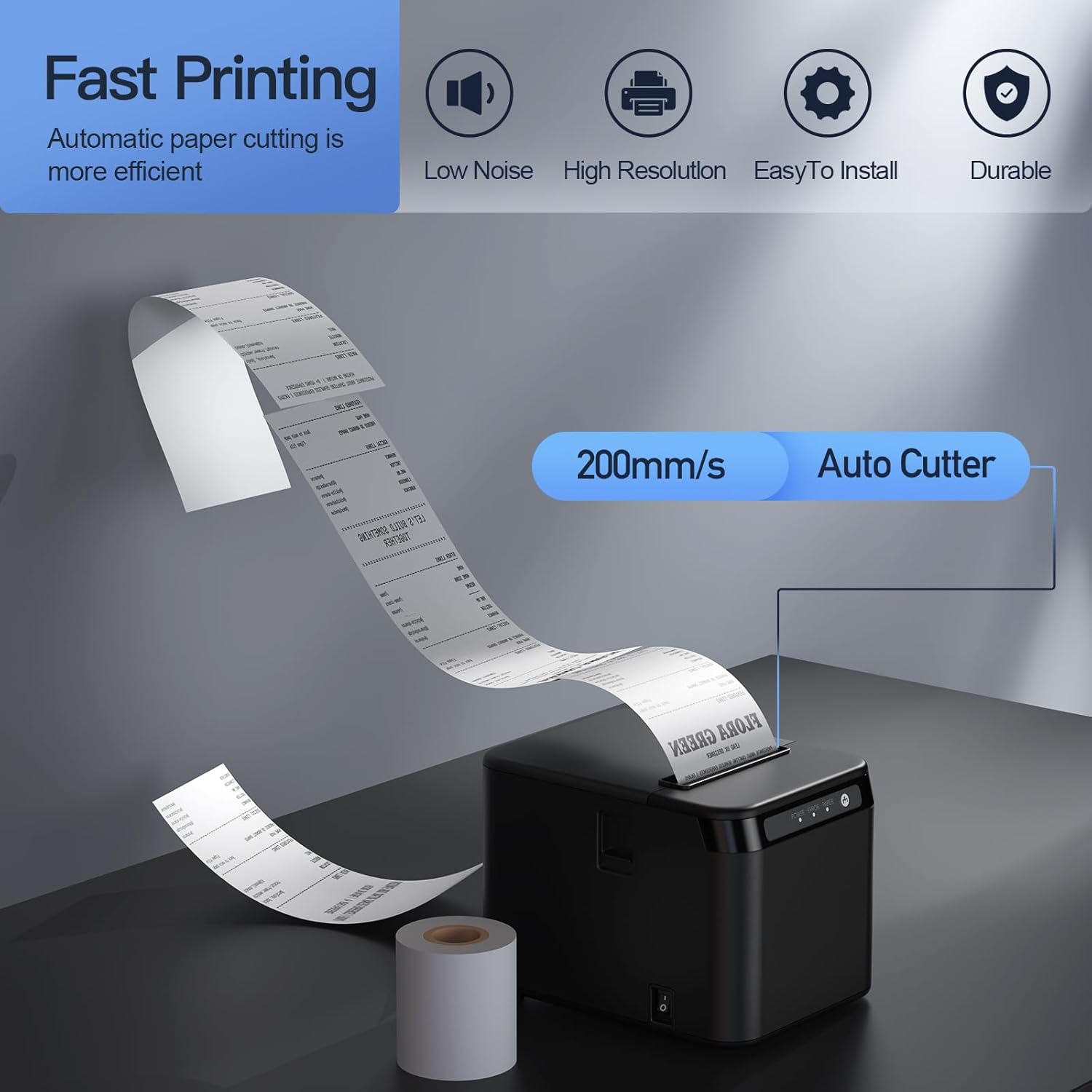
Figure 4.1: Printer features: 200mm/s speed and auto cutter.
This thermal printer operates without ink cartridges or ribbons, reducing operational costs. It uses standard 80mm thermal paper rolls.
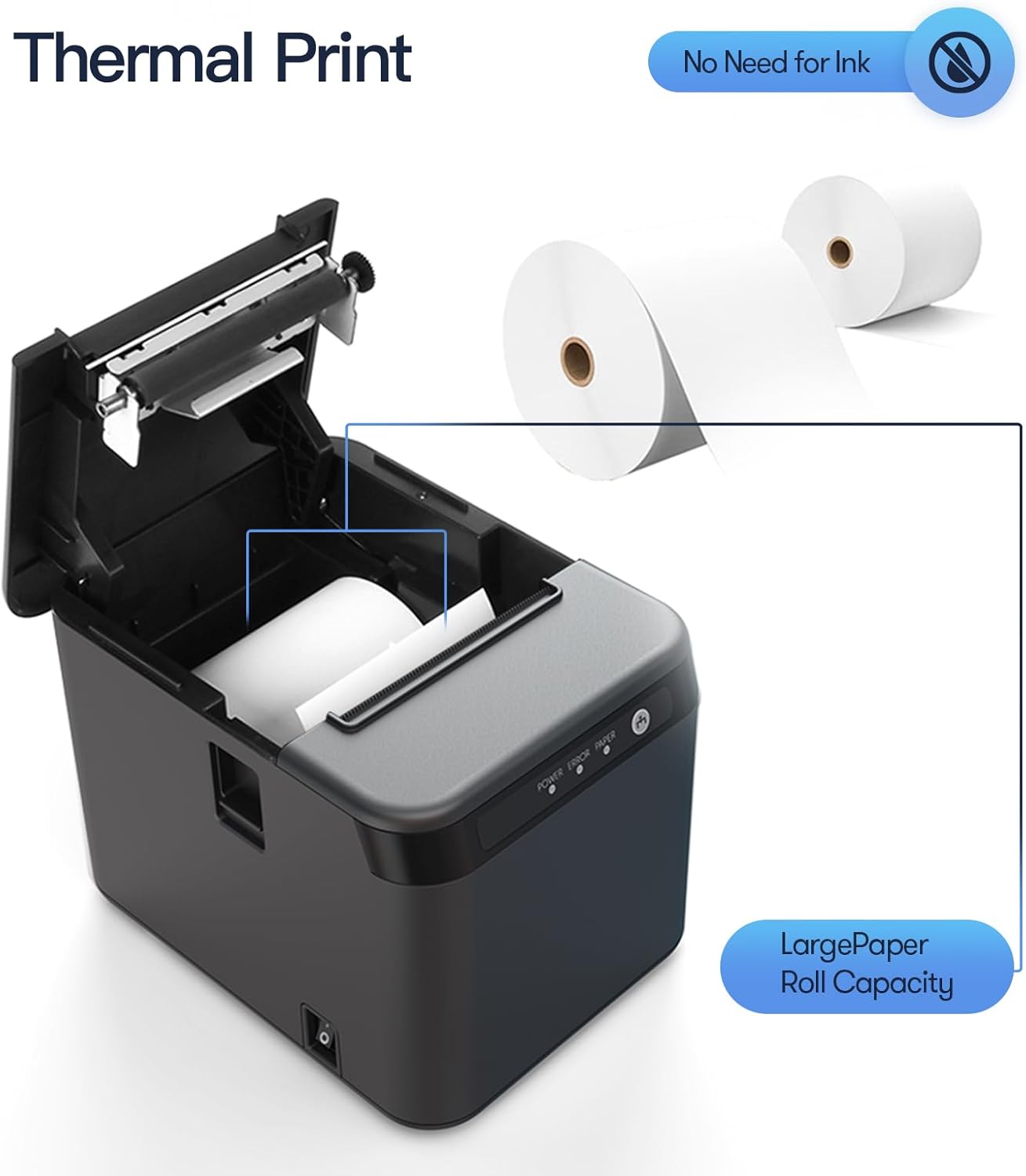
Figure 4.2: Thermal printing mechanism and paper roll capacity.
4.1 Printer Components and Ports
Familiarize yourself with the printer's external components and connection ports:

Сүрөт 4.3: Алдыңкы жана арткы view of the printer with labeled components and ports.
- Капка ачуу баскычы: Releases the top cover to access the paper compartment.
- Түрмөк баскычы: Manually feeds paper.
- Индикатор жарыктары: Display printer status (Power, Error, Paper).
- Которуу баскычы: Күйгүзүү/өчүрүү которгуч.
- LAN порту: Connects to a network for Ethernet printing.
- USB порт: Connects to a computer for USB printing.
- Cash Port: Connects to a cash drawer.
- Электр порту: Кубат адаптерине туташат.
5. Орнотуу
5.1 Термикалык кагазды жүктөө
- Press the cover open button to open the printer's top cover.
- Insert the thermal paper roll into the compartment, ensuring the paper feeds from the bottom and the leading edge extends slightly past the cutter.
- Үстүнкү капкакты чыкылдагыча бекем жабыңыз.
5.2 Туташтыруучу кабельдер
- Кубат туташуу: Кубат адаптерин принтердин кубат портуна туташтырып, андан кийин кубат шнурун ылайыктуу электр розеткасына сайыңыз.
- USB туташуу: For direct connection to a computer, plug one end of the USB cable into the printer's USB port and the other end into an available USB port on your computer.
- LAN туташуу: For network printing, connect an Ethernet cable from the printer's LAN port to your network router or switch.
- Акча тартмасынын туташуусу: If using a cash drawer, connect its cable to the printer's Cash port.
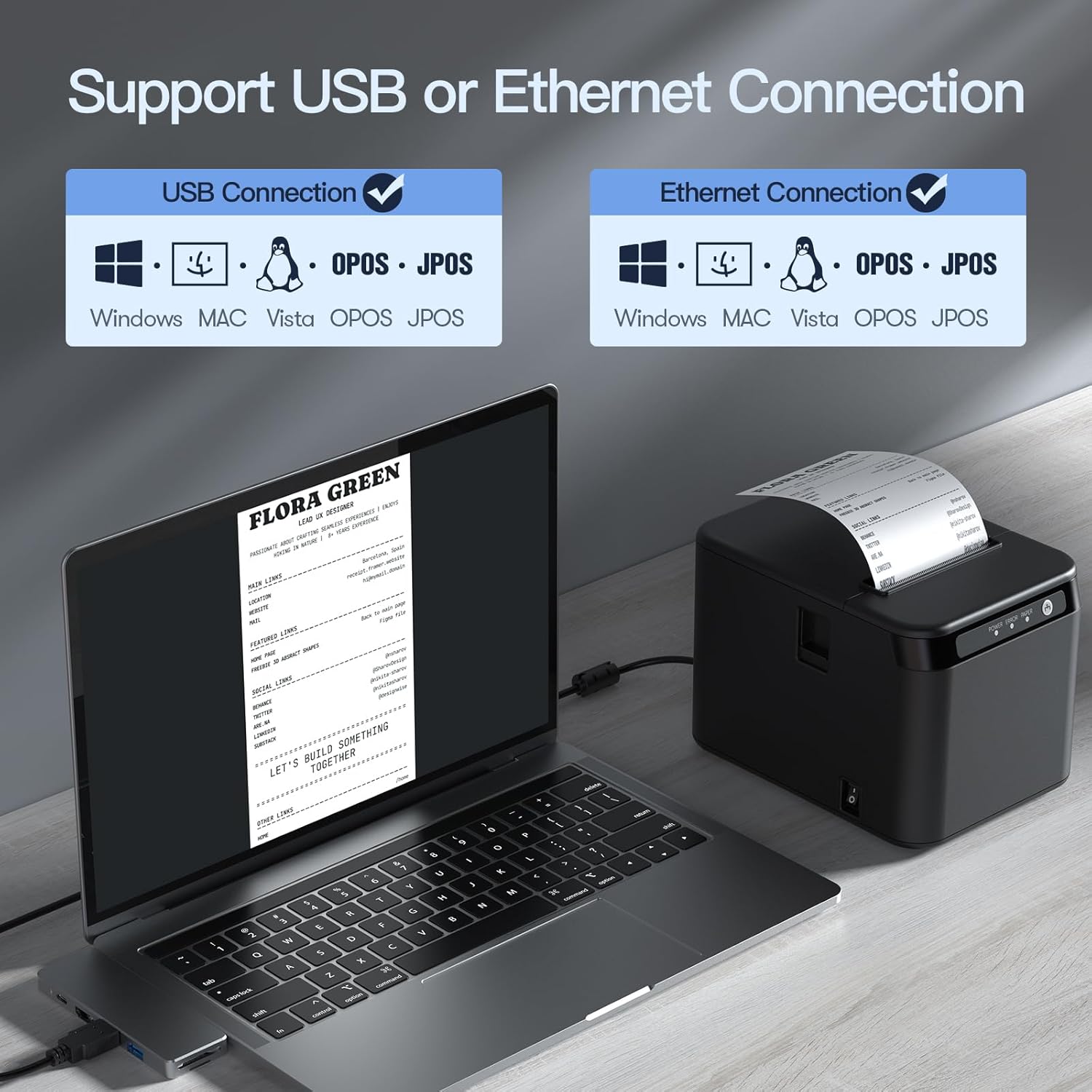
Figure 5.1: USB and Ethernet connection options.

5.2-сүрөт: Мисample of LAN connection setup.
5.3 Драйверди орнотуу
The printer requires drivers for proper communication with your computer. Drivers are typically provided on a CD or can be downloaded from the manufacturer's website. The printer is compatible with Windows XP/VISTA/7/8/10, Linux, and macOS.
- Insert the driver CD or navigate to the driver download page on the Bisofice webсайт.
- Select the appropriate driver for your operating system (Windows, Linux, or macOS).
- Драйверди орнотууну аяктоо үчүн экрандагы нускамаларды аткарыңыз.
- Орнотуудан кийин, суралса, компьютериңизди өчүрүп-күйгүзүңүз.
Note: Some users have reported needing to download drivers from a specific Chinese website. Refer to the support section if the provided drivers do not work.
6. Операция
6.1 Негизги басып чыгаруу
- Принтер күйгүзүлүп, компьютериңизге же тармагыңызга туташып турганын текшериңиз.
- Басып чыгаргыңыз келген документти же тиркемени ачыңыз (мисалы, POS программасы, текст редактору).
- Select the BISOFICE 80mm Receipt Printer from your printer options.
- Initiate the print command. The printer will automatically print the receipt and use its auto cutter.
6.2 Дубалга орнотуу
The printer features two hanging holes on the bottom for wall mounting, allowing you to save counter space.
- Identify a suitable location on a wall for mounting.
- Measure the distance between the two hanging holes on the printer's base.
- Drill two corresponding holes in the wall and insert appropriate wall anchors and screws (not included).
- Carefully align the printer's hanging holes with the screws and mount the printer securely.

Figure 6.1: Desktop and wall-mount usage scenarios.
7. Техникалык тейлөө
7.1 Принтерди тазалоо
Үзгүлтүксүз тазалоо басып чыгаруу сапатын сактоого жардам берет жана принтердин иштөө мөөнөтүн узартат.
- Сырткы: Wipe the printer's exterior with a soft, damp кездеме. Катуу химиялык заттарды же абразивдүү тазалагычтарды колдонбоңуз.
- Термикалык басып чыгаруу башы: Gently clean the thermal print head with an alcohol swab or a specialized thermal printer cleaning pen. Ensure the printer is off and cooled down before cleaning.
- Кагаз жолу: Жумшак щетка же кысылган аба аркылуу кагаз жолундагы бардык кагаз чаңын же калдыктарын алып салыңыз.
7.2 Кагаз түрмөктөрүн алмаштыруу
When the paper roll is depleted or running low, replace it following the steps in Section 5.1.
8. Кыйынчылыктарды
This section addresses common issues you might encounter with your BISOFICE 80mm Receipt Printer.
8.1 Жалпы маселелер жана чечимдер
| Көйгөй | Мүмкүн себеп | Чечим |
|---|---|---|
| Принтер күйбөй жатат. | Электр кубаты жок, кубат адаптери/шнуру бузук. | Check power connections. Ensure the power outlet is functional. |
| Басып чыгаруу жок. | No paper, paper jammed, incorrect driver, loose connection. | Load paper correctly. Clear any jams. Reinstall drivers. Check USB/LAN cable connections. |
| Басып чыгаруу сапаты начар. | Dirty print head, low-quality thermal paper. | Clean the thermal print head (Section 7.1). Use high-quality thermal paper. |
| Auto cutter not working. | Paper jam, cutter mechanism obstruction. | Clear any paper jams. Power cycle the printer. |
| Принтер компьютер тарабынан таанылган жок. | Incorrect/missing drivers, loose USB/LAN cable. | Install or reinstall the correct drivers. Ensure cables are securely connected. Try a different USB port. |
| Incompatible with Square or iPad. | Specific software/hardware limitations. | This printer is not compatible with Square POS systems or iPads. Verify compatibility with your specific POS software before purchase. |
8.2 Индикатор жарыгынын абалы
- Power Light (Solid Green): Принтер күйгүзүлгөн жана даяр.
- Error Light (Flashing Red): Indicates an error (e.g., paper jam, print head error).
- Paper Light (Flashing Red): Indicates low or no paper.
9. Техникалык шарттар
| Өзгөчөлүк | Деталь |
|---|---|
| Модел | ZGV9622812387288LP |
| Басып чыгаруу ыкмасы | Түз жылуулук |
| Басып чыгаруу ылдамдыгы | 200мм/сек чейин |
| Paper Width | 80мм |
| Print Width | 72мм |
| Max Paper Roll Diameter | 83мм |
| Резолюция | 576 чекит / сызык |
| Интерфейс | USB + LAN (Ethernet) |
| Авто кескич | Ооба |
| Операциялык системанын шайкештиги | Windows XP/VISTA/7/8/10, Linux, macOS |
| Өлчөмдөрү (болжол менен) | 128mm (W) X 173mm (D) х 127 мм (H) |
| Элемент Салмагы | 2.68 фунт (болжол менен 1.22 кг) |
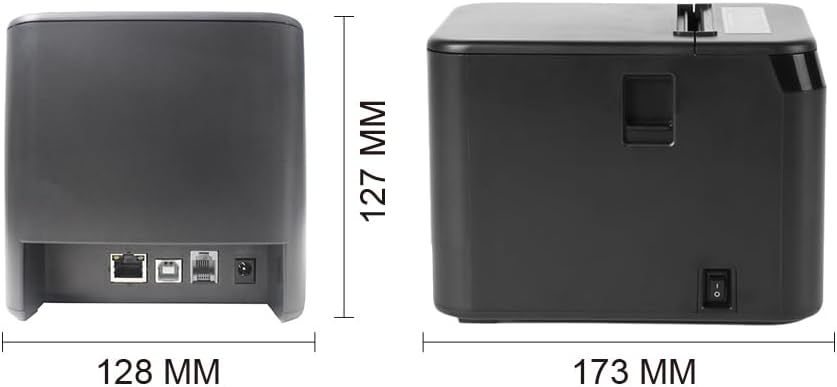
Figure 9.1: Printer dimensions.
10. Кепилдик жана колдоо
For warranty information, technical support, or service inquiries, please contact Bisofice customer service through your purchase platform or the official Bisofice website. Please have your model number (ZGV9622812387288LP) and purchase date available when contacting support.
Note: Information regarding specific warranty periods was not available at the time of this manual's creation. Please refer to your product's packaging or the seller's terms for details.