
1. Киришүү
This manual provides essential information for setting up, operating, maintaining, and troubleshooting your Microsoft Surface Pro Copilot+ PC (11th Edition). Please read this guide thoroughly to ensure optimal performance and longevity of your device.
Кутуда эмне бар
- Surface Pro device
- Quick Start Guide
- Коопсуздук жана кепилдик документтери
- 39W электр кубаты
- Surface Pro клавиатурасы
- Startup Card/Warranty Guide
2. Орнотуу
2.1 Баштапкы күйгүзүү жана заряддоо
Connect the included 39W Power Supply to your Surface Pro and a power outlet. The device will begin charging. Press the power button located on the top edge of the device to turn it on. For first-time use, ensure the device is sufficiently charged.
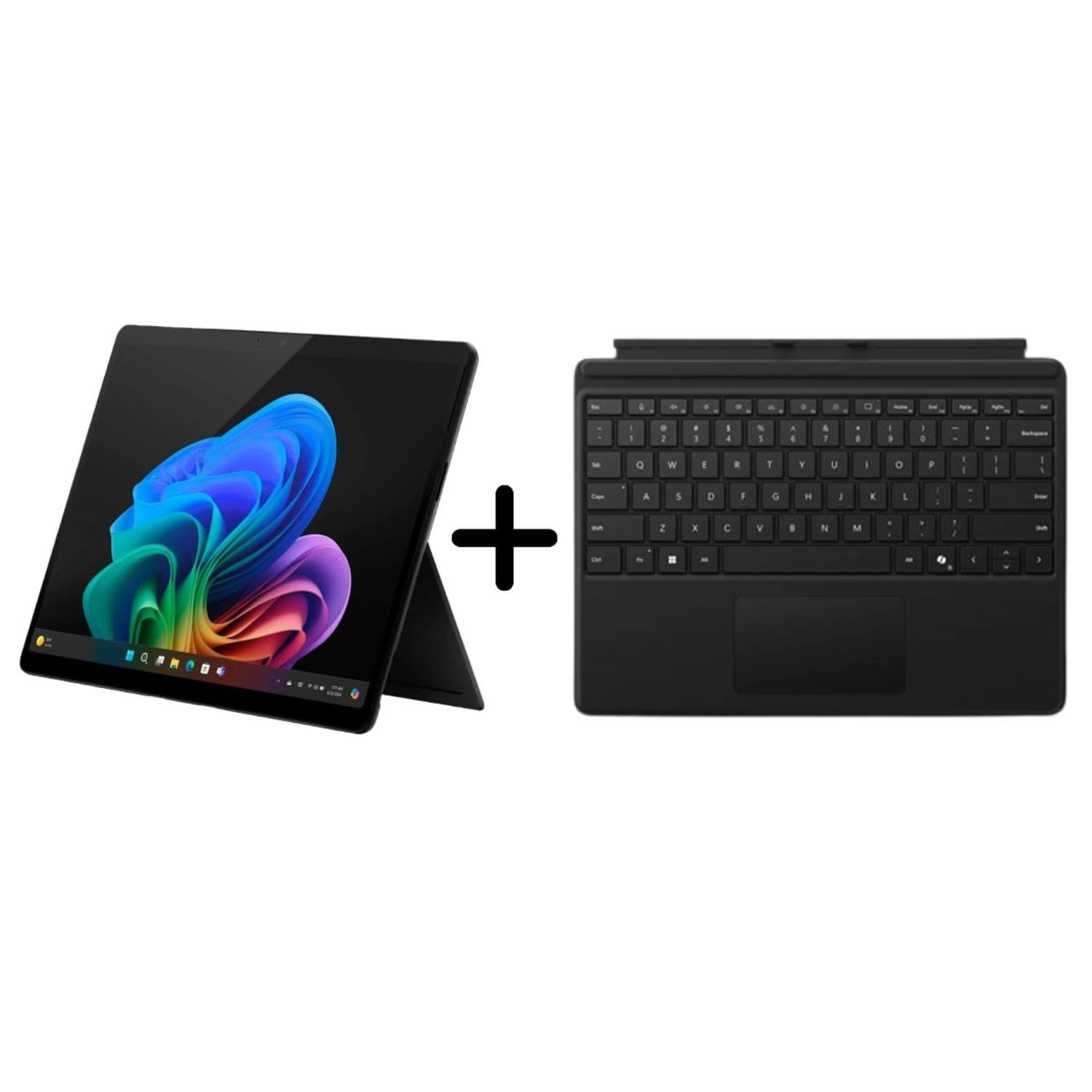
Figure 2.1: Microsoft Surface Pro Copilot+ PC with kickstand deployed, showcasing the vibrant Windows 11 desktop.
2.2 Attaching the Surface Pro Keyboard
Align the magnetic connector of the Surface Pro Keyboard with the corresponding port at the bottom edge of your Surface Pro. The keyboard will snap into place. Ensure a secure connection for proper functionality.
2.3 Windows 11 орнотуу
Follow the on-screen prompts to complete the Windows 11 setup process. This includes selecting your language, connecting to a Wi-Fi network, signing in with a Microsoft account, and configuring privacy settings.
3. Operating the Surface Pro
3.1 Сенсордук экран жана дисплей
The 13-inch PixelSense Flow display offers a 2880 x 1920 resolution with a dynamic refresh rate up to 120Hz. Interact with the device using touch gestures. The display provides a 1200:1 contrast ratio for clear visuals.

Figure 3.1: Close-up of the Surface Pro screen, highlighting the display quality and Windows 11 interface.
3.2 Copilot+ PC өзгөчөлүктөрү
Your Surface Pro is a Copilot+ PC, powered by the Snapdragon X Elite processor, enabling advanced AI experiences:
- AI-Powered Artwork: Generate images from text prompts using integrated AI capabilities.
- Эскертүү: Search across your past activities and content on the device to quickly find what you need.
- Түз эфирдеги коштомо жазуулар: Instantly translate audio into captions in various languages.
3.3 AI-Enhanced Surface Studio Camera
The ultra-wide front-facing camera utilizes AI-powered Studio effects, such as automatic framing, to keep you centered during video calls, even if you move within the frame.

3.2-сүрөт: Арткы view of the Surface Pro, illustrating the kickstand functionality and device design.
3.4 Kickstand Flexibility
The integrated 165-degree fluid kickstand allows for flexible positioning of your Surface Pro, adapting from a laptop to a tablet or studio mode for various tasks.

3.3-сүрөт: Side profile of the Surface Pro, demonstrating the kickstand's adjustable angle.
4. Техникалык тейлөө
4.1 Аппаратыңызды тазалоо
Экранды тазалоо үчүн жумшак, түксүз чүпүрөктү жеңил колдонуңуз dampened with water or an approved screen cleaner. For the body of the device and keyboard, use a soft, dry cloth. Avoid abrasive materials or harsh chemicals.
4.2 Батареяга кам көрүү
To prolong battery life, avoid extreme temperatures. For long-term storage, charge the battery to approximately 50% and store the device in a cool, dry place. Regular software updates can also optimize battery performance.
4.3 Программалык камсыздоо жаңыртуулары
Ensure your Surface Pro is always up-to-date by regularly checking for and installing Windows updates. Go to Орнотуулар > Windows Жаңыртуу to manage updates. This ensures you have the latest features, security patches, and performance improvements.
5. Кыйынчылыктарды
5.1 Жалпы маселелер жана чечимдер
- Түзмөк күйбөй жатат: Түзмөктүн заряддалганын текшериңиз. Кубат булагын туташтырып, кайра күйгүзүүгө аракет кылуудан мурун бир нече мүнөт күтө туруңуз.
- Баскычтоп жооп бербей жатат: Detach and reattach the Surface Pro Keyboard to ensure a secure magnetic connection. Check for any debris in the connector ports.
- Wi-Fi туташуу көйгөйлөрү: Restart your Surface Pro and your Wi-Fi router. Check network settings in Windows 11 to ensure the correct network is selected and credentials are entered correctly.
- Жай аткаруу: Close unnecessary applications. Check for available Windows updates. Consider running a disk cleanup or checking for malware.
5.2 Кошумча колдоо издөө
If you encounter issues not covered in this manual, visit the official Microsoft Support website or contact Microsoft customer service for assistance. Have your device model number (EP2-23862) and serial number ready.
6. Техникалык шарттар
| Өзгөчөлүк | Деталь |
|---|---|
| Модель номери | EP2-23862 |
| Дисплей өлчөмү | 13 дюйм |
| Screen Resolution | 2880 x 1920 пиксель |
| Процессор | Qualcomm Snapdragon X Elite (3.4 GHz) |
| RAM | 16 ГБ |
| Сактагыч | 1 ТБ SSD |
| Графикалык сопроцессор | Адрено |
| Операция системасы | Windows 11 Home |
| Зымсыз түрү | 802.11ax |
| USB порттору | 2 x USB 3.0 |
| Арткы Webcam Resolution | 10.5 депутат |
| Элемент Салмагы | 1.97 фунт |
| Өлчөмдөрү (LxWxH) | 16.1 x 10.7 x 3.3 дюйм |
7. Кепилдик жана колдоо
7.1 Продукциянын кепилдиги
Your Microsoft Surface Pro Copilot+ PC comes with a standard manufacturer's warranty. Please refer to the included "Safety and warranty documents" and "Startup Card/Warranty Guide" for specific terms, conditions, and duration of your warranty. Retain your proof of purchase for warranty claims.
7.2 Колдоо кызматы менен байланышуу
For technical support, warranty service, or additional information, please visit the official Microsoft Support webсайт: support.microsoft.com. You may also find contact numbers for your region on the support webсайт.