
1. Киришүү
This manual provides essential information for the safe and effective use of your PICO 4 Ultra Enterprise A9210 All-in-One 6DoF VR Headset. Please read this manual thoroughly before using the device and retain it for future reference.
2. Коопсуздук маалыматы
- Clear Your Space: Ensure you have a clear, unobstructed area for use to prevent injury or damage to property.
- Тыныгуу: Prolonged use may cause eye strain, fatigue, or motion sickness. Take regular breaks.
- Көзөмөл: Not recommended for children without adult supervision.
- Ден соолукка байланыштуу ойлор: If you experience discomfort, dizziness, or nausea, discontinue use immediately. Consult a doctor if symptoms persist.
- Экологиялык шарттар: Аппаратты экстремалдык температурага, нымдуулукка же түз күн нуруна калтырбаңыз.
3. Пакеттин мазмуну
Пакетиңизде бардык буюмдар бар экенин текшериңиз:
- PICO 4 Ultra Enterprise A9210 VR Headset
- 6DoF Controllers (x2)
- Көз айнек Spacer
- USB Type-C кабели (кубаттоо жана маалыматтарды өткөрүү үчүн)
- Кубаттуу адаптер
4. Продукт бүтүп калдыview
4.1 Гарнитуранын компоненттери

Сүрөт: Фронт view of the PICO 4 Ultra Enterprise A9210 VR Headset, showing the integrated cameras and sensors.
- Front Cameras & Sensors: Used for inside-out tracking and environmental mapping.
- Линзалар: High-resolution displays with pancake lenses for a wide field of view.
- Баш боону: Adjustable strap for secure and comfortable fit.
- IPD Adjustment Wheel: Located on the bottom of the headset for seamless interpupillary distance adjustment.
- USB Type-C порту: Заряддоо жана маалыматтарды өткөрүү үчүн.
- Кубат баскычы: Гарнитураны күйгүзүү же өчүрүү үчүн.
- Үн баскычтары: To adjust audio output.
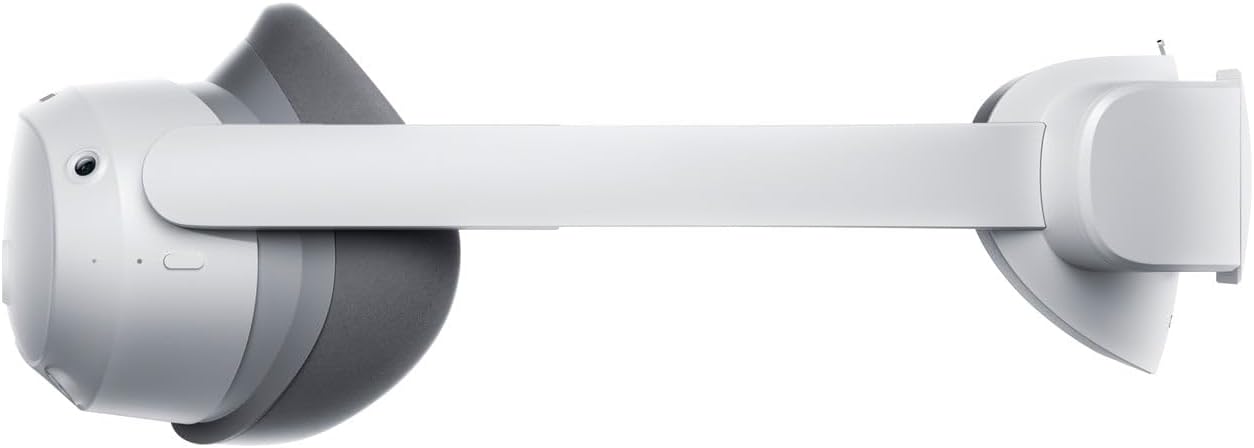
Сүрөт: Side view of the PICO 4 Ultra Enterprise A9210 VR Headset, illustrating the head strap and overall profile.
4.2 Контроллердин компоненттери
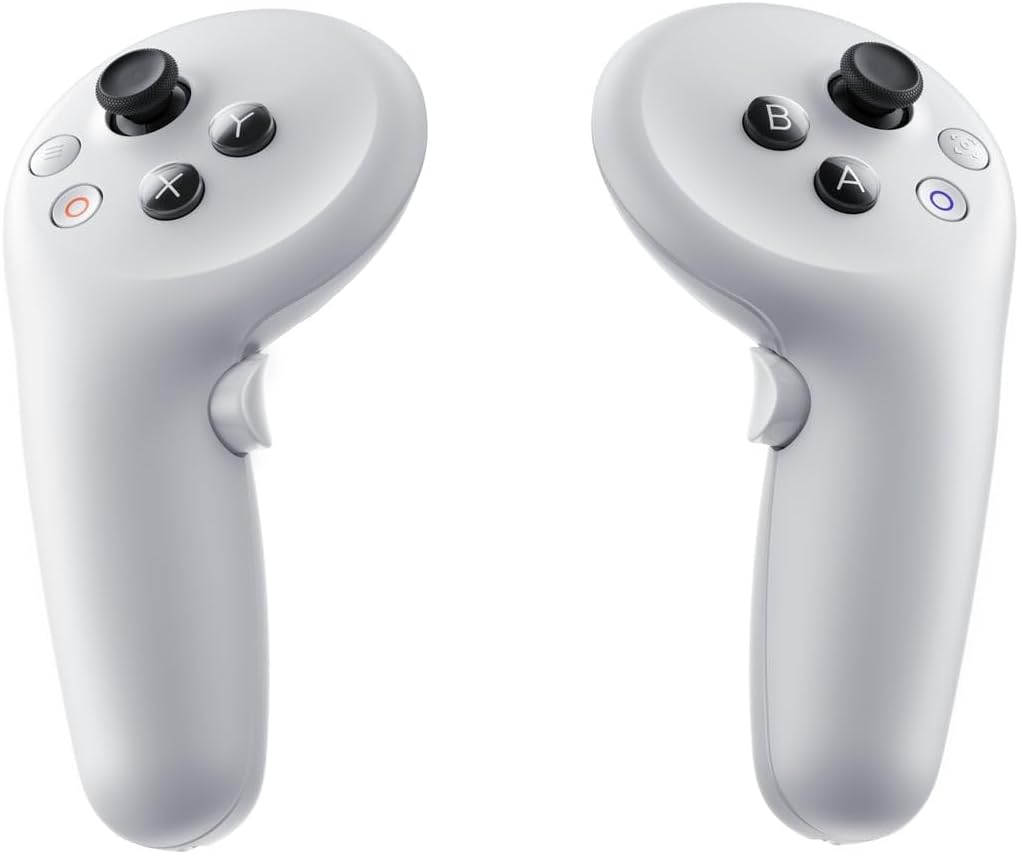
Сүрөт: Two PICO 4 Ultra Enterprise A9210 VR controllers, showing buttons and joysticks.
- Аналогдук таякча: For movement and navigation.
- Аракет баскычтары (A/B/X/Y): For in-app interactions.
- Trigger баскычы: For selection and interaction.
- Grip Button: For grabbing or holding objects in VR.
- Система баскычы: For accessing system menus.
5. Орнотуу
5.1 Charging the Headset and Controllers
- Connect the USB Type-C cable to the headset's charging port and the other end to the power adapter.
- Plug the power adapter into a wall outlet. The indicator light on the headset will show charging status.
- The controllers typically use AA batteries. Open the battery compartment and insert fresh batteries if needed.
5.2 Гарнитураны тагынуу

Сүрөт: Жогорку view of the PICO 4 Ultra Enterprise A9210 VR Headset, showing the adjustable head strap.
- Loosen the head strap to its widest setting.
- Place the headset on your head, ensuring the display is centered over your eyes.
- Tighten the head strap until the headset feels secure and comfortable, without being too tight.
- Adjust the IPD (Interpupillary Distance) using the wheel on the bottom of the headset until the image appears clear and comfortable. The optimal range is 58-72mm.
- If you wear glasses, insert the included glasses spacer before wearing the headset to ensure proper fit and prevent lens scratching.
5.3 Программалык камсыздоону баштапкы орнотуу
- Гарнитураны күйгүзүү үчүн, "Күчүп-өчүрүү" баскычын басып, кармап туруңуз.
- Follow the on-screen instructions to select your language, connect to a Wi-Fi network (supports Wi-Fi 7), and set up your user account.
- The controllers should automatically pair. If not, follow the on-screen prompts for manual pairing.
- Define your play space as instructed by the headset. This involves drawing a boundary in your physical environment.
6. Иштөө нускамалары
6.1 Күйгүзүү/өчүрүү
- Күйгүзүү: Press and hold the Power button on the headset until the PICO logo appears.
- Өчүрүү: Press and hold the Power button until a power-off menu appears, then select 'Power Off'.
- Уйку режими: Briefly press the Power button to put the headset into sleep mode. Press again to wake it up.
6.2 Navigation and Interaction
- колдонуу Аналогдук таякча on the controller to move around in virtual environments.
- Point the controller at menu items or objects and use the Trigger баскычы аларды тандоо.
- The Action Buttons (A/B/X/Y) perform various functions depending on the application.
- басыңыз Система баскычы to access the main menu or return to the home screen.
6.3 Wi-Fi туташуусу
To connect to a Wi-Fi network or change networks:
- From the home screen, access the Quick Settings menu (usually by pressing the System button or a specific gesture).
- Wi-Fi сөлөкөтүн тандаңыз.
- Тизмеден каалаган тармагыңызды тандап, суралса, сырсөздү киргизиңиз.
7. Техникалык тейлөө
7.1 Линзаларды тазалоо
- Use a dry microfiber cloth specifically designed for optical lenses.
- Gently wipe the lenses in a circular motion from the center outwards.
- Do not use liquid cleaners, alcohol, or abrasive materials, as these can damage the lenses.
7.2 Cleaning the Headset and Controllers
- Use a soft, dry cloth to wipe the exterior surfaces of the headset and controllers.
- өжөр кир үчүн, бир аз гampкездемени суу менен аарчыңыз. Нымдуулуктун тешиктерге киришине жол бербеңиз.
- Катаал химиялык заттарды же эриткичтерди колдонбоңуз.
7.3 Сактоо
- Store the headset in a cool, dry place away from direct sunlight.
- Protect the lenses from scratches by keeping the headset in its original packaging or a protective case when not in use.
- Remove batteries from controllers if storing for extended periods.
8. Кыйынчылыктарды
8.1 Гарнитура күйбөй жатат
- Ensure the headset is fully charged. Connect it to the power adapter and wait for a few minutes before attempting to power on again.
- Башка USB Type-C кабелин жана кубат адаптерин колдонуп көрүңүз.
- Кубат баскычын 10-15 секунд басып туруу менен катуу баштапкы абалга келтирүүнү аткарыңыз.
8.2 Controllers Not Responding
- Check the batteries in the controllers and replace them if necessary.
- Ensure the controllers are within the headset's tracking range.
- Try re-pairing the controllers through the headset's settings menu.
8.3 бүдөмүк сүрөт
- Adjust the IPD (Interpupillary Distance) using the wheel on the bottom of the headset.
- Ensure the headset is properly positioned on your head and the straps are adjusted correctly.
- Линзаларды микрофибра чүпүрөк менен тазалаңыз.
- If you wear glasses, ensure the glasses spacer is correctly installed.
8.4 Wi-Fi туташуу маселелери
- Wi-Fi роутериңиз туура иштеп жатканын жана башка түзмөктөр туташа ала турганын текшериңиз.
- Туура Wi-Fi сырсөзүн киргизгениңизди текшериңиз.
- Restart your Wi-Fi router and the PICO headset.
- Сигналдын күчүн жакшыртуу үчүн Wi-Fi роутериңизге жакындаңыз.
9. Техникалык шарттар
| Процессор | Qualcomm Snapdragon XR2 2-муундагы процессор |
| Эс | 12 ГБ LPDDR5 |
| Ички сактагыч | 256 ГБ UFS 3.1 |
| Резолюция | 4320 x 2160 (1200ppi) |
| талаасы View (FOV) | 105 градус |
| Жаңыртуу ылдамдыгы | 90Hz |
| Көз салуу ыкмасы | Inside-out (6DoF), Environmental tracking cameras x4, iToF depth sensor camera x1 |
| IPD тууралоо | 58-72mm (Seamless) |
| Аудио | Stereo speakers, Spatial audio compatible microphones x4 |
| Контроллер | 6DoF Controllers (x2) |
| Тышкы туташуу | Wi-Fi 7, Bluetooth 5.3 |
| Туташуу порту | USB Type-C |
| Headset Dimensions (W x H x D) | 165 x 84 x 62 мм |
| Модель номери | A9210 |
| JAN Code | 6970214574083 |
| Камтылган компоненттер | Glasses spacer |
10. Кепилдик жана колдоо
For warranty information and technical support, please refer to the official PICO website or contact your regional PICO customer service. Keep your proof of purchase for warranty claims.
This device includes a commercial use license and business support via PICO Business Suite for enterprise applications.