H155-382 CPE 5 5G Router User Manual
Модел: H155-382
Introduction
Thank you for choosing the Generic H155-382 5G Router. This device is designed to provide seamless, high-speed 5G connectivity for your home or office, ideal for demanding applications such as gaming and live streaming. With its sleek design, 5GHz single-band operation, and 802.11ax wireless communication standard, it ensures reliable and efficient internet access for a wide range of smart devices, including gaming consoles, smartphones, and smart TVs. This manual will guide you through the setup, operation, and maintenance of your new router.
Коопсуздук маалыматы
- Электр камсыздоо: Use only the power adapter provided with the device. Using an incompatible power adapter may cause damage or fire.
- Вентиляция: Ensure adequate ventilation around the router. Do not block ventilation openings or place the device in an enclosed space.
- Суу жана ным: Түзмөктү суудан, нымдуулуктан жана жогорку нымдуулуктагы чөйрөлөрдөн алыс кармаңыз.
- Температура: Operate the device within the recommended temperature range. Avoid extreme heat or cold.
- Тазалоо: Тазалоодон мурун электр кубатынан ажыратыңыз. Жумшак, кургак чүпүрөктү колдонуңуз. Суюк же аэрозоль тазалагычтарды колдонбоңуз.
- Демонтаж: Аппаратты өз алдынча бөлүүгө же оңдоого аракет кылбаңыз. Бардык тейлөөлөрдү квалификациялуу кызматкерлерге тапшырыңыз.
Пакеттин мазмуну

Image: The Generic H155-382 5G Router shown alongside its retail packaging.
Сураныч, таңгактын ичиндегисин кылдаттык менен текшериңиз. Эгерде кандайдыр бир буюм жок болсо же бузулуп калса, сатуучуга кайрылыңыз.
- Generic H155-382 5G Router
- Кубаттуу адаптер
- Ethernet кабели (RJ45)
- Ыкчам баштоо колдонмосу (бул документ)
Продукт бүттүview
Front Panel
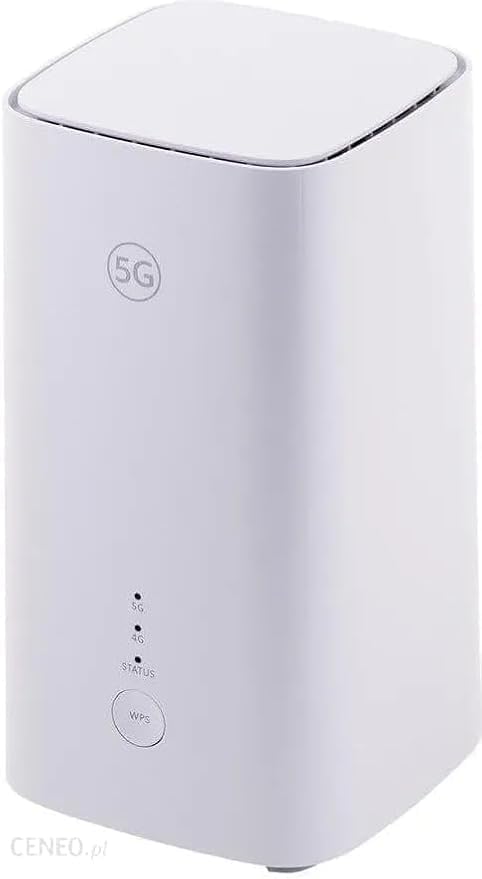
Сүрөт: алдыңкы view of the H155-382 router, highlighting the 5G logo, LED indicators, and the WPS button.
- 5G көрсөткүчү: 5G тармагынын абалын көрсөтөт.
- 4G көрсөткүчү: 4G тармагынын абалын көрсөтөт.
- STATUS Indicator: Indicates system status (e.g., power on, network connection).
- WPS баскычы: Press to quickly connect Wi-Fi Protected Setup (WPS) compatible devices.
Rear Panel (Typical Configuration)
The rear panel typically includes the following ports and buttons:
- Электр порту: Кубат адаптерине туташат.
- LAN порттору: Ethernet ports for wired connections to devices like computers or gaming consoles.
- WAN/LAN порту: An Ethernet port that can function as either a WAN (for connecting to a modem) or a LAN port.
- SIM карта слоту: Insert your 5G/4G SIM card here.
- Калыбына келтирүү баскычы: Used to restore factory default settings (usually a pinhole button).
Жайгашуу
- 1-кадам: SIM картаны салыңыз
Locate the SIM card slot on the router. Gently insert your 5G/4G Nano-SIM card into the slot until it clicks into place. Ensure the SIM card is inserted in the correct orientation as indicated by the diagram near the slot.
- 2-кадам: Power туташтыруу
Connect the provided power adapter to the router's power port, then plug the adapter into a power outlet. The router will power on automatically, and the indicator lights will illuminate.
- 3-кадам: Түзмөктөрдү туташтыруу
You can connect devices to the router in two ways:
- Wi-Fi: On your device (smartphone, laptop, etc.), search for available Wi-Fi networks. Select the network name (SSID) printed on the label at the bottom of the router and enter the Wi-Fi password (Key) when prompted.
- текст: Connect an Ethernet cable from one of the router's LAN ports to the Ethernet port on your computer or other wired device.
- Step 4: Initial Configuration (Optional)
For advanced settings or to change default Wi-Fi credentials, open a web browser on a connected device and enter the router's default IP address (e.g., 192.168.8.1 or 192.168.1.1) found on the router's label. Log in using the default username and password (also on the label). You can also use the dedicated mobile application for remote control and configuration, as the router supports remote access.
Роутериңизди иштетүү
Wi-Fi'га туташууда
Once the router is powered on and has established a network connection (indicated by stable 5G/4G and STATUS LEDs), your Wi-Fi network will be broadcast. Connect your devices using the SSID and password provided on the router's label. For WPS-enabled devices, press the WPS button on the router and then activate WPS on your device within two minutes.
кирүү Web Интерфейс
The web interface allows you to manage your router's settings. To access it:
- Түзмөгүңүз роутерге туташкандыгын текшериңиз (Wi-Fi же Ethernet аркылуу).
- ачуу а web браузер (мисалы, Chrome, Firefox, Edge).
- Type the router's default IP address (e.g., 192.168.8.1) into the address bar and press Enter.
- Enter the login username and password when prompted.
Remote Access
This router supports remote access, allowing you to manage its settings and monitor its status from a dedicated application on your smartphone or tablet. Refer to the router's web interface or quick start guide for details on setting up remote access.
Техникалык тейлөө
- Жайгашкан жери: Маршрутизаторду ачык жерге, тоскоолдуктарды, чоң металл буюмдарды жана тоскоолдуктарды жаратышы мүмкүн болгон башка электрондук шаймандардан алыс жерге коюңуз.
- Тазалоо: Regularly clean the router's exterior with a soft, dry cloth to prevent dust buildup. Do not use liquid cleaners.
- Программалык камсыздоонун жаңыртуулары: Роутер аркылуу микропрограмма жаңыртууларын мезгил-мезгили менен текшерип туруңуз web interface. Keeping the firmware updated ensures optimal performance and security.
- Кайра иштетилүүдө: Эгерде сизде туташуу көйгөйлөрү пайда болсо, кубат адаптерин 10 секундга сууруп, андан кийин кайра сайып, роутерди өчүрүп-күйгүзүп көрүңүз.
Проблемаларды чечүү
| Көйгөй | Мүмкүн себеп | Чечим |
|---|---|---|
| Кубат/LED өчүк эмес | Кубат адаптери туташкан эмес; розеткада көйгөй бар. | Ensure power adapter is securely connected to router and a working power outlet. |
| Интернет байланышы жок | SIM card not inserted correctly; no network signal; incorrect APN settings. | Reinsert SIM card; check signal strength; configure APN settings via web интерфейс. |
| Wi-Fi ылдамдыгы жай | Interference; too many connected devices; router placement. | Move router to a central location; reduce interference; limit connected devices. |
| Кирүү мүмкүн эмес web интерфейс | Incorrect IP address; device not connected to router. | Verify router's IP address; ensure device is connected to router's Wi-Fi or LAN. |
| Forgot Wi-Fi password/login | Сырсөз жоголду. | Perform a factory reset using the reset button (this will erase all custom settings). |
Техникалык шарттар
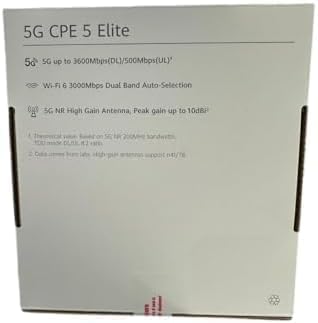
Image: The back of the product box, detailing key specifications and features.
| Өзгөчөлүк | Description |
|---|---|
| Модель аты | H155-382 |
| Элемент моделинин номери | H155-382-or381 |
| Бренд | Жалпы |
| Байланыш технологиясы | 5G |
| Зымсыз байланыш стандарты | 802.11ax (Wi-Fi 6) |
| Жыштык тилкесинин классы | Single-band |
| Жыштык | 5 ГГц |
| Өзгөчөлүктөр | Remote Access |
| Шайкеш түзмөктөр | Gaming Console, Smartphone, Smart TV |
| Камтылган компоненттер | Маршрутизатор |
| Пакеттин өлчөмдөрү | 10 x 8 x 5 см |
| Элемент Салмагы | 2 кг |
| Келип чыккан өлкө | Кытай |
Кепилдик жана колдоо
This product comes with a standard manufacturer's warranty. For specific warranty terms and conditions, please refer to the warranty card included in your package or contact your point of purchase. For technical support, troubleshooting assistance, or to inquire about repairs, please contact the retailer or the manufacturer's customer service. Keep your purchase receipt as proof of purchase for warranty claims.


