
KTC H24F8
KTC H24F8 24 дюймдук тез IPS 180Гц оюн мониторунун колдонуучу колдонмосу
Модели: H24F8
1. Киришүү
Thank you for choosing the KTC H24F8 24-inch Fast IPS 180Hz Gaming Monitor. This manual provides essential information for setting up, operating, and maintaining your monitor. Please read it thoroughly before use to ensure proper functionality and to prevent damage.
Коопсуздук маалыматы
- Always disconnect the power cable from the electrical outlet before cleaning the monitor.
- Өрт же электр тогуна урунуу коркунучун болтурбоо үчүн мониторду жамгыр же нымдуулукка дуушар кылбаңыз.
- Мониторду ачпаңыз casinг. Ичинде колдонуучу тейлей турган бөлүктөр жок. Бардык тейлөөлөрдү квалификациялуу тейлөө кызматкерлерине тапшырыңыз.
- Монитор кулап калбаш үчүн аны туруктуу, тегиз бетке коюңуз.
- Монитордун айланасында туура желдетүүнү камсыз кылыңыз. Вентиляция тешиктерин жаап албаңыз.
2. Пакеттин мазмуну
Сураныч, кутудан чыкканда пакеттин мазмунун текшериңиз. Эгерде кандайдыр бир буюмдар жок же бузулуп калса, сатуучуга кайрылыңыз.
- KTC H24F8 24-inch Gaming Monitor
- Монитор стенд (негизги жана моюн)
- Кубат адаптери жана кубат кабели
- HDMI кабели
- DisplayPort (DP) кабели
- User Manual

Image 2.1: KTC H24F8 Gaming Monitor. This image shows the monitor displaying a vibrant gaming scene, highlighting its 23.8-inch screen, 1ms response time, 133% sRGB, Fast IPS panel, 190Hz refresh rate, and FHD resolution.
3. Орнотуу
3.1 Стендди чогултуу
- Экранды коргоп, мониторду таңгагынан кылдаттык менен чыгарып алыңыз.
- Монитор панелине стенд мойнуна бекитиңиз. Анын ордуна бекем чыкылдаганын же камтылган болсо, бурамалар менен бекемделгенин текшериңиз.
- Attach the stand base to the stand neck. Tighten the thumb screw or regular screw at the bottom of the base.
- Чогултулган мониторду туруктуу, жалпак столго коюңуз.
3.2 Туташтыруучу кабельдер
Кандайдыр бир туташуулардан мурун монитор менен компьютериңиз өчүк экенин текшериңиз.
- Кубат туташуу: Connect the power cable to the monitor's power input, then plug the other end into a power outlet.
- Видео туташуу:
- DisplayPort (DP): Connect one end of the DP cable to the monitor's DisplayPort input and the other end to your computer's DisplayPort output. This connection supports up to 180Hz refresh rate.
- HDMI: Connect one end of the HDMI cable to the monitor's HDMI input and the other end to your computer's HDMI output. This connection supports up to 180Hz refresh rate.
4. Иштөө нускамалары
4.1 Күйгүзүү/өчүрүү
Мониторду күйгүзүү же өчүрүү үчүн көбүнчө монитордун арткы же асты жагында жайгашкан кубат баскычын басыңыз. Монитор күйүп турганда кубат индикаторунун жарыгы күйөт.
4.2 Экрандагы дисплей (OSD) менюсу
The OSD menu allows you to adjust various monitor settings. Navigation is typically done via a joystick or a set of buttons on the back or bottom of the monitor.
- Жарыктык/Контраст: Adjust the display's brightness and contrast levels.
- Түс жөндөөлөрү: Түс температурасын, гамманы жана жеке RGB маанилерин өзгөртүү.
- Киргизүүнү тандоо: HDMI жана DisplayPort киргизүүлөрүнүн ортосунда кол менен которулуңуз.
- Сүрөт режими: Select from preset display modes (e.g., Standard, Game, Movie, Text).
- Аудио: Adjust volume if external speakers or headphones are connected to the monitor's audio output.
- OSD Орнотуулары: OSD тилин, тунуктугун жана тайм-аутту тууралаңыз.
4.3 Негизги өзгөчөлүктөрү
Fast IPS Panel & High Refresh Rate
The KTC H24F8 features an advanced Fast IPS panel with a 180Hz refresh rate and 1ms response time. This technology provides smooth, fluid motion and reduces ghosting, enhancing the visual experience in fast-paced games and action scenes.

Image 4.1: Smooth Response, Fluid Gaming. This image illustrates the difference between a 190Hz refresh rate (left) and a 60Hz refresh rate (right) in a fast-moving scene, demonstrating the reduced motion blur and smoother visuals at higher refresh rates.

Image 4.2: Fast IPS Panel Technology. This diagram shows the internal structure of a Fast IPS panel, emphasizing its design for rapid response times, improved clarity, wider viewing angles, and minimized motion blur.
FHD Resolution & Eye Care
Experience clear visuals with the 1920 x 1080 Full HD resolution. The monitor also incorporates Low Blue Light and Flicker-Free technology to reduce eye strain during extended use, promoting a comfortable viewтажрыйбасы.

Image 4.3: Sharp FHD Display. This image highlights the monitor's FHD 1920x1080 resolution, designed to produce a sharp and detailed picture with vibrant colors for an immersive viewтажрыйбасы.

Image 4.4: Eye Comfort Features. This image shows the monitor displaying a scene with icons indicating 'Low Blue Light' and 'Flicker-Free' technologies, designed to reduce eye strain and provide a comfortable viewтажрыйбасы.
Color Accuracy & HDR10 Support
The monitor supports 16.7 million colors with a 1000:1 contrast ratio, covering 133% sRGB and 94% DCI-P3 color spaces. HDR10 support enhances brightness and contrast, delivering more vivid colors and improved detail in both bright and dark areas.
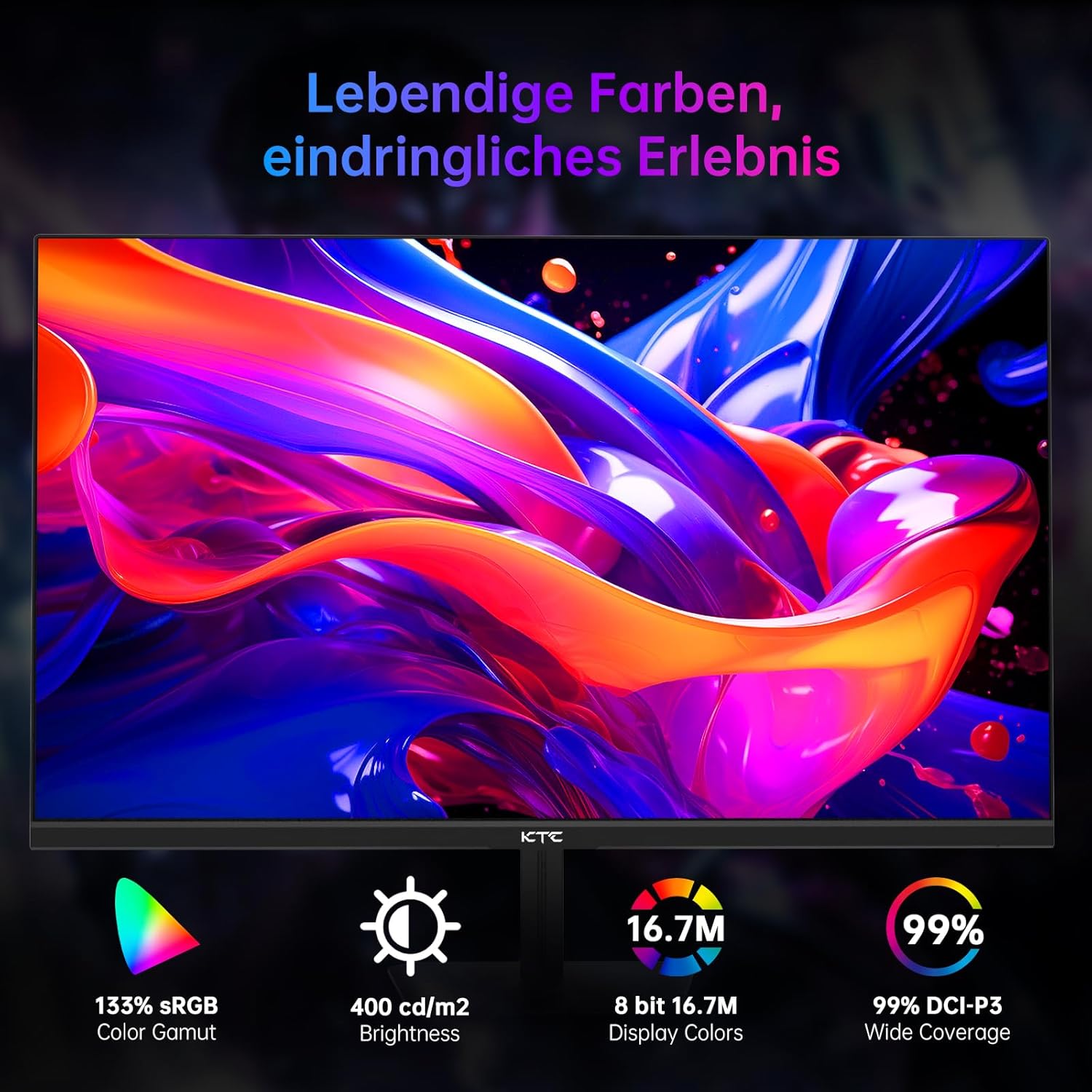
Image 4.5: Vivid Colors and Immersive Experience. This image showcases the monitor's color capabilities, including 133% sRGB Color Gamut, 400 cd/m2 Brightness, 8-bit 16.7M Display Colors, and 99% DCI-P3 Wide Coverage, indicating a rich and accurate color reproduction.

Image 4.6: HDR10 Support. This image demonstrates the monitor's HDR10 support, which provides higher brightness and clearer contrast between light and dark areas, making every detail easily discernible for a more immersive visual experience.
Adaptive Sync & Dynamic Action Sync
Adaptive Sync technology synchronizes the monitor's refresh rate with your graphics card's output, eliminating screen tearing and stuttering for a smooth gaming experience. Dynamic Action Sync reduces input lag, allowing for quicker responses in competitive games.
Оюндун жардамынын өзгөчөлүктөрү
Enhance your gaming with built-in Game Assist features:
- Кроссшер: Provides an on-screen crosshair for precise targeting.
- FPS эсептегич: Displays your game's frames per second in real-time.
- Кара стабилизатор: Adjusts the brightness of dark areas without overexposing bright areas, improving visibility in dimly lit game environments.

Image 4.7: Game Assist Features. This image illustrates the monitor's Game Assist functions, including an on-screen Crosshair for aiming, an FPS Counter to display performance, and Black Stabilizer for improved visibility in dark scenes.
5. Техникалык тейлөө
5.1 Мониторду тазалоо
- Тазалоодон мурун мониторду дайыма электр розеткасынан сууруп алыңыз.
- Бир аз жумшак, түксүз кездемени колдонуңуз dampсуу же жумшак, абразивдүү эмес экран тазалагыч менен иштетиңиз.
- Тазалоочу каражатты түз экранга чачпаңыз. Алгач аны кездемеге сүйкөңүз.
- Avoid using benzene, thinner, ammonia-based cleaners, or abrasive pads, as these can damage the screen surface.
- Чаңды жана тактарды кетирүү үчүн экранды акырын сүртүңүз.
6. Кыйынчылыктарды
Мониторуңузда көйгөйлөргө туш болсоңуз, төмөнкү жалпы көйгөйлөрдү жана чечимдерди караңыз:
- Кубат жок:
- Кубат кабели мониторго да, розеткага да бекем туташтырылганын текшериңиз.
- Башка аспапка сайып, розетка туура иштеп жатканын текшериңиз.
- Сигнал жок:
- Видео кабели (HDMI же DisplayPort) мониторго жана компьютериңизге бекем туташтырылганын текшериңиз.
- Монитордун OSD менюсунда туура киргизүү булагы тандалганын текшериңиз.
- Компьютериңиз күйгүзүлгөнүн жана уйку режиминде эмес экенин текшериңиз.
- Try a different video cable or port on your computer.
- Жаркылдаган экран:
- Ensure the video cable is properly connected.
- Компьютериңиздин дисплей жөндөөлөрүнөн жаңыртуу жыштыгын тууралаңыз.
- Disable Adaptive Sync (FreeSync/G-Sync) in the OSD menu or your graphics card settings to see if the issue persists.
- Image is too Dark/Bright or Colors are Incorrect:
- OSD менюсунда жарыктыкты, контрастты жана түс жөндөөлөрүн тууралаңыз.
- OSD менюсу аркылуу мониторду заводдук демейки жөндөөлөргө кайтарыңыз.
- Графикалык карта драйверлерин жаңыртыңыз.
7. Техникалык шарттар
| Өзгөчөлүк | Спецификация |
|---|---|
| Бренд | KTC |
| Модель номери | H24F8 |
| Screen Size | 24 дюйм (23.8 дюйм көрүнүп турат) |
| Панел түрү | Ыкчам IPS |
| Резолюция | FHD 1920x1080 |
| Аспект катышы | 16:9 |
| Жаңыртуу ылдамдыгы | 180 Гц |
| Жооп убактысы | 1 мс |
| Контраст катышы | 1000:1 |
| Жарыктык | 400 cd/m2 (HDR) |
| Түс гаммасы | 133% sRGB, 94% DCI-P3 |
| Display Colors | 16.7 миллион (8-бит) |
| HDR колдоо | HDR10 |
| Adaptive Sync | Yes (Freesync & G-sync compatible) |
| Байланыш | 2 x HDMI 2.0, 1 x DisplayPort 1.4 |
| Беттин сүрөттөлүшү | Мт |
| Түс | Кара |
| Энергия эффективдүүлүгү классы (SDR) | E |
| Энергияны керектөө (SDR) | 18 кВт/саат/1000 саат |
| Энергия эффективдүүлүгү классы (HDR) | G |
| Энергияны керектөө (HDR) | 34 кВт/саат/1000 саат |

Image 7.1: EU Energy Label for KTC H24F8. This label indicates the monitor's energy efficiency class (E for SDR, G for HDR) and consumption, along with a QR code linking to more product information: https://eprel.ec.europa.eu/qr/2056653
8. Кепилдик жана колдоо
8.1 Кепилдик маалыматы
This KTC monitor comes with a minimum 1-year warranty provided by the supplier. Please retain your proof of purchase for warranty claims. The availability of spare parts and software updates is not explicitly guaranteed beyond this period.
8.2 Кардарларды колдоо
For technical assistance, warranty claims, or product inquiries, please contact your retailer or the official KTC customer support channels. Refer to the product packaging or the KTC official webбайланыш маалыматы үчүн сайт.
Ask a question about this manual
Ask about setup, troubleshooting, compatibility, parts, safety, or missing instructions. Manuals+ will review the question and use this page’s manual context to help answer it.