
Hyzom Signal Booster WiFi Repeater
Hyzom Signal Booster WiFi Repeater User Manual
Model: Signal Booster WiFi Repeater
1. Киришүү
The Hyzom Signal Booster WiFi Repeater is designed to extend the coverage of your existing wireless network, eliminating Wi-Fi dead zones and providing a stronger, more reliable internet connection throughout your home or office. This device enhances your Wi-Fi signal, allowing for seamless streaming, gaming, and browsing across multiple devices.

Сүрөт: алдыңкы view of the Hyzom Signal Booster WiFi Repeater, showcasinанын компакттуу дизайны жана төрт тышкы антеннасы бар.
Продукт бүттүview Video
Видео: Бүттүview of the Hyzom WiFi extender, highlighting its capabilities and benefits for improving home network coverage.
2. Орнотуу колдонмосу
Setting up your Hyzom WiFi Repeater is a straightforward process. Follow these steps to get your device up and running quickly.
Орнотуу боюнча видео көрсөтмө
Video: A detailed guide on how to install the Hyzom WiFi extender, including plugging it in and configuring it via a mobile device.
Кадам-кадам орнотуу нускамалары
- 1. Күйгүзүү: Plug the Hyzom WiFi Repeater into an electrical outlet. Ensure it is within a reasonable range of your main router for initial setup.
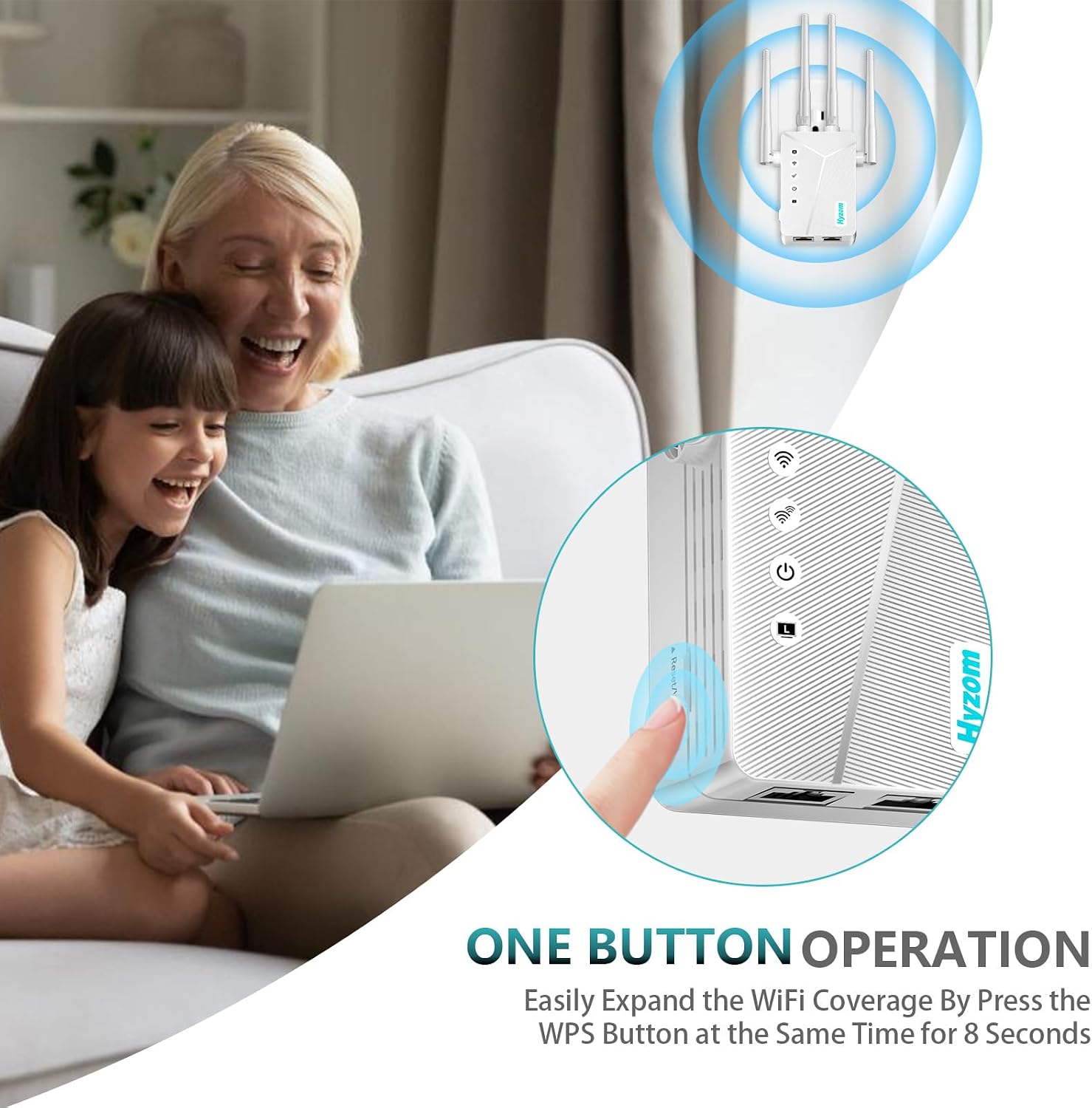
Image: Close-up of the repeater showing the WPS button, indicating easy setup.
- 2. Connect to Repeater's Wi-Fi: On your smartphone or computer, go to your Wi-Fi settings. Look for a new Wi-Fi network broadcasted by the repeater (e.g., "Hyzom-2.4G-C330" or similar). Connect to this network. No password is required for the initial connection.
- 3. Access Setup Page: ачуу а web browser on your connected device. In the address bar, type the default IP address (e.g., 192.168.188.1) or scan the QR code provided in the quick guide to access the repeater's setup page.
- 4. Кирүү: Enter the default login password, which is typically "admin" (refer to your quick guide for exact details).
- 5. Select Repeater Mode: Choose "Repeater Mode" from the available options. The device will then scan for available Wi-Fi networks.
- 6. Select Your Home Network: From the list of scanned networks, select your main home Wi-Fi network (SSID) that you wish to extend.
- 7. Enter Password: Enter the password for your main home Wi-Fi network. You may also have the option to set a new name for your extended network (e.g., your original network name with "_EXT" or "_Plus" appended).
- 8. Confirm and Connect: Review your settings and confirm. The repeater will then restart and connect to your main router, extending its signal. The indicator lights on the repeater will confirm a successful connection.
Once setup is complete, you can unplug the repeater and move it to a more optimal location between your router and the Wi-Fi dead zone. Ensure the signal indicator lights remain stable after relocation.
3. Иштөө нускамалары
After successful setup, your Hyzom WiFi Repeater will broadcast an extended Wi-Fi network. Devices within the extended range can connect to this new network for improved signal strength and coverage.
- Түзмөктөрдү туташтыруу: On your Wi-Fi enabled devices (smartphones, tablets, laptops, smart TVs, etc.), simply select the extended Wi-Fi network (the one you named during setup, or your original network name with "_EXT" or similar) and enter the password (which is the same as your main router's password unless you changed it).
- Оптималдуу жайгаштыруу: For best performance, place the repeater halfway between your main router and the area where you need improved Wi-Fi coverage. Avoid placing it near large metal objects, concrete walls, or other electronic devices that may cause interference.
- Wired Connection (LAN Port): The repeater also features LAN ports (Ethernet ports) that allow you to connect wired devices such as desktop computers, gaming consoles, or smart TVs directly to the extended network for a stable, high-speed connection.

Image: The bottom of the repeater with two Ethernet ports, illustrating its wired connectivity option.

Image: Illustrates various scenarios where the extended Wi-Fi benefits users, such as watching TV, studying, working, and playing games.
4. Негизги өзгөчөлүктөрү
- Кеңейтилген камтуу: Boosts Wi-Fi coverage up to 9882 sq ft, eliminating dead zones.

Image: Visual representation of how the repeater extends Wi-Fi coverage significantly beyond the router's original range.
- High-Performance Antennas: Equipped with four external high-gain antennas for 360° full signal coverage.

Сүрөт: жарылган view of the repeater, highlighting its four external antennas and high-performance chip.
- Жалпы шайкештик: Connects up to 40 devices simultaneously, compatible with various router devices.

Image: Depicts the repeater's ability to connect up to 40 different types of devices, from smartwatches to gaming consoles.
- Advanced Wi-Fi Chip: Features an advanced chip for faster connections and top performance, ensuring stable data transfer.

Image: Focuses on the advanced Wi-Fi chip, emphasizing its role in providing industry-leading performance and security.
- Өркүндөтүлгөн коопсуздук: Delivers a safe environment that protects your family's data and network privacy.
5. Техникалык тейлөө
To ensure the longevity and optimal performance of your Hyzom WiFi Repeater, follow these simple maintenance guidelines:
- Тазалоо: Gently wipe the device with a soft, dry cloth. Do not use liquid cleaners or aerosol sprays.
- Вентиляция: Ensure the repeater's ventilation holes are not blocked. Proper airflow prevents overheating.
- Программалык камсыздоонун жаңыртуулары: Мезгил-мезгили менен өндүрүүчүнүн текшерүү website (Hyzom) for any available firmware updates. Updates can improve performance, add new features, and enhance security.
- Экологиялык шарттар: Аппаратты экстремалдык температурага, нымдуулукка же тике күн нуруна тийгизүүдөн сактаңыз.
6. Кыйынчылыктарды
If you encounter issues with your Hyzom WiFi Repeater, try the following troubleshooting steps:
| Көйгөй | Чечим |
|---|---|
| No Power/Indicator Lights Off | Ретранслятор иштеп жаткан электр розеткасына бекем сайылганын текшериңиз. Башка розетканы колдонуп көрүңүз. |
| Cannot Connect to Repeater's Wi-Fi During Setup | Make sure you are close to the repeater. Restart the repeater by unplugging and re-plugging it. Check if your device's Wi-Fi is enabled. |
| Extended Network Has No Internet Access | Verify that your main router has internet access. Re-run the setup process, ensuring you enter the correct password for your main Wi-Fi network. Ensure the repeater is placed within the range of your main router. |
| Weak Signal or Frequent Disconnections on Extended Network | Relocate the repeater to a position halfway between your router and the desired coverage area. Avoid physical obstructions. Check for interference from other electronic devices. A factory reset and re-setup might be necessary if issues persist. |
| Login Page Not Accessible (192.168.188.1) | Ensure your device is connected to the repeater's Wi-Fi network (not your main network). Clear your browser's cache and cookies, or try a different browser. |
| Repeater Needs Constant Reset to Function | This could indicate a firmware issue or an unstable connection to the main router. Ensure the repeater has the latest firmware. Try repositioning the repeater closer to the main router. If the problem persists, contact Hyzom customer support. |
Эгер бул кадамдар көйгөйүңүздү чечпесе, кошумча жардам алуу үчүн Кепилдик жана колдоо бөлүмүн караңыз.
7. Техникалык шарттар
| Өзгөчөлүк | Деталь |
|---|---|
| Продукциянын өлчөмдөрү | 6.3 x 3.7 x 1.4 дюйм |
| Элемент Салмагы | 6.4 унция |
| Өндүрүүчү | Hyzom |
| ASIN | B0DMW5WLRY |
| Дата биринчи жеткиликтүү | 14-ноябрь, 2024-жыл |
| Зымсыз стандарттар | Supports 2.4 GHz and 5 GHz (Dual Band, inferred from video) |
| Антенналар | 4 тышкы жогорку күчөткүчтүү антенналар |
| Порттар | WAN/LAN Ethernet Port (inferred from image) |
8. Кепилдик жана колдоо
For warranty information and technical support, please refer to the documentation included with your product packaging or visit the official Hyzom website. You can also contact Hyzom customer service directly for assistance with product setup, troubleshooting, or general inquiries.
Hyzom Store Link: Visit the Hyzom Store on Amazon
Ask a question about this manual
Ask about setup, troubleshooting, compatibility, parts, safety, or missing instructions. Manuals+ will review the question and use this page’s manual context to help answer it.