
Introduction
This manual provides detailed instructions for the CHONCHOW G100 60% Wireless Gaming Keyboard and Mouse Combo. Please read this manual carefully before use to ensure proper operation and to maximize your experience with the product.
The CHONCHOW G100 combo features a compact 68-key layout keyboard and a responsive gaming mouse, both utilizing a 2.4G wireless connection for a clutter-free setup. Both devices are rechargeable and offer customizable RGB backlighting for an enhanced gaming and computing experience.
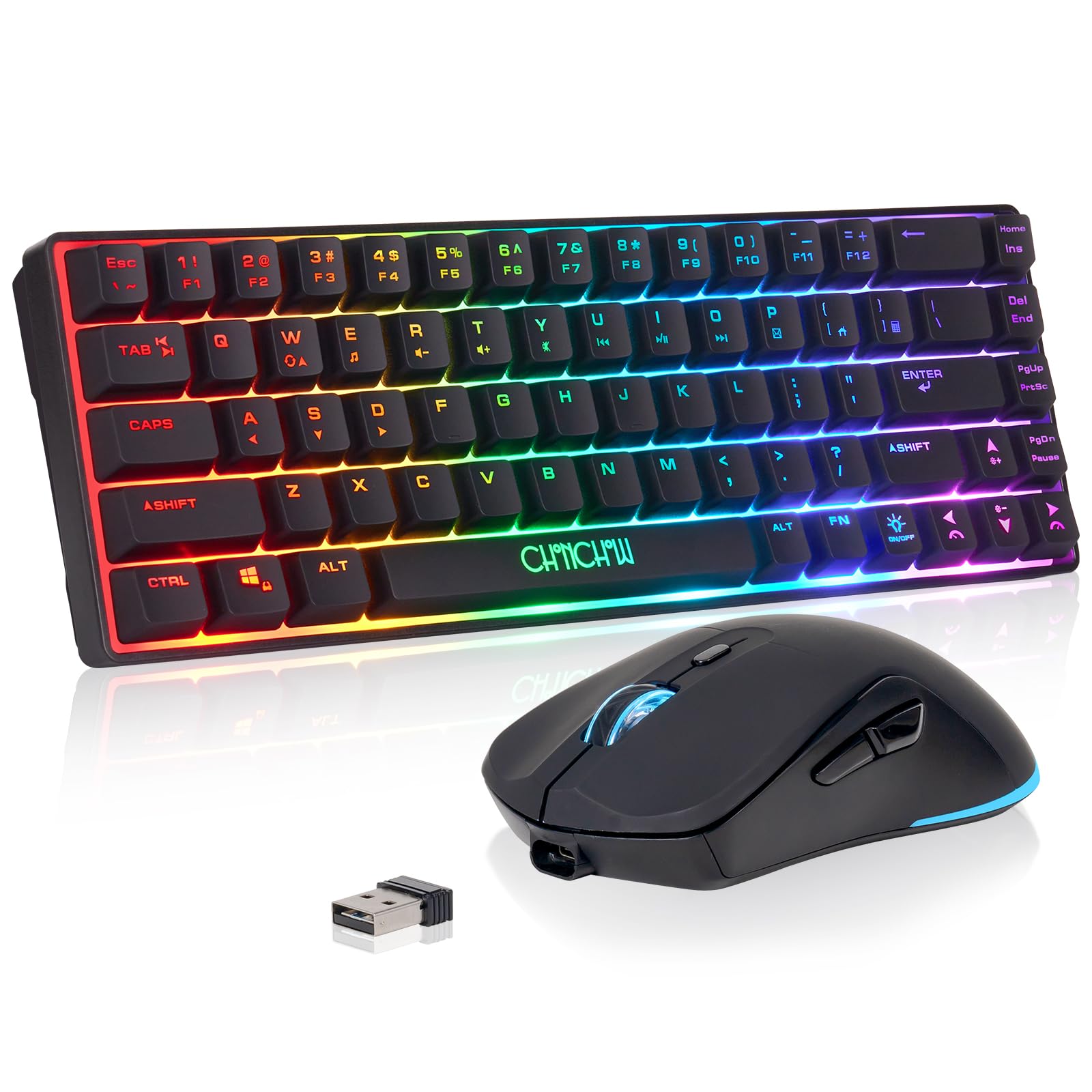
Image: The CHONCHOW G100 60% Wireless Gaming Keyboard and Mouse Combo, showcasing анын компакт дизайн жана RGB жарык.
Пакеттин мазмуну
- CHONCHOW 60% Wireless Gaming Keyboard
- CHONCHOW Wireless Gaming Mouse
- USB 2.4G Wireless Receiver (located in the mouse battery compartment)
- USB Charging Cable (Type-C for keyboard, Micro-USB for mouse)
Орнотуу нускамалары
- Түзмөктөрдү заряддоо: Before first use, ensure both the keyboard and mouse are fully charged. Connect the provided USB charging cables to the respective charging ports on the keyboard (Type-C) and mouse (Micro-USB), then plug the other end into a USB power source. The keyboard has a 2000 mAh battery, and the mouse has a 500 mAh battery.
- USB кабыл алгычты табыңыз: The 2.4G wireless USB adapter is stored in the battery compartment on the back of the mouse. Carefully open the compartment and remove the receiver.
- Кабылдагычты туташтыруу: Plug the USB 2.4G wireless receiver into an available USB port on your computer, laptop, or compatible gaming console (PS3, PS4, PS5, Xbox, Mac).
- Түзмөктөрдү күйгүзүү: Turn on the keyboard and mouse using their respective power switches. The power switch for the mouse is located on its underside. The keyboard's power switch is typically near the charging port.
- Автоматтык туташуу: The keyboard and mouse should automatically connect to the receiver. No additional drivers are typically required for Windows 2000/2003/XP/Vista/Win7/Win8/Win10/Win11 or Mac OS 14 Sonoma.

Image: Illustration of the keyboard and mouse charging via Type-C and Micro-USB, with battery capacity indicators.

Image: Close-up of the 2.4GHz USB receiver, typically stored in the mouse.
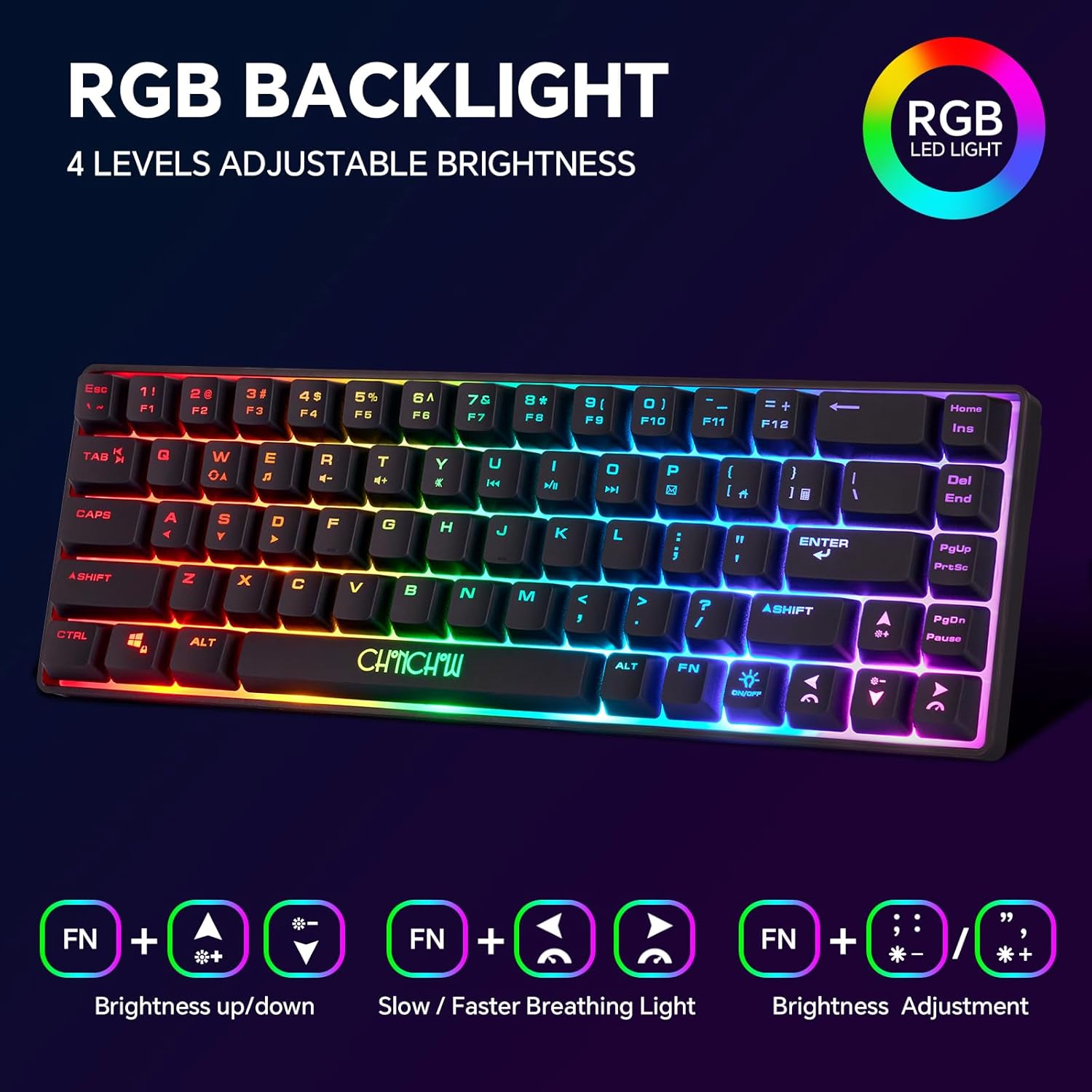
Image: The keyboard and mouse connected wirelessly to a monitor via the USB receiver, indicating plug-and-play functionality.

Image: Diagram of the rechargeable mouse, highlighting the DPI key, roller, side keys, charging port, and the power ON/OFF switch with backlight option.
Иштөө нускамалары
Баскычтоптун функциялары
- RGB жарыкты башкаруу: The keyboard features RGB backlighting with 4 adjustable brightness levels and 3 breathing speeds. Use the following key combinations:
- Жарыктыкты жөндөө: Басыңыз Fn + Жогору жебе / Төмөн жебе жарыктыгын тууралоо үчүн.
- Дем алуу ылдамдыгы: Басыңыз Fn + Сол жебе / Оңго жебе to adjust breathing speed.
- Арткы жарык режими: Басыңыз Fn + ; / ' ар кандай арткы жарык режимдери аркылуу айлануу үчүн.
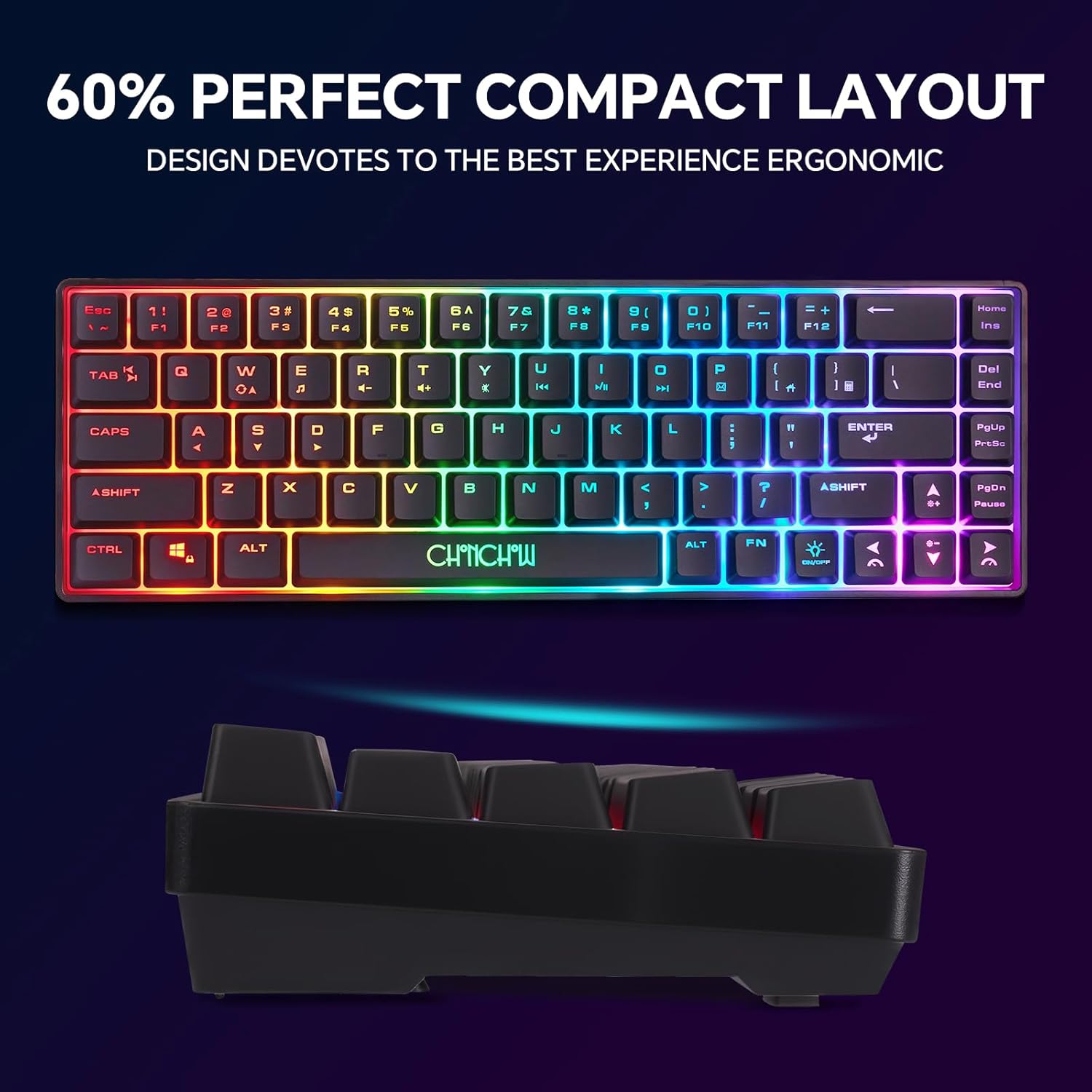
Image: The 60% compact keyboard displaying RGB backlighting, with visual cues for Fn key combinations to control brightness and breathing light effects.
- Multimedia Functions (Fn Key Combinations): The keyboard utilizes Fn key combinations for various multimedia and system functions. Refer to the table below:
| Комплекстүү ачкыч | Функция | Комплекстүү ачкыч | Функция |
|---|---|---|---|
| Fn + Z | Медиа | Fn + N | Кийинки |
| Fn + X | Көлөм+ | fn+m | Ойнотуу/Тыныгуу |
| Fn + C | көлөмгө | Fn + | Токто |
| Fn + V | Үнсүз | Fn + > | Почта |
| Fn+B | Мурунку | Fn + /? | Favorites Folder (works on IE browser) |

Image: A visual representation of the keyboard and a table detailing the Fn key combinations for multimedia functions.
Чычкан функциялары
- DPI жөндөө: The mouse features adjustable DPI settings (1200-2400-3200 DPI) for varying cursor sensitivity. Press the DPI ачкычы (usually located behind the scroll wheel) to cycle through the DPI settings.
- RGB жарыктандыруу: The mouse includes seven brilliant colors that illuminate its body. These lights are typically linked to the DPI setting or can be controlled via the power switch (Power ON with Backlight option).

Image: Diagram of the gaming mouse with labeled buttons (Left, Right, Roller/Middle, DPI+/-, Forward, Backward) and an illustration of different DPI settings with corresponding colors.
Техникалык тейлөө
- Клавиатураны тазалоо: The keyboard features detachable ABS keycaps, allowing for easy cleaning. Gently pull the keycaps upwards to remove them. Clean with a soft, damp кездемени сүртүп, кайра орнотуудан мурун толугу менен кургак экенин текшериңиз.

Image: Close-up of the keyboard showing several keycaps detached, illustrating the detachable ABS keycap feature for easy cleaning.
- Жалпы тазалоо: Use a soft, dry cloth to wipe down the surfaces of both the keyboard and mouse. Avoid using harsh chemicals or abrasive materials.
- Сактагыч: When not in use for extended periods, store the devices in a cool, dry place.
Проблемаларды чечүү
- Mouse Not Working / Needs Pairing:
- USB ресиверди компьютериңизден ажыратыңыз.
- Press and hold the mouse wheel and the right-click button simultaneously for 3 seconds.
- Баскычтарды бошотуңуз.
- Reinsert the USB receiver into your computer.
- Click any key or move the mouse to re-establish connection. The mouse wheel light should turn blue to indicate successful pairing.
- Keyboard Not Working / Needs Pairing:
- USB ресиверди компьютериңизден ажыратыңыз.
- Press and hold the 'ESC' key and the 'Q' key simultaneously for 3 seconds. The indicator light on the keyboard should provide a prompt.
- Ачкычтарды бошотуңуз.
- Reinsert the USB receiver into your computer. The indicator light on the keyboard should turn off.
- Click any key to re-establish connection.
- Чычкан кубатталбай жатат: If the mouse battery is completely depleted, it may require a longer charging period to reactivate. Charge the mouse with a 2A/5V charger for approximately 10 hours to wake up the battery. This is a characteristic of lithium batteries.
- Байланыш жоготуу: If the mouse or keyboard connection is lost, try resetting the device codes as described above. Ensure the USB receiver is within the effective 10-meter range and free from interference.
Техникалык шарттар
| Өзгөчөлүк | Деталь |
|---|---|
| Бренд | Чончоу |
| Модель номери | G100 |
| Байланыш технологиясы | 2.4G зымсыз |
| Баскычтоптун жайгашуусу | 68-key, 60% Compact, QWERTY |
| Клавиатуранын батареясынын сыйымдуулугу | 2000 мАч |
| Чычкандын батареясынын сыйымдуулугу | 500 мАч |
| Чычкандын DPI жөндөөлөрү | 1200-2400-3200 DPI |
| Баскычтоптун арткы жарыгы | RGB (4 brightness levels, 3 breathing speeds) |
| Чычкан жарыктандыруу | 7 Brilliant Colors |
| Шайкеш түзмөктөр | PC, Laptop, Xbox, PS3, PS4, PS5, Mac |
| Шайкеш операциялык системалар | Windows 2000/2003/XP/Vista/Win7/Win8/Win10/Win11, Mac OS 14 Sonoma |
| Продукциянын өлчөмдөрү (клавиатура) | 12.44"L x 4.09"W x 1.54"H |
| Материал | Пластик |
Кепилдик жана колдоо
CHONCHOW offers a one-month refund or replacement for quality issues and a twelve-month warranty for this product. For any quality concerns or technical assistance, please contact customer service.
Кардарларды тейлөө байланышы:
- Email support information can be found on the product packaging.
- Working hours for support are Monday-Friday, 9:30 AM - 12:30 PM PST and 2:00 PM - 6:00 PM PST.
We are committed to resolving any issues you may encounter during the use of our products.