
Introduction
This manual provides detailed instructions for the JZK Voice Remote Control, designed as a replacement or secondary remote for NVIDIA Shield TV Pro models from 2015, 2017, and 2019. This remote features voice search capabilities and an ergonomic design for comfortable use. Please read this manual thoroughly before operating your device.
Пакеттин мазмуну
Пакетиңизде бардык буюмдар бар экенин текшериңиз:
- 1 x JZK Voice Remote Control
- 1 x Колдонуучунун колдонмосу (бул документ)
Эскертүү: 2x AAA батарейка талап кылынат жана пакетке кирбейт.

Image: Contents of the JZK remote control package, including the remote and a small user guide.
Жайгашуу
1. Батареяны орнотуу
- Пульттун артындагы батарея отсегин табыңыз.
- Батареянын капкагын ачуу үчүн ылдый жылдырыңыз.
- Бөлүмдүн ичинде көрсөтүлгөндөй, туура полярдуулукту (+ жана -) текшерип, эки (2) AAA батарейкасын салыңыз.
- Батареянын капкагын бекем чыккыча ордуна жылдырыңыз.

Image: The remote control with its battery cover removed, illustrating where to insert two AAA batteries.
2. Алыстан башкарууну жупташтыруу
The remote control uses an infrared connection. For initial setup or re-pairing, follow these steps:
- Ensure your NVIDIA Shield TV is powered on and within 1 foot (approx. 30 cm) of the remote control.
- On your NVIDIA Shield TV, navigate to Settings > Device Preferences > Remotes & Accessories.
- басып, кармап туруңуз Артка баскычы жана Үй button simultaneously on the JZK remote control until the remote's indicator light begins to flash.
- The NVIDIA Shield TV should detect the new remote. Select it from the list of available devices to complete the pairing process.
- Once paired, the remote's light will stop flashing, and you can begin using it.
If pairing fails, ensure the batteries are correctly installed and charged, and try the process again. You may also need to restart your NVIDIA Shield TV.
Иштөө нускамалары
Баскычтар жана алардын функциялары менен таанышып алыңыз:

Image: Detailed button layout of the JZK remote control with labels for each function.
| Жок. | баскыч | Функция |
|---|---|---|
| 1 | Камтылган микрофон | Used for Voice Search commands. |
| 2 | Күч | Turns the NVIDIA Shield TV on or off. |
| 3 | Орнотуулар | Accesses the NVIDIA Shield TV settings menu. (Customizable in Settings > Devices & Accessories > Customize Settings button) |
| 4 | Навигация шакеги | Navigates menus: Up, Down, Right, Left. |
| 5 | Select (OK) | Confirms selections or opens items. |
| 6 | Артка | Мурунку экранга же менюга кайтат. |
| 7 | Үй | Негизги үй экранына кайтып келет. |
| 8 | Тез алдыга | Skips forward in media playback. |
| 9 | Ойнотуу/Тыныгуу | Медиа ойнотууну ойнойт же тындырат. |
| 10 | Артка түрүү | Skips backward in media playback. |
| 11 | Үн менен издөө | Activates voice command input. Press and hold, then speak your command. |
| 12 | Үнүн жогорулатуу | Үнүн көбөйтөт. |
| 13 | Үндү азайтуу | Үнүн азайтат. |
| 14 | Netflix ачуу | Netflix тиркемесин түз ишке киргизет. |
Using Voice Search
The voice search feature allows for quick navigation and content discovery. To use it:
- басып, кармап туруңуз Үн менен издөө баскычы (11).
- Speak your command clearly into the built-in microphone (1). For example, say "Open YouTube," "Find action movies," or "Adjust volume."
- бошотуңуз Үн менен издөө сүйлөп бүткөндөн кийин баскычын басыңыз.
Техникалык тейлөө
Пультту тазалоо
Пультту тазалоо үчүн жумшак, кургак чүпүрөктү колдонуңуз. өжөр кир үчүн, бир аз гampen the cloth with water or a mild, non-abrasive cleaner. Avoid using harsh chemicals or solvents, as these can damage the remote's surface or internal components.
Батареяны алмаштыруу
When the remote's performance degrades or it becomes unresponsive, it's time to replace the batteries. Follow the battery installation steps outlined in the Жайгашуу section. Always replace both AAA batteries at the same time with new ones.
Проблемаларды чечүү
If you encounter issues with your JZK Voice Remote Control, refer to the following common problems and solutions:
| Көйгөй | Мүмкүн себеп | Чечим |
|---|---|---|
| Пульт жооп бербей жатат. | Low or dead batteries. Incorrect battery installation. Remote not paired. Obstruction between remote and Shield TV. | Replace batteries. Check battery polarity. Re-pair the remote (see Setup section). Ensure clear line of sight to Shield TV. |
| Voice Search not working. | Microphone blocked. Remote not properly paired for voice functions. Software glitch. | Ensure microphone is clear. Re-pair the remote. Restart NVIDIA Shield TV. |
| Buttons are sticky or not registering presses. | Баскычтардын астындагы кир же таштандылар. | Clean the remote (see Maintenance section). |
| Алыстан бат-баттан өчүрүлөт. | Interference. Low batteries. | Ensure no strong interference sources nearby. Replace batteries. Re-pair the remote. |
Техникалык шарттар
| Өзгөчөлүк | Деталь |
|---|---|
| Бренд | JZK |
| Моделдин шайкештиги | NVIDIA Shield TV Pro (2015, 2017, 2019 models), NVIDIA Shield TV Cube (2019) |
| Туташуу түрү | Инфракызыл (IR) |
| Power Source | 2 x AAA щелочтуу батарейкалар (киргизилген эмес) |
| Өзгөчөлүктөр | Voice Search, Ergonomic Design, Dedicated Netflix Button |
| Материал | Туруктуу ABS |
| Түс | Кара / Ак |
| Өлчөмдөрү (L x W x Y) | Болжол менен 16.8 x 6 x 2.6 см (6.6 x 2.4 x 1.0 дюйм) |
| Салмагы | Болжол менен 60 грамм (2.1 унция) |

Image: Dimensions of the JZK remote control, indicating its length, width, and thickness.
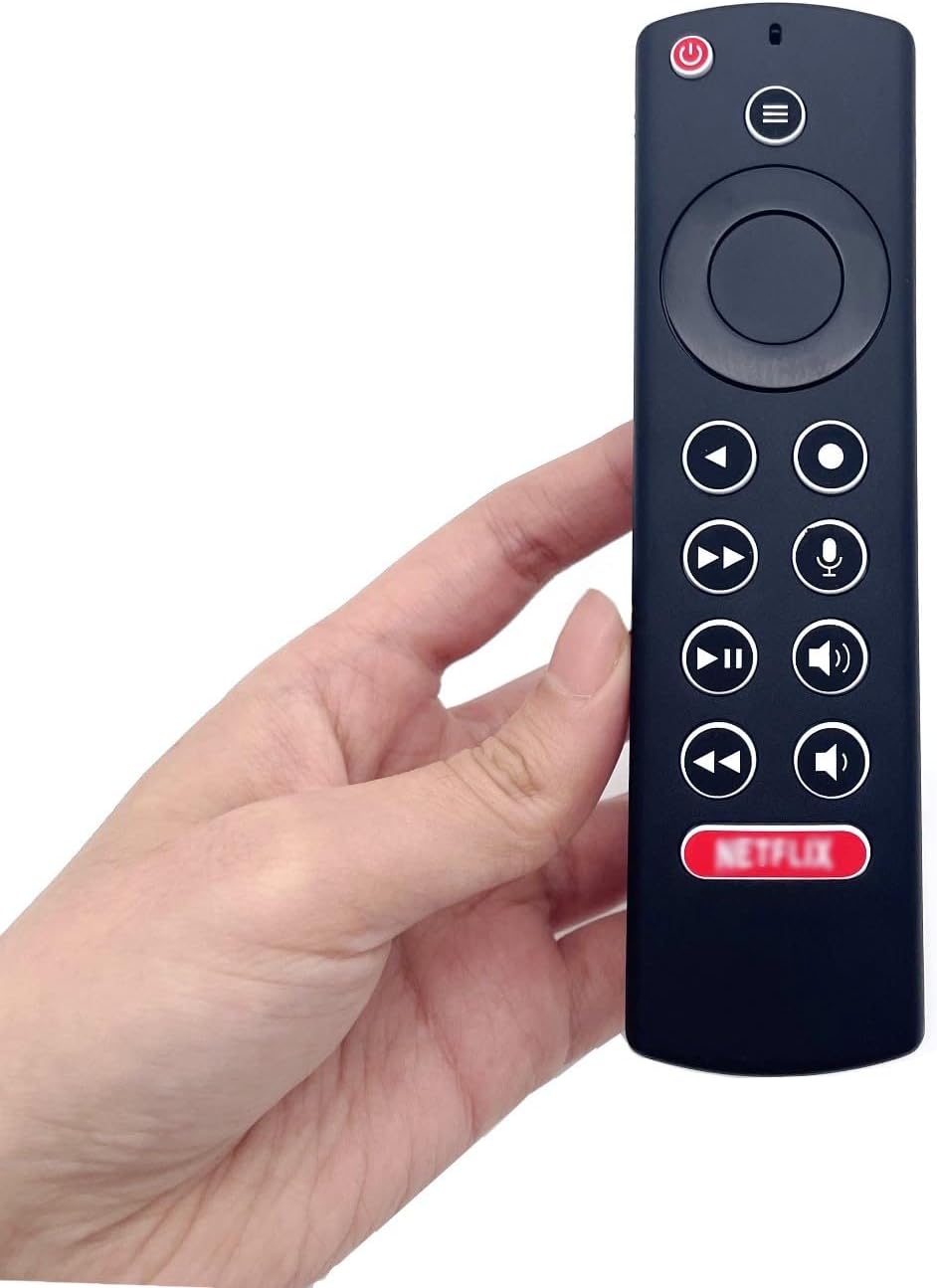
Image: The JZK remote control held in a hand, highlighting its comfortable and ergonomic design.
Кепилдик маалымат
Specific warranty details for this JZK product are not provided in the product description. Please refer to the retailer's return policy or contact JZK customer support for information regarding warranty coverage and terms.
Колдоо
For further assistance, troubleshooting, or inquiries about your JZK Voice Remote Control, please contact the retailer where you purchased the product or refer to the official JZK webкардарларды колдоо параметрлери үчүн сайт.