
1. Киришүү
Сатып алганыңыз үчүн рахматasing the KTC 24-inch WQHD 100Hz IPS Monitor. This manual provides essential information for the safe and efficient use of your new monitor. Please read it thoroughly before use and keep it for future reference.
This monitor features a 24-inch IPS panel with WQHD (2560x1440) resolution, offering stunning visual clarity and vibrant colors with 122% sRGB coverage. A 100Hz refresh rate and FreeSync & G-Sync compatibility ensure smooth, tear-free visuals, ideal for both office work and casual gaming. Advanced eye care technologies, including blue light reduction and flicker-free operation, provide a comfortable viewing experience even during extended use. The monitor also supports HDR10 for enhanced dynamic range and features flexible connectivity options with HDMI and DisplayPort.
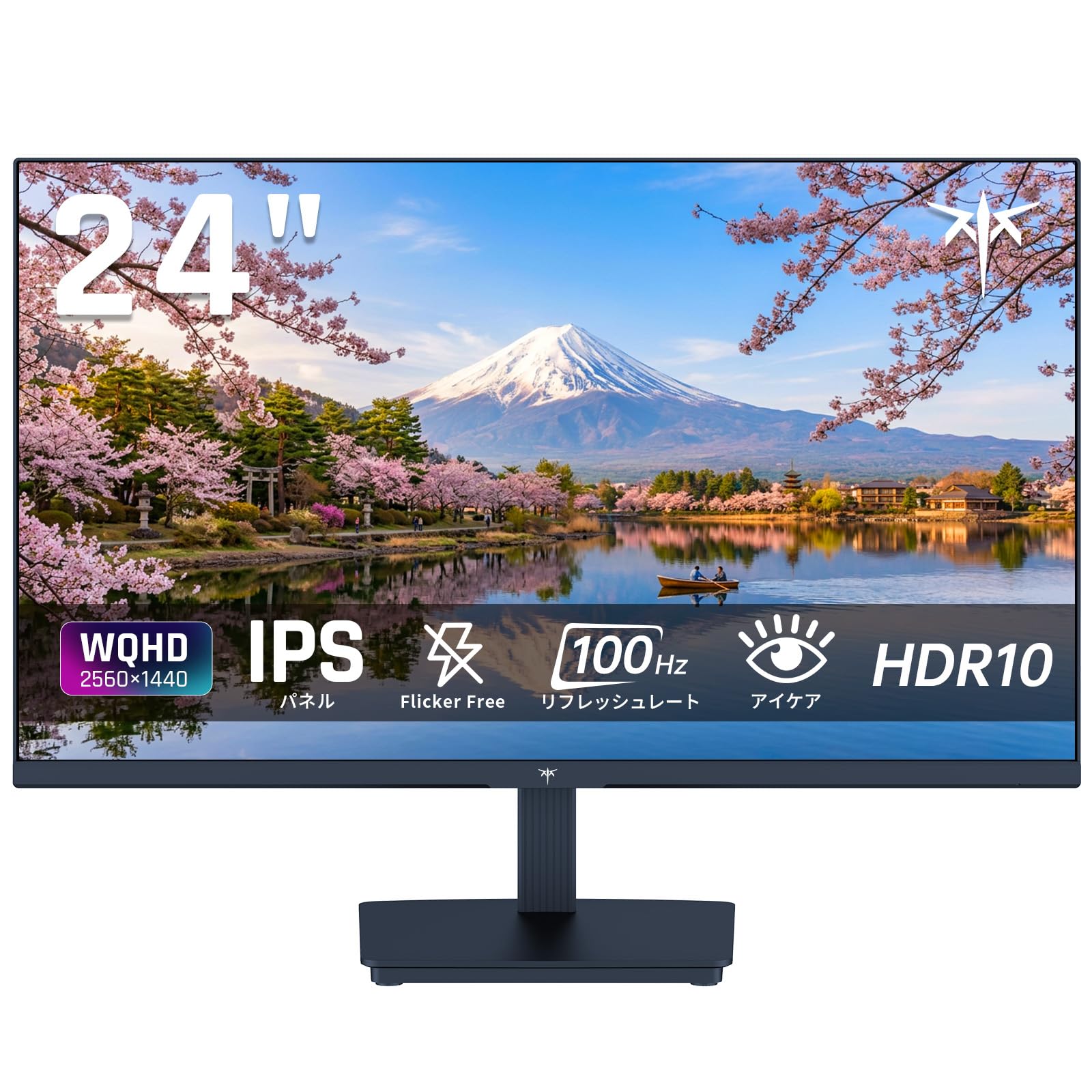
Image: KTC 24-inch WQHD 100Hz IPS Monitor.
2. Коопсуздук маалыматы
Please observe the following safety precautions to prevent damage to the monitor or injury to yourself or others:
- Мониторду жамгырдын, нымдуулуктун же экстремалдык температуранын таасирине тийгизбеңиз.
- Ашыкча ысып кетүүнүн алдын алуу үчүн монитордун айланасында туура желдетүүнү камсыз кылыңыз.
- Монитор менен кошо берилген кубат адаптерин гана колдонуңуз.
- Электр шнурунун же монитордун үстүнө оор нерселерди коюудан алыс болуңуз.
- Do not attempt to disassemble or repair the monitor yourself. Contact qualified service personnel.
- Мониторду күчтүү магнит талаасынан алыс кармаңыз.
3. Пакеттин мазмуну
Пакетте бардык буюмдар бар экенин текшериңиз:
- KTC 24-inch WQHD 100Hz IPS Monitor (H24T27)
- Монитор базасы
- HDMI кабели
- Кубаттуу адаптер
- User Manual
4. Орнотуу
4.1 Стендди чогултуу
- Carefully remove the monitor and base from the packaging.
- Монитор панелине стенд мойнуна бекитиңиз.
- Берилген бурамалар аркылуу негизди стенд мойнуна бекитиңиз.
4.2 Мониторду туташтыруу
Мониторду компьютериңизге же башка түзмөктөргө тиешелүү кабелдерди колдонуп туташтырыңыз.
- Кубат туташуу: Кубат адаптерин монитордун DC киришине туташтырыңыз, андан кийин аны розеткага сайыңыз.
- Видео туташуу: Use the supplied HDMI cable or a DisplayPort cable to connect your computer's video output to the corresponding port on the monitor.
- Аудио чыгаруу: If desired, connect headphones or external speakers to the 3.5mm audio output jack.

Image: Close-up of the KTC monitor's rear ports, including DC power, HDMI, DisplayPort, and audio out.
5. Иштөө нускамалары
5.1 Күйгүзүү/өчүрүү
Аны күйгүзүү же өчүрүү үчүн монитордо жайгашкан кубат баскычын басыңыз.
5.2 Экрандагы дисплей (OSD) менюсу
The OSD menu allows you to adjust various monitor settings. Use the control buttons (usually located on the back or bottom of the monitor) to navigate the menu and make selections.
5.3 Дисплей орнотуулары
- Чечим: The monitor supports WQHD (2560x1440) resolution for sharp and detailed images. Ensure your graphics card is set to this resolution for optimal display.
- Жаңыртуу ылдамдыгы: Enjoy smooth visuals with a 100Hz refresh rate. This can be configured in your operating system's display settings.
- Түс гаммасы: The monitor offers 122% sRGB coverage for rich and accurate colors.

Image: KTC monitor highlighting key features like IPS panel, 100Hz, WQHD, 24-inch, Adaptive Sync, and blue light reduction.

Image: Comparison of WQHD (2560x1440) and FHD (1920x1080) resolutions, demonstrating enhanced detail with WQHD.

Image: Comparison of 100Hz and 60Hz refresh rates, showing smoother motion with 100Hz.
5.4 Adaptive Sync (FreeSync & G-Sync)
The monitor supports both FreeSync and G-Sync technologies to eliminate screen tearing and stuttering, providing a fluid gaming experience. Ensure this feature is enabled in your graphics card settings and the monitor's OSD.

Image: Monitor display showing HDR10 content on one side and standard HDR on the other, along with FreeSync & G-Sync comparison (ON/OFF).
5.5 Көзгө кам көрүүнүн өзгөчөлүктөрү
The monitor includes Flicker-Free technology and a Blue Light Reduction mode to minimize eye strain during prolonged use. These settings can be adjusted via the OSD menu.

Image: KTC monitor displaying eye care features: Low Blue Light (ON/OFF) and Flicker-Free (ON/OFF).
5.6 HDR10 колдоосу
This monitor supports HDR10, providing a wider range of colors and contrasts for a more immersive viewing experience. Ensure HDR is enabled in your device's display settings for compatible content.
5.7 Жөнгө салынуучу стенд
The monitor stand allows for tilt adjustment from -5° to 15°, enabling you to find the most comfortable viewбурч.

Сүрөт: каптал view of the KTC monitor demonstrating the tilt-adjustable stand (-5° to 15°).
5.8 Wide Viewбурч
The IPS panel provides a wide 178-degree viewing angle, ensuring consistent color and image quality from almost any perspective.

Image: KTC monitor showcasing a wide 178-degree viewing angle with consistent color.
6. Техникалык тейлөө
6.1 Мониторду тазалоо
- Тазалоодон мурун ар дайым мониторду сууруп коюңуз.
- Жумшак, түксүз кездемени жеңил колдонуңуз dampсуу же жумшак, абразивдүү эмес экран тазалагыч менен иштетиңиз.
- Тазалоочу каражатты түз экранга чачпаңыз.
- Катуу химиялык заттарды же абразивдүү материалдарды колдонуудан алыс болуңуз.
6.2 Жалпы кам көрүү
- Keep the monitor in a clean, dry environment.
- Экранды курч нерселерден коргоңуз.
- When moving the monitor, handle it carefully and avoid putting pressure on the screen.
7. Кыйынчылыктарды
Мониторуңузда көйгөйлөргө туш болсоңуз, төмөнкү жалпы көйгөйлөрдү жана чечимдерди караңыз:
| Көйгөй | Мүмкүн чечим |
|---|---|
| Экранда сүрөт жок | Check power connections. Ensure video cable is securely connected to both monitor and computer. Select correct input source via OSD. |
| Сүрөт бүдөмүк же бурмаланган | Ensure the display resolution is set to 2560x1440. Check video cable for damage. |
| Экран жыртылуу же кекечтенүү | Verify FreeSync/G-Sync is enabled in both monitor OSD and graphics card settings. |
| Наушниктерден/колонналардан үн чыкпайт | Check audio cable connection. Ensure volume is not muted on monitor or computer. |
| Монитор күйбөй жатат | Check power outlet and power adapter connection. Try a different power outlet. |
If the problem persists after trying these solutions, please contact KTC customer support.
8. Техникалык шарттар
Detailed technical specifications for the KTC H24T27 monitor:
| Өзгөчөлүк | Спецификация |
|---|---|
| Бренд | KTC |
| Модель номери | H24T27 |
| Screen Size | 24 дюйм |
| Резолюция | WQHD (2560 x 1440 pixels) |
| Аспект катышы | 16:9 |
| Панел түрү | IPS |
| Screen Surface | Жарыксыз |
| Жаңыртуу ылдамдыгы | 100 Гц |
| Жооп убактысы | 7 мс |
| Контраст катышы | 1300:1 |
| Жарыктык | 300 кд/м² |
| Түс гаммасы | 122% sRGB |
| Viewбурч | 178 градус |
| HDR технологиясы | HDR10 |
| Adaptive Sync | FreeSync, G-Sync |
| Байланыш | 1x HDMI, 1x DisplayPort, Audio Out |
| Энергияны керектөө | 12 Ватт |
| Тtage | 100 вольт |
| Өлчөмдөр (D x W x H) | 18.3 x 54 x 40.5 см |
| Кошумча функциялар | Adaptive Sync, Eye Care, Flicker-Free, Blue Light Filter, Tilt Adjustment |
| Шайкеш түзмөктөр | Game Consoles, Laptops |
| Түс | Кара |
| Форма | Жалпак |
| Origin | Кытай |
9. Кепилдик жана колдоо
9.1 Кепилдик маалыматы
Your KTC monitor comes with a 3 жылдык өндүрүүчүнүн кепилдиги. In the event of a product defect, a free replacement will be provided. Please note that this warranty does not cover loss or damage caused by customer negligence.

Image: KTC's 3-year free replacement warranty details and contact information.
9.2 Кардарларды колдоо
For any inquiries or concerns, please feel free to contact us. We are committed to providing full support to ensure your satisfaction.
Телефон: 050-3606-8990
Электрондук почта: support@ktcplay.com
You can also contact support through Amazon:

Image: Step-by-step guide on how to contact customer support via Amazon.
10. Продукт бүтүп калдыview Video
Көрүү үчүн бул видеону көрүңүзview of the KTC QHD computer monitor and its features.
Video: This video showcases the KTC QHD computer monitor, highlighting its 2560x1440 (2K) resolution, 100Hz refresh rate, FreeSync and G-Sync compatibility, flicker-free and low blue light features, 8-bit & 116% sRGB color gamut, 3-side frameless design, -5° to 15° tilt adjustable stand, and available sizes (24, 27, 32 inches). It emphasizes its suitability for professional office use.