
1. Киришүү
This manual provides essential information for the proper installation, operation, and maintenance of your GAMEON Pro Series 27-inch Fast IPS Gaming Monitor (Model: GOAE27QHD165IPS). Please read this manual thoroughly before using the product to ensure optimal performance and safety. Keep this manual for future reference.

Сүрөт 1.1: Алдыңкы view of the GAMEON Pro Series 27-inch Fast IPS Gaming Monitor, showcasing анын ичке жээктерин жана стенди.
The GAMEON Pro Series 27-inch Fast IPS Gaming Monitor features a QHD 2K (2560x1440p) resolution, a 165Hz refresh rate, and a 0.5ms MPRT response time. It supports Adaptive-Sync and Variable Refresh Rate (VRR) technologies for smooth, tear-free gameplay. Connectivity options include dual HDMI 2.1 ports and dual DisplayPort 1.4 ports, along with an audio-out jack and integrated speakers. This monitor is compatible with various gaming consoles and PCs, including PS5.
2. Пакеттин мазмуну
Сураныч, кутудан чыкканда пакеттин мазмунун текшериңиз. Эгерде кандайдыр бир буюмдар жок же бузулуп калса, сатуучуга кайрылыңыз.
- GAMEON Pro Series 27-inch Fast IPS Gaming Monitor
- Монитор стенд (негизги жана моюн)
- Кубат адаптери жана кубат кабели
- HDMI кабели
- DisplayPort кабели
- User Manual
3. Орнотуу
3.1 Мониторду чогултуу
- Экранды коргоп, мониторду таңгагынан кылдаттык менен чыгарып алыңыз.
- Монитор панелине стенд мойнуна бекитиңиз. Анын ордуна бекем чыкылдаганын же камтылган болсо, бурамалар менен бекемделгенин текшериңиз.
- Тирөөчтүн негизин тирөөчтүн моюнуна бекитип, негиздин түбүндөгү бураманы бекемдеңиз.
- Чогулган мониторду туруктуу, жалпак бетке коюңуз.
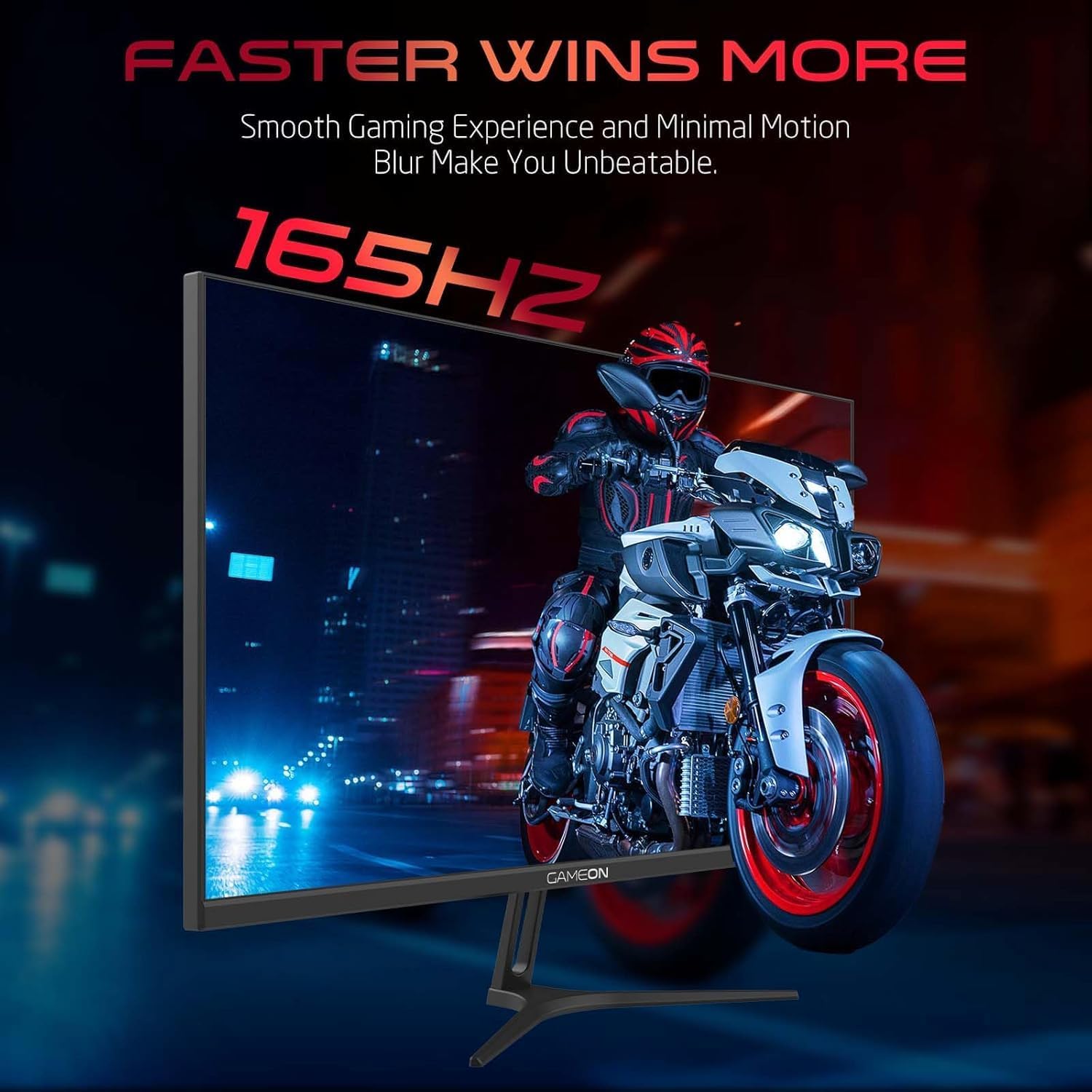
Image 3.1: Illustration of the monitor with its stand, ready for assembly.
3.2 Түзмөктөргө туташуу
The monitor offers multiple input options. Choose the appropriate cable for your device (PC, gaming console, etc.).

Сүрөт 3.2: Арткы view of the monitor, highlighting the input ports and VESA mounting points.

Image 3.3: Detailed diagram illustrating the various input/output ports and their corresponding devices.
- HDMI туташуу: Connect one end of the HDMI cable to the HDMI output port of your device (PC, PS5, Xbox, TV box) and the other end to one of the HDMI 2.1 ports on the monitor.
- DisplayPort туташуу: Connect one end of the DisplayPort cable to the DisplayPort output of your PC and the other end to one of the DisplayPort 1.4 ports on the monitor.
- Аудио чыгаруу: For external audio, connect headphones or external speakers to the 3.5mm audio-out jack on the monitor.
3.3 Кубат туташтыруу
- Connect the power adapter to the DC IN port on the monitor.
- Plug the power cable into the power adapter, then plug the other end of the power cable into a power outlet.
4. Иштөө нускамалары
4.1 Күйгүзүү/өчүрүү
Аны күйгүзүү же өчүрүү үчүн монитордо жайгашкан кубат баскычын басыңыз. Монитор күйүп турганда кубат индикаторунун жарыгы күйөт.
4.2 Экрандагы дисплей (OSD) менюсу
The monitor features a menu button (often a joystick or a series of buttons) usually located on the back or bottom right of the monitor. Use this to navigate the OSD menu and adjust settings.
- Press the menu button to open the OSD menu.
- Use the navigation controls to move through menu options.
- Press the menu button again (or a designated 'Enter' button) to select an option.
- Use the navigation controls to adjust values or select sub-menus.
- Select 'Exit' or press the menu button repeatedly to close the OSD menu.
4.3 Жалпы OSD орнотуулары
- Сүрөт жөндөөлөрү: Жарыктыгын, контрастын, курчтукту, гамманы жана түс температурасын тууралаңыз.
- Түс жөндөөлөрү: Fine-tune RGB values, hue, and saturation.
- Киргизүү булагы: Manually select between HDMI 1, HDMI 2, DisplayPort 1, or DisplayPort 2.
- Аудио: Камтылган динамиктер же туташкан гарнитуралар үчүн үнүн тууралаңыз.
- Оюн функциялары: Enable/disable Adaptive-Sync/FreeSync, adjust overdrive settings, and activate crosshair overlays if available.
4.4 PS5 120Hz Setup Guide
To enable 120Hz output on your PlayStation 5 with this monitor, follow these steps:

Image 4.1: Visual guide for configuring 120Hz refresh rate on a PlayStation 5 console.
- Enable 120Hz from PS5 Settings:
- барыңыз Орнотуулар > Экран жана видео > Video Output.
- коюу Enable 120Hz Output чейин Автоматтык.
- коюу Резолюция чейин 1080p or Автоматтык. (Note: While the monitor supports 1440p, some PS5 games may require 1080p for 120Hz output.)
- Enable Performance Mode for Gamers:
- барыңыз Орнотуулар > Save Data and Game App Settings > Оюндун алдын ала орнотуулары.
- коюу Performance Mode демейки катары.
- Check In-Game Settings:
- Go to the specific game's Оюн орнотуулары > Видео жөндөөлөрү жана тандаңыз 120 кадр/сек or Performance Mode.
5. Техникалык тейлөө
5.1 Экранды тазалоо
- Мониторду өчүрүп, кубат кабелин сууруп алыңыз.
- Жумшак, түксүз кездемени жеңил колдонуңуз dampсуу же атайын экран тазалоочу менен бүткөрүлөт.
- Wipe the screen gently. Do not press hard or use abrasive materials.
- Avoid using alcohol, ammonia, or benzene-based cleaners, as they may damage the screen surface.
5.2 C. тазалооasing
- Мониторду сүртүү үчүн жумшак, кургак чүпүрөктү колдонуңуз casing.
- Кежир тактар үчүн жеңил дampкездемени суу жана жумшак жуучу каражат менен сүртүп, андан кийин кургатыңыз.
6. Кыйынчылыктарды
Эгерде сиз мониторуңузда көйгөйлөргө туш болсоңуз, төмөнкү көйгөйлөрдү чечүү боюнча көрсөтмөнү караңыз:
| Көйгөй | Мүмкүн себеп | Чечим |
|---|---|---|
| Экранда сүрөт жок | Электр кубаты жок; Туура эмес киргизүү булагы; Бошоң видео кабель | Ensure power cable is securely connected and power outlet is active. Press power button. Check OSD menu to select correct input source (HDMI/DP). Reconnect video cable firmly. |
| Сүрөт бүдөмүк же бурмаланган | Incorrect resolution; Video cable issue | Set display resolution to 2560x1440p in your device's display settings. Try a different video cable. |
| Үн жок | Volume too low; Incorrect audio output selected; Loose audio cable | Adjust monitor volume via OSD. Ensure monitor is selected as the audio output device on your PC/console. Check external audio cable connection if using headphones/speakers. |
| Экрандын бүлбүлдөөсү | Refresh rate mismatch; Adaptive-Sync/VRR issue | Ensure your device's refresh rate is set to 165Hz. If flickering persists with Adaptive-Sync/VRR enabled, try disabling it in the OSD or your graphics card settings. |
| Monitor not detected by PC/console | Video cable issue; Driver issue | Try a different video cable or port. Update your graphics card drivers. Restart your PC/console. |
7. Техникалык шарттар
Below are the technical specifications for the GAMEON Pro Series 27-inch Fast IPS Gaming Monitor (GOAE27QHD165IPS):
| Өзгөчөлүк | Спецификация |
|---|---|
| Дисплей өлчөмү | 27 дюйм |
| Панел түрү | Ыкчам IPS |
| Резолюция | QHD 2K (2560x1440p) |
| Жаңыртуу ылдамдыгы | 165Hz |
| Жооп убактысы | 0.5 мс MPRT |
| Контраст катышы | 1000:1 |
| Жарыктык | 280 (±30) nits typical |
| Viewбурчтар | Wide viewing angles (IPS technology) |
| Adaptive Sync Technology | Adaptive-Sync, FreeSync, VRR Compatible |
| Байланыш | 2x HDMI 2.1, 2x DisplayPort 1.4, 1x Audio Out (3.5mm) |
| Аудио | Built-in 4Ω2W speakers |
| VESA тоосунун шайкештиги | 100x100мм |
| Power Input | Тышкы DC 12V 4A адаптер |
| Максималдуу энергия керектөө | 48 Вт |
| Продукциянын өлчөмдөрү (стенд менен) | 16.2 x 61.4 x 45.3 см |
| Продукт Салмагы | 5.84 кг |
| Модель номери | GOAE27QHD165IPS |
8. Кепилдик жана колдоо
The GAMEON Pro Series 27-inch Fast IPS Gaming Monitor comes with a 2 жылдык кепилдик сатып алынган күндөн тартып. Бул кепилдик нормалдуу колдонуудагы өндүрүш кемчиликтерин камтыйт. Кепилдик дооматтары үчүн сатып алганыңыздын далилин сактап коюңуз.
For technical support, warranty inquiries, or service requests, please contact GAMEON customer service through their official website or the retailer where the product was purchased. Provide your monitor's model number (GOAE27QHD165IPS) and a detailed description of the issue to expedite assistance.