
1. Киришүү
This manual provides detailed instructions for the installation, operation, and maintenance of your BrosTrend AX900 USB WiFi 6 Adapter. The AX900 is designed to upgrade your desktop PC or laptop with high-speed, dual-band WiFi 6 connectivity, offering enhanced performance and reliability.
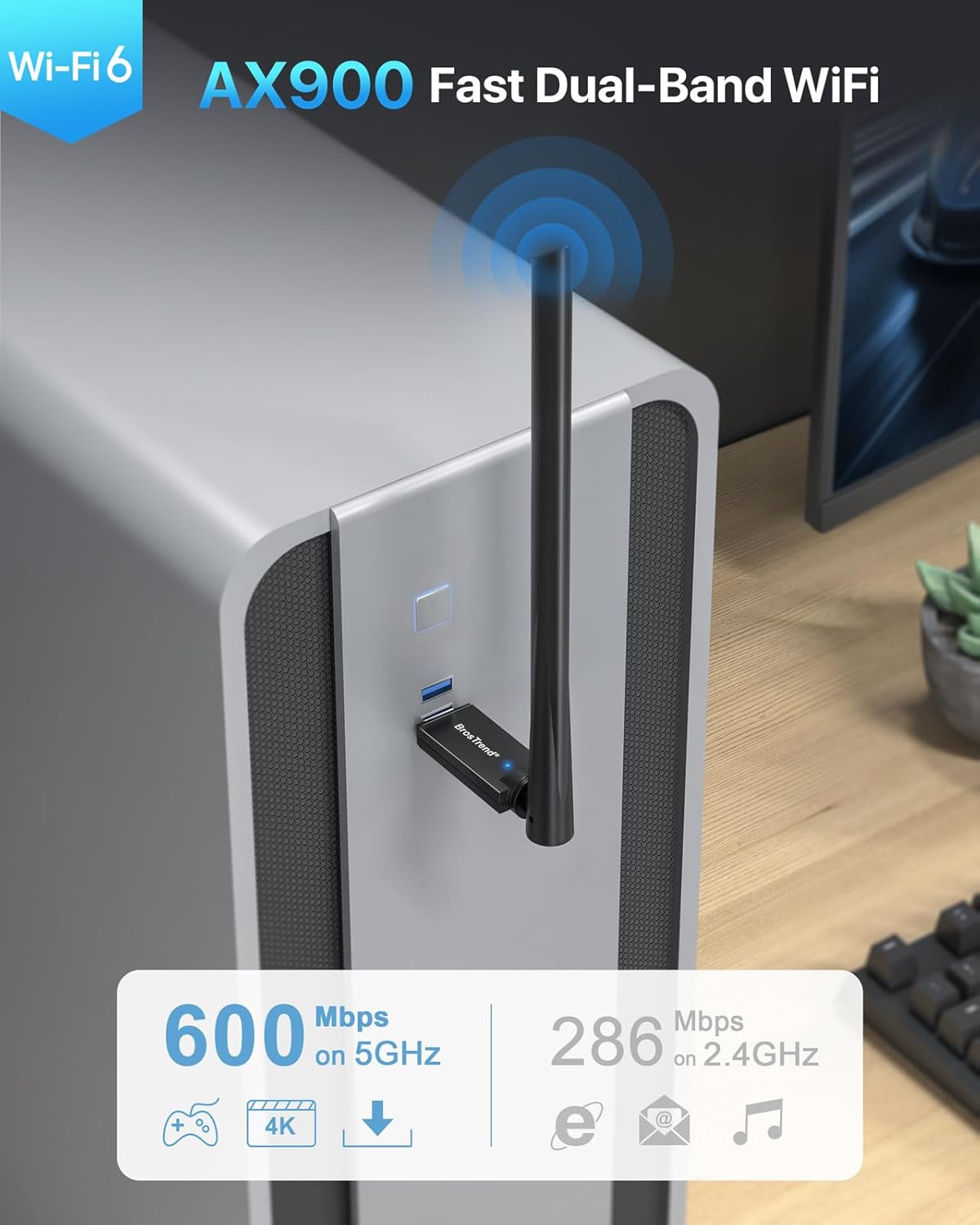
Figure 1: BrosTrend AX900 USB WiFi 6 Adapter
Негизги өзгөчөлүктөрү:
- Dual-band WiFi 6: Supports 5GHz (up to 600Mbps) and 2.4GHz (up to 286Mbps) for flexible and fast connections.
- 6dBi жогорку күчөткүчтүү антенна: Enhances signal reception and extends wireless range.
- Өркүндөтүлгөн технологиялар: Incorporates OFDMA, MU-MIMO, and 1024-QAM for efficient and lag-free performance.
- Кыйынчылыксыз орнотуу: Pre-loaded drivers for Windows 11/10/7, eliminating the need for CD installation or downloads.
- Коопсуз туташуу: Supports WPA2 encryption for enhanced network security.
2. Пакеттин мазмуну
Пакетиңизде төмөнкү заттар бар экенин текшериңиз:
- 1 x BrosTrend AX900 USB WiFi 6 Adapter
- 1 x Ыкчам орнотуу колдонмосу
3. Орнотуу колдонмосу
Follow these steps to install and configure your BrosTrend AX900 USB WiFi 6 Adapter.
3.1. Адаптерди туташтырыңыз
Insert the BrosTrend AX900 USB WiFi 6 adapter into an available USB port on your computer. For optimal performance, use a USB 3.0 port if available, although it is compatible with USB 2.0.

Figure 2: Connecting the USB WiFi 6 Adapter
3.2. Install the Driver
The driver software for Windows 11, Windows 10, and Windows 7 is pre-loaded in the USB WiFi 6 adapter. A CD-ROM reader is not needed. The latest driver is also available for download from the BrosTrend webсайт.
- After plugging in the adapter, an auto-play window may appear. If not, open 'This PC' or 'My Computer' and locate the 'WiFi 6 USB' drive.
- 'Setup.exe' файлын эки жолу чыкылдатыңыз file to run the driver installation.
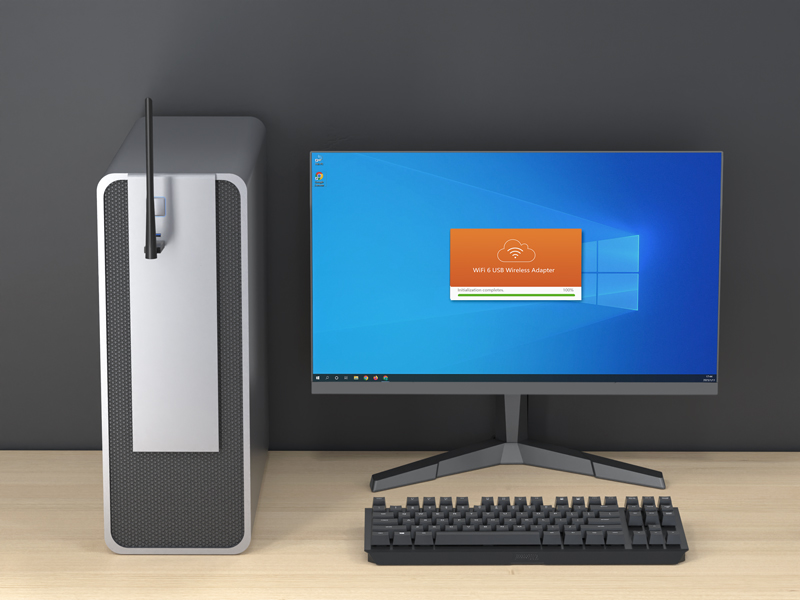
Figure 3: Running the Driver Setup
- Орнотууну аяктоо үчүн экрандагы көрсөтмөлөрдү аткарыңыз.
- Once the driver is installed successfully, please restart your computer.
3.3. Join Your WiFi Network
After restarting your computer, it will be able to join a WiFi network using the BrosTrend AX900 adapter.
- Click the network icon on the taskbar (usually in the bottom-right corner).
- Select the WiFi network you want to join from the list and click Туташуу.
- Enter the WiFi password when prompted and click Кийинки.
- After a short while, the network status will change to Туташкан.
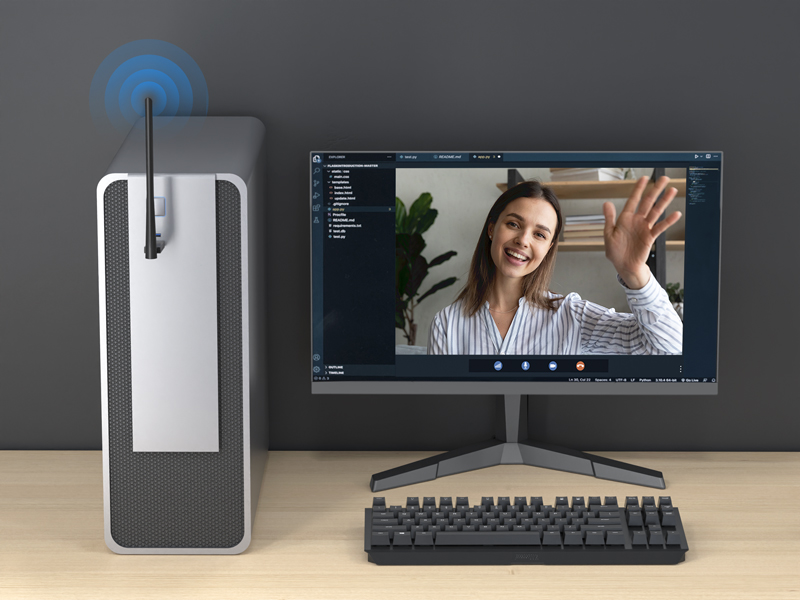
Figure 4: Successfully Connected to WiFi
3.4. Антеннаны тууралоо
The 6dBi high-gain antenna can be adjusted to optimize signal reception. You can swivel it 180 degrees horizontally and 90 degrees vertically. Position the antenna towards your WiFi router for the best signal strength.
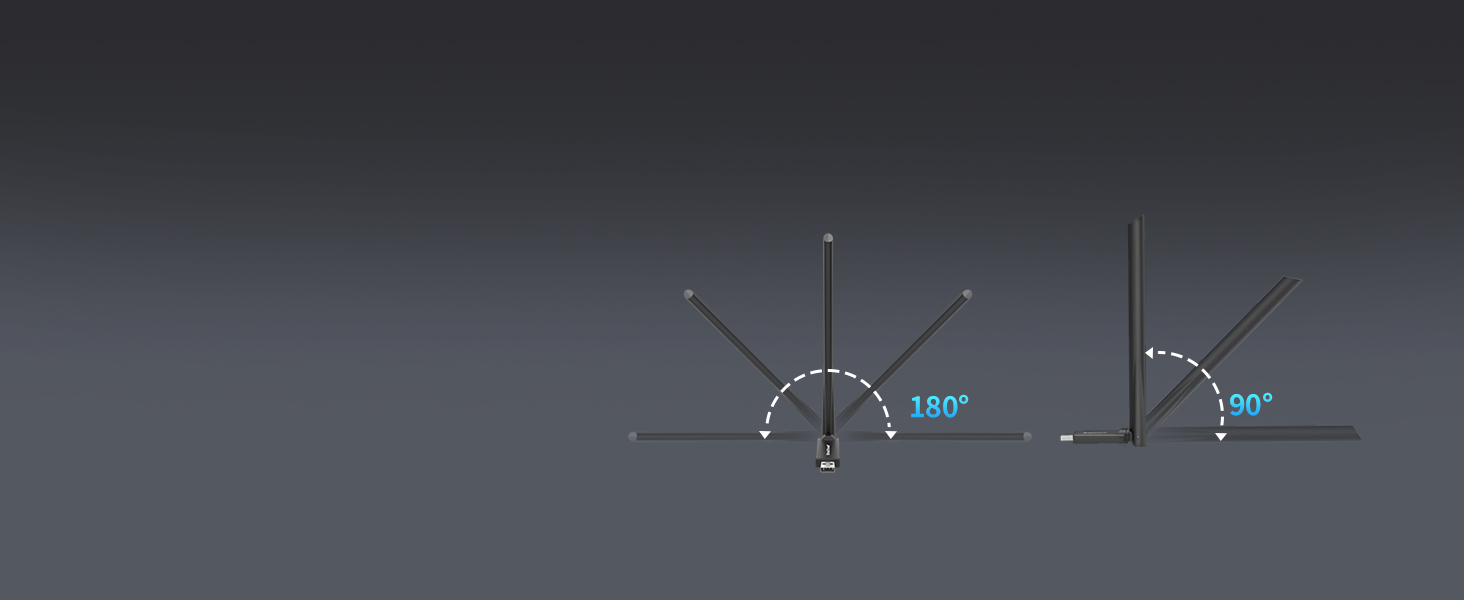
Figure 5: Adjustable Antenna for Enhanced Signal
3.5. Setup Videos
Video 1: Introducing AX900 WiFi 6 USB Adapter. This video provides an overview буюмдун өзгөчөлүктөрү жана артыкчылыктары.
Video 2: AX900 WiFi 6 USB Adapter Setup Guide. This video demonstrates the step-by-step installation process.
4. Иштөө нускамалары
The BrosTrend AX900 adapter provides a seamless wireless experience with its advanced features.
4.1. Dual-Band Flexibility
The adapter operates on both 5GHz and 2.4GHz bands. The 5GHz band offers higher speeds (up to 600Mbps) and is ideal for bandwidth-intensive tasks like streaming 4K video and online gaming. The 2.4GHz band provides a wider range and is suitable for general internet browsing and everyday tasks (up to 286Mbps).

Figure 6: Dual-Band Speed Capabilities
4.2. Enhanced Performance with WiFi 6 Technologies
The AX900 utilizes advanced WiFi 6 (802.11ax) technologies to deliver a superior wireless experience:
- OFDMA (Ортогоналдык Frequency Division Multiple Access): Allows multiple devices to share a single channel, improving efficiency and reducing latency in busy networks.
- MU-MIMO (көп колдонуучу, көп киргизүү, бир нече чыгаруу): Enables the router to communicate with multiple devices simultaneously, increasing network capacity and speed.
- 1024-QAM (Quadrature Amplitude Modulation): Packs more data into each signal, leading to higher theoretical speeds.
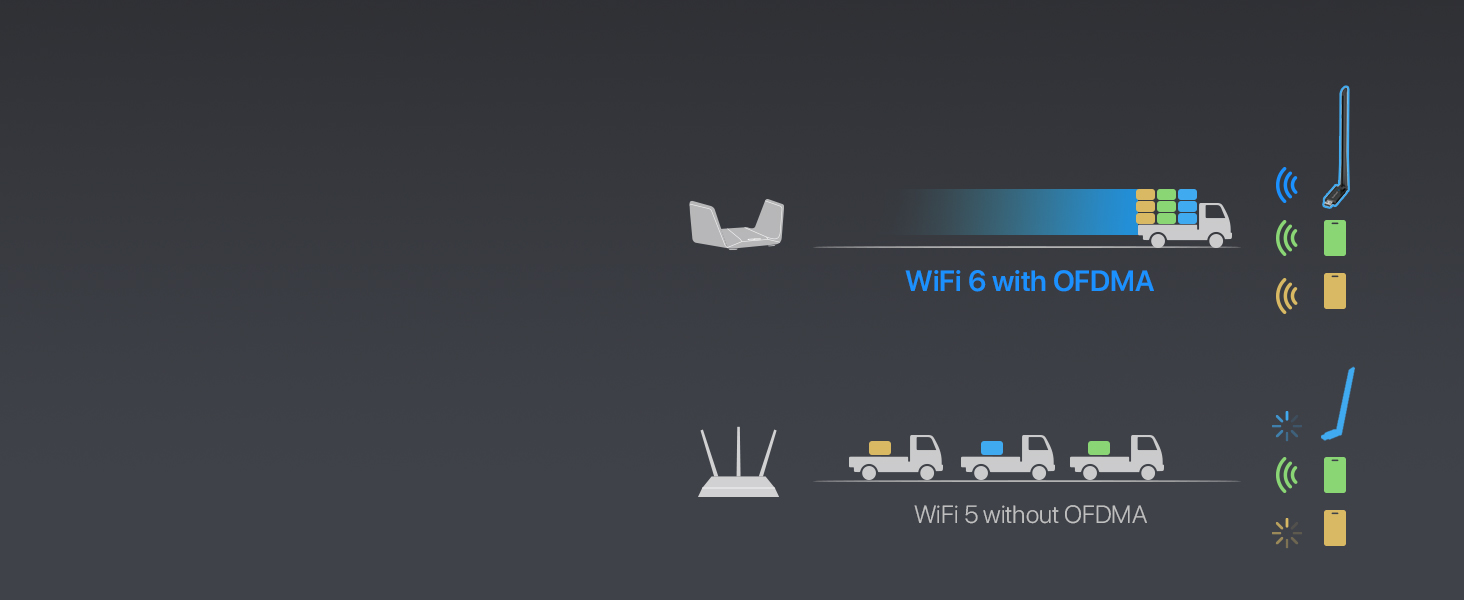
Figure 7: OFDMA for Simultaneous Data Transfer
4.3. Secure WiFi Connection
The adapter supports WPA2 encryption, ensuring your wireless connection is secure and protected from unauthorized access.

Figure 8: WPA2 Encryption Support
5. Техникалык тейлөө
To ensure the longevity and optimal performance of your BrosTrend AX900 USB WiFi 6 Adapter, consider the following maintenance tips:
- Айдоочуларды жаңыртыңыз: Periodically check the BrosTrend official webшайкештикти жана иштин натыйжалуулугун жакшыртууну камсыз кылуу үчүн драйвердин акыркы жаңыртуулары үчүн сайт.
- Туура жайгаштыруу: Avoid placing the adapter in enclosed spaces or near obstructions that could block the signal or cause overheating.
- Акырын тазалоо: If necessary, gently clean the adapter with a soft, dry cloth. Avoid using liquid cleaners or abrasive materials.
- Зыяндан коргоо: Handle the adapter with care to prevent physical damage to the USB connector or antenna.
6. Кыйынчылыктарды
If you encounter issues with your BrosTrend AX900 adapter, refer to the following common problems and solutions:
- WiFi байланышы жок:
- Адаптердин USB портуна бекем сайылганын текшериңиз.
- Verify that the driver was installed correctly and your computer was restarted.
- Check if your WiFi network is visible and you are entering the correct password.
- Slow Connection Speeds:
- Ensure your router supports WiFi 6 (802.11ax) for peak performance.
- Adjust the adapter's antenna towards your router to improve signal strength.
- Minimize interference from other electronic devices or physical obstructions.
- Try connecting to the 5GHz band for higher speeds if your router supports it.
- Үзгүлтүксүз туташуу:
- Check for potential sources of interference (e.g., microwaves, cordless phones).
- Ensure the adapter's drivers are up to date.
- Компьютериңиздеги башка USB портун колдонуп көрүңүз.
7. Техникалык шарттар
| Өзгөчөлүк | Description |
|---|---|
| Бренд | BrosTrend |
| Модель номери | AX900 (3312821011) |
| Аппараттык интерфейс | USB 2.0 (USB 3.0 менен шайкеш келет) |
| Түс | Кара |
| Шайкеш түзмөктөр | ЖК, Компьютер, Үстөл үстүндөгү компьютер, Ноутбук |
| Продукциянын өлчөмдөрү (L x W x Y) | 2.99" x 0.83" x 8.15" |
| Data Link Protocol | IEEE802.11ax/ac/n/a 5 GHz, IEEE802.11ax/b/g/n 2.4GHz |
| Маалыматтарды өткөрүү ылдамдыгы | Up to 900 Megabits Per Second (600Mbps on 5GHz, 286Mbps on 2.4GHz) |
| Элемент Салмагы | 25.7 грамм |
| Шайкеш операциялык тутум үй-бүлөсү | Windows (11/10/7) |
8. Кепилдик маалыматы
BrosTrend offers a one-time replacement for accidental damage within one year of purchase for your AX900 WiFi 6 USB adapter. You can also register for a 2-Year Warranty to extend your coverage.
For more details on warranty terms and registration, please visit the official BrosTrend webсайт.
9. Кардарларды колдоо кызматы
If you require any assistance or have questions regarding your BrosTrend AX900 USB WiFi 6 Adapter, please do not hesitate to contact our support team.
Электрондук почта колдоо: Please send an email to our support email address (not provided in data). We aim to reply to all inquiries within 24 hours.
For additional resources and FAQs, visit the official BrosTrend webсайт.