
Introduction
This manual provides essential information for the proper setup, operation, maintenance, and troubleshooting of your KTC H27T27 27-inch WQHD IPS Flat Monitor. Please read this manual thoroughly before using the product to ensure optimal performance and safety.
The KTC H27T27 monitor features a 27-inch WQHD (2560x1440) IPS panel with a 100Hz refresh rate, designed to deliver clear and detailed images with smooth motion. It includes FreeSync technology for enhanced visual fluidity during dynamic content. The IPS panel ensures vivid colors and wide viewбурчтар.

Figure 1: KTC H27T27 27-inch WQHD IPS Flat Monitor Front View
Жайгашуу
1. таңгактан чыгаруу
Carefully remove all components from the packaging. Ensure all items listed in the packing list are present and undamaged. Retain the original packaging for future transport or service needs.
2. Стенд жыйыны
- Чийип кетпеши үчүн мониторду жумшак, таза бетке ылдый каратып кой.
- Берилген бурамалар аркылуу стенд негизин стенд мойнуна бекитиңиз.
- Align the assembled stand with the mounting slot on the back of the monitor and secure it firmly.
3. VESA Mounting (Optional)
The monitor supports VESA 100x100mm mounting. If using a VESA mount, remove the stand and attach the VESA compatible bracket to the monitor's rear panel using appropriate screws.
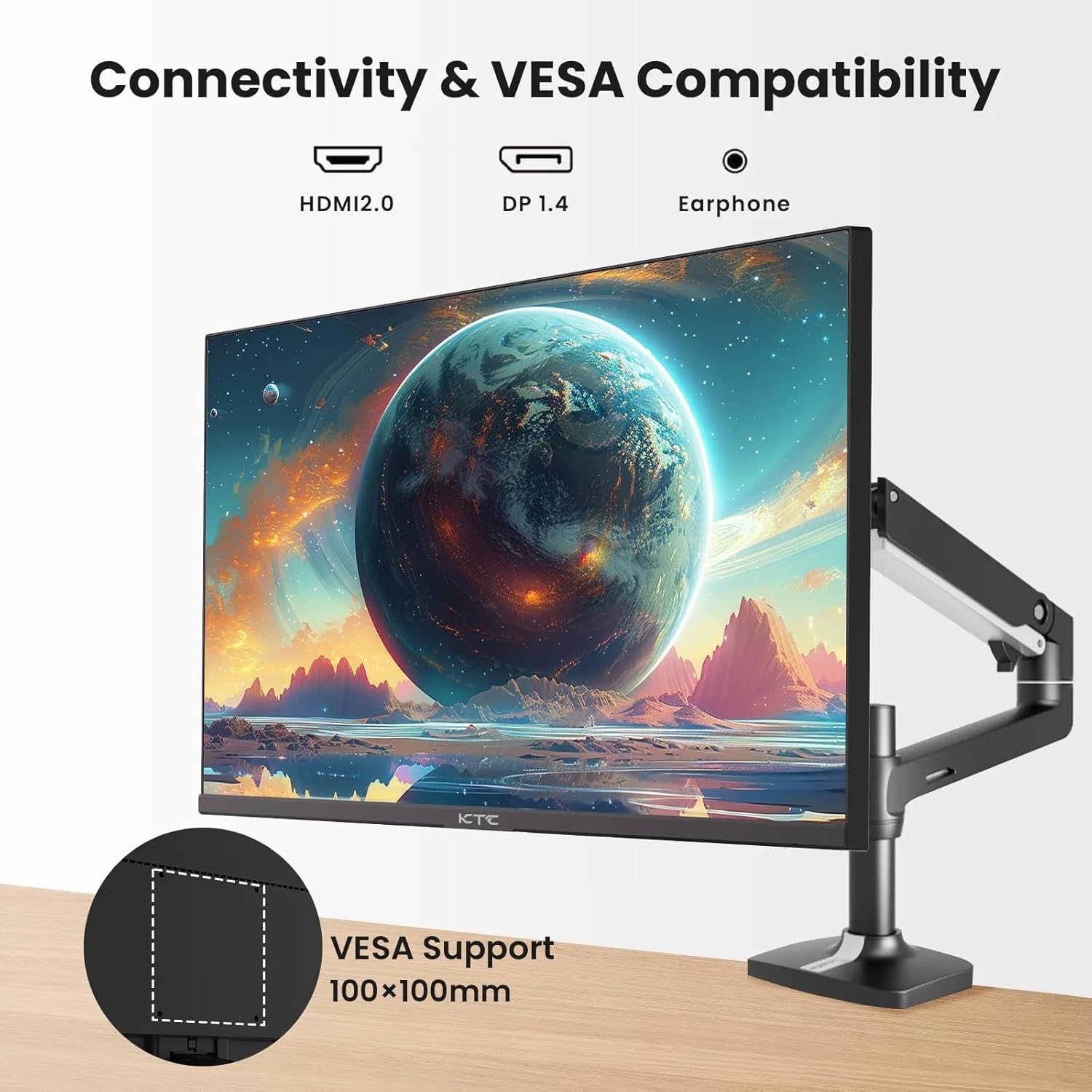
Figure 2: VESA Compatibility and Connectivity Ports
4. Туташтыруучу кабельдер
Керектүү кабелдерди мониторго жана компьютериңизге же башка түзмөктөргө туташтырыңыз. Бардык байланыштар коопсуз экенин текшериңиз.
- Кубат кабели: Connect the power adapter to the monitor's DC input port, then plug the power cable into a power outlet.
- Видео кабель: Connect either an HDMI cable (HDMI 2.0) or a DisplayPort cable (DP 1.4) from your computer's graphics card to the corresponding input port on the monitor.
- Аудио чыгаруу: If desired, connect headphones or external speakers to the 3.5mm audio output jack.

3-сүрөт: Монитордун киргизүү порттору
5. Баштапкы күйгүзүү
Press the power button on the monitor. The power indicator light will illuminate. If no image appears, ensure your computer is powered on and the correct input source is selected on the monitor.
Иштеп жатат
1. Күйгүзүү/өчүрүү
Press the power button located on the monitor to turn it on or off. The power indicator will show the monitor's status.
2. Экрандагы дисплей (OSD) менюсу
The OSD menu allows you to adjust various monitor settings. Use the control buttons (usually located on the back or bottom of the monitor) to navigate the menu.
- OSD менюсун иштетүү үчүн баскычты басыңыз.
- Меню параметрлери аркылуу жылуу үчүн навигация баскычтарын колдонуңуз.
- Кошумча менюга кирүү же жөндөөнү ырастоо үчүн тандоо баскычын басыңыз.
- Press an exit button to close the OSD menu.
3. Орнотууларды тууралоо
Жалпы жөнгө салынуучу орнотуулар төмөнкүлөрдү камтыйт:
- Жарыктык/Контраст: Жарык жана караңгы аймактардын жалпы жарыктыгын жана айырмасын тууралаңыз.
- Түс жөндөөлөрү: Түс температурасын, гамманы жана жеке RGB маанилерин өзгөртүү.
- Киргизүү булагы: Manually select between HDMI 1, HDMI 2, or DisplayPort inputs.
- Сүрөт режими: Select predefined display modes (e.g., Standard, Game, Movie).
4. Жаңыртуу ылдамдыгы
The KTC H27T27 supports a 100Hz refresh rate, providing smoother motion compared to standard 60Hz displays. Ensure your graphics card and operating system are configured to output at 100Hz for the best experience.

Figure 4: 100Hz Refresh Rate Benefit
5. FreeSync Technology
This monitor is compatible with AMD FreeSync technology, which synchronizes the monitor's refresh rate with your graphics card's frame rate. This helps eliminate screen tearing and stuttering for a smoother gaming and video experience. Ensure FreeSync is enabled in both the monitor's OSD menu and your graphics card's control panel.
Figure 5: FreeSync Technology in Action
Техникалык тейлөө
1. Экранды тазалоо
- Мониторду өчүрүп, электр зымдарын сууруп алыңыз.
- Экранды жумшак, түксүз чүпүрөк менен акырын сүртүңүз.
- өжөр белгилери үчүн, жеңил гampчүпүрөккө суу же атайын экран тазалагыч (экранга түздөн-түз чачпаңыз).
- Абразивдүү тазалагычтарды, спирт же аммиак негизиндеги эритмелерди колдонуудан алыс болуңуз, алар экрандын бетине зыян келтириши мүмкүн.
2. Жалпы кам көрүү
- Мониторду түз күн нурунан, ашыкча ысыктан жана нымдуулуктан алыс кармаңыз.
- Ашыкча ысып кетүүдөн сактануу үчүн монитордун айланасында жетиштүү желдетүүнү камсыз кылыңыз.
- Монитор же анын кабелдерине оор нерселерди коюудан алыс болуңуз.
Проблемаларды чечүү
Мониторуңузда көйгөйлөргө туш болсоңуз, төмөнкү жалпы көйгөйлөрдү жана чечимдерди караңыз:
- Кубат жок:
- Ensure the power cable is securely connected to both the monitor and the power outlet.
- Розетканын иштеп турганын текшериңиз. - Сигнал жок:
- Check that the video cable (HDMI or DisplayPort) is securely connected to both the monitor and your computer.
- Ensure your computer is powered on and not in sleep mode.
- Select the correct input source via the monitor's OSD menu. - Жаркылдаган же бурмаланган сүрөт:
- Check the video cable for damage or loose connections.
- Adjust the refresh rate settings on your computer.
- Disable or enable FreeSync in the OSD menu and graphics card settings to test. - Туура эмес түстөр:
- Reset color settings to factory defaults in the OSD menu.
- Adjust color temperature or individual RGB values.
Бул чечимдерди колдонуу аракетинен кийин көйгөй чечилбесе, кардарларды колдоо кызматына кайрылыңыз.
Техникалык шарттар
| Өзгөчөлүк | Спецификация |
|---|---|
| Бренд | KTC |
| Модель номери | H27T27 |
| Screen Size | 27 дюйм |
| Резолюция | 2560 x 1440 (WQHD) |
| Жаңыртуу ылдамдыгы | 100 Гц |
| Дисплей түрү | IPS |
| Жооп убактысы | 7 Миллисекунд |
| Adaptive Sync | FreeSync |
| Байланыш | 2x HDMI 2.0, 1x DisplayPort 1.4, 1x 3.5мм аудио чыгышы |
| Аспект катышы | 1.78:1 |
| Screen Surface | Мт |
| Элементтин өлчөмдөрү (D x W x Y) | 1.85"D x 24.25"W x 14.33"H |
| Элемент Салмагы | 4 килограмм |
Кепилдик жана колдоо
Кепилдик маалымат
This KTC monitor is covered by a manufacturer's warranty. Please refer to the warranty card included in your product packaging for specific terms, conditions, and duration of coverage. Keep your purchase receipt as proof of purchase for warranty claims.
Кардарларды колдоо
For technical assistance, warranty service, or any product-related inquiries, please contact KTC customer support. Contact details can typically be found on the official KTC webсайтында же кепилдик картасында.
When contacting support, please have your monitor's model number (H27T27) and serial number ready.