
1. Киришүү
This instruction manual provides essential information for the proper installation, operation, and maintenance of your WONLINK AX600 USB WLAN Stick, Model WL-NA1605. This device is designed to provide wireless network (Wi-Fi) and Bluetooth connectivity to your personal computer, desktop, or laptop running Windows 10 or Windows 11. Please read this manual thoroughly before using the product.
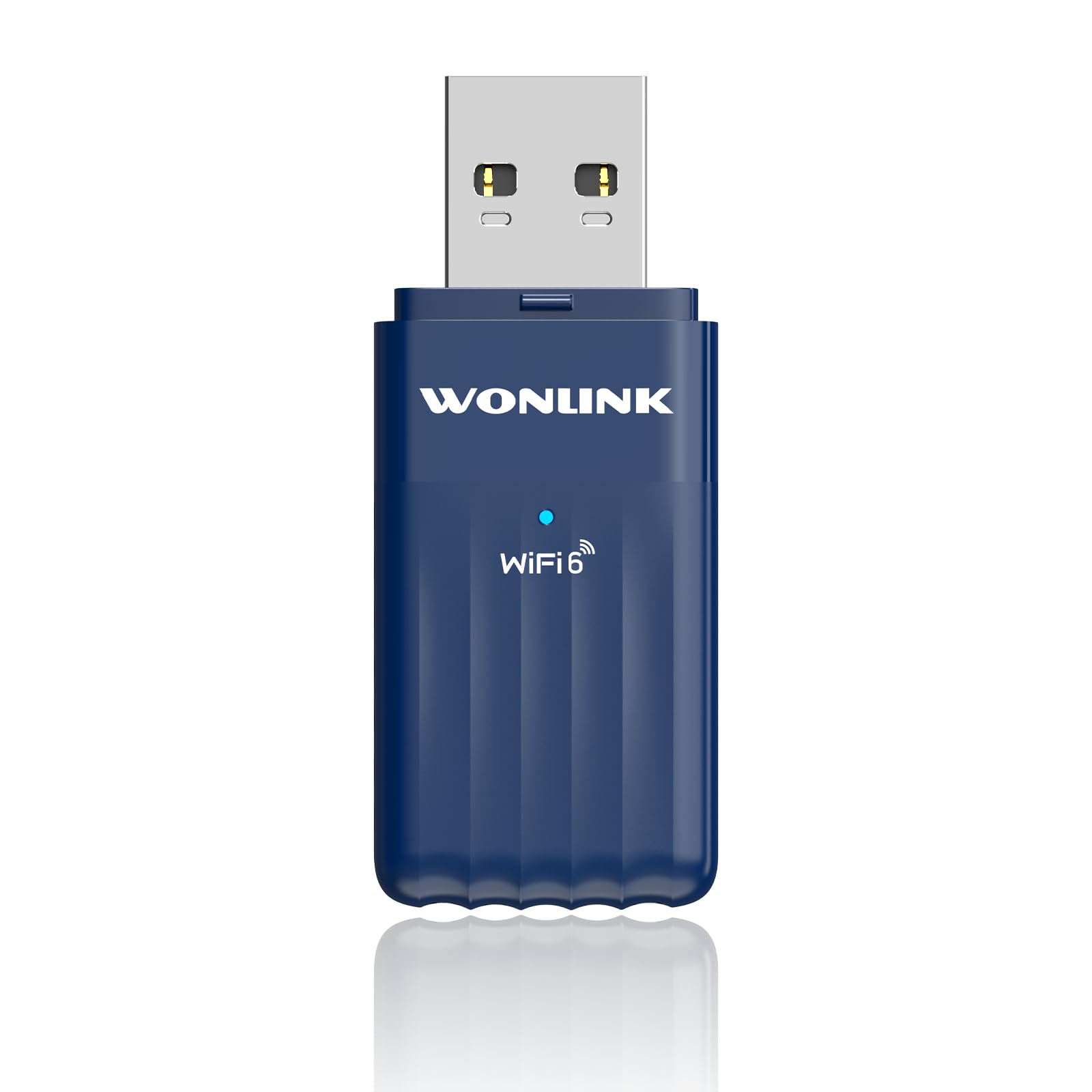
Image 1.1: The WONLINK AX600 USB WLAN Stick, a compact device for wireless connectivity.
2. Пакеттин мазмуну
Пакетте бардык буюмдар бар экенин текшериңиз:
- 1 x WONLINK AX600 USB WLAN Stick (Model WL-NA1605)
- 1 х Инструкция (бул документ)
3. Техникалык шарттар
| Өзгөчөлүк | Деталь |
|---|---|
| Бренд | WONLINK |
| Модель номери | WL-NA1605 |
| Маалыматтарды өткөрүү ылдамдыгы | 900 Мбит/сек чейин (AX600) |
| Интерфейс | USB (USB 2.0 compatible, USB 3.0 recommended for optimal performance) |
| Connectivity Protocol | Wi-Fi 6 (802.11ax), Bluetooth 5.3 |
| Жыштык тилкелери | 2.4 ГГц жана 5 ГГц (кош диапазондуу) |
| Шайкеш түзмөктөр | PC, Desktop, Laptop |
| Операциялык системанын шайкештиги | Windows 11, Windows 10 |
| Өлчөмдөр | Болжол менен 2 x 3 x 8 см |
| Салмагы | Болжол менен 40 грамм |
| Түс | Көк |

Image 3.1: Product label showing model number WL-NA1605 and other regulatory information.
4. Орнотуу нускамалары
Follow these steps to install the WONLINK AX600 USB WLAN Stick on your computer:
- Адаптерди салыңыз: Plug the WONLINK USB WLAN Stick into an available USB port on your PC, desktop, or laptop. For optimal performance, use a USB 3.0 port if available.
- Driver Installation (Windows 10/11):
- Upon insertion, Windows 10/11 should automatically detect the device and prompt you to install drivers.
- If prompted, allow Windows to run the installation file directly from the adapter. This method ensures driver installation even without an internet connection.
- Alternatively, Windows Update may automatically download and install the necessary drivers.
- If automatic installation fails, you may need to download the latest drivers from the official WONLINK support website (refer to the manufacturer's website for specific driver downloads).
- Текшерүү: After installation, check Device Manager to ensure the Wi-Fi and Bluetooth adapters are recognized and functioning correctly. Look under "Network adapters" for the Wi-Fi component and "Bluetooth" for the Bluetooth component.
5. Иштөө нускамалары
5.1 Wi-Fi тармагына туташуу
- Ensure the adapter is properly installed and recognized by your operating system.
- Система тактасындагы Wi-Fi сөлөкөтүн чыкылдатыңыз (адатта экрандын төмөнкү оң бурчунда).
- Жеткиликтүү Wi-Fi тармактарынын тизмеси пайда болот. Каалаган тармакты тандаңыз.
- "Туташуу" баскычын чыкылдатып, суралса, тармактын коопсуздук ачкычын (сырсөздү) киргизиңиз.
- Туташкандан кийин, Wi-Fi сүрөтчөсү активдүү туташууну көрсөтөт.
5.2 Bluetooth түзмөктөрүн туташтыруу
- Ensure the adapter is properly installed and recognized.
- Windows Орнотуулар > Түзмөктөр > Bluetooth жана башка түзмөктөргө өтүңүз.
- Bluetooth күйгүзүү.
- Put your Bluetooth device (e.g., headphones, mouse, keyboard) into pairing mode. Refer to your device's manual for specific pairing instructions.
- On your PC, click "Add Bluetooth or other device" and select "Bluetooth".
- Тизмеден түзмөгүңүздү тандап, жупташтыруу процессин аяктоо үчүн экрандагы көрсөтмөлөрдү аткарыңыз.
6. Кыйынчылыктарды
Эгер көйгөйлөргө туш болсоңуз, төмөнкү жалпы чечимдерди караңыз:
- Wi-Fi же Bluetooth аныкталган жок:
- Адаптер иштеп жаткан USB портуна бекем сайылып турганын текшериңиз. Башка USB портун колдонуп көрүңүз.
- Check Device Manager for any error symbols next to the network or Bluetooth adapters. Reinstall drivers if necessary.
- Компьютериңизди өчүрүп күйгүзүңүз.
- Slow Wi-Fi speed:
- Ensure you are connected to the 5GHz band if your router supports it and you are within range, as it generally offers higher speeds.
- Reduce interference by moving the adapter or your computer closer to the Wi-Fi router.
- Роутериңиздин микропрограммасын жаңыртыңыз.
- Bluetooth түзмөгү жупташкан жок:
- Bluetooth түзмөгүңүз жупташтыруу режиминде экенин текшериңиз.
- Make sure the device is within range (typically 10 meters or 33 feet).
- Remove any previously paired instances of the device from your computer's Bluetooth settings and try pairing again.
- Компьютериңизди да, Bluetooth түзмөгүңүздү да өчүрүп-күйгүзүңүз.
7. Техникалык тейлөө
To ensure the longevity and optimal performance of your WONLINK AX600 USB WLAN Stick:
- Адаптерди таза жана чаңдан алыс кармаңыз. Тазалоо үчүн жумшак, кургак чүпүрөктү колдонуңуз.
- Адаптерди экстремалдык температурага, нымдуулукка же тике күн нуруна тийгизүүдөн сактаңыз.
- Do not attempt to disassemble or repair the device yourself. This may void the warranty.
- Адаптерди физикалык зыянга учуратпоо үчүн колдонулбаган учурда коопсуз жерде сактаңыз.
8. Кепилдик жана колдоо
WONLINK products are designed for reliability and performance. This product comes with a standard manufacturer's warranty. For specific warranty terms and conditions, please refer to the warranty card included with your purchase or visit the official WONLINK website. For technical support, driver downloads, or further assistance, please visit the WONLINK support page or contact customer service through the details provided on the product packaging or webсайт.
9. Коопсуздук маалыматы
- Do not use this device near water or in excessively humid environments.
- Балдар жетпеген жерде сактаңыз.
- Аппаратты түшүрүүдөн же катуу таасирлерден сактаныңыз.
- Dispose of electronic waste responsibly according to local regulations. The crossed-out wheeled bin symbol indicates that the product should not be disposed of with household waste.