
WEMAX B0DRG7XFWP
WEMAX Google TV Projector User Manual
Model: B0DRG7XFWP
1. Киришүү
Thank you for choosing the WEMAX Google TV Projector. This compact and versatile projector is designed to deliver a high-quality cinematic experience in your home or on the go. Featuring official Netflix licensing, native 1080P resolution with 4K support, and integrated Google TV, it provides seamless access to a vast library of entertainment. This manual will guide you through the setup, operation, and maintenance of your new projector.
2. Коопсуздук маалыматы
Проекторду колдонуудан мурун бардык коопсуздук нускамаларын кылдат окуп чыгыңыз. Бул колдонмону келечекте маалымат алуу үчүн сактаңыз.
- Электр камсыздоо: Берилген кубат адаптерин гана колдонуңуз. Voltage адаптерде көрсөтүлгөн талаптарга дал келет.
- Вентиляция: Вентиляция тешиктерин жаап албаңыз. Ашыкча ысып кетүүнүн алдын алуу үчүн проектордун айланасында туура аба агымы үчүн жетиштүү мейкиндикти камсыз кылыңыз.
- Жылуулук: The projector may become warm during operation. This is normal. Avoid touching the lens or hot surfaces.
- Көздүн коопсуздугу: l болгондо проектордун объективине тике карабаamp is on. The bright light can cause eye strain or damage.
- Жайгашкан жери: Проекторду туруктуу, тегиз жерге коюңуз. Аны күн нуру түз тийген жерге, жылуулук булактарынын жанына же нымдуулугу жогору же чаңдуу чөйрөгө койбоңуз.
- Тазалоо: Тазалоодон мурун электр кубатынан ажыратыңыз. Жумшак, кургак чүпүрөктү колдонуңуз. Суюк же аэрозоль тазалагычтарды колдонбоңуз.
- Тейлөө: Проекторду өз алдынча оңдоого аракет кылбаңыз. Бардык тейлөө иштерин квалификациялуу адистерге тапшырыңыз.
3. Пакеттин мазмуну
Пакетиңизде бардык буюмдар бар экенин текшериңиз:
- WEMAX Google TV Projector
- Электр кабели
- Алыстан башкаруу
- Кубаттуу адаптер
- Колдонуучунун Колдонмосу (бул документ)
- Кепилдик картасы
4. Продукт бүтүп калдыview
Проектор компоненттери
Familiarize yourself with the main components of your WEMAX Google TV Projector.
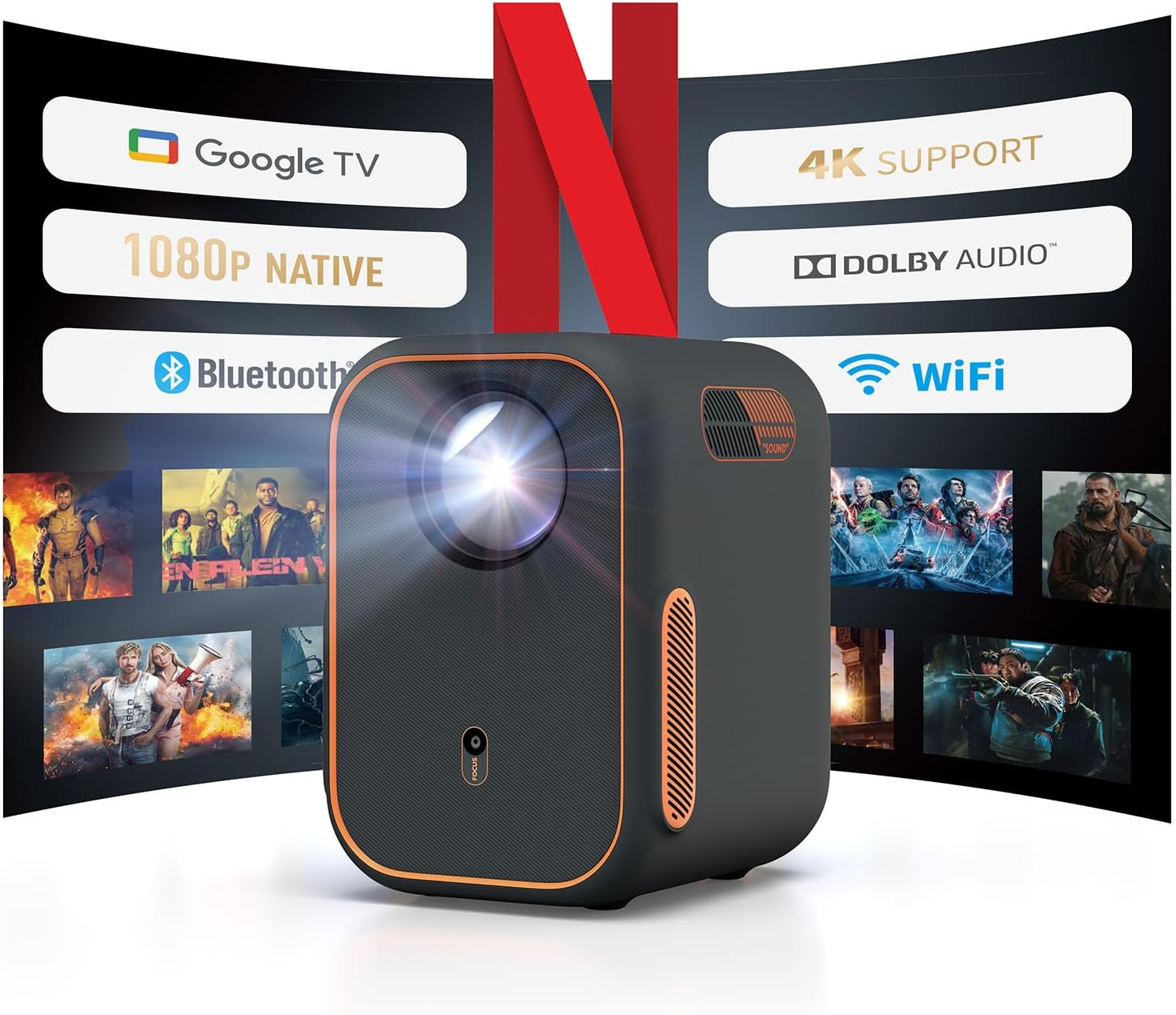
Сүрөт 4.1: Алдыңкы view of the WEMAX Google TV Projector highlighting its key features like Google TV, 1080P Native resolution, 4K support, Dolby Audio, Bluetooth, and WiFi connectivity.
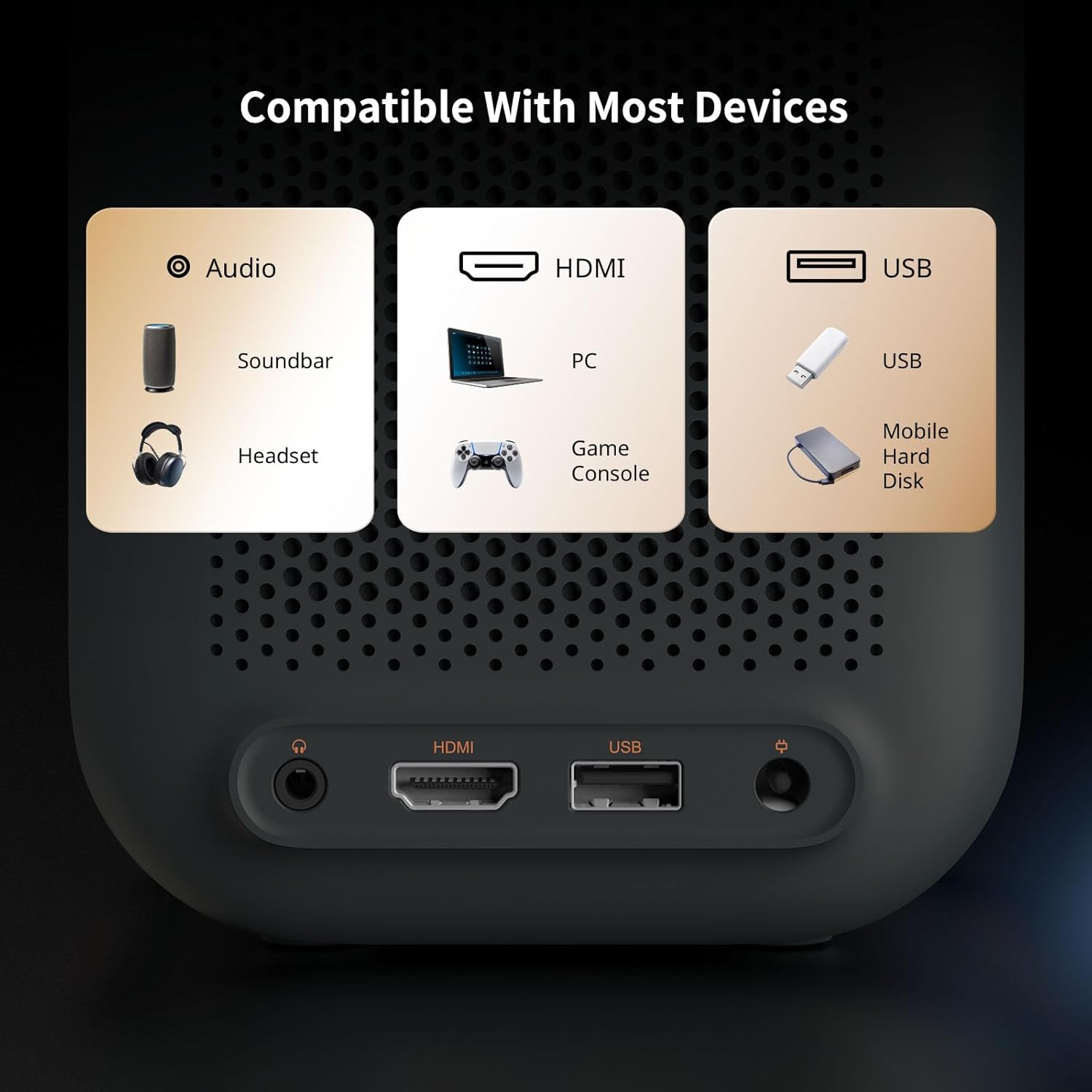
Figure 4.2: Rear panel of the projector displaying the Audio 3.5mm port, HDMI ARC port, and USB port for connecting various devices.
Негизги өзгөчөлүктөрү
- Google TV интеграциясы: Officially licensed Netflix, Prime Video, YouTube, and access to over 10,000 apps.
- Жогорку чечим: Native 1080P with HDR10 and 4K content support for sharp, detailed visuals.
- Акылдуу калибрлөө: Features Auto Focus, Auto Keystone Correction, Intelligent Obstacle Avoidance, and Intelligent Screen Alignment for effortless setup.
- Аудио: Built-in 2x3W speakers with Dolby Audio support and Bluetooth connectivity for external audio devices.
- Байланыш: Dual-band 2.4G/5G WiFi, HDMI ARC, USB, and Audio ports for multi-device compatibility.
- Туруктуу дизайн: Fully-enclosed light engine reduces black spots and extends lifespan to 40,000 hours.
5. Орнотуу
Initial Power-On and Placement
- Place the projector on a stable surface, ensuring the lens faces the projection surface (wall or screen).
- Connect the power adapter to the projector's power input and plug it into an electrical outlet.
- Аны күйгүзүү үчүн проектордун же пульттун кубат баскычын басыңыз.

Figure 5.1: The compact design of the projector allows for flexible placement in various environments.
Сүрөттү автоматтык түрдө тууралоо
The WEMAX Google TV Projector features intelligent projection technology for quick and easy setup:
- Auto Focus: The projector automatically adjusts the image clarity within approximately 4 seconds.
- Автоматтык негизги ташты оңдоо: Distorted images caused by angled projection are automatically corrected for a rectangular display.
- Акылдуу тоскоолдуктардан качуу: The projection size and position will adjust to avoid objects in the projection path.
- Акылдуу экранды тегиздөө: The projector can automatically align the image to fit precisely within a projection screen.

Figure 5.2: The 4-in-1 intelligent projection technology simplifies setup and ensures an optimal viewтажрыйбасы.
Google TV орнотуу
Upon first use, follow the on-screen prompts to set up Google TV:
- Каалаган тилиңизди тандаңыз.
- Connect to your Wi-Fi network by selecting it from the list and entering the password.
- Sign in with your Google account to access personalized recommendations, apps, and services.
- Follow instructions to set up Google Assistant and other preferences.

Figure 5.3: The Google TV interface provides one-click access to popular streaming services.
6. Иштөө
Google TV багыттоо
Use the remote control to navigate the Google TV interface. The home screen provides access to your installed apps, personalized content recommendations, and search functions.
- Үн менен башкаруу: Press the Google Assistant button on the remote and speak commands to search for content, control playback, or adjust settings.
- Колдонмого мүмкүндүк алуу: Select icons for Netflix, Prime Video, YouTube, and other streaming services directly from the home screen.
Тышкы түзмөктөрдү туташтыруу
The projector supports various external devices:
- HDMI: Connect gaming consoles (Xbox, PS4/PS5), laptops, PCs, or DVD players via the HDMI ARC port.
- USB: Медиа ойнотуу үчүн USB дисктерин туташтырыңыз.
- Bluetooth: Pair with external soundbars, speakers, or headphones for enhanced audio.
- Wi-Fi экранды чагылдыруу: Wirelessly cast content from your phone or laptop using the dual-band 2.4G/5G WiFi.

Figure 6.1: Seamless wireless connectivity for screen mirroring and external audio.
Adjusting Display Size
The projector can create a display from 40 to 120 inches. Adjust the distance from the projection surface to change the screen size. The automatic focus and keystone correction will adapt to the new size.
| Экран өлчөмдөрү (SD) | Салыштырмалуу аралык (D) |
|---|---|
| 40" | 3.5 фут |
| 60" | 5.2 фут |
| 80" | 6.9 фут |
| 100" | 8.7 фут |
| 120" | 10.5 фут |
7. Техникалык тейлөө
Туура тейлөө проекторуңуздун узак иштөөсүн жана оптималдуу иштешин камсыз кылат.
- Линзаны тазалоо: Use a soft, lint-free cloth specifically designed for optical lenses. Gently wipe the lens to remove dust or smudges. Avoid harsh chemicals or abrasive materials.
- Вентиляция: Regularly check that the ventilation openings are clear of dust and debris. Use a soft brush or compressed air to clean them if necessary.
- Жалпы тазалоо: Проектордун сыртын жумшак, кургак чүпүрөк менен сүртүңүз. Суюк тазалоочу каражаттарды түз эле түзмөккө колдонбоңуз.
- Сактагыч: Узак мөөнөткө пайдаланылбаганда, проекторду салкын, кургак жерде, тике күн нурунан жана экстремалдык температурадан алыс сактаңыз.
The WEMAX Google TV Projector features a fully-enclosed optical engine, which significantly reduces dust accumulation and helps prevent black spots on the projection, contributing to a longer lifespan of up to 40,000 hours.

Figure 7.1: The fully-sealed optical engine design prevents dust ingress, ensuring clear images and extended product life.
8. Кыйынчылыктарды
Проекторуңузда көйгөйлөргө туш болсоңуз, төмөнкү жалпы көйгөйлөрдү жана чечимдерди караңыз:
| Көйгөй | Мүмкүн себеп | Чечим |
|---|---|---|
| Күч жок | Электр зымы туташкан эмес; Электр розеткасынын маселеси | Электр шнурунун бекем туташтырылганын текшериңиз. Башка электр розеткасын колдонуп көрүңүз. |
| No Image / Blank Screen | Input source not selected; Cable connection issue; Projector in standby mode | Check HDMI/USB connections. Ensure correct input source is selected. Press power button to wake from standby. |
| Сүрөт бүдөмүк | Out of focus; Lens dirty | Allow auto-focus to engage. Clean the projector lens. |
| Image is Distorted (Trapezoid) | Проектор экранга перпендикуляр эмес | Allow auto keystone correction to adjust. Reposition projector if necessary. |
| Үн жок | Volume too low; Muted; External audio device not connected/selected | Increase volume. Check mute setting. Ensure Bluetooth speaker is paired or HDMI audio is correctly routed. |
| Wi-Fi туташуу маселелери | Incorrect password; Router too far; Network interference | Wi-Fi сырсөзүн ырастаңыз. Проекторду роутерге жакыныраак жылдырыңыз. Маршрутизатор менен проекторду кайра иштетиңиз. |
| Пульт иштебейт | Batteries low/dead; Obstruction between remote and projector | Батареяларды алмаштырыңыз. Проектордун инфракызыл кабыл алгычы ачык көрүнүп турушу керек. |
9. Техникалык шарттар
Detailed technical specifications for the WEMAX Google TV Projector:
| Өзгөчөлүк | Спецификация |
|---|---|
| Бренд | WEMAX |
| Модел | B0DRG7XFWP |
| Display Resolution | Native 1920 x 1080 (1080P Full HD) |
| 4K колдоо | Ооба |
| Жарыктык | 150 ISO люмен |
| Контраст катышы | 1500:1 |
| Light Engine Lifespan | 40,000 саат |
| Байланыш технологиясы | Audio 3.5mm, Bluetooth, HDMI ARC, USB, Dual-band 2.4G/5G WiFi |
| Өзгөчөлүктөр | Auto Focus, Auto Obstacle Avoidance, Auto Screen Alignment, Auto Keystone Correction, Built-In Speaker, Portable |
| Камтылган динамиктер | 2 x 3W with Dolby Audio |
| Ызы-чуу деңгээли | ≤30dB |
| Продукциянын өлчөмдөрү | 5.55 x 4.8 x 6.89 дюйм |
| Элемент Салмагы | 4.55 фунт |
| Түс | Кара боз |
| Сунушталган Колдонуулар | Бизнес, Билим берүү, Оюн-зоок, Үй кинотеатры |
10. Кепилдик жана колдоо
Your WEMAX Google TV Projector comes with a standard warranty. Please refer to the included Warranty Card for specific terms and conditions regarding coverage and duration.
Кардарларды колдоо
For technical assistance, troubleshooting, or any inquiries regarding your WEMAX product, please contact our customer support team:
- Электрондук почта: support@wemax.com
- Жооп убактысы: Quick response typically within 24 hours.

Figure 10.1: WEMAX Customer Support contact details.
Ask a question about this manual
Ask about setup, troubleshooting, compatibility, parts, safety, or missing instructions. Manuals+ will review the question and use this page’s manual context to help answer it.