
1. Introduction and Overview
The ciciglow B250M-V3 is an M-ATX form factor motherboard designed for desktop personal computers. It supports LGA 1151 socket processors, specifically 6th and 7th generation Intel Core i7, i5, and i3 CPUs. This motherboard features two DDR4 memory slots, supporting up to 32GB of 2400MHz RAM, and multiple PCI Express slots for expansion. It is equipped with an onboard gigabit network card and an 8-channel sound chip, making it suitable for various applications including home use, design work, and gaming.

Figure 1.1: ciciglow B250M-V3 Motherboard
2. Негизги өзгөчөлүктөрү
- LGA 1151 розетка: Compatible with 7th and 6th generation Intel Core i7, i5, i3 14nm CPU processors.
- DDR4 эс тутумун колдоо: Two DDR4 memory slots supporting dual-channel DDR4 2400MHz memory, with a maximum capacity of 32GB.
- PCIe 3.0 кеңейтүүсү: Includes one PCIe x16 slot, one PCIe x4 slot, and one PCIe x1 slot for dedicated graphics cards, sound cards, network cards, and other PCIe devices.
- Интегралдык тармак: Onboard RTL8111H gigabit network card for efficient internet connectivity.
- Жогорку сапаттагы аудио: Integrated ALC887 8-channel sound chip for immersive audio experiences.
- DVI чыгышы: Equipped with a DVI output interface for high-definition visuals on compatible displays.
- Туруктуу энергия менен камсыздоо: Utilizes all solid capacitors and an 8-pin and 24-pin power connector for stable performance and enhanced system reliability.
- Туруктуу курулуш: Constructed from robust PCB and metal materials for a longer lifespan.

Figure 2.1: DDR4 Memory Support
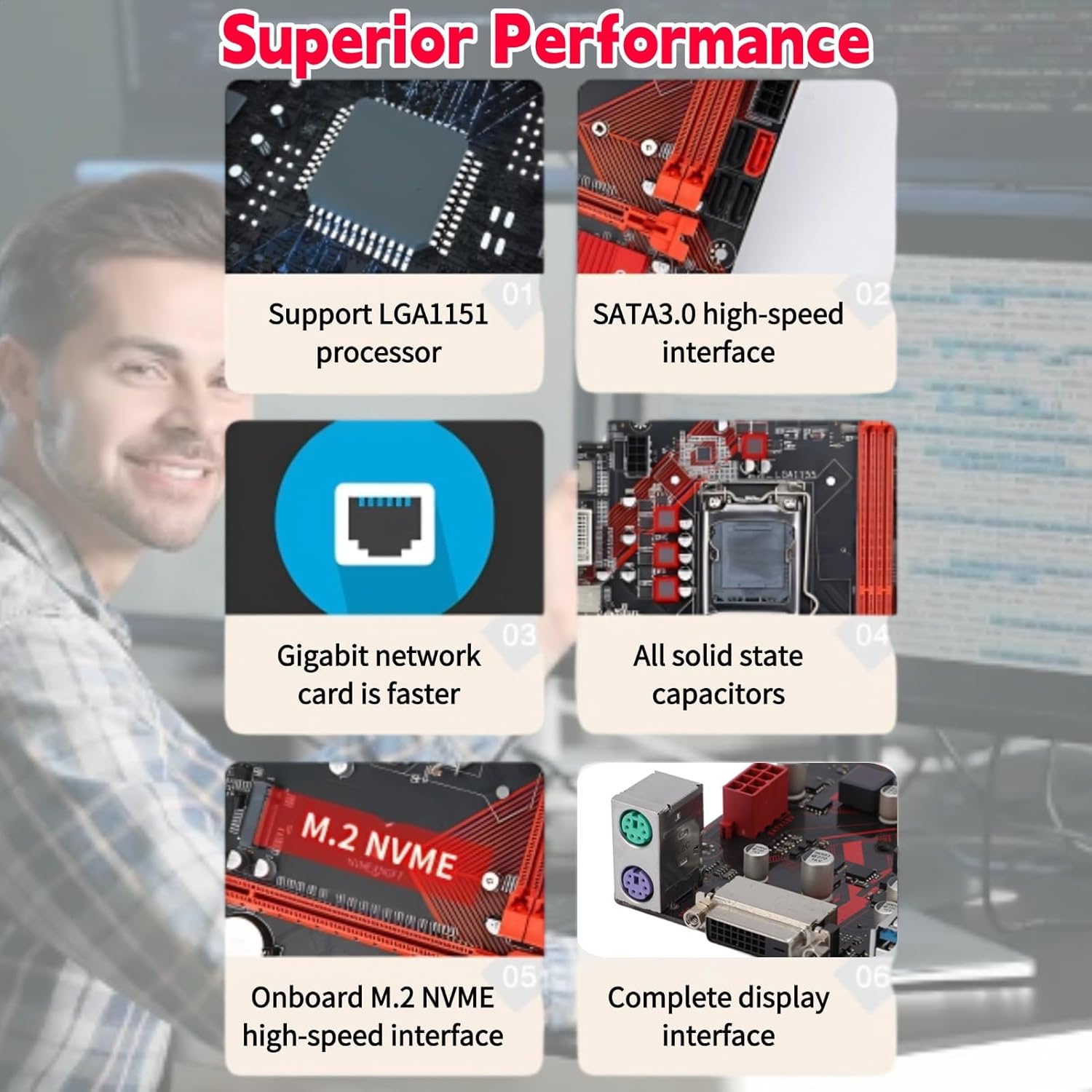
Figure 2.2: Superior Performance Features
3. Interface Layout and Components
The B250M-V3 motherboard provides a comprehensive set of interfaces for connecting various components and peripherals. Familiarize yourself with the layout before installation.

Figure 3.1: Motherboard Interface Layout
Key interfaces include:
- CPU кубаттуулугу: 8 пин туташтыргыч.
- Энелик платанын кубаттуулугу: 24 пин туташтыргыч.
- DDR4 Slots: Two slots for memory modules.
- PS/2 порттору: For keyboard and mouse.
- DVI порту: Видео чыгаруу.
- USB 3.0 порттору: Multiple ports for high-speed peripherals.
- USB 2.0 порттору: Multiple ports for standard peripherals.
- RJ45 интерфейси: Gigabit Ethernet порту.
- Аудио интерфейси: Аудио киргизүү/чыгаруу үчүн.
- PCIe x16 слоту: Графикалык карталар үчүн.
- PCIe x4 слоту: Кеңейтүү карталары үчүн.
- PCIe x1 слоту: Кеңейтүү карталары үчүн.
- SATA III Interfaces: Multiple ports for storage devices.
- Front COM Pin: For serial port expansion.
- Power LED/HDD LED/Power SW Headers: For front panel connections.

Figure 3.2: Detailed Interface Views
4. Орнотуу жана орнотуу
Proper installation is crucial for the stable operation of your system. Always ensure your power supply is disconnected before handling internal components.
- Ишти даярдоо: Ensure your computer case is ready for motherboard installation, with standoffs correctly aligned.
- CPU орнотуу: Carefully open the CPU socket lever, align the CPU with the socket (matching the triangle indicator), gently place the CPU into the socket, and close the lever to secure it.
- CPU муздаткычын орнотуу: Apply thermal paste (if not pre-applied) and install the CPU cooler according to its manufacturer's instructions. Connect the CPU fan cable to the “CPU_FAN” header on the motherboard.
- RAM орнотуу: Open the clips on the DDR4 memory slots. Align the memory modules with the slots (notches should match) and press down firmly on both ends until the clips snap into place.
- Motherboard орнотуу: Бурама тешиктерин тирөөчтөр менен тегиздеп, энелик платаны корпуска этияттык менен салыңыз. Энелик платаны бурама менен бекитиңиз.
- Кубат булагына туташтыруу: Кубат булагыңыздагы 24-пиндүү ATX кубат туташтыргычын жана 8-пиндүү CPU кубат туташтыргычын энелик платадагы тиешелүү портторго туташтырыңыз.
- Сактагыч түзмөктөрдү орнотуу: Connect SATA data cables from your storage drives (HDDs/SSDs) to the SATA III ports on the motherboard. Connect SATA power cables from your power supply to the drives.
- Графикалык картаны орнотуу (кошумча): If using a dedicated graphics card, insert it into the PCIe x16 slot and secure it. Connect any required PCIe power cables from your power supply to the graphics card.
- Алдыңкы панелдик кабелдерди туташтыруу: Connect the power button, reset button, HDD LED, power LED, and front USB/audio cables from your case to the corresponding headers on the motherboard. Refer to the motherboard's manual for exact pin assignments.
- Перифериялык түзүлүштөрдү туташтыруу: Connect your monitor, keyboard, mouse, and other peripherals to the appropriate ports on the motherboard's rear I/O panel.
5. Иштөө нускамалары
Ийгиликтүү орнотуудан кийин, системаңызды иштетүү үчүн бул кадамдарды аткарыңыз:
- Баштапкы жүктөө: Power on your system. The system should display the BIOS/UEFI splash screen.
- BIOS/UEFI Орнотуу: Press the designated key (usually DEL or F2) during startup to enter the BIOS/UEFI setup utility. Here you can configure boot order, system time, and other hardware settings.
- Операциялык системаны орнотуу: Insert your operating system installation media (USB drive or DVD) and follow the on-screen instructions to install your preferred OS.
- Драйверди орнотуу: After OS installation, install the necessary drivers for the motherboard chipset, network, audio, and any dedicated graphics cards. These are typically provided on a CD/DVD with the motherboard or can be downloaded from the manufacturer's webсайт.
- Системанын жаңыртуулары: Оптималдуу аткарууну жана коопсуздукту камсыз кылуу үчүн операциялык тутумуңузду жана драйверлериңизди үзгүлтүксүз жаңыртыңыз.
Видео 5.1: Бүттүview of the ciciglow B250M-V3 Motherboard's physical features and design.
6. Техникалык шарттар
Detailed technical specifications for the ciciglow B250M-V3 Motherboard:
| Өзгөчөлүк | Спецификация |
|---|---|
| Бренд | ciciglow |
| Модель аты | B250M-V3 |
| CPU розетка | LGA 1151 |
| Шайкеш процессорлор | Intel Core i7-6700K, i5-6600K, i3-6100, i7-7700K, i5-7600K, i3-7100 (6th/7th Gen) |
| Чипсет түрү | Intel B250 |
| RAM эс технологиясы | DDR4 |
| Memory Clock Speed | 2400 МГц |
| Эстутум Slots Жеткиликтүү | 2 |
| Максималдуу RAM сыйымдуулугу | 32 ГБ |
| Графикалык карта интерфейси | PCI Express |
| Total PCIe Ports | 3 (1x PCIe x16, 1x PCIe x4, 1x PCIe x1) |
| Total SATA Ports | 4 |
| Жалпы USB порттору | 12 (various USB 3.0 and USB 2.0) |
| Ethernet портторунун саны | 1 (Гигабит) |
| Негизги электр туташтыргычынын түрү | 24-пин, 8-пин |
| Шайкеш түзмөктөр | Персоналдык компьютер |
7. Кыйынчылыктарды
If you encounter issues with your ciciglow B250M-V3 Motherboard, consider the following common troubleshooting steps:
- Кубат жок/жүктөө жок:
- Бардык электр кабелдери (24-пин ATX, 8-пин CPU, GPU үчүн PCIe) коопсуз туташтырылганын текшериңиз.
- Кубат менен камсыздоо блогу (PSU) күйгүзүлгөнүн жана туура иштеп жатканын текшериңиз.
- Check front panel connections (power button header) for correct placement.
- Try booting with only essential components (CPU, one RAM stick, CPU cooler, PSU) to isolate the issue.
- Дисплей жок:
- Ensure your monitor is connected to the correct video output (motherboard DVI or dedicated graphics card).
- Графикалык картаны жана RAM модулдарын кайра орнотуңуз.
- Мүмкүн болсо, башка монитор же дисплей кабели менен сынап көрүңүз.
- Системанын туруксуздугу/бузуулар:
- CPU жана GPU ысып кетпеши үчүн температураларын текшериңиз.
- RAM модулдарынын туура орнотулганын жана шайкеш келгенин текшериңиз. Эстутумду диагностикалоо куралын иштетиңиз.
- Бардык айдоочулар жаңыртылганын текшериңиз.
- Check for loose cables or connections.
- Тармакка туташуу маселелери:
- Ensure the Ethernet cable is securely connected to the RJ45 port and your router/modem.
- Install or update the network adapter drivers.
- Операциялык системаңыздагы тармак жөндөөлөрүн текшериңиз.
- Перифериялык түзмөк аныкталган жок:
- Перифериялык түзүлүштү башка USB портуна туташтырууга аракет кылыңыз.
- Ensure the peripheral has its own power supply if required.
- Install necessary drivers for the peripheral.
8. Кепилдик жана колдоо
For warranty information and technical support, please refer to the official ciciglow website or contact your retailer. The product is typically covered by a manufacturer's warranty against defects in materials and workmanship.
For returns or exchanges, please consult the return policy of the platform where the product was purchased. For example, Amazon typically offers a 30-day return window for most electronics.
Кошумча жардам алуу үчүн, сиз иш сапары менен болот ciciglow Store on Amazon.