
1. Киришүү
The Wanbo T2 Ultra is a compact and versatile projector designed for home entertainment. It features Android TV 11.0, offering access to a wide range of streaming applications. With 500 ANSI lumens brightness and native 1080P Full HD resolution, it delivers clear and vibrant images. Advanced features like auto-focus, automatic keystone correction, and integrated HiFi speakers enhance the user experience. This manual provides detailed instructions for setup, operation, and maintenance of your Wanbo T2 Ultra projector.
2. Пакеттин мазмуну
Сураныч, төмөнкү нерселер үчүн кутучаны белгилеңиз:
- Wanbo T2 Ultra Projector Unit
- Алыстан башкаруу
- Электр кабели
- HDMI кабели
- Колдонуучунун Колдонмосу (бул документ)
- Cleaning Tools (if included)

Image: Projector and accessories in packaging. Actual contents may vary slightly.
3. Продукт бүтүп калдыview
3.1 Projector Unit

Сүрөт: алдыңкы view of the Wanbo T2 Ultra Projector.
3.2 Порттор жана туташуулар

Сүрөт: Арткы view of the Wanbo T2 Ultra Projector showing various input/output ports.
- HDMI (ARC) порту: Connect to external devices such as laptops, gaming consoles, or TV boxes. Supports Audio Return Channel.
- USB порт: Медиа ойнотуу үчүн USB сактагыч түзмөктөрдү туташтырыңыз.
- Аудио порт (3.5 мм): Тышкы кулакчындарды же динамиктерди туташтырыңыз.
- Кубат киргизүү: Connect the power cable to supply power to the projector.
4. Орнотуу
4.1 Кубат туташтыруу
- Электр кабелин проектордогу Power Input портуна туташтырыңыз.
- Электр кабелинин экинчи учун розеткага сайыңыз.
- Аппаратты күйгүзүү үчүн проектордун же пульттун кубат баскычын басыңыз.
4.2 Баштапкы орнотуу
Upon first use, follow the on-screen prompts to complete the initial setup, including language selection and Wi-Fi connection.
4.2.1 Wi-Fi туташуусу
- багыттоо Орнотуулар үй экранынан.
- Тандоо Тармак жана Интернет.
- Wi-Fi күйгүзүңүз жана тизмеден каалаган тармакты тандаңыз.
- Экрандагы клавиатура аркылуу Wi-Fi сырсөзүн киргизип, ырастаңыз.
Video: Illustrates Wi-Fi and Bluetooth connection steps. Note: This video may feature a different projector model but demonstrates the general process.
4.3 Focus & Keystone Correction
The Wanbo T2 Ultra features automatic focus and keystone correction for optimal image clarity and shape.
4.3.1 Автоматтык тууралоо
- The projector automatically adjusts focus and keystone when powered on or moved.
- Obstacle avoidance and automatic screen adjustment features ensure the image fits perfectly on your projection surface.

Image: The projector automatically adjusting focus and keystone correction for a clear, rectangular image.
4.3.2 Manual Adjustment (if needed)
- барыңыз Орнотуулар > Сүрөттү оңдоо.
- Тандоо Кол менен Keystone Correction to adjust the four corners of the image.
- Тандоо Фокус > Manual Focus to fine-tune the image sharpness using the F+ and F- buttons on the remote.
4.4 Экранды тууралоо
The projector supports digital zoom to adjust the screen size without moving the unit.
- барыңыз Орнотуулар > Сүрөттү оңдоо.
- Тандоо Screen Zoom and Position.
- Use the directional buttons to adjust the position and the volume buttons to adjust the zoom (50% to 100%).
4.5 Проекция режимдери
The projector can be used in various orientations:
- Алдыңкы проекция: Projector placed in front of the screen.
- Арткы проекция: Projector placed behind a translucent screen.
- Шыпка проекциясы: Projector mounted upside down on the ceiling. The integrated stand allows for easy adjustment for ceiling or wall projection.
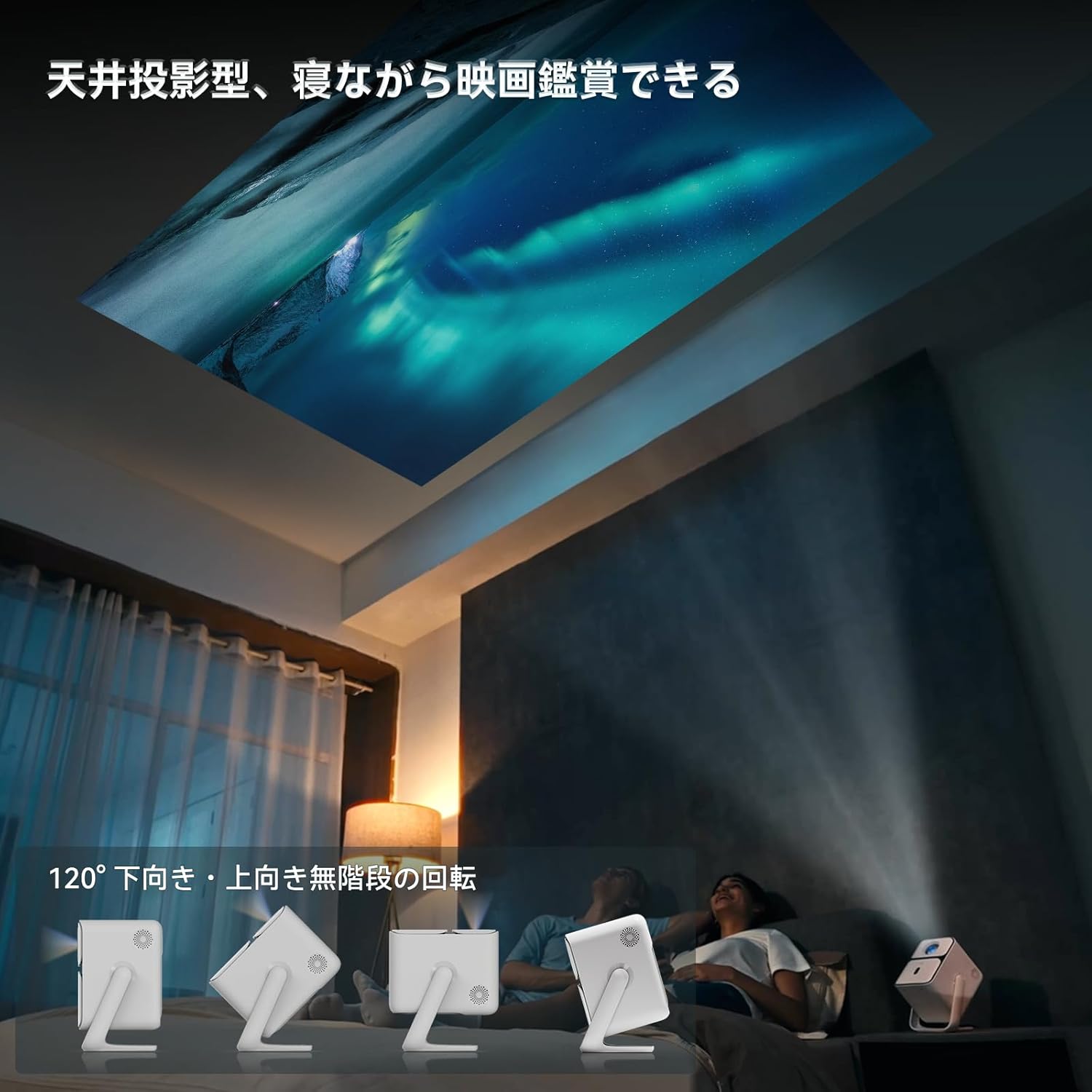
Image: Projector positioned for ceiling projection, allowing viewing while lying down.
Video: Demonstrates ceiling projection mode. Note: This video may feature a different projector model but demonstrates the general process.
5. Иштөө нускамалары
5.1 Алыстан башкаруу функциялары

Image: Remote control for the projector, showing buttons for power, navigation, volume, focus, and direct access to streaming apps like Netflix, YouTube, and Prime Video.
- Кубат баскычы: Проекторду күйгүзөт/өчүрөт.
- Үн менен издөө: Үн буйруктары үчүн Google Жардамчыны иштетет.
- One-Touch Focus: Initiates automatic focus adjustment.
- Directional Keys (Up/Down/Left/Right): Менюларды жана тандоолорду чабыттоо.
- OK баскычы: Тандоолорду ырастайт.
- Артка баскычы: Мурунку экранга кайтат.
- Үй баскычы: Башкы экранга кайтып келет.
- Көлөм +/-: Үн деңгээлин тууралайт.
- Focus +/- (F+/F-): Manually adjusts focus.
- Үнсүз баскычы: Аудионун үнүн басуу/ачуу.
- Input Signal Switch: Киргизүү булагын өзгөртөт.
- Колдонмонун жөндөөлөрү: Accesses application settings.
- Проекция орнотуулары: Accesses projection-related settings.
- Direct App Buttons: Dedicated buttons for Netflix, YouTube, Prime Video, and Disney+.
5.2 App Management (Android TV 11.0)
The Wanbo T2 Ultra runs on Android TV 11.0, providing access to the Google Play Store.
- Колдонмолорго кирүү: From the home screen, you can directly launch pre-installed apps or navigate to the Google Play Store to download more.
- Агым кызматтары: Enjoy popular services like Netflix, Prime Video, YouTube, Disney+, Hulu, U-NEXT, and more. The projector supports Google Widevine DRM L1 for high-quality content playback.
- Google Жардамчысы: Press the Voice Search button on the remote to use voice commands for searching content, controlling playback, and more.

Image: The projector displaying the Android TV 11.0 home screen, featuring various streaming applications.
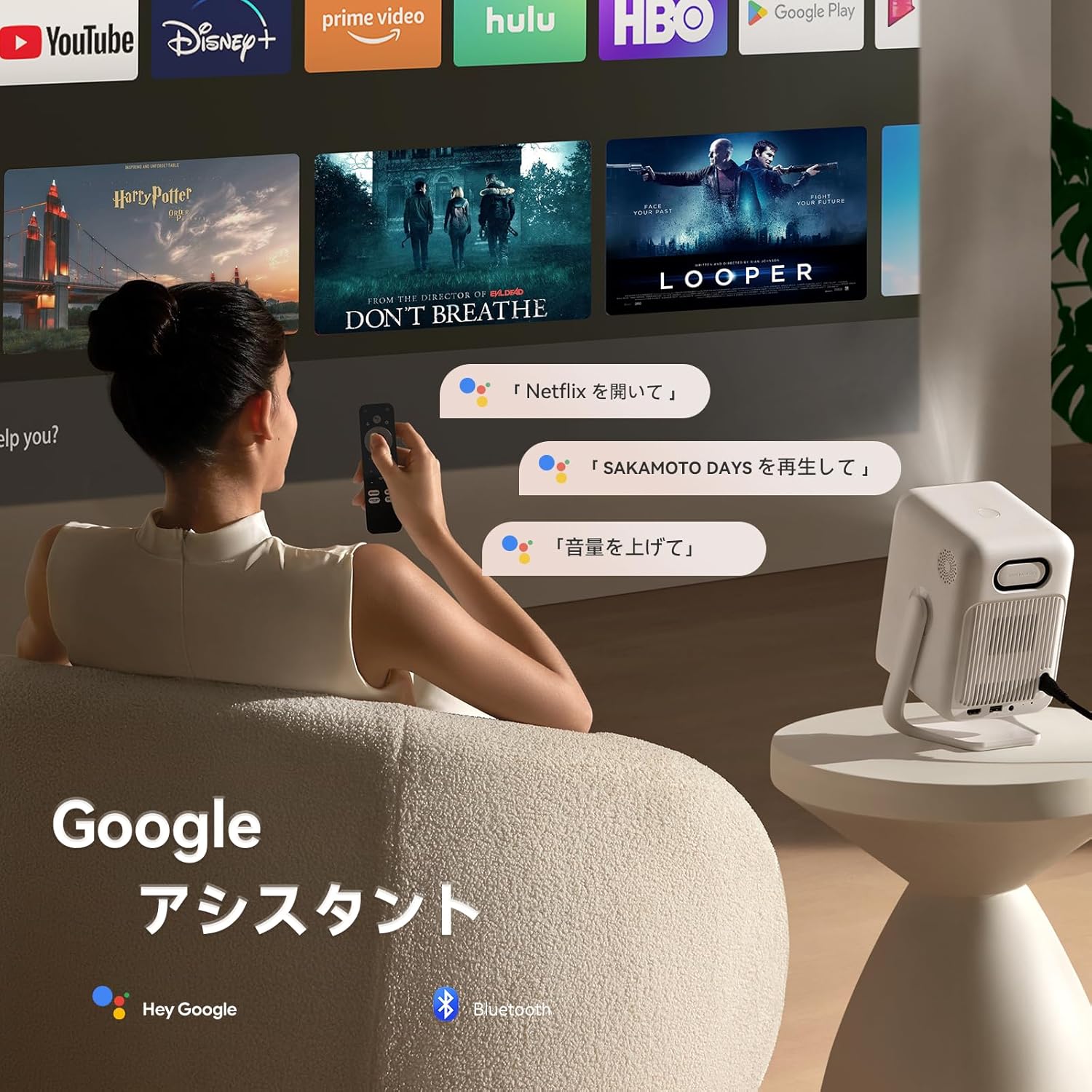
Image: A user utilizing the Google Assistant feature with the remote control to search for content.
5.3 Байланыш
The Wanbo T2 Ultra offers multiple connectivity options for various devices.
5.3.1 HDMI туташуу
- Connect an HDMI cable from your external device (e.g., laptop, game console) to the HDMI port on the projector.
- The projector will automatically detect the HDMI input. If not, navigate to Сигнал булагы and select the corresponding HDMI input.
Video: Demonstrates HDMI connection. Note: This video may feature a different projector model but demonstrates the general process.
5.3.2 USB туташуу
- USB сактагычты проектордун USB портуна салыңыз.
- A notification will appear on the screen. Select to open the file manager and browse your media.
Video: Demonstrates USB connection. Note: This video may feature a different projector model but demonstrates the general process.
5.3.3 Bluetooth байланышы
- барыңыз Орнотуулар > Bluetooth & Accessories.
- Bluetooth иштетилгенин текшериңиз.
- Тандоо Түзмөк кошуу and choose your Bluetooth device (e.g., headphones, speakers) from the list to pair.
Video: Illustrates Bluetooth connection steps. Note: This video may feature a different projector model but demonstrates the general process.
5.3.4 Wireless Screen Mirroring (Chromecast/AirPlay)
The projector has built-in Chromecast for seamless screen mirroring from iOS and Android devices.
- Мобилдик түзмөгүңүз жана проекторуңуз бир Wi-Fi тармагына туташкандыгын текшериңиз.
- On your mobile device, open a compatible app (e.g., YouTube, Netflix) and tap the Cast icon to select the projector.
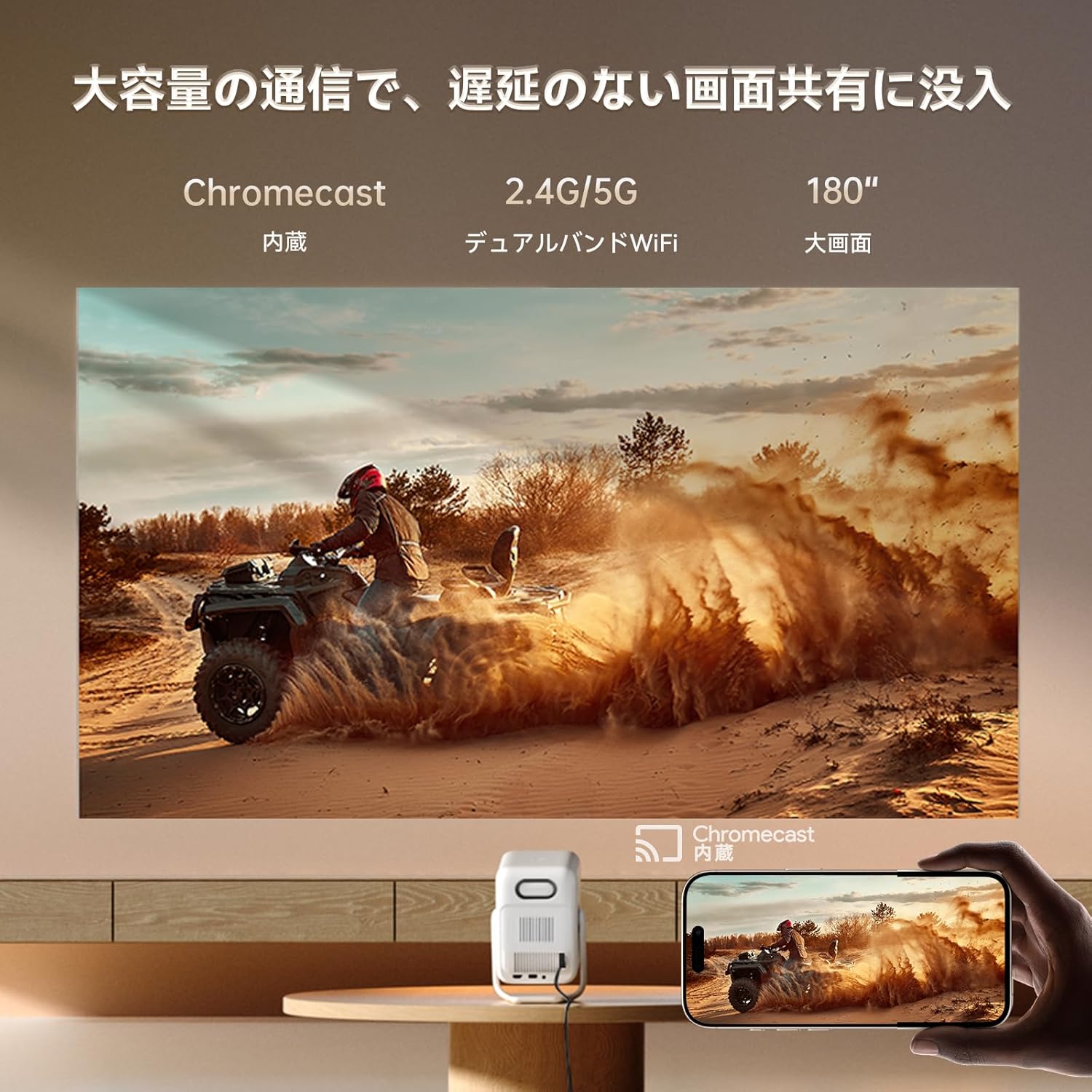
Image: A smartphone wirelessly casting content to the projector, demonstrating Chromecast functionality.
5.4 Аудио орнотуулары
The projector features dual 5W HiFi speakers (10W total) with an independent DSP amplifier for rich sound. You can also connect external audio devices.
5.4.1 Adjusting Sound Modes
- барыңыз Орнотуулар > Дисплей & Үн > Үн эффекттери.
- Choose from various sound modes like Standard, Movie, Music, News, or Sports to optimize audio for your content.
5.4.2 Bluetooth колонкасы режими
You can use the projector as a standalone Bluetooth speaker.
- Үй экранынан тандаңыз Bluetooth музыка.
- On your mobile device, enable Bluetooth and connect to the projector (device name: ISINBOX_AC311 or similar).
Video: Demonstrates Bluetooth speaker mode. Note: This video may feature a different projector model but demonstrates the general process.
6. Техникалык тейлөө
6.1 Тазалоо
- Объектив: Use a soft, lint-free cloth or lens cleaning paper to gently wipe the lens. Avoid abrasive materials or excessive pressure.
- Сырткы: Проектордун сыртын жумшак, кургак чүпүрөк менен сүртүңүз. Суюк тазалоочу каражаттарды же эриткичтерди колдонбоңуз.
- Тешиктер: Regularly clean the ventilation grilles to prevent dust buildup, which can affect performance and lifespan. Use a soft brush or compressed air.
6.2 Сактоо
- Проекторду күндүн тике тийген нурунан жана экстремалдык температурадан алыс, салкын, кургак жерде сактаңыз.
- If storing for an extended period, place the projector in its original packaging or a protective case to prevent dust accumulation and damage.
7. Кыйынчылыктарды
If you encounter issues with your Wanbo T2 Ultra projector, refer to the following common solutions:
| Көйгөй | Мүмкүн себеп | Чечим |
|---|---|---|
| No image/Power off | Power cable disconnected; Projector off | Check power connections; Press power button |
| бүдөмүк сүрөт | Out of focus; Incorrect keystone | Use auto-focus or manual focus; Adjust keystone correction |
| Үн жок | Volume too low; Muted; Incorrect audio output | Increase volume; Unmute; Check audio settings |
| Wi-Fi/Bluetooth туташуу маселелери | Incorrect password; Device out of range; Interference | Verify password; Move closer to router/device; Reduce interference |
| Пульт иштебей жатат | Low battery; Obstruction; Not paired | Replace batteries; Remove obstructions; Re-pair remote |
8. Техникалык шарттар
| Өзгөчөлүк | Спецификация |
|---|---|
| Бренд | WANBO |
| Модел | T2 Ultra |
| Операция системасы | Android TV 11.0 |
| Жарыктык | 500 ANSI челинин |
| Native Resolution | 1920 x 1080 пиксел (Full HD) |
| Ыргытуу катышы | 1.2:1 |
| Баяндамачы | 10W HiFi Stereo (Dual 5W) |
| Байланыш | HDMI (ARC), USB, 3.5mm Audio Jack, 5G Wi-Fi, Bluetooth |
| Өзгөчөлүктөр | Auto-Focus, Auto Keystone Correction, Auto Screen Adjustment, Obstacle Avoidance, Digital Zoom (50-100%), Chromecast Built-in |
| Өлчөмдөрү (W x D x H) | 14.48 x 14.22 x 21.84 см |
| Салмагы | 2.2 кг |
9. Кепилдик жана колдоо
9.1 Продукциянын кепилдиги
The Wanbo T2 Ultra projector comes with a 12-month warranty covering quality-related issues. For customers who follow the official Wanbo social media accounts (@wanboglobal), the product warranty is automatically extended to 18 months.
9.2 Кардарларды колдоо
For any questions or support needs, please contact us:
- Электрондук почта: support@szwanbo.net
We aim to respond to all inquiries within 24 hours. Lifetime support is provided for product usage.