
1. Киришүү
This manual provides essential information for the safe and efficient use of your DigiLand 11-inch Android 14 Tablet. Please read this manual thoroughly before operating the device and retain it for future reference.
2. Коопсуздук маалыматы
- Планшетти экстремалдык температурага, тике күн нуруна же жогорку нымдуулукка тийгизбеңиз.
- Планшетти түшүрүүдөн же катуу таасир этүүдөн сактаныңыз.
- Use only the charger and charging cable provided by the manufacturer.
- Планшетти өз алдынча бөлүүгө же оңдоого аракет кылбаңыз. Квалификациялуу тейлөө кызматкерлерине кайрылыңыз.
- Планшетти суудан жана башка суюктуктардан алыс кармаңыз.
3. Пакеттин мазмуну
Пакетиңизде бардык буюмдар бар экенин текшериңиз:
- DigiLand R11 Tablet
- R11 Stand Case
- Кубаттоочу түзүлүш (кубат адаптери)
- Заряддоо кабели
- User Manual

Image: Contents of the DigiLand R11 Tablet package, showing the tablet, stand case, charger, charging cable, and user manual.
4. Түзмөктүн жайгашуусу
Familiarize yourself with the physical components of your DigiLand 11-inch Android Tablet.

Сүрөт: алдыңкы жана арткы view of the DigiLand 11-inch Android Tablet, showcasing its design and key features like the screen and rear camera module.
Негизги компоненттер:
- 11 дюймдук HD IPS дисплей: Өз ара аракеттенүү жана мазмун үчүн негизги экран viewing.
- Алдыңкы камера (8 мегапиксел): Алдыңкы рамкада жайгашкан жана видео чалуулар жана селфилер үчүн колдонулат.
- Арткы камера (13MP): Located on the back of the tablet, for capturing photos and videos.
- Кубат баскычы: Планшетті күйгүзүү/өчүрүү же аны уктоо/ойготуу үчүн колдонулат.
- Үн баскычтары: Аудионун үнүн тууралаңыз.
- USB Type-C порту: Заряддоо жана маалыматтарды өткөрүү үчүн.
- Динамик торлору: Аудио чыгаруу үчүн.
- MicroSD картасынын уячасы: Сактоо аянтын кеңейтүү үчүн.
5. Орнотуу
5.1 Планшетти заряддоо
Before first use, fully charge your tablet. Connect the provided USB Type-C cable to the tablet's charging port and the other end to the power adapter. Plug the adapter into a wall outlet. The battery indicator on the screen will show charging status.

Image: The DigiLand tablet connected to a charger, showing the battery charging icon and indicating its 7000mAh capacity.
5.2 Күйгүзүү/өчүрүү
- Күйгүзүү үчүн: Press and hold the Power button until the DigiLand logo appears.
- Өчүрүү үчүн: Press and hold the Power button until the power options appear on the screen. Select "Power off."
- Кайра баштоо үчүн: Press and hold the Power button until the power options appear. Select "Restart."
5.3 Баштапкы орнотуу
Планшет биринчи жолу күйгүзүлгөндө, ал сизге баштапкы орнотуу процессин көрсөтөт:
- Каалаган тилиңизди тандаңыз.
- Wi-Fi тармагына туташыңыз.
- Google аккаунтуңуз менен кириңиз же жаңысын түзүңүз. Бул Google Play Дүкөнүнөн колдонмолорду жүктөп алуу үчүн керек.
- Review жана шарттарды кабыл алуу.
- Коопсуздук үчүн экран кулпусун (PIN, үлгү же сырсөз) орнотуңуз.
5.4 MicroSD картасын салуу
To expand storage, insert a MicroSD card (up to 256GB, not included) into the designated slot. Ensure the tablet is powered off before inserting or removing the card.

Image: A visual representation of the tablet's memory capabilities, including RAM, internal storage, and MicroSD card expansion.
6. Планшетти иштетүү
6.1 Негизги навигация
Планшет навигация үчүн тийүү жаңсоолорун колдонот:
- таптаңыз: Бир нерсени тандаңыз же колдонмону ачыңыз.
- Серпүү: Барактарды же менюларды жылдырыңыз.
- Чымчуу: Сүрөттөрдү чоңойтуу же кичирейтүү жана web барактар.
- Узак басуу: Контексттик менюларга кириңиз же колдонмонун сүрөтчөлөрүн жылдырыңыз.
6.2 Wi-Fi байланышы
- барыңыз Орнотуулар > Тармак жана интернет > Wi-Fi.
- Wi-Fi которуштуруу On.
- Тизмеден каалаган тармакты тандап, суралса сырсөздү киргизиңиз.
6.3 Bluetooth жупташтыруу
- барыңыз Орнотуулар > Туташкан түзмөктөр > Bluetooth.
- Bluetooth которуштуруу On.
- The tablet will scan for available devices. Select the device you wish to pair with and follow any on-screen prompts.
6.4 Камераларды колдонуу
Планшеттин алдыңкы камерасы 8 МП жана арткы камерасы 13 МП.

Image: Demonstrates the tablet's dual camera functionality, with examples of a landscape photo taken by the 13MP rear camera and a video call using the 8MP front camera.
- ачыңыз Камера колдонмо.
- Алдыңкы жана арткы камералардын ортосунда которулуу үчүн камера сөлөкөтүн таптап коюңуз.
- Сүрөткө тартуу же видео жазууну баштоо/токтоо үчүн жапкычты таптаңыз.
6.5 Split Screen & Screen Mirroring
- Бөлүнгөн экран: To use two apps simultaneously, open an app, then swipe up from the bottom of the screen and hold to access recent apps. Long-press the app icon at the top of the app window and select "Split screen." Choose a second app to open in the other half of the screen.
- Экранды чагылдыруу: To cast your tablet's screen to a compatible display (e.g., smart TV), go to Орнотуулар > Туташкан түзмөктөр > Туташуу артыкчылыктары > Cast. Select your desired display device.
6.6 Колдонмо башкаруу
Your tablet comes with Google Mobile Services (GMS) certified, allowing full access to the Google Play Store.
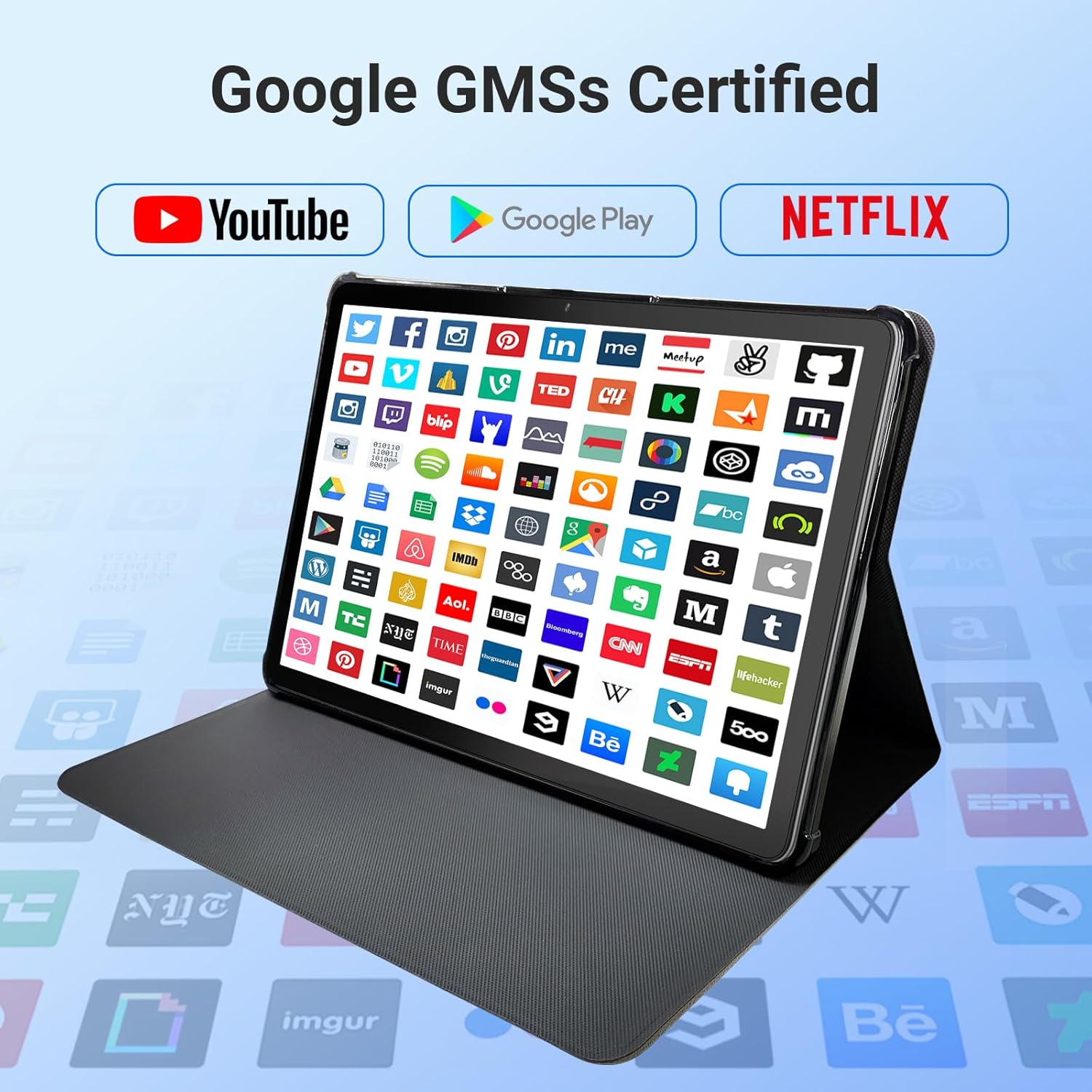
Image: The tablet screen showing numerous app icons, confirming Google GMS certification and access to popular services like YouTube and Netflix.
- Колдонмолорду орнотуу: ачыңыз Google Play дүкөнү app, search for your desired app, and tap "Install."
- Колдонмолорду чыгарып салуу: Long-press the app icon on the home screen or app drawer, then drag it to "Uninstall" or select "App info" and choose "Uninstall."
7. Техникалык тейлөө
7.1 Аппаратты тазалоо
Use a soft, lint-free cloth to clean the screen and body of the tablet. Do not use abrasive cleaners or solvents.
7.2 Программалык камсыздоо жаңыртуулары
Periodically check for system updates to ensure optimal performance and security:
- барыңыз Орнотуулар > Система > Системаны жаңыртуу.
- Бардык жеткиликтүү жаңыртууларды жүктөп алуу жана орнотуу үчүн экрандагы нускамаларды аткарыңыз.
7.3 Сактагычты башкаруу
Планшетиңиздин сактагычын башкаруу үчүн:
- барыңыз Орнотуулар > Сактагыч.
- Here you can see storage usage and free up space by uninstalling apps, deleting files, or clearing cache data.
8. Кыйынчылыктарды
Эгерде сиз планшетиңизде көйгөйлөргө туш болсоңуз, төмөнкү кеңири таралган чечимдерди караңыз:
| Көйгөй | Чечим |
|---|---|
| Планшет күйбөйт | Ensure the battery is charged. Connect the charger and wait a few minutes before attempting to power on again. If unresponsive, perform a force restart by holding the power button for 10-15 seconds. |
| Wi-Fi туташуу маселелери | Жөндөөлөрдө Wi-Fi иштетилгенин текшериңиз. Роутериңизди жана планшетиңизди өчүрүп-күйгүзүңүз. Тармакты унутуп, кайра туташыңыз. |
| Жай аткаруу | Close unused apps. Clear app caches (Settings > Apps > [App Name] > Storage > Clear cache). Free up storage space. Restart the tablet. |
| Колдонмолор бузулуп же катып калууда | Update the app to the latest version. Clear the app's cache and data (Settings > Apps > [App Name] > Storage). Uninstall and reinstall the app. |
| Экран жооп бербейт | Планшетті өчүрүп-күйгүзүңүз. Эгерде көйгөй чечилбесе, кардарларды тейлөө кызматына кайрылыңыз. |
9. Техникалык шарттар
Detailed technical specifications for the DigiLand 11-inch Android 14 Tablet (Model MID1109-MX):
| Өзгөчөлүк | Спецификация |
|---|---|
| Бренд | DigiLand |
| Модель аты | R11 |
| Элемент моделинин номери | MID1109-MX |
| Операция системасы | Android 14 |
| Screen Size | 11 дюйм |
| Screen Resolution | 1280x800 Pixels (HD IPS) |
| Процессор | 8-Core, 2 GHz (MediaTek) |
| RAM | 12 ГБ LPDDR4X |
| Ички сактагыч (ROM) | 128 ГБ |
| Кеңейтүүчү сактагыч | MicroSD (TF картасы) аркылуу 256 ГБ чейин |
| Графикалык сопроцессор | Мали-G52 |
| Арткы Webcam Resolution | 13 депутат |
| Фронт Webcam Resolution | 8 депутат |
| Зымсыз түрү | 802.11a/b/g/n/ac (Dual-band 2.4G/5G Wi-Fi) |
| Bluetooth | Bluetooth 5.0 |
| Батарея | 7000 мАч литий полимери |
| Батареянын орточо иштөө мөөнөтү | Up to 15 Hours (8 hours HD video playback) |
| Элемент Салмагы | 1.32 фунт |
| Продукциянын өлчөмдөрү | 10.16 x 6.69 x 0.32 дюйм |
| Түс | Боз |
10. Кепилдик жана колдоо
Your DigiLand tablet is covered by a manufacturer's warranty. Please refer to the warranty card included in your package for specific terms and conditions. For technical support, product inquiries, or warranty claims, please visit the official DigiLand webсайтка же кардарларды тейлөө бөлүмүнө кайрылыңыз.
DigiLand Official Webсайт: Visit DigiLand Store on Amazon