
1. Киришүү
This manual provides detailed instructions for the installation, operation, maintenance, and troubleshooting of your TP-Link Archer NX600 5G Wireless Router. The Archer NX600 is designed to deliver high-speed 5G connectivity with Wi-Fi 6 AX3600Mbps dual-band performance. It features a 2.5G WAN/LAN port and two Gigabit LAN ports, offering a plug-and-play setup for advanced network sharing. It is compatible with EasyMesh and HomeShield for flexible and secure home networking.
2. Пакеттин мазмуну
Таңгагыңызда бардык буюмдар бар экенин текшериңиз. Эгерде кандайдыр бир буюм жок болсо же бузулуп калса, сатуучуга кайрылыңыз.
- TP-Link Archer NX600 5G Wireless Router
- Кубаттуу адаптер
- Ethernet кабели
- Ыкчам орнотуу колдонмосу
3. Техникалык жабдыктар бүттүview
Роутериңиздин физикалык компоненттери менен таанышыңыз.
3.1 алдыңкы панели

Сүрөттүн сүрөттөлүшү: The front panel of the Archer NX600 router is white with a vertical black strip containing LED indicators. These indicators show the status of signal strength, internet connection, Wi-Fi, and power.
3.2 Арткы панель
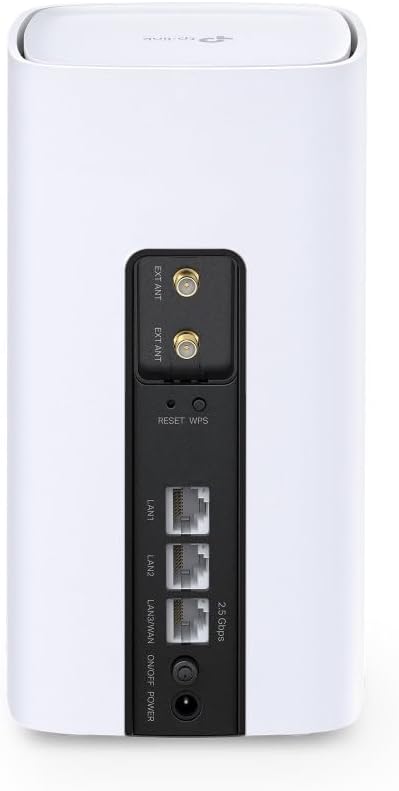
Сүрөттүн сүрөттөлүшү: The rear panel of the Archer NX600 router features various ports and buttons. From top to bottom, it includes two external antenna connectors (EXT ANT), a Reset/WPS button, two Gigabit LAN ports (LAN1, LAN2), a 2.5G WAN/LAN port, an On/Off switch, and a power input port.
3.3 LED көрсөткүчтөрү
- Сигнал күчү: Indicates the strength of the 5G/LTE cellular signal.
- Интернет: Интернет байланышынын абалын көрсөтөт.
- Wi-Fi: Wi-Fi тармагынын активдүүлүгүн көрсөтөт.
- Күч: Аппараттын кубат абалын көрсөтөт.
3.4 Порттор жана баскычтар
- SIM карта слоту: 5G/4G SIM картаңызды бул жерге салыңыз.
- 2.5G WAN/LAN порту: Connect to a modem for wired internet or to a device for high-speed LAN connection.
- Гигабит LAN порттору (x2): Компьютерлер же оюн консолдору сыяктуу зымдуу түзмөктөрдү туташтырыңыз.
- Калыбына келтирүү/WPS баскычы: Press and hold to reset the router to factory settings. Press briefly to activate WPS.
- Электр порту: Берилген кубат адаптерин туташтырыңыз.
- Күйгүзүү/өчүрүү: Power the router on or off.
4. Орнотуу
Follow these steps for initial setup of your Archer NX600 router.
4.1 SIM картаны кыстарыңыз
- Роутер өчүрүлгөнүн текшериңиз.
- Locate the SIM card slot, typically on the bottom or side of the device.
- Insert your 5G/4G SIM card into the slot until it clicks into place. Ensure the correct orientation as indicated on the router.
4.2 Кубат күйгүзүлдү
- Берилген кубат адаптерин роутердин кубат портуна, андан кийин розеткага туташтырыңыз.
- Press the On/Off switch to power on the router.
- Wait for the LED indicators on the front panel to stabilize. The Signal Strength and Internet LEDs should indicate a stable connection.
4.3 Интернетке туташыңыз
The router is designed for plug-and-play operation with a SIM card. Once the SIM card is inserted and the router is powered on, it should automatically connect to the 5G/4G network.
You can connect your devices to the router via Wi-Fi or Ethernet cable:
- Wi-Fi туташуусу: Find the Wi-Fi network name (SSID) and password printed on the label at the bottom of the router. Select this network on your device and enter the password.
- Ethernet туташуусу: Connect an Ethernet cable from one of the router's LAN ports to your computer or other wired device.
4.4 мүмкүндүк алуу Web Башкаруу интерфейси
For advanced settings and configuration, access the router's web башкаруу интерфейси:
- Connect your device to the router (Wi-Fi or Ethernet).
- ачуу а web браузерди жана демейки кирүү дарегин киргизиңиз (мисалы, http://tplinkwifi.net or the IP address printed on the router label) in the address bar.
- Log in using the administrator password you set during the first login, or the default password (if not changed).
5. Иштөө нускамалары
This section covers common operational aspects of your Archer NX600 router.
5.1 Wi-Fi Network Management
аркылуу web management interface, you can:
- Wi-Fi тармак аталыштарын (SSID) жана сырсөздөрдү өзгөртүңүз.
- Конок тармактарын иштетүү же өчүрүү.
- Wi-Fi коопсуздук жөндөөлөрүн конфигурациялаңыз.
5.2 EasyMesh шайкештиги
The Archer NX600 supports EasyMesh, allowing it to work with other EasyMesh-compatible devices to form a unified mesh Wi-Fi network. This provides seamless coverage with a single Wi-Fi name throughout your home.
- Refer to the EasyMesh setup guide within the router's web interface or on the TP-Link support website for detailed instructions on expanding your mesh network.
5.3 HomeShield Features
TP-Link HomeShield provides comprehensive network protection and parental controls. Access these features via the TP-Link Tether app or the web башкаруу интерфейси.
- Тармакты коргоо: Real-time IoT protection, malicious site blocker, intrusion prevention, and home network scanner.
- Ата-энелик көзөмөл: Profile management, content filtering, time limits, and insights.
- Кызматтын сапаты (QoS): Оптималдуу иштөө үчүн түзмөктөргө же иш-аракеттерге артыкчылык бериңиз.
5.4 Using the 2.5G WAN/LAN Port
The versatile 2.5G port can be configured as either a WAN port or a LAN port:
- WAN режими: Connect an external modem (cable, fiber, or DSL) to this port to use the Archer NX600 as a traditional wireless router, in addition to its 5G capabilities.
- LAN режими: Use this port to connect a high-speed wired device, such as a network-attached storage (NAS) or a powerful desktop PC, for faster local network transfers.
6. Техникалык тейлөө
Үзгүлтүксүз техникалык тейлөө роутериңиздин оптималдуу иштешин жана узак мөөнөттүү иштешин камсыз кылууга жардам берет.
- Жайгашкан жери: Роутерди тоскоолдуктардан жана тоскоолдук булактарынан (мисалы, микротолкундуу мештер, зымсыз телефондор) алыс, борбордук жерге коюңуз.
- Вентиляция: Ensure adequate airflow around the router to prevent overheating. Do not cover ventilation openings.
- Программалык камсыздоонун жаңыртуулары: Маршрутизатор аркылуу микропрограммалык камсыздоонун жаңыртууларын мезгил-мезгили менен текшерип жана орнотуп туруңуз web башкаруу интерфейси. Жаңыртуулар көбүнчө өндүрүмдүүлүктү жакшыртууларды, коопсуздук патчтарын жана жаңы функцияларды камтыйт.
- Тазалоо: Gently clean the router's exterior with a soft, dry cloth. Avoid using liquid cleaners or abrasive materials.
- Кайра жүктөө: If you experience minor performance issues, try rebooting the router by unplugging it from the power outlet for 10 seconds and then plugging it back in.
7. Кыйынчылыктарды
Бул бөлүм сиз кабылышы мүмкүн болгон жалпы көйгөйлөрдү карайт.
7.1 Интернет байланышы жок
- SIM картаны текшерүү: SIM карта туура салынганын жана интернет планы менен активдүү экенин текшериңиз.
- LED көрсөткүчтөрү: Verify that the Signal Strength and Internet LEDs are solid green. If not, try repositioning the router or checking your SIM card.
- APN Орнотуулары: Ичинде web management interface, check the APN (Access Point Name) settings. These are usually configured automatically, but may need manual adjustment for some carriers.
- Кайра жүктөө: Power cycle the router.
7.2 Интернеттин жай ылдамдыгы
- Сигнал күчү: Check the Signal Strength LED. If it's low, try moving the router to a location with better 5G/4G reception.
- Тармактын тыгыны: High network traffic from multiple devices can reduce speed. Consider using QoS settings to prioritize important devices or applications.
- Wi-Fi кийлигишүүсү: Other wireless devices can interfere with your Wi-Fi signal. Try changing Wi-Fi channels in the router settings.
- Carrier Throttling: Your mobile carrier might be throttling your speed after a certain data usage. Check your data plan.
7.3 Cannot Connect to Wi-Fi Printer
Some older Wi-Fi printers may have compatibility issues with newer Wi-Fi standards or dual-band networks. If you are experiencing difficulty connecting a Wi-Fi printer:
- Separate Wi-Fi Bands: Маршрутизатордо web management interface, try separating the 2.4 GHz and 5 GHz Wi-Fi networks by giving them different SSIDs (network names). Then, attempt to connect your printer specifically to the 2.4 GHz network, as many older printers only support this band.
- Принтердин микропрограммасы: Принтериңиздин микропрограммасы жаңыртылганын текшериңиз.
- WPS: Try using the WPS button on the router and your printer (if supported) for an easier connection.
- Ethernet туташуусу: If possible, connect the printer to one of the router's LAN ports using an Ethernet cable.
7.4 Router Overheating
If the router feels excessively hot or experiences frequent disconnections, it might be overheating.
- Вентиляция: Роутердин жакшы желдетилген жерге коюлганын жана желдеткич тешиктери бүтөлүп калбаганын текшериңиз.
- Айлана-чөйрөнүн температурасы: Avoid placing the router in direct sunlight or in an enclosed space where heat can build up.
8. Техникалык шарттар
| Өзгөчөлүк | Деталь |
|---|---|
| Бренд | TP-Link |
| Модель аты | Archer NX600 5G/4G Wi-Fi 6 |
| Элемент моделинин номери | Archer NX600 |
| Байланыш технологиясы | Wi-Fi |
| Зымсыз байланыш стандарты | 802.11ax |
| Жыштык тилкесинин классы | Dual Band |
| Өзгөчө өзгөчөлүк | Dual Band |
| Зымсыз түрү | 802.11ax |
| Операция системасы | TP-Link ОС |
| Түс | Ак |
| Элемент Салмагы | 600 грамм |
| Пакеттин өлчөмдөрү | 22.8 x 22.7 x 11.9 см |
| Продукт үчүн сунушталган колдонуу | Үй |
| Шайкеш түзмөктөр | Smartphone, Tablet, PC, Gaming Console, Smart TV, Surveillance Camera, Smart Thermostat, Printer |
| Камтылган компоненттер | TP-Link Archer NX600 |
9. Кепилдик жана колдоо
Кепилдик жөнүндө маалымат жана техникалык колдоо алуу үчүн, расмий TP-Link сайтына кайрылыңыз website or the warranty card included with your product. You can typically find:
- Продукцияны каттоо.
- Technical support contact information (phone, email, chat).
- Firmware downloads and FAQs.
- Кепилдиктин шарттары жана шарттары.
Visit TP-Link колдоо акыркы маалымат үчүн.