
1. Киришүү
This manual provides essential information for setting up, operating, and maintaining your new CyberpowerPC Gamer Xtreme VR Gaming PC. This system is equipped with an Intel Core Ultra 5 225F processor, NVIDIA GeForce RTX 5060 graphics, 64GB DDR5 memory, and a 2TB PCIe 4.0 NVMe SSD, running Windows 11 Home. Please read this manual thoroughly before using your computer to ensure proper functionality and longevity.
2. Коопсуздук маалыматы
- Электр камсыздоо: Use only the power cord provided with the system. Ensure the power outlet is properly grounded.
- Вентиляция: Do not block any ventilation openings on the computer case. Maintain adequate space around the PC for airflow to prevent overheating.
- Суюктук жана нымдуулук: Keep the computer away from liquids and excessive moisture. Do not operate the PC with wet hands.
- Статикалык электр: Discharge static electricity from your body before touching internal components by touching a grounded metal object.
- Тейлөө: Do not attempt to service the computer yourself unless specifically instructed. Refer all servicing to qualified service personnel.
- Жайгашкан жери: Place the computer on a stable, flat surface. Avoid placing it near heat sources or in direct sunlight.
3. Пакеттин мазмуну
Төмөндө тизмеленген нерселердин баары пакетиңизге камтылганын текшериңиз:
- CyberpowerPC Gamer Xtreme VR Gaming PC
- USB RGB оюн клавиатурасы
- USB оюн чычкан
- Электр кабели
- Documentation (Quick Start Guide, Driver Discs if applicable)
4. Орнотуу
4.1 Таңгактан чыгаруу жана алгачкы текшерүү
Carefully remove the computer from its packaging. Inspect the exterior for any signs of damage. Open the side panel (if applicable, usually tempered glass) and remove any internal foam packaging designed to secure components during shipping. Ensure all cables inside are securely connected.

Сүрөт: Ички view of the PC showing RGB fans, motherboard, and graphics card. Remove internal foam before operation.
4.2 Перифериялык түзүлүштөрдү туташтыруу
Мониторуңузду, клавиатураңызды, чычканыңызды жана башка перифериялык түзүлүштөрдү компьютердин арткы жана алдыңкы жагындагы тиешелүү портторго туташтырыңыз.
- Монитор: Connect your monitor to the graphics card's HDMI or DisplayPort outputs. The graphics card (NVIDIA GeForce RTX 5060) has 1x HDMI and 3x DisplayPort outputs. Ensure you connect to the dedicated graphics card ports, not the motherboard's integrated graphics ports (if present).
- Баскычтоп жана чычкан: Connect the USB gaming keyboard and mouse to any available USB ports.
- Күч: Connect the power cord to the power supply unit (PSU) at the rear of the PC, then plug it into a grounded electrical outlet.
- Тармак: For a wired connection, connect an Ethernet cable to the RJ45 LAN port. For wireless, ensure the Wi-Fi antennas (if included) are attached.
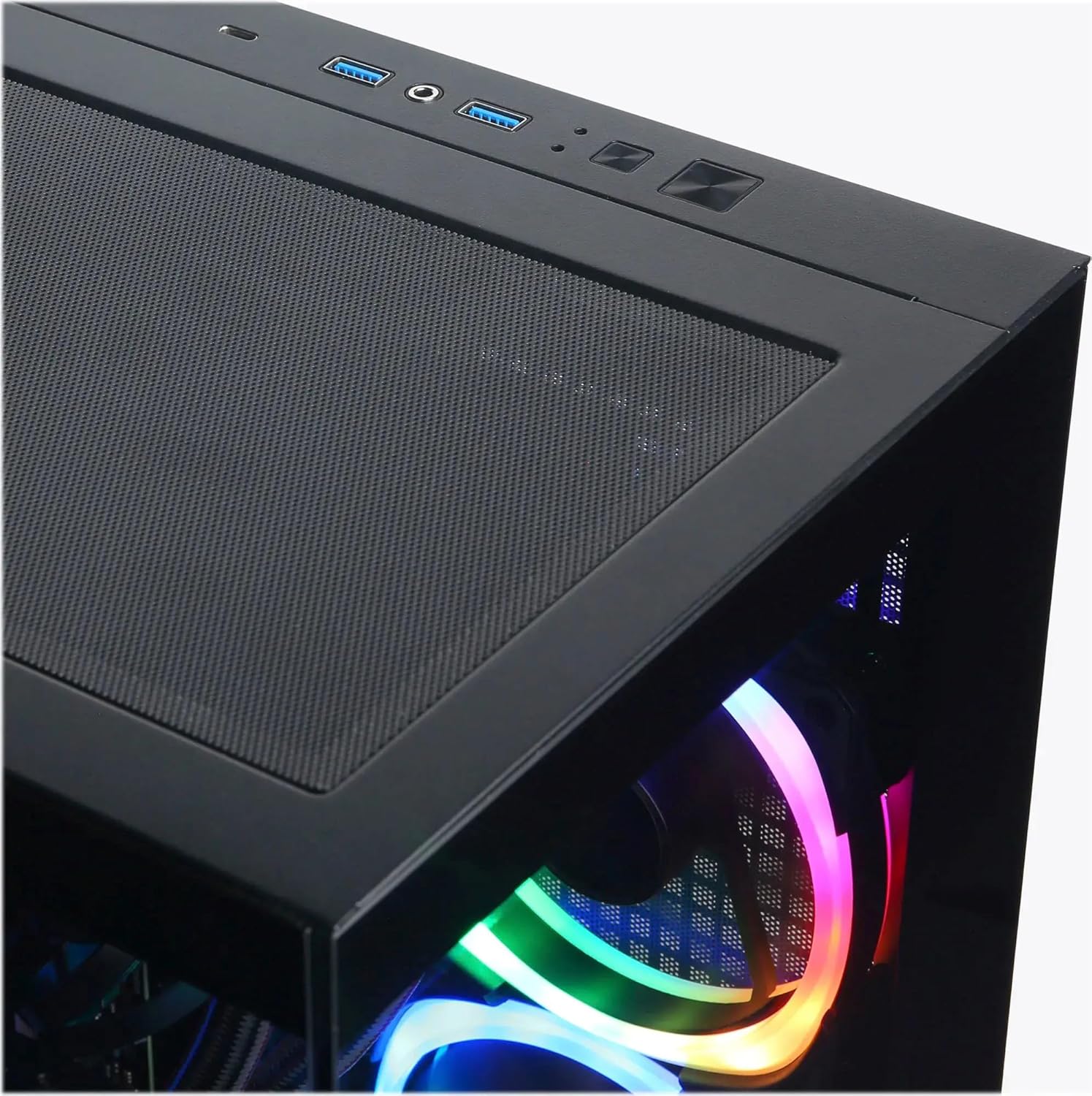
Image: Top I/O panel with USB ports, audio jacks, and power button.
4.3 Windowsту баштапкы жүктөө жана орнотуу
Press the power button located on the top of the case. The system will boot into Windows 11 Home. Follow the on-screen instructions to complete the initial Windows setup, including language, region, network connection, and user account creation.
5. Иштөө
5.1 Күйгүзүү/өчүрүү
- Күйгүзүү: Press the power button on the top of the PC.
- Өчүрүү: Click the Start button in Windows, then select Power > Shut down. Avoid directly holding the power button to shut down, as this can lead to data loss or system instability.
- Кайра баштоо: Windows'тун Start баскычын чыкылдатып, андан кийин Кубат > Кайра баштоону тандаңыз.
5.2 Киргизүү/чыгаруу портторун түшүнүү
Your PC is equipped with various ports for connectivity:
- USB 3.1 Type-C: 1 (Front) - For high-speed data transfer and compatible devices.
- USB 3.1 Type-A: 5 (2 Front, 3 Rear) - For general USB devices like keyboards, mice, and external drives.
- USB 2.0: 2 (Rear) - For older USB devices or peripherals that do not require high-speed data.
- RJ45 LAN: 1 (Rear) - For wired Ethernet network connection.
- Аудио порттор: 3 (Rear - Speaker / Microphone / Line In), 1 (Front - Headphone/Microphone Combo) - For audio input/output.
- HDMI2.1: 1 (Graphics Card) - For connecting to displays.
- DisplayPort 2.1: 3 (Graphics Card) - For connecting to displays.
5.3 RGB жарыкты башкаруу
Your system features custom RGB lighting. Control software for the RGB lighting may be pre-installed or available for download from the CyberpowerPC website. Refer to the software's instructions for customizing lighting effects and colors.
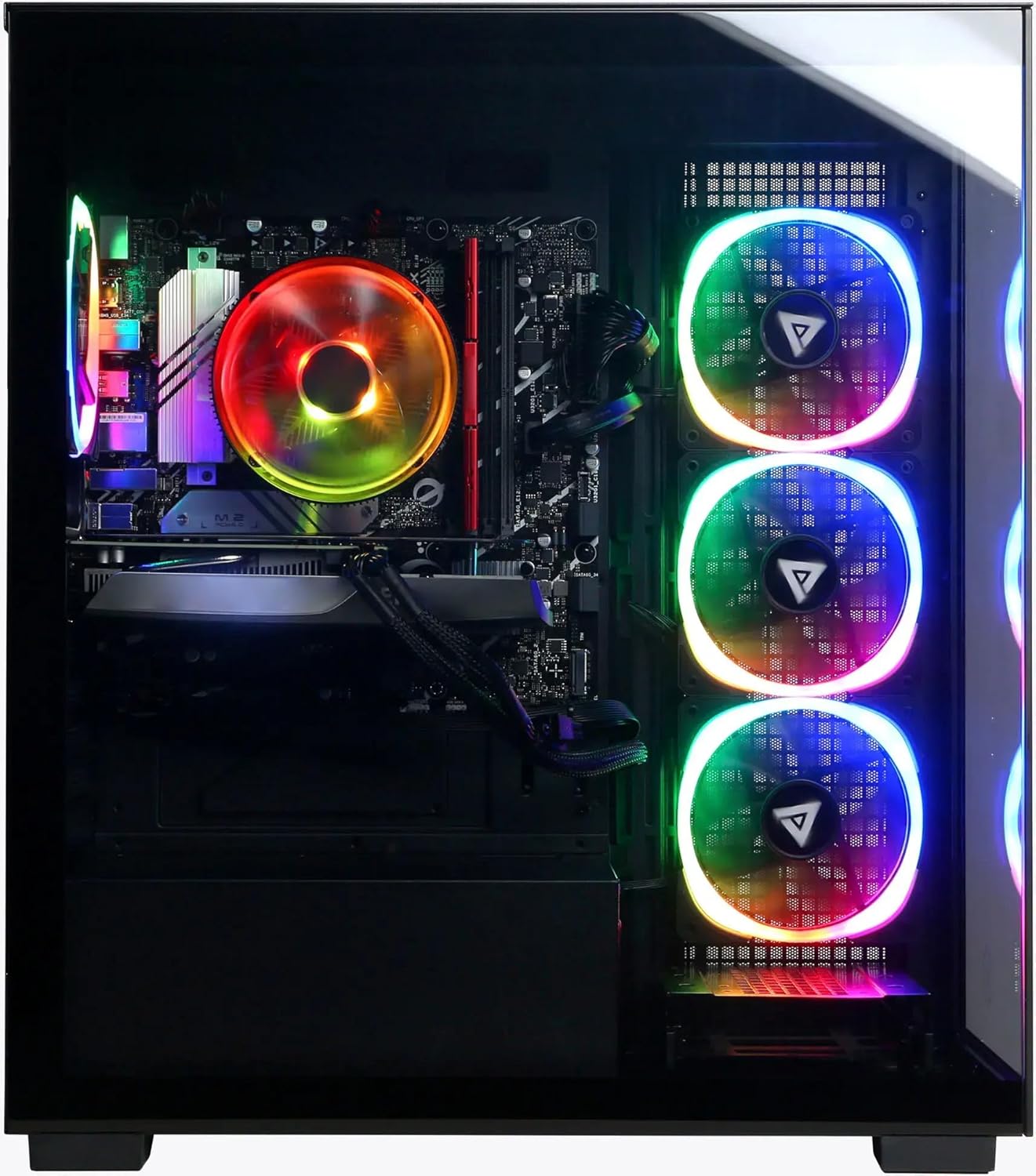
Сүрөт: алдыңкы жана каптал view of the PC showcasing анын ыңгайлаштырылган RGB жарыктандыруусу.
6. Техникалык тейлөө
6.1 Тазалоо
- Сырткы: жумшак колдонуу, damp cloth to clean the exterior of the case. Avoid harsh chemicals.
- Чаң: Periodically clean dust from the ventilation grilles and internal components using compressed air. Ensure the PC is powered off and unplugged before cleaning.
6.2 Программалык камсыздоо жаңыртуулары
Regularly update your operating system (Windows Update), graphics drivers (NVIDIA website), and other software to ensure optimal performance and security.
6.3 Вентиляция
Ensure the PC has unobstructed airflow. Do not place the computer in an enclosed space or directly against a wall. Proper ventilation is crucial for preventing overheating and maintaining component lifespan.
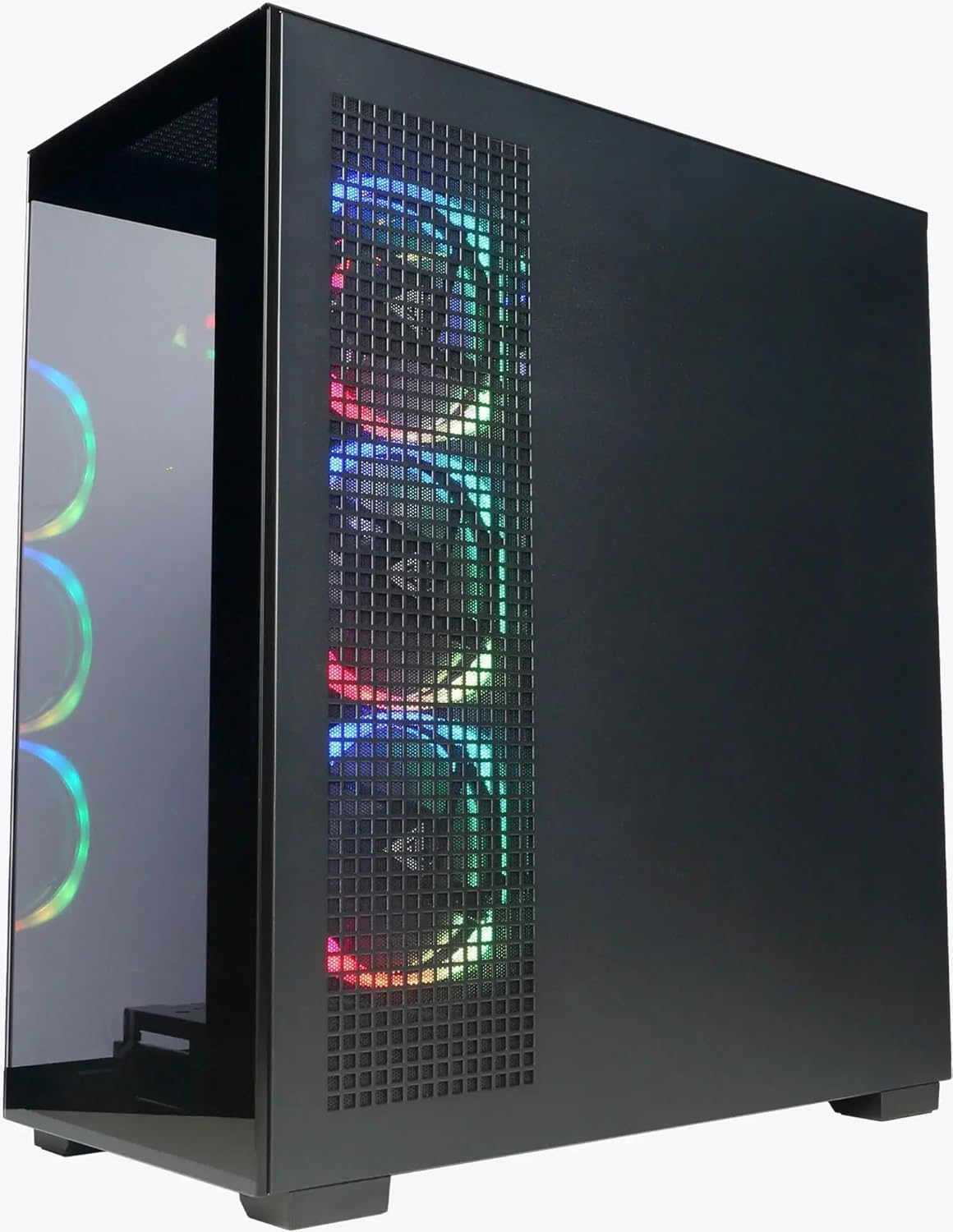
Сүрөт: каптал view of the PC highlighting the mesh ventilation panel for airflow.
7. Кыйынчылыктарды
If you encounter issues with your CyberpowerPC, consider the following basic troubleshooting steps:
- Кубат жок:
- Ensure the power cord is securely connected to both the PC and the wall outlet.
- Verify the power switch on the PSU (at the back of the PC) is in the 'On' position.
- Башка электр розеткасын колдонуп көрүңүз.
- Дисплей жок:
- Confirm the monitor is powered on and connected to the graphics card's output (HDMI or DisplayPort), not the motherboard's video output.
- Башка видео кабелин же бар болсо мониторду колдонуп көрүңүз.
- Ensure the monitor input source is correctly selected.
- Интернет байланышы жок:
- For wired connections, check if the Ethernet cable is properly connected and your router/modem is working.
- For Wi-Fi, ensure Wi-Fi is enabled in Windows and you are connected to the correct network with the correct password.
- Check device drivers for network adapters in Device Manager.
- Системанын жайлоосу/тоңдуруусу:
- Компьютерди өчүрүп күйгүзүңүз.
- Check for background applications consuming excessive resources (Task Manager).
- Windows жана драйверлер жаңыртылганын текшериңиз.
- Вирусту/зыяндуу программаны сканерлөөнү иштетиңиз.
If these steps do not resolve the issue, please contact CyberpowerPC customer support.
8. Техникалык шарттар
| Компонент | Деталь |
|---|---|
| Процессор | Intel Core Ultra 5 225F (3.3GHz base, Max 4.9GHz) |
| Motherboard | Intel B860 чипсети |
| Эс | 64 ГБ DDR5 RAM |
| Сактагыч | 2TB PCIe 4.0 NVMe SSD |
| Графикалык карта | NVIDIA GeForce RTX 5060 8 ГБ GDDR5 |
| Операция системасы | Windows 11 Home |
| Байланыш | Wi-Fi 6, Bluetooth 5.3, 10/100/1000 Gigabit Ethernet LAN |
| Киргизүү/чыгаруу порттору (алдыңкы) | 1x USB 3.1 Type-C, 2x USB 3.1 Type-A, 1x Headphone/Microphone Combo |
| Киргизүү/чыгаруу порттору (арткы) | 3x USB 3.1 Type-A, 2x USB 2.0, 1x RJ45 LAN, 3x Audio Ports (Speaker/Mic/Line In) |
| Video Outputs | 1x HDMI 2.1, 3x DisplayPort 2.1 (from Graphics Card) |
| CPU муздатуу | Air Cool |
| Электр камсыздоо | 600W 80 Plus Gold |
| Өлчөмдөрү (H x W x D) | 19.9" x 8.6" x 17.7" (50.5см x 21.8см x 44.9см) |
| Салмагы | 35 фунт (15.88 кг) |
9. Кепилдик жана колдоо
9.1 Продукциянын кепилдиги
Your CyberpowerPC Gamer Xtreme VR Gaming PC comes with a standard manufacturer's warranty. The specific terms and duration of the warranty are typically outlined in the documentation included with your product or available on the official CyberpowerPC webсайт. Кепилдик дооматтары үчүн сатып алганыңыздын далилин сактап коюңуз.
9.2 Техникалык колдоо
For technical assistance, troubleshooting beyond this manual, or warranty inquiries, please contact CyberpowerPC customer support:
- Webсайт: Visit the official CyberpowerPC website for support resources, FAQs, driver downloads, and contact information.
- Телефон/Электрондук почта: Refer to the contact details provided on the CyberpowerPC support page.
Additional protection plans may be available for purchase, offering extended coverage. Refer to your purchase details for information on any such plans.